I accidentally formatted my SD card and it had important videos on it that I really need back. I stopped using the card right away, but I’m not sure what SD card video recovery steps are safe or which recovery software actually works. I need help figuring out the best way to recover formatted SD card videos before they’re gone for good.
I had almost the same mess happen with a drone card last summer. I was rushing to get one more flight in before sunset, saw a strange storage warning in the app, and hit “Format SD Card” without thinking. A few seconds later it clicked. The whole morning’s footage was still on there, no backup, nothing. Awful feeling. Still, a format usually does not mean your files are gone for good.
A lot of people think formatting wipes an SD card clean. Most of the time, it does not. Unless you ran a slow full format on a computer, or used one of the smaller group of cameras with a hardware wipe feature, the device likely did a quick format. That usually removes the file system map, not the photo and video data itself.
The easiest way I made sense of it was this. Your card still holds the files, but the system lost the index for where they live. So your phone, camera, or computer treats the card like free space and starts writing over it when new data comes in. Until overwrite happens, the old stuff often stays there.
So if this happened to you, move fast and do these in order.
- Stop using the card right now
Take it out. Do not shoot one more clip. Do not test anything. If your SD card has a lock switch, slide it to Lock. That saved me from making my own mistake worse.
- Skip old command prompt fixes
I saw people suggesting CHKDSK and attrib in random threads. I would not touch those for a formatted card. Those tools deal with file system issues and hidden files. They do not reverse a format, and they might write changes to the card while you’re trying to preserve what is left.
- Use a real card reader
Plug the SD card into your computer with a decent USB card reader. Don’t leave it in the camera and connect the camera over USB. I’ve had cameras expose storage in weird ways, and recovery tools sometimes fail to read the card cleanly through camera firmware.
- Use recovery software built for this job
Manual fixes are a dead end here. You need software that scans the raw sectors on the card and rebuilds files from what it finds. Photos are one thing. Video is harder. Drone footage, action cam files, and mirrorless camera clips often end up fragmented, so weak tools pull pieces out of order and you get files that show up but won’t play.
- Save recovered files somewhere else
This one matters more than people think. Recover to your computer’s drive or an external SSD. Never write recovered files back onto the same SD card. If you do, you start overwriting the rest of the data you’re still trying to save. Kinda brutal, but true.
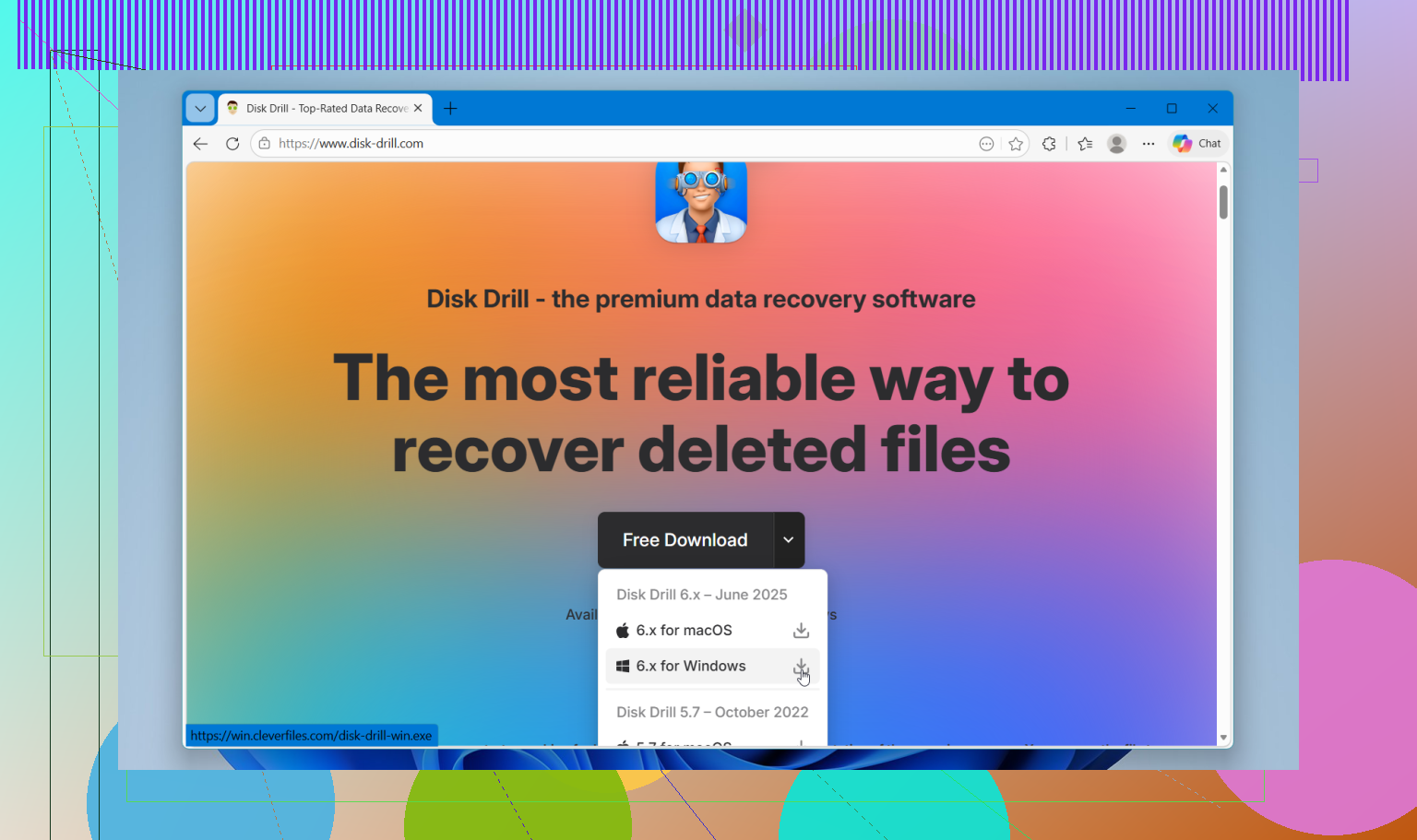
For software, I’d go straight to Disk Drill. I tried a couple of simpler tools first when I nuked my drone card. They found some photos, sure. The videos were a wreck. Broken playback, missing chunks, files with the right names and wrong guts. Disk Drill did better for me because it has camera-focused recovery features meant for fragmented media files.
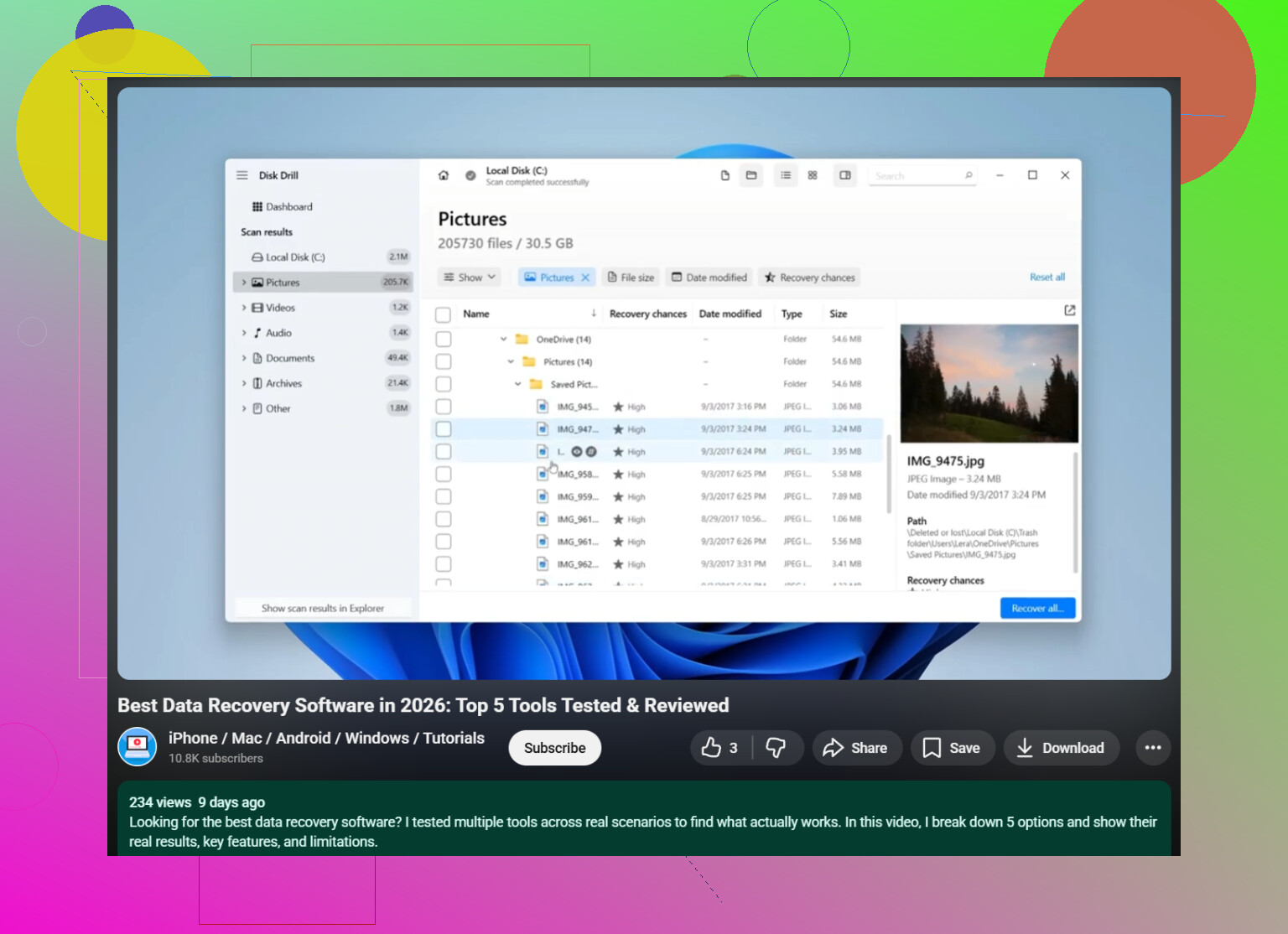
What I liked most was how it let me preview what it found before I committed to recovery. If you’re on Windows, there’s also a small free recovery allowance, 100MB last time I checked, which is enough to test whether the footage is intact before you spend time going further.
So yeah, if this is fresh, your best move is simple. Pull the card. Lock it. Put it in a reader. Run a deep scan with Disk Drill. Then recover everything to a different drive. After that, see what came back. If overwrite was low, your odds are still decent.
You did the most important part already. You stopped using the card.
I agree with @mikeappsreviewer on skipping CHKDSK. I’d push one extra step first. Make an image of the SD card before you scan it. Use something like USB Image Tool, Win32 Disk Imager, or ddrescue if the card looks flaky. Work from the image, not the card. If recovery software crashes or the reader disconnects, you still have one clean copy of the current state. For damaged cards, this matters a lot.
I also would not trust file previews too much for video. A preview might open, then the full export is broken at 2:13. Better test recovered clips all the way through.
For video, Disk Drill is a solid pick because it handles SD card scans well and tends to find more media file signatures than the cheap junk tools. If your goal is to recover videos from an SD card with Disk Drill, scan the card image, sort results by video type, then recover to your PC or an external drive. Not back to the SD card. Ever. I know, sounds obvios, but people still do it.
One more thing people miss. If the videos came from a GoPro, drone, or dash cam, some files may need repair after recovery. Recovery and repair are separate jobs.
This clip shows a simple SD card video recovery workflow with Disk Drill, watch this quick SD card video recovery demo.
If the card was full-formatted on a PC, odds drop hard. Quick format, much better odds.
I mostly agree with @mikeappsreviewer and @viajantedoceu, but I’d be a little more cautious about jumping straight into a recovery scan on the physical card if the footage is truly irreplaceable. If the card is acting even slightly weird, imaging it first is the safer play. Not mandatory every time, just smarter.
Also, one thing that gets missed a lot: the camera brand matters. Canon/Sony/Panasonic/GoPro/drone cams all write video a bit differently, and some recovered files need a repair step after recovery because the file header or ending metadata is damaged. People assume “recovered” means “playable.” Nope. Sometimes you recover first, repair second. Annoying, but thats how it goes.
What I’d do now:
- keep the SD card out of the camera
- use a quality card reader
- if possible, make a byte-for-byte image first
- scan with Disk Drill
- recover only to your computer or external SSD
- test the videos fully, not just the first few seconds
Disk Drill is a reasonable choice here because SD card video recovery is harder than basic photo recovery, and it tends to identify more video leftovers than the bargain-bin tools. If you want a simple visual walkthrough, this step by step guide to the best data recovery software for SD card videos is worth a look.
One other semi-disagreement: if the videos are super important, don’t keep rescanning over and over with different apps “just to compare.” That turns people into their own worst enemy real fast, lol. Pick one solid tool, recover what you can, then assess.
Small disagreement with @viajantedoceu and @andarilhonoturno on one point: if the card was formatted by the camera itself, I would also check whether the camera created a new folder structure immediately after the format. That can tell you if only metadata changed or if some sectors were reused right away. Not a recovery step, just a clue about your odds.
What matters now is triage:
- keep the card untouched
- use a different SD card for anything else
- if Windows asks to scan or fix it, cancel
- check the card’s reported capacity in Disk Management or macOS System Information
That last part matters because fake or failing SD cards often show weird size behavior, and recovery software results get messy fast if the card itself is bad.
On software, Disk Drill is a sensible option for SD card video recovery, especially if you want one app that is easy to sort through by file type instead of dumping thousands of raw fragments at you.
Pros for Disk Drill:
- clean interface
- good at finding common video formats on SD cards
- previews and file filtering help cut noise
- decent for quick format cases
Cons:
- preview is not proof a long video is fully intact
- deep scans can return lots of duplicate or generic names
- not the cheapest route if you need full recovery
- if the card is physically unstable, software alone will not save the day
My extra advice: after recovery, compare file sizes against what your camera usually produces per minute of video. Tiny recovered clips with the right extension are often junk. That sanity check saves time.
So yes, Disk Drill is worth trying, but treat recovery and verification as two separate jobs, same point @mikeappsreviewer was getting at.