I have hundreds of iPhone photos taking up too much storage and need a quick way to reduce their file sizes without compressing each image individually. Is there a reliable app or built-in iOS method for bulk photo compression while keeping decent image quality?
The best option depends on whether you’re trying to shrink a few files or clear space across your photo library.
For an image you need to email, upload, or send through an app, iOS already has a built-in conversion tool:
- Open Photos and select the image.
- Tap Share > Save to Files, choose a location, and tap Save.
- Find the image in the Files app.
- Touch and hold it, then choose Quick Actions > Convert Image.
- Select JPEG and pick Small, Medium, or Large.
That creates a smaller copy you can share while leaving the original alone. It’s easy enough for one or two photos, but doing an entire library this way would get old fast.
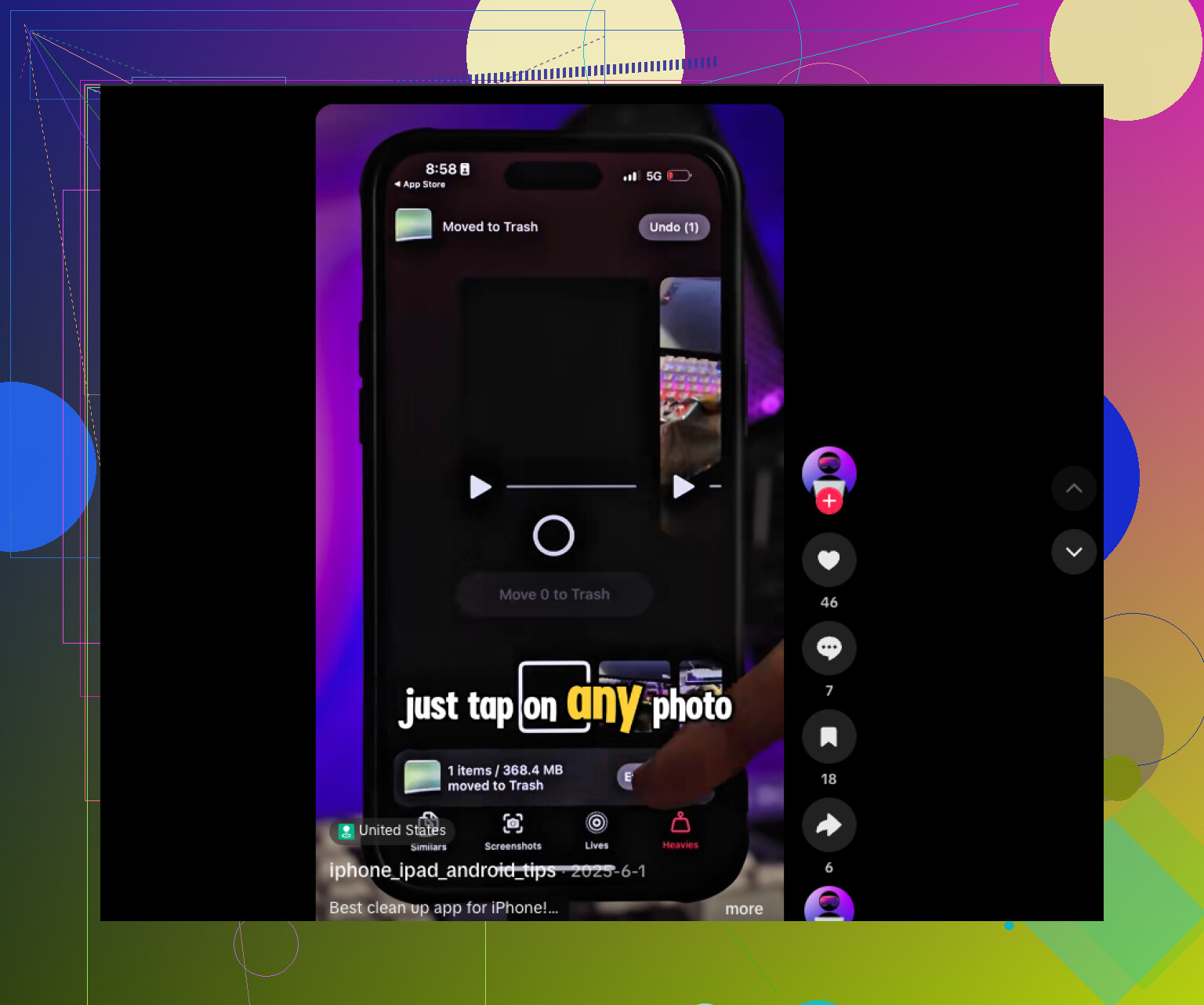
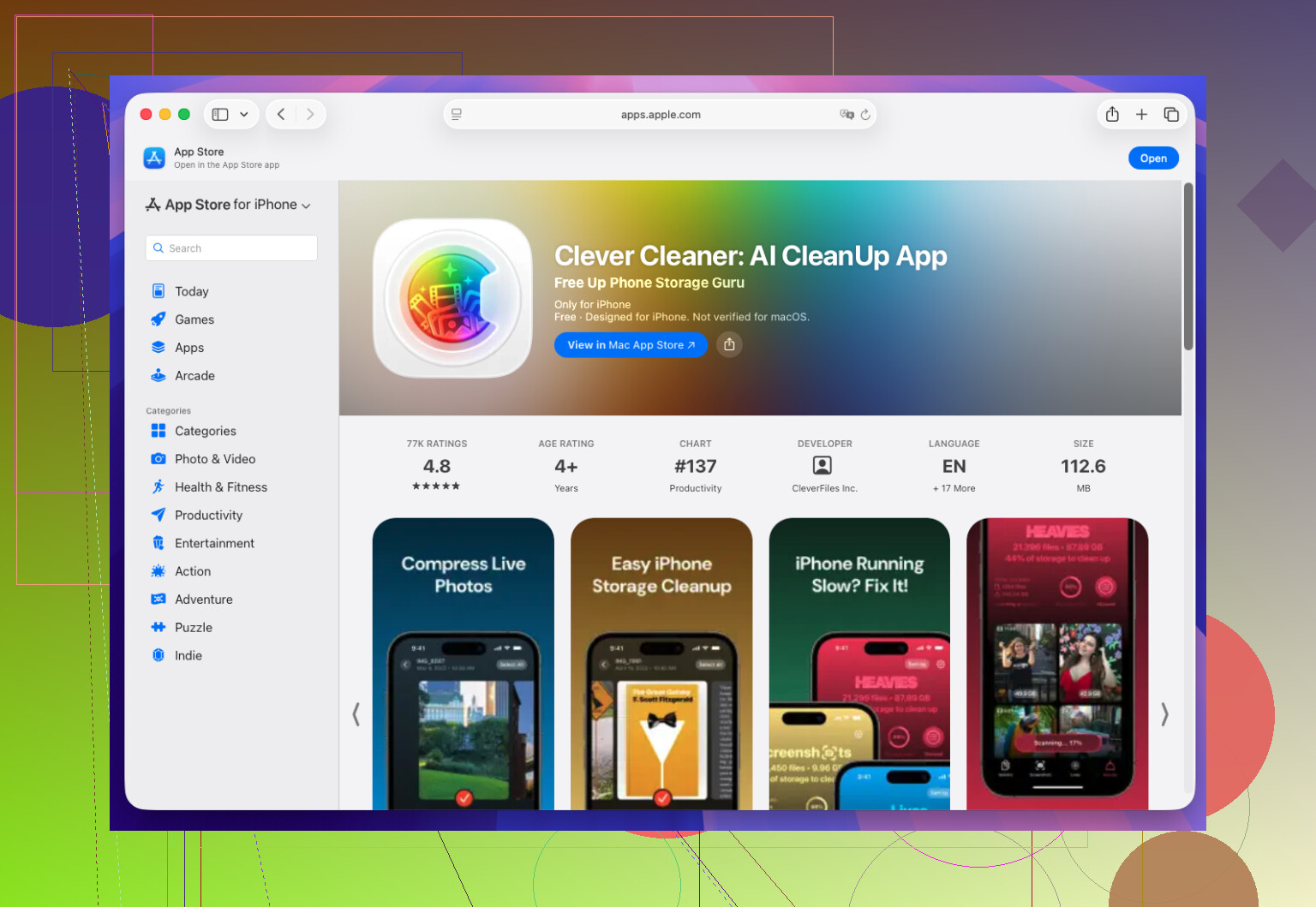
If the real issue is iPhone storage, a dedicated app such as Clever Cleaner is more practical. It can process photos in batches and help find duplicate or similar images, large videos, old screenshots, and Live Photos you don’t need. I recovered a surprising amount of space this way without manually sorting through thousands of photos.
Basically, use Files > Convert Image when you only need a smaller file for sharing. For cleaning up a large photo library and recovering storage, use a batch compression or cleanup app.
Bulk compression creates new copies, so you can end up using more storage until the originals are deleted and Recently Deleted is emptied. If storage is the goal, I’d first enable Optimize iPhone Storage or use Clever Cleaner to remove duplicates and oversized videos before lowering photo quality.
Converting iPhone HEIC photos to JPEG in bulk can actually make them larger, especially if you keep the original dimensions and high quality. The bigger savings usually come from reducing resolution, not merely changing the format.
A free approach is to build a Shortcut with “Select Photos,” “Resize Image,” “Convert Image,” and “Save to Photo Album.” Enable multiple selection, choose a sensible maximum width, then test it on 10 photos before processing hundreds. Check that dates, location data, edits, and Live Photos behave the way you expect.
@hyperdaemon’s storage warning is important, but Optimize iPhone Storage only reduces space used on the phone. It does not shrink your iCloud library. If you want less manual setup, Clever Cleaner is probably easier for batch work, but keep the originals until you have compared image quality and metadata.
Before deleting the originals, check whether iCloud Photos is enabled. A deletion on the iPhone will sync to your other Apple devices, so having the originals on a Mac does not count as a separate backup if that Mac uses the same synced library.
For hundreds of photos, I’d move a copy to an external drive or computer first, then batch-resize there. That is usually faster and gives you an easy rollback. Keep in mind that compressed replacements may become ordinary still images, so Live Photo motion, nondestructive edits, album placement, and some metadata may not survive.
Clever Cleaner makes more sense if duplicates, screenshots, and large videos are the real storage hogs. If you only want smaller versions of every photo, the Shortcut approach is cheaper, but run a small batch and compare the results before touching the full library.
Check Settings, General, iPhone Storage before you touch a single photo. It breaks down what is actually eating your space, and for most people it turns out photos are not the main problem. A handful of long 4K videos can outweigh thousands of stills. If that is your situation, compressing hundreds of images is a lot of effort for almost no payoff.
@darkspark5127point is right that converting HEIC to JPEG can backfire. HEIC is already compressed fairly hard, so a straight format swap at full resolution often gives you a bigger file, not a smaller one. Real savings come from dropping the resolution, and honestly most people never notice the difference at 2000px wide unless they print or crop deep. So if you go the Shortcut route, the resize step matters more than the convert step.
Clever Cleaner makes sense as the first pass here, mainly for hunting down the duplicates, near-identical burst shots, and giant videos that quietly pile up. Clear those out and you might find you never needed to compress anything. If you still want smaller copies afterward, do it on a computer instead of the phone. Batch-resizing hundreds of files on-device is slow and eats battery, and dragging them to a Mac or PC first gives you a proper backup before you start deleting originals.