My iPhone storage is almost full, and Photos is using most of the space. I’ve deleted pictures and videos, but the photo data still seems unusually large. What’s the safest way to clear iPhone photo storage without losing anything important?
The quickest way I found to deal with the “iPhone Storage Almost Full” warning was to focus on the Photos app. Random storage tricks didn’t make nearly as much difference as cleaning up the actual photo library.
Start with duplicate and similar photos. Burst shots, edited copies, and images shared back and forth can leave you with several versions of basically the same picture. After that, look at your videos. A few long clips or 4K recordings can use several gigabytes by themselves. Live Photos and old screenshots are also worth checking since they tend to pile up quietly.
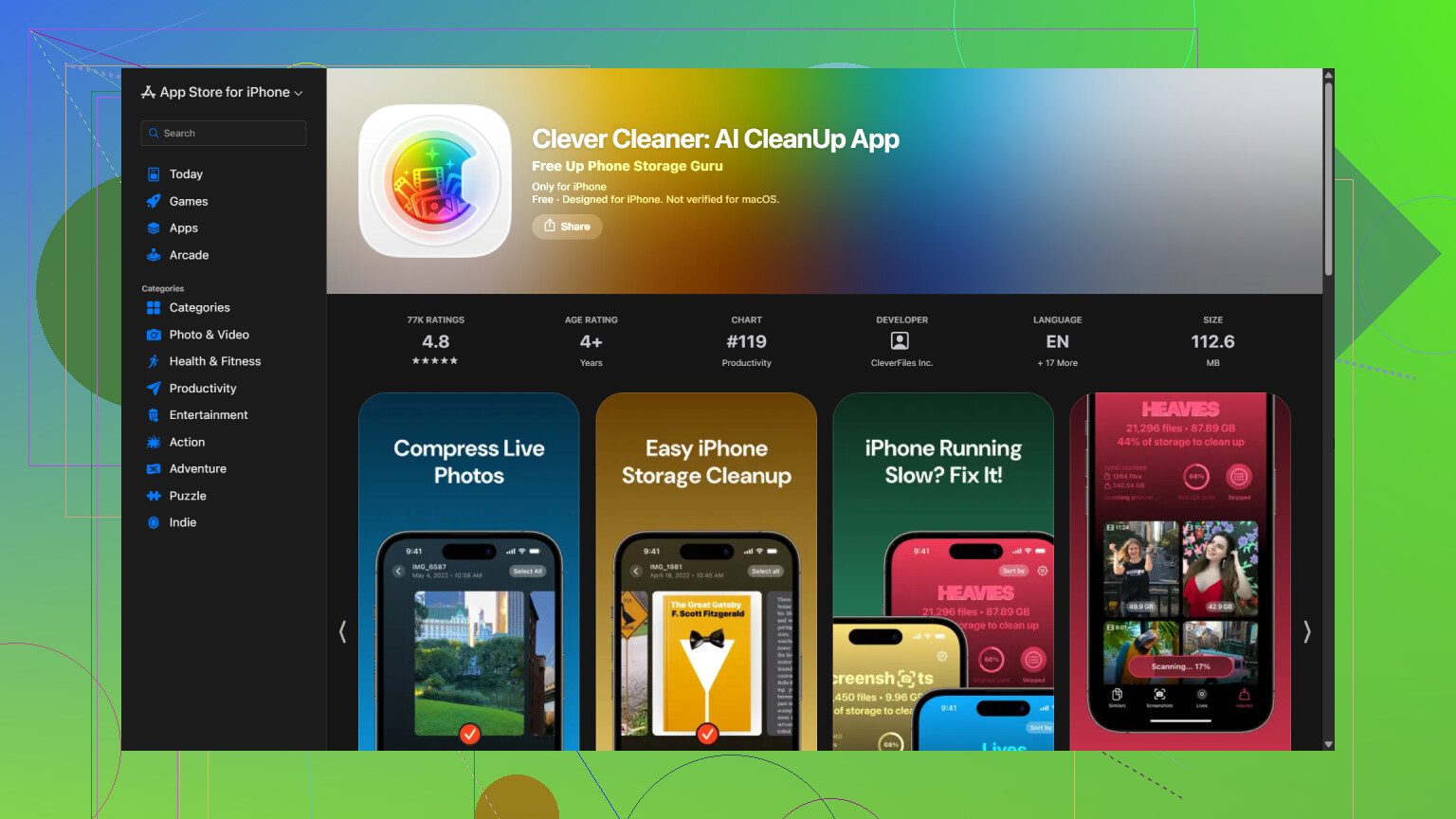
I didn’t want to sort through the entire library by hand, so I used Clever Cleaner. It scans the library and separates duplicate and similar photos, duplicate videos, Live Photos, screenshots, and large files into categories you can review.
There’s also a Compress tool for photos and screenshots you want to keep without storing them at full size. Smart Cleanup handles several categories together, while Swipe mode lets you make the call on each photo individually. Swipe mode remains unlimited. The app is free to use, has no ads, and doesn’t require a subscription to get started, though some cleanup features now have a fairly generous daily limit for new users.
A practical order for cleaning things up is:
- Scan the photo library with Clever Cleaner.
- Remove duplicate and similar photos.
- Check large videos and duplicate videos.
- Delete unwanted Live Photos, or compress the ones you want to keep.
- Clear out old screenshots.
- Compress any photos or screenshots that don’t need to stay at full size.
- Open the Recently Deleted album in Photos and empty it, otherwise the storage won’t be reclaimed right away.
If you have iCloud Photos enabled, turn on Optimize iPhone Storage under Settings > Photos. That keeps smaller versions on the phone while the full-resolution originals remain in iCloud. It can save a decent amount of local space without deleting your pictures.
Duplicates, large videos, Live Photos, and screenshots were the main storage hogs for me. Once those are under control, keeping the library from filling up again is much less of a hassle.
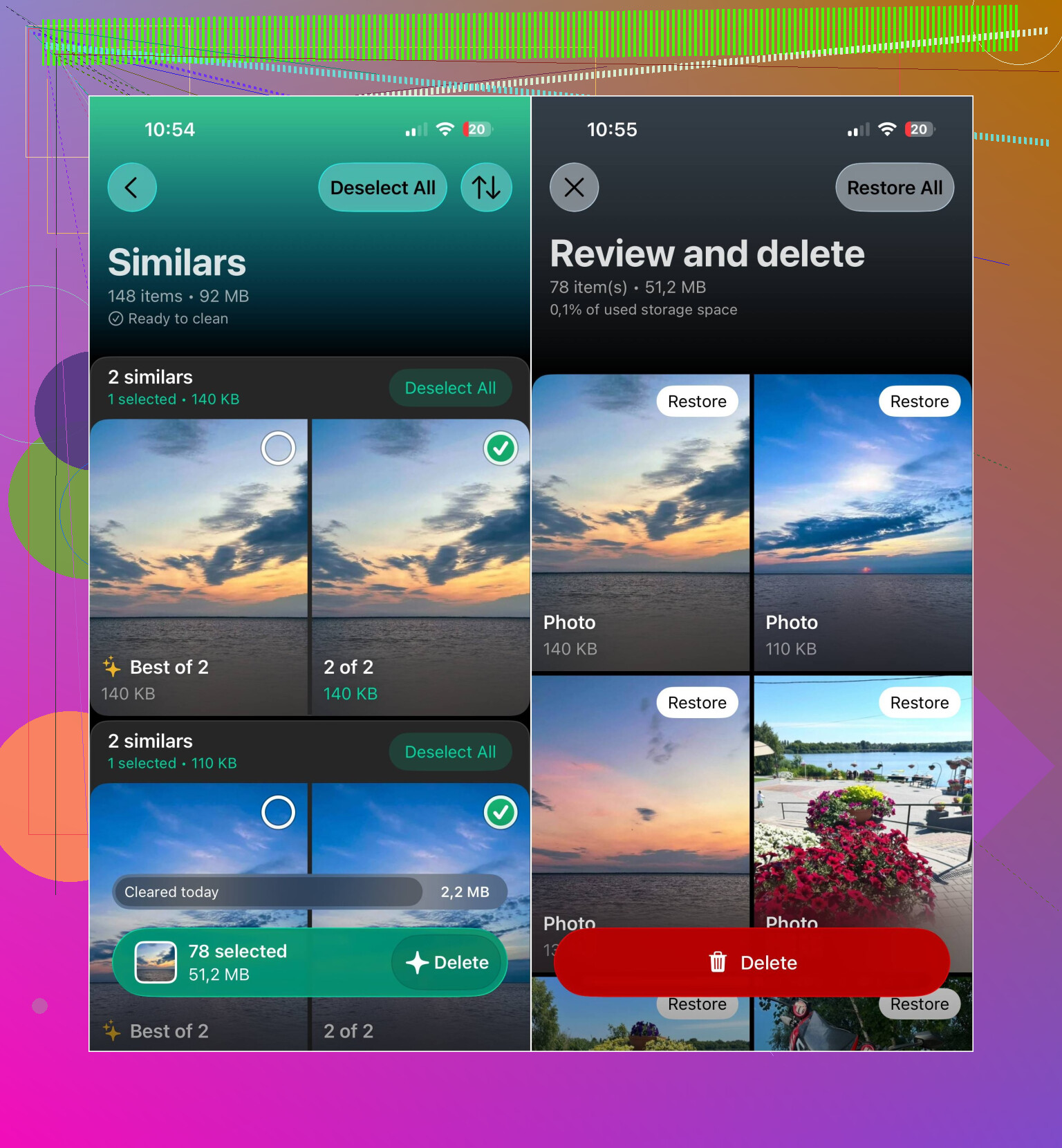
Deleting photos with iCloud Photos enabled does not remove them only from the iPhone. They disappear from iCloud and your other synced devices too, so back up anything important elsewhere before deleting and emptying Recently Deleted.
Don’t expect the storage number to drop the second you delete files. iOS can take a while to recalculate the Photos library, so empty Recently Deleted, restart the phone, then leave it charging for a few hours. Clever Cleaner can help identify files to remove, but it cannot directly erase Apple’s hidden Photos database or caches.

Don’t turn on Optimize iPhone Storage expecting instant relief like @mystic_cache711 suggested, since it only helps if iCloud actually has room and the sync can take ages to shrink local files. The faster win is clearing out large videos first, then emptying Recently Deleted, which @nick_bash already nailed.