I accidentally formatted my USB thumb drive and lost important photos, work documents, and a few personal files I really need back. I’m looking for the best file recovery method or software for a formatted flash drive before anything gets overwritten. What should I try first to recover data from a formatted USB drive?
I went through this once with a thumb drive full of photos, so yeah, I know the stomach-drop part. Still, a format does not always wipe your stuff beyond recovery. If you caught it early, you still have a shot.
First move, stop touching the USB.
Do not copy new files to it. Do not format it again. Do not run CHKDSK. Leave it alone. Recovery works best when the old data has not been overwritten. Once new data lands on the same space, those older files are done.
One thing people mix up a lot, you do not 'undo' a format. That part is gone. What recovery apps do is scan the drive for file data still sitting there and piece it back together. So the format stays, but your files might still be recoverable.
What kind of format happened matters
-
Quick Format
This is the better outcome. It usually finishes fast, often in seconds. Windows makes a fresh file system and leaves the old file contents in place until something new replaces them. If you stopped using the drive right away, recovery odds are decent. -
Full Format
This takes longer. On newer Windows systems, a full format writes across the drive. If you did a full one, software recovery usually does not go far. -
Format done by another device
Cameras, TVs, consoles, dashcams, and similar gear often do a quick format. In cases like those, I’d still try recovery.
If you do not have a backup, I’d move straight to recovery software. I’ve had decent results with Disk Drill. It reads common USB file systems like FAT32, exFAT, and NTFS, and it handles a long list of file types.
What I would do
-
Install Disk Drill on your computer’s internal drive. Not on the formatted USB.
-
Plug in the flash drive and open the app.
-
Pick the USB drive from the device list.
-
Hit Search for Lost Data. If it asks, use Universal Scan. That mode tends to work better on formatted drives since it checks in more than one way.
-
Let the scan finish. You can look through results early, but I’ve seen extra files show up near the end, so waiting helps.
-
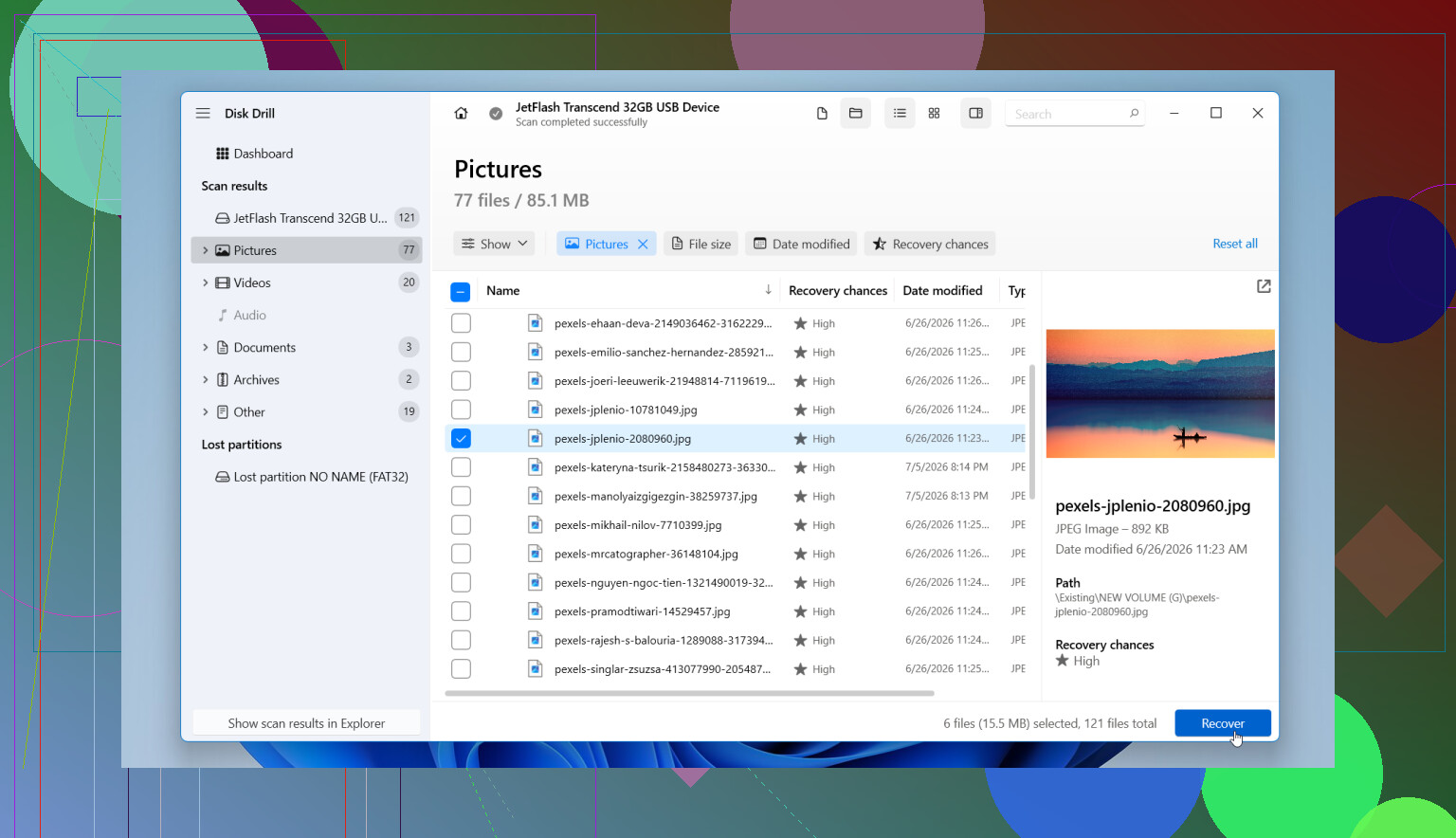
Go through the results. It usually sorts things into groups like photos, video, audio, documents, and archives. Filtering by type, date, size, or filename helps a lot if the list gets messy.
-
Preview files before you recover them. If a photo opens, or a document looks normal in preview, that’s usally a good sign.
-
Save recovered files somewhere else. Use your PC drive or another external disk. Do not restore them back to the same USB.
If the flash drive looks unstable
This part gets ignored too often. If the USB keeps disconnecting, throws read errors, or feels flaky, make a disk image first and scan the image instead of the original drive. Working from a copy is safer, and it cuts down on extra stress on a drive that might be failing.
About Command Prompt fixes
I keep seeing people throw out CHKDSK and ATTRIB for everything. After a format, I would not start there.
-
CHKDSK
It repairs file system problems. It does not recover files from a formatted drive. Worse, it might change things in ways that make recovery harder. -
ATTRIB
This one helps when files were hidden by the system or by malware. It does nothing for files lost from formatting.
I’d only bother with those if the format never finished or the drive glitched out mid-process. In the normal accidental-format case, recover first. Repair later.
When it might be more than formatting
If the USB is not detected, drops connection every few seconds, shows the wrong size, or has physical damage, the problem might be hardware. I would not keep hammering it with scan after scan. If the files matter, a recovery shop is the safer route.
Short version, yes, recovery from a formatted flash drive is often possible, especially after a quick format. The two big things are what type of format happened and whether anything was written to the drive after. If it was quick and you stopped right away, your odds are still pretty good.
If the format was quick, your odds are still decent. @mikeappsreviewer covered the first-response stuff well, so I’ll add the part people skip.
Check the drive’s S.M.A.R.T. health first if the USB adapter exposes it. Use CrystalDiskInfo or smartctl. If the flash drive shows bad reads, clone it first with USB Image Tool or ddrescue, then scan the clone. Fewer read passes matters on flaky media.
For software, I’d still put Disk Drill near the top for formatted USB recovery, mostly because its file signature scan does well on photos and office docs. Recuva is fine for simple deletes, but on formatted drives it misses more in my expereince. PhotoRec is strong too, but filenames and folder structure often come back as a mess.
One small disagreement with @mikeappsreviewer. Full format is not always total defeat on older Windows boxes or on some third-party formatting tools. Rare, but worth one scan if the files matter.
Also, if this was a tiny thumb drive used in a camera or phone, check if the device made hidden backup folders before the format. I’ve seen DCIM copies survive in odd spots.
If you want a quick visual guide, this formatted and corrupted pen drive recovery video guide is easy to follow.
Big thing, recover to another drive. Not back to the USB. That part trips people up alot.

I’d add one thing to what @mikeappsreviewer and @sternenwanderer said: before you throw every recovery app at the USB, check whether the recovered files are actually usable, not just “found.” A lot of tools will list hundreds of files, then half of them open corrupted. That’s why I usually judge recovery software by preview quality and file integrity, not by the giant scan count.
For a formatted thumb drive, Disk Drill is still one of the better picks because it handles both filesystem scanning and signature-based recovery pretty well, especially for photos, PDFs, Office docs, and common personal files. That matters more than people think. Some apps look impressive untill you try to recover folder structure or original filenames.
One place I kinda disagree with the usual advice: I would not spend too much time chasing S.M.A.R.T. on a basic flash drive. A lot of cheap USB sticks do not expose useful health data anyway, so if the drive mounts normally, I’d go straight to a read-only style recovery attempt.
What helps a lot:
- sort results by Existing and Reconstructed
- recover a few sample photos/docs first
- open them before paying for or continuing a huge recovery session
- if filenames are gone, use file type + size + modified date to rebuild the important stuff
Also, if this was a work docs + family photos situation, check cloud sync trash too. People forget OneDrive, Google Drive, Dropbox, even phone auto-upload may still have copies.
If you want a solid explainer on how to recover data from a formatted USB drive, this is actually pretty readable:
how to recover files from a formatted USB drive easily
Short version: stop using the stick, scan it with Disk Drill, preview before restoring, and save everything to another drive. If the USB keeps disconnecting, skip DIY and clone it first or you may make things worse.
One angle the others only touched lightly: check what file system the USB was reformatted to. If it got changed from exFAT/FAT32 to NTFS, or vice versa, recovery quality can shift a lot because some tools do better at rebuilding the old directory structure from certain metadata layouts. So before scanning, note the current file system and capacity shown in Disk Management. If the displayed size is suddenly wrong, that’s less a “format” problem and more a controller issue.
I slightly disagree with the “just try every scanner” approach people take. Too many deep scans on a shaky thumb drive can waste time and sometimes trigger more disconnects. Pick one solid pass first, then evaluate.
Disk Drill is a reasonable first choice here because it tends to balance usability with decent raw recovery from formatted USB sticks.
Pros of Disk Drill
- good preview support for photos, PDFs, docs
- handles both filesystem and signature-based scanning
- easier to sort through results than many raw-recovery tools
- decent for mixed file types, not just images
Cons of Disk Drill
- not the cheapest option if you need full recovery
- reconstructed files may lose original names/folders
- on badly damaged flash media, it’s not a substitute for cloning first
- scan results can look bigger than what is actually recoverable
What I’d do differently from the usual advice:
- recover a small test batch first
- open 10 to 20 files from each important category
- if photos open cleanly and documents are not corrupt, continue
- if everything is broken, stop and try a different recovery engine instead of blindly restoring thousands of files
Also worth checking: Office temp files, Lightroom catalogs, phone imports, Windows Recent files, and email attachments. Sometimes the “lost USB copy” is not your only copy.
@sternenwanderer, @cazadordeestrellas, and @mikeappsreviewer already covered the stop-using-the-drive part well. I’d just add this: for a formatted thumb drive, quality of recovered files matters more than the total count found.