My iPhone storage is almost full, and I realized my Downloads folder has a lot of files I no longer need. I can delete them one by one, but I can’t find a way to remove all downloads at once. Is there a quick way to clear downloaded files on iPhone and free up storage without deleting the wrong things?
I ran into this on my iPhone and the annoying part is simple. Downloads are scattered. There is no one spot where all of them sit, so deleting a few files in one place barely moves storage.
Where your downloads end up
iPhone splits downloaded stuff by app or source. Here’s the rough map I saw:
- Safari saves downloaded files in the Files app
- Apple Music keeps offline tracks inside the Music app
- Apps like Netflix, Spotify, and YouTube keep offline content inside their own storage
- Chrome and Firefox often keep their own folders inside Files
So if you clear one folder and think you’re done, nope. I made that mistake once.
Delete downloads from Files
This is the main place to check if you downloaded PDFs, ZIPs, videos, random attachments, or Safari files.
- Open Files
- Tap Browse
- Look under On My iPhone
- Open Downloads
- Check browser folders too, like Chrome or Firefox
- Tap the three-dot menu, hit Select, pick what you want gone, then delete it
The part people miss is trash. iPhone moves deleted files to Recently Deleted first. If you stop there, storage often does not come back yet.
What I had to do:
- Go back to Browse
- Open Recently Deleted
- Remove everything from there too
Only after that did my free space change. Before that, nothing. Felt bugged tbh.
Clear Safari’s download list
This part is separate from deleting the files.
Open Safari, tap the downloads icon, then tap Clear. That removes the visible history list. The files themselves still stay on the phone until you remove them from Files.
Delete all downloaded music in one shot
If your storage got eaten by offline music, don’t do it track by track. I did that once and it was dumb.
Go here:
Settings > Music > Downloaded Music
Tap Edit, then use the red minus button next to All Songs. This removes local copies from the phone, but the songs remain in your library for streaming later.
Find app downloads like Netflix or Spotify
This is the part people skip, and sometimes it’s where the biggest chunk lives.
Offline shows, playlists, and videos inside apps do not show up in Files. You need to track them down by storage usage.
Do this:
- Open Settings
- Go to General
- Tap iPhone Storage
- Wait for the storage bar and app list to load
- Scroll through the apps sorted by size
If one app is sitting there with 15GB, 20GB, or more, I’d check its offline section first. In most cases, it’s downloaded media. Open the app and look for something like Downloads, Offline, or Saved, then clear it from inside the app.
Why this helps when the phone feels slow
I noticed slowdowns when storage got too low. Apps started hanging, camera launch took longer, scrolling felt off, and random crashes showed up. Clearing downloads helps because iOS needs free space for temp files and system tasks.
Still, for me, downloads were only part of it. Photos and videos were the bigger mess.
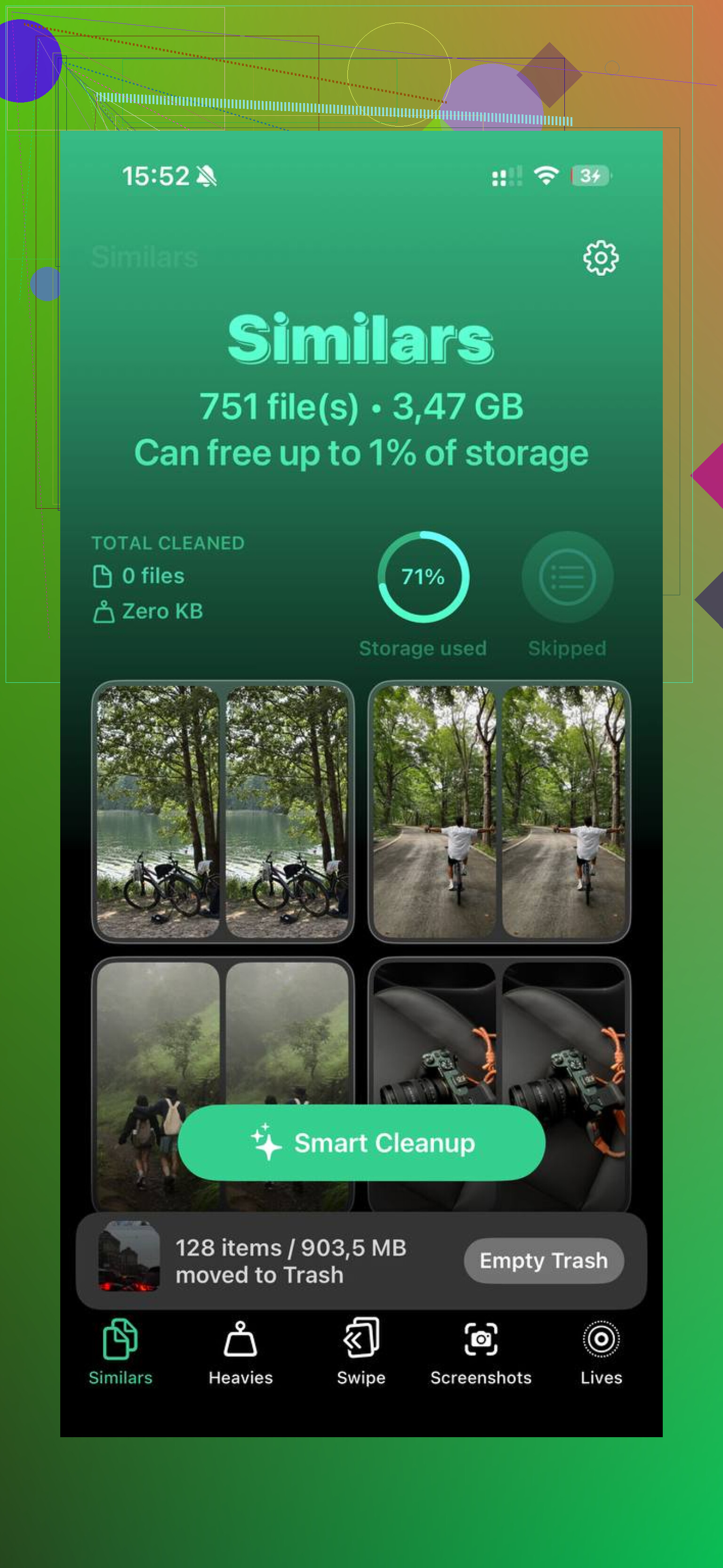
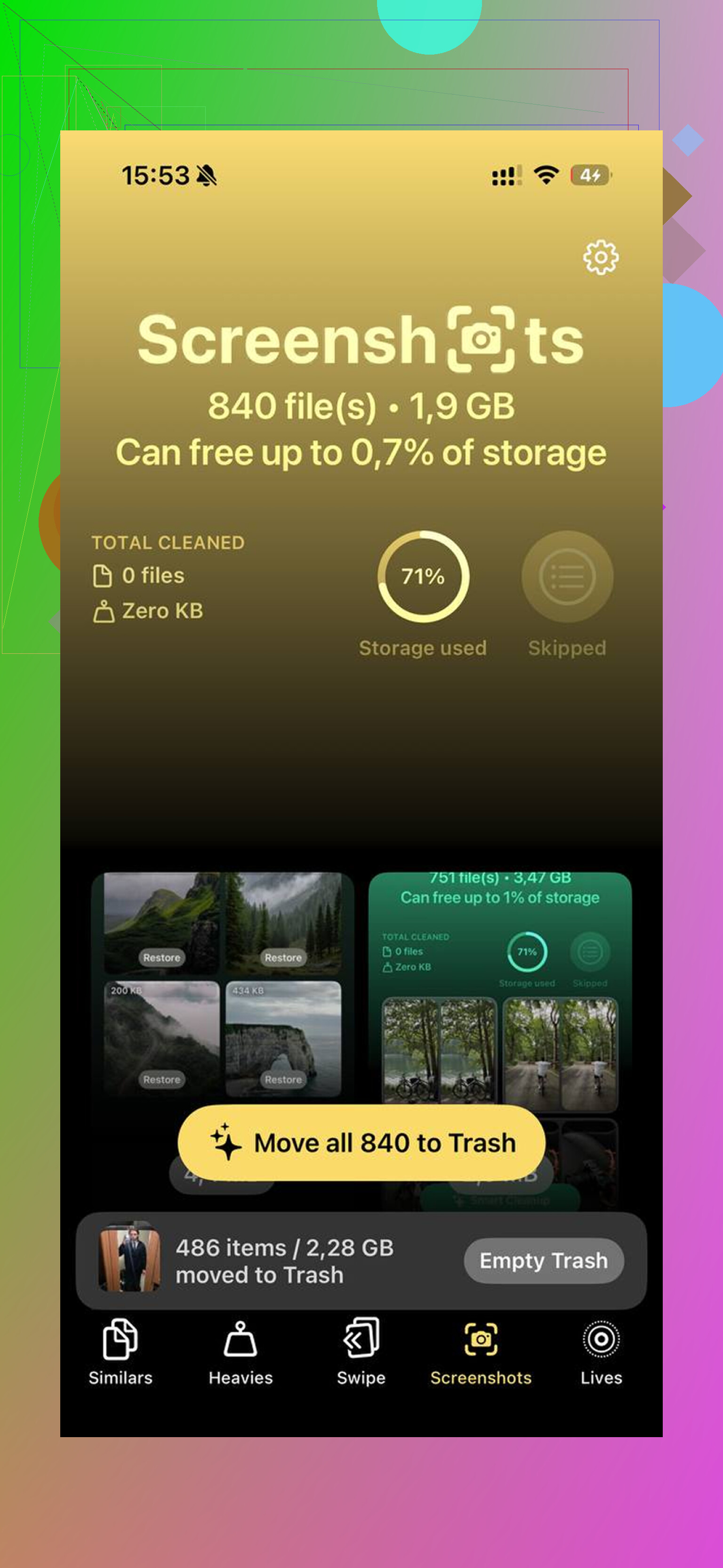
I used Clever Cleaner for the media cleanup side. It’s free, no ads, no subscription. The Heavies tab sorts files by size, largest first, so the giant 4K clips show up fast instead of hiding in the library. The Similars tab groups near-duplicate photos and picks a Best Shot, which made burst cleanup way faster on my phone. Everything stays on-device too.
After I cleared the normal downloads by hand and then ran Clever Cleaner on my photo library, I got back around 40GB. Phone stopped lagging after taht.
No single button on iPhone wipes every download everywhere. Apple split this stuff across apps, which is dumb but true.
If you want the fastest bulk cleanup, do this route instead of hunting file by file.
- Open Settings.
- Tap General.
- Tap iPhone Storage.
- Wait for the size list to load.
- Start with the biggest apps first.
This works better than staring at the Downloads folder, becuase large offline files often live inside apps, not in Files. A 12 GB video app cache or 8 GB podcast library will not show up where you expect.
Two places people miss:
- Messages. Open iPhone Storage, tap Messages, review large attachments, delete in chunks.
- Podcasts. The Podcasts app stores downloaded episodes quietly and eats space fast.
I slightly disagree with @mikeappsreviewer on one part. The Downloads folder is not always the main problem. On a lot of phones, downloaded media inside apps is the real storage hog.
If your storage is packed from photos too, use Clever Cleaner. It helps remove large videos, duplicate pics, and similar shots fast. Clever Cleaner helps free up iPhone storage fast with smart photo and video cleanup. Here’s a quick look at how to clean iPhone storage fast.
Short version, no, there is no true delete-all-downloads button for the whole iPhone. You need to clear by app category. Annoying, yep. Fastest, also yep.
Nope, not in the way people hope. There’s no single iPhone “delete every download everywhere” button.
I actually kinda disagree a bit with @mikeappsreviewer and @andarilhonoturno on the practical part. Yes, downloads are scattered, but if your goal is just to nuke the stuff in the actual Downloads folder, you do not need to tap files one by one. In Files, you can use Select, then Select All if that folder view supports it, and wipe the whole folder much faster. The catch is that this only clears that folder, not app-held offline content.
One thing worth checking that they didn’t really stress: change where future downloads go so this mess stops happening again.
Go to:
Settings > Safari > Downloads
Set it to iCloud Drive or pick a specific folder you can manage easier later. Makes cleanup way less annoyng.
Also, if you want the most aggressive cleanup, restarting the phone after deleting big batches sometimes makes storage recalculate faster. iOS can be weirdly slow showing freed space, esp after removing large videos or zip files.
And if your “downloads” problem is actually photos, screenshots, duplicate vids, and similar junk, then Clever Cleaner is more useful than hunting random folders. It’s better for media clutter than for true file downloads. This review gives a pretty clear breakdown of what it does: see how Clever Cleaner helps free up iPhone storage faster.
So short answer:
- For the Downloads folder itself, yes, usually you can bulk delete.
- For all downloads across the whole iPhone, no.
- For storage recovery, app downloads + photos are usually the real hogs tbh.