I’m trying to clear out the Hidden album in the iPhone Photos app, but I don’t want to open and select each photo one by one. Is there a way to bulk delete or empty the Hidden album quickly without removing everything from my main photo library by mistake?
First thing I’d check is whether the Hidden album is even set to show. iOS has moved this stuff around enough times that it’s easy to think the folder disappeared when it’s really just hidden from view.
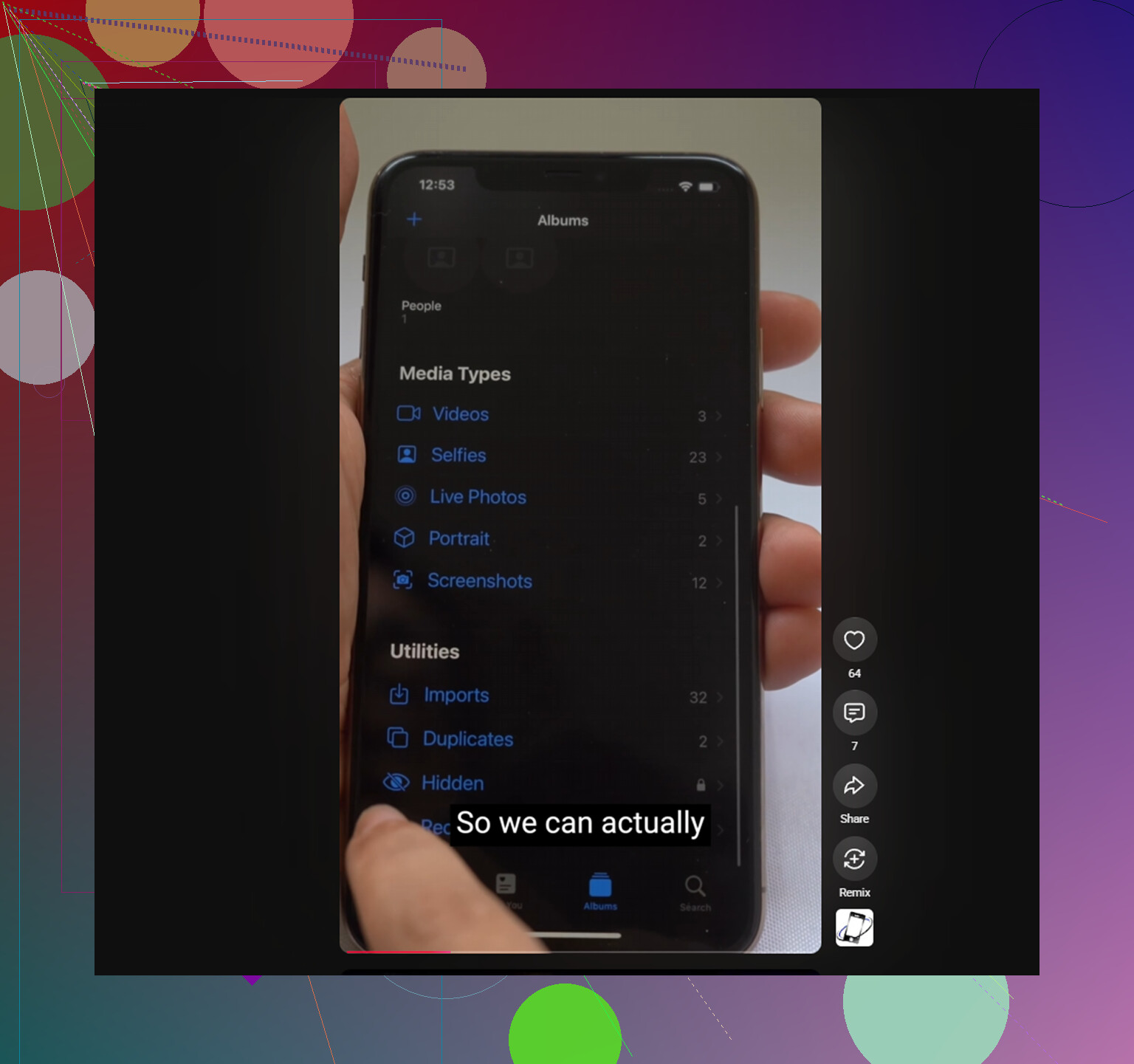
Go to Settings, then Photos, and turn on Show Hidden Album. If that switch is off, the Hidden album will not show up anywhere inside Photos. The pictures are still there, but the album is invisible. Once it’s enabled, you should see it again near the bottom of Albums under Utilities.
If Face ID is not popping up
Since iOS 16, the Hidden album is protected with Face ID, Touch ID, or your passcode. If you tap it and nothing happens, or the authentication prompt never appears, try doing a hard restart of the iPhone. That fixes it most of the time.
There is not really a Photos app setting that bypasses this lock. If the album is locked, you have to authenticate to get in.
Deleting everything in Hidden faster
Once you can open the album, you do not have to delete items one at a time. Tap Select in the top-right corner, then drag your finger across the photo grid to select whole rows quickly. After everything you want is selected, tap the trash icon.
One catch: deleting from Hidden does not free the space right away. Those photos move to Recently Deleted, which is also under Utilities, and they keep taking up storage for 30 days unless you remove them there too. So after clearing Hidden, go to Recently Deleted and use Delete All if you actually want the storage back.
What happens with iCloud Photos
If iCloud Photos is turned on, deleting from the Hidden album deletes those items from the same iCloud library. It is not a separate local vault on the iPhone. The deletion should sync across other devices signed into the same Apple ID pretty quickly.
If the same photos keep reappearing, that usually points to a sync issue. Turning iCloud Photos off and back on in Settings can force the library to re-index and often clears up that loop.
Hidden is usually only part of the problem
A big Hidden album often means the rest of the photo library is messy too. Old screenshots, burst shots, near-duplicates, random large videos, and clips that never got trimmed can pile up for years without being obvious.
That matters because iOS needs free storage to work smoothly. When storage gets too close to full, basic stuff can start feeling slower, including the camera, app switching, and even typing. Cleaning Hidden helps, but it usually will not recover enough space if the main library is also packed.
Cleaning the normal library
One thing to know upfront: Clever Cleaner cannot access the Hidden album. Apple blocks third-party apps from reading that folder, so that part has to be handled manually.
For the rest of the photo library, it can help. The app is free, with no ads, no subscription, and no paywalled cleanup features.
The Similars tab is useful after you clear Hidden because it usually finds the same kind of clutter in the main library: several nearly identical shots from the same moment. It groups them together and marks the sharpest one as the suggested keeper, so you can remove the extras without going photo by photo.
The Heavies tab is good for finding the files that are actually eating storage. Instead of hunting through years of photos and videos, it shows the biggest items first.
It also shows the exact size of each screenshot before you delete anything, which makes bulk cleanup a lot easier when you see how much space they’re using.
The scan and cleanup run on the phone itself. Nothing gets uploaded during the process.
If you mean “empty Hidden like a trash can,” no, but if you mean “get rid of a bunch without opening each item,” yes. Open Hidden, authenticate, tap Select, then use the grid selection trick: drag across a row and keep sliding down the screen to keep selecting more. Zooming the grid out first can make this less painful if there are lots. Be careful with the three-dot menu, because Unhide just puts them back in the main library. Use the trash icon if you actually want them deleted, then clear Recently Deleted afterward if storage is the goal.
Use a bigger screen if you have one synced to the same iCloud Photos library. On a Mac, open Photos, show/open the Hidden album, authenticate if asked, click inside the album, press Command-A, then delete. That is a lot less annoying than trying to drag-select hundreds of thumbnails on the phone. Same warning applies though: it is deleting the actual items from your library, not just “clearing” the Hidden label.
On the iPhone itself, there still isn’t a real Empty Hidden button or Select All for that album. The fastest phone-only method is the grid drag selection people mentioned, but I’d pinch the grid smaller first so you can cover more items per swipe. If it starts selecting weirdly, lift your finger and continue from the next unselected row rather than trying to fix it mid-drag.
Be careful if your goal is privacy rather than storage. Deleting from Hidden sends the photos to Recently Deleted, where they can still be recovered until you delete them there too. And if those images were shared through Messages, saved in Files, or sitting in another app, clearing Hidden will not touch those copies.

No, there isn’t a secret “Empty Hidden” button in the three-dot menu. For a huge album, do it in smaller batches instead of trying to select everything in one long drag, because Photos can lag or drop the selection if the screen locks. Then clear Recently Deleted only after you’re sure you didn’t catch anything by mistake.
Don’t toggle iCloud Photos off and back on just because a few images reappear. That advice from @mikeappsreviewer works in some cases, but on a large library it can kick off a full re-sync, and if your device storage is tight the redownload can stall or eat space you were trying to free. I’d only reach for that as a last resort, after checking that the same photo isn’t actually re-hiding because it lives in a shared album or a Messages thread you haven’t cleared.
The drag-select trick everyone’s pushing is the right call for phone-only, but the real risk isn’t the screen locking, it’s that a fast swipe grabs a couple of photos above or below the ones you meant. Since Hidden tends to hold the stuff you specifically didn’t want floating around, one careless batch delete and a mistake sitting in Recently Deleted for 30 days. Small batches, then glance at the selection count before you hit trash. Boring, but it saves you a recovery panic.
On the tool that came up, Clever Cleaner is fine for the normal library after you’ve dealt with Hidden manually, and the honest limit is already stated in the thread: it can’t touch the Hidden album at all. So treat it as cleanup for everything else, not part of this specific job. If your only goal is emptying Hidden, there’s no shortcut worth installing anything for, it’s authenticate, select, delete, then clear Recently Deleted.