I accidentally deleted a partition, and now Disk Management shows the space as unallocated. I’m trying to recover the partition and its files without making things worse. What steps or partition recovery tools should I use to restore the deleted partition safely?
I did this once in Disk Management and picked the wrong volume. Felt sick for about ten seconds. The good part is a deleted partition often means Windows removed the map, not the files sitting underneath it. If new data has not landed on that part of the drive, your odds are still decent.
First move, stop touching the drive. No new partition. No format. No copying files onto it. Every write chips away at your recovery chances, and on SSDs it gets ugly fast.
Before you assume the partition is gone, check Disk Management.
- If the partition still shows up and only lost its drive letter, assign one. I’ve seen the volume pop right back into File Explorer after doing only that.
- If the space shows as Unallocated, treat it like a deleted partition. Pull your files off first, fix structure later.
Get your files off first
I would do file recovery before trying to rebuild the partition table. Less risk, fewer regrets.
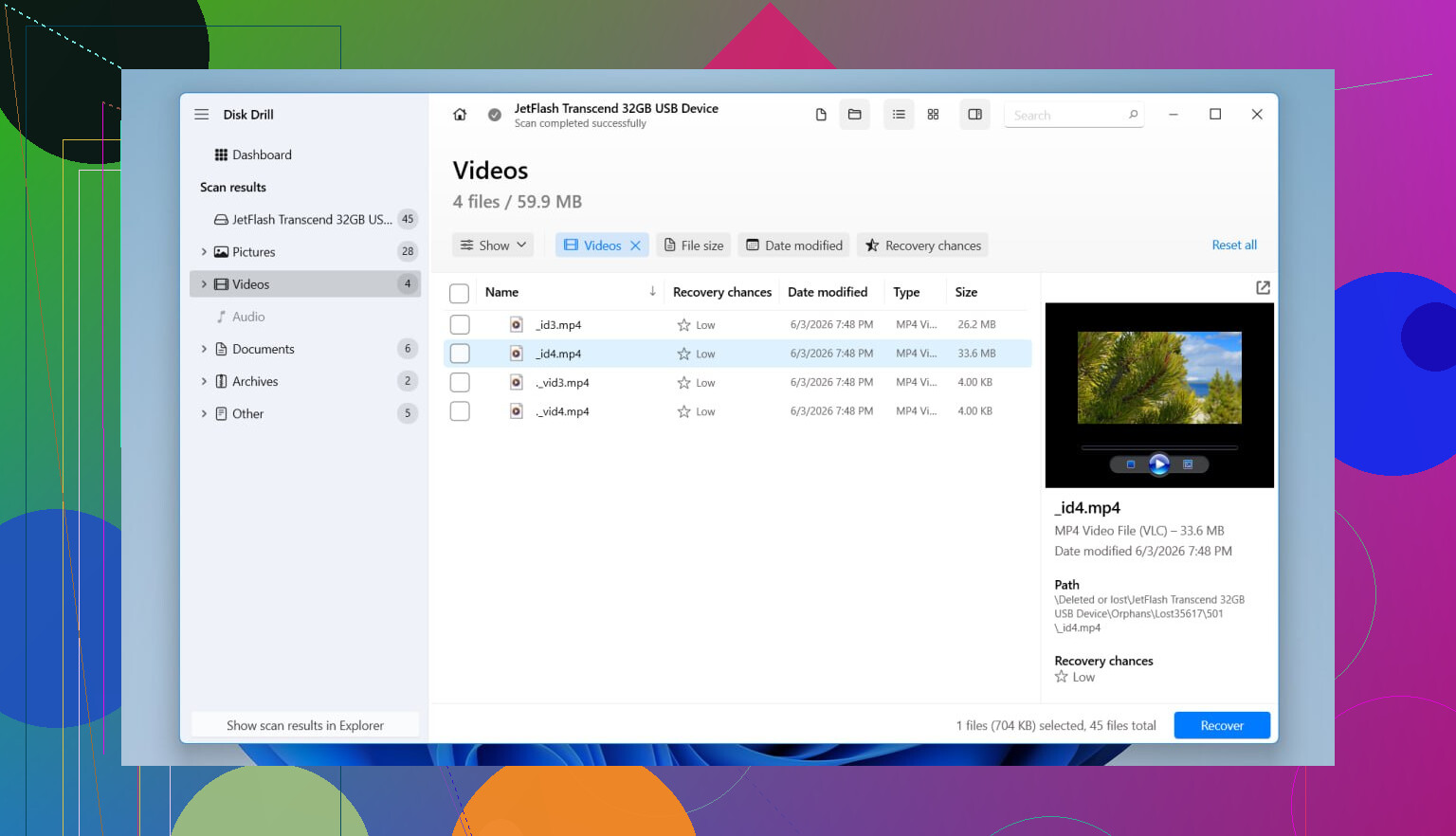
Disk Drill was the easier route for me because it spotted the deleted partition as a partition, not a pile of random file scraps. Folder names and filenames were mostly preserved, which saved me a ton of sorting. It reads the common Windows formats too, including NTFS, FAT32, exFAT, and ReFS.
What I did, step by step:
- Installed Disk Drill onto a different physical drive. Not the damaged one. Don’t skip this.
- Opened it and picked the whole physical disk where the missing partition used to live.
- Started a Scan.
- Waited. Took a bit. When it found the old partition, it showed up as its own item.
- Previewed a few important files first. Photos, docs, one ZIP archive. You want proof the files open before recovering a ton of stuff.
- Selected the folders I cared about.
- Recovered everything to another drive. Never back onto the same disk.
- Opened recovered files right away and checked them before doing anything else with the original drive.
If the disk was already acting weird before this happened, random disconnects, odd noises, SMART alerts, I’d image the drive first and scan the image. Repeated reads on a dying disk are a bad bet. I learned ths the hard way with an old laptop HDD.
Then try bringing the partition back
After your important files are safe, then I’d mess with partition repair.
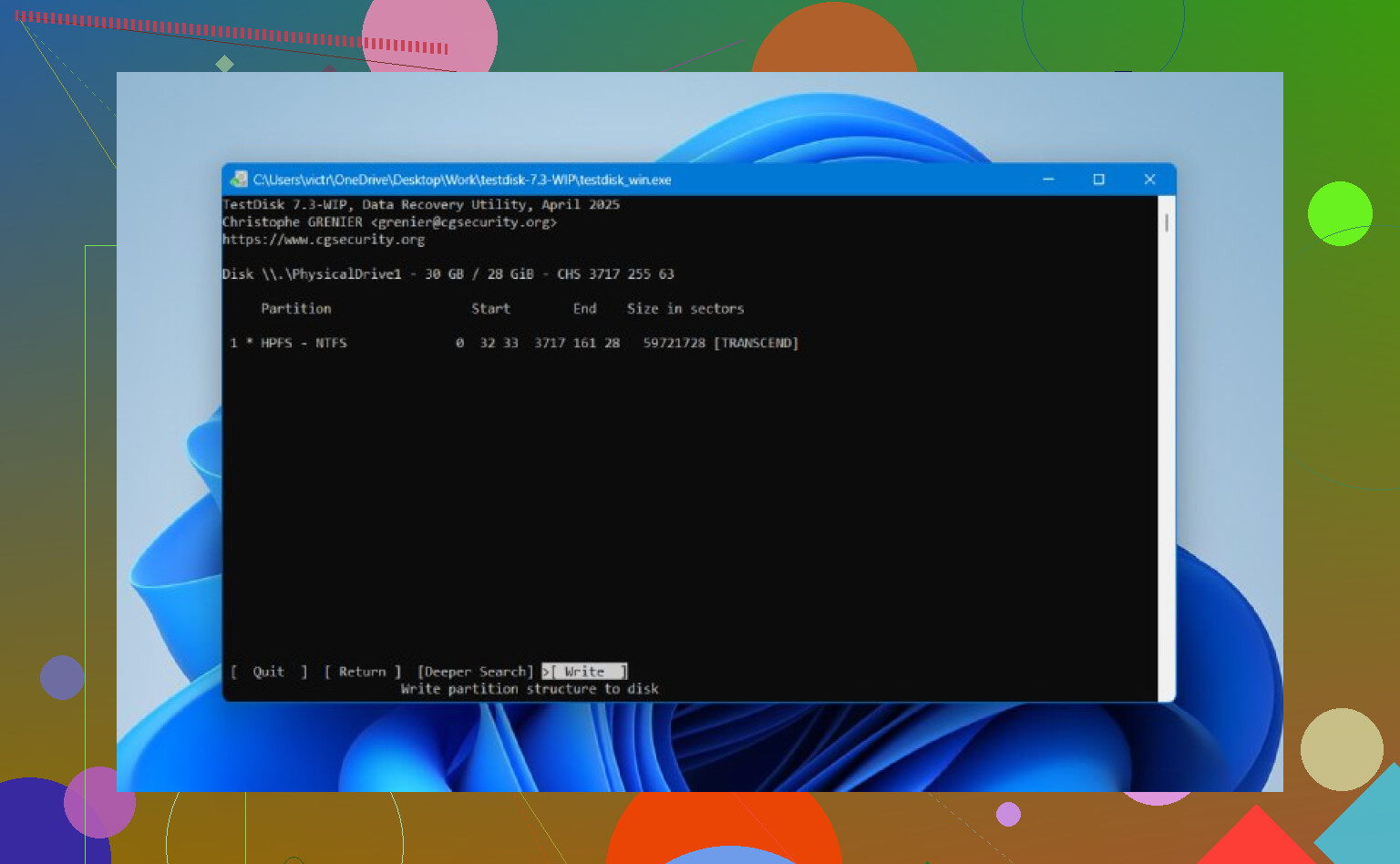
TestDisk is still one of the better free options. It looks old and it is not friendly, but it does serious work if the partition table was not overwritten too badly.
The rough flow:
- Download and extract TestDisk.
- Run testdisk_win.
- Create a new log when it asks.
- Select the physical disk with the missing partition.
- Accept the detected partition table type.
- Pick Analyse.
- Run Quick Search.
- If the missing partition shows up, highlight it.
- If it does not, run Deeper Search.
- Choose Write to save the rebuilt partition table.
- Confirm it, reboot Windows, then check Disk Management again.
If it works, the partition often comes back with the original files still there. Still, I would not poke around in TestDisk before recovering anything important. Too many low-level choices, too easy to click into a path you do not understand.
One more thing. SSDs are less forgiving because of TRIM. A deleted partition does not always trigger TRIM on the spot, but time is not your friend here. If the SSD stays in use, internal cleanup may wipe blocks you were hoping to recover. So yeah, stop using it fast.
If neither Disk Drill nor TestDisk restores the partition itself, but your files are already safe, I would call that a win. At tht point, create a new partition in Disk Management, do a quick format, and copy your recovered files back.
If Disk Management shows Unallocated, your partition entry is gone, but the file system data might still be there. So the first rule is simple. Do not create a new volume. Do not format. Do not run chkdsk on the empty space. That makes recovery harder.
I agree with part of what @mikeappsreviewer said, but I would not always rebuild the partition first. If this is your main PC drive, one wrong write to the partition table and you add more risk. I prefer this order.
-
Check SMART health first with CrystalDiskInfo or a similar tool.
If the drive health is bad, clone it sector by sector to another disk and work from the clone. -
Take a screenshot of Disk Management and note the old partition size.
Size and position matter when you scan. -
Scan the whole physical disk, not the unallocated block only.
Disk Drill is solid for this because it often finds deleted partitions and keeps folder structure better than raw recovery tools. Recover files to a different drive. -
If your files look intact, stop there and make backups first.
Only after your data is safe should you try partition repair tools.
For partition repair, DMDE is worth a look. It is less friendly than Disk Drill, but strong for restoring a lost partition entry when the start sector and file system are still intact. On NTFS volumes, if the MFT is healthy, recovery odds are decent.
One more thing, SSDs are a pain. TRIM can wipe deleted data fast. If this is an SSD, shut it down and work on it asap.
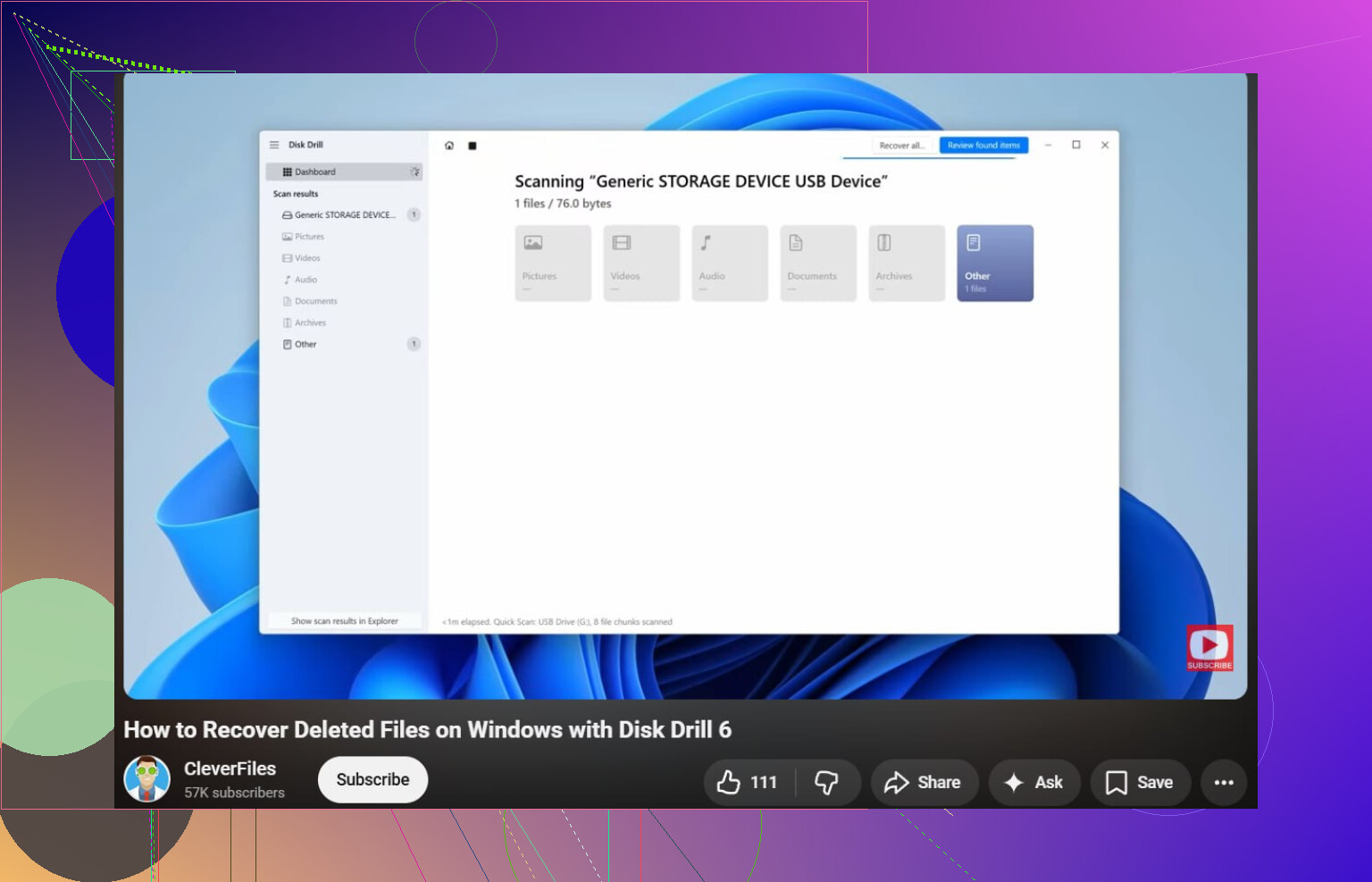
If you want a simple guide for recovering deleted files on Windows, this video is decent:
watch this Windows file recovery walkthrough
Short version. Stop using the drive. Scan the full disk with Disk Drill. Save recovered files elsewhere. Then try restoring the partition only after your stuff is safe. Thats the safest path for most poeple.
If it shows as unallocated, that usually means the partition entry is gone, not automatically the files. I mostly agree with @mikeappsreviewer and @boswandelaar on the big rule: stop using that drive. But I slightly disagree with the “recover files first no matter what” idea, because in some cases a clean partition undelete is actually less invasive than a giant recovery scan. The catch is you need to be very sure the drive is healthy and nothing has overwritten that area.
What I’d do:
- Power down if it’s an SSD and especially if it’s the system drive.
- If possible, connect it to another PC as a secondary drive.
- Make a byte-for-byte image first with something like HDD Raw Copy Tool or ddrescue if the disk health is questionable.
- Use a partition-focused tool to see if the old entry is still detectable. DMDE is excellent for this, and so is R-Studio if you already have it.
- If you can clearly see the old partition with the correct start/end sectors, restore the partition entry.
- If that looks messy or uncertain, switch to file recovery mode and save data elsewhere.
Disk Drill is still a solid choice here because it tends to identify lost partitions cleanly and is easier to work with than some older tools. Just scan the entire physical disk, not only the unallocated space.
Also, do not run CHKDSK. Peolpe do that way too early and it can make things worse.
If you want more options, this roundup of best data recovery software for Mac and PC recovery jobs is worth a look.