I accidentally deleted important photos from my SD card while moving files, and now I’m trying to figure out if there’s any way to recover them. These pictures mean a lot to me, and I need help with the best SD card photo recovery methods before anything gets overwritten.
Getting deleted photos off an SD card
I ran into this more than once. If you stopped using the card right after the photos vanished, your odds are often decent.
What usually happens is simple. Deleting a photo from an SD card does not wipe the image data right away. The device removes the file entry, sort of the index pointing to where the photo lives. The data often sits there until something new lands on top of it. So the first move is boring but important. Stop using the card. No more photos. No video. Don’t copy files onto it. Don’t format it.
I’d start with Disk Drill. I used it on camera cards and a drone card once, and it was easier than a lot of the free stuff I tested. It tends to work well with SD cards from cameras, phones, dash cams, Nintendo Switch systems, drones, and similar gear.
What pushed me toward it was this. It is not limited to files deleted five minutes ago. It also handles cards that turn RAW, unreadable, corrupted, or accidentally formatted. It recognizes common photo types like JPG, PNG, CR2, NEF, ARW, DNG, plus other RAW formats from Canon, Nikon, Sony, Fujifilm, and the usual camera brands.
Video recovery matters too. A lot of SD cards from GoPros, drones, and mirrorless cameras store video in pieces. Some tools choke on fragmented clips. Disk Drill did better for me there than a bunch of free utilities I tried.
What I would do
- Pull the SD card out right away.
- Use a card reader and connect it to your computer. I avoid plugging in through the camera when I have a choice.
- Install and open Disk Drill.
- Pick the SD card from the drive list.
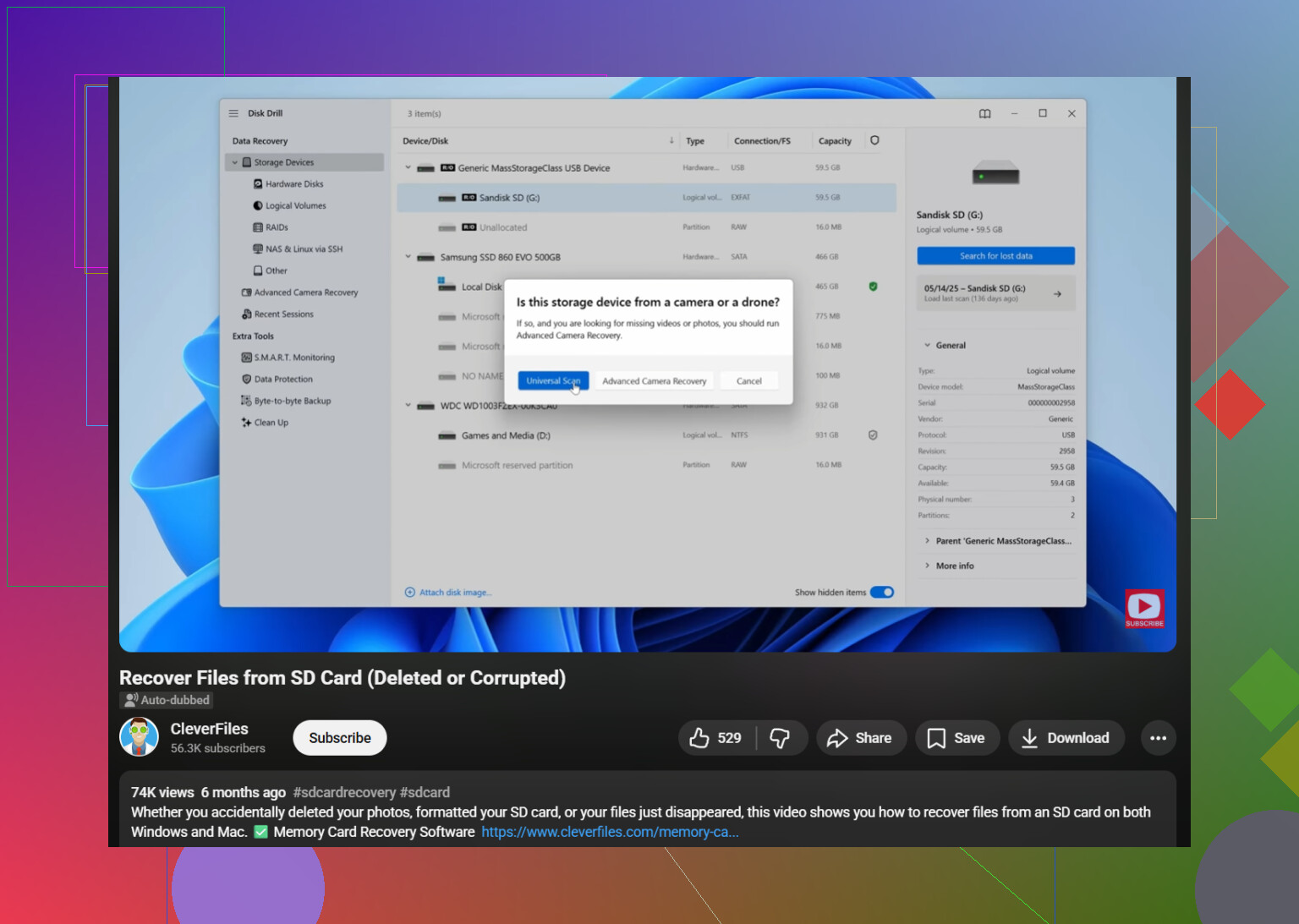
- Click Search for lost data, then use Universal Scan.
- Let the scan finish, even if it feels slow.
- Open Review found items and check the Pictures section.
- Preview the files first. If a photo previews cleanly, recovery odds are usally better.
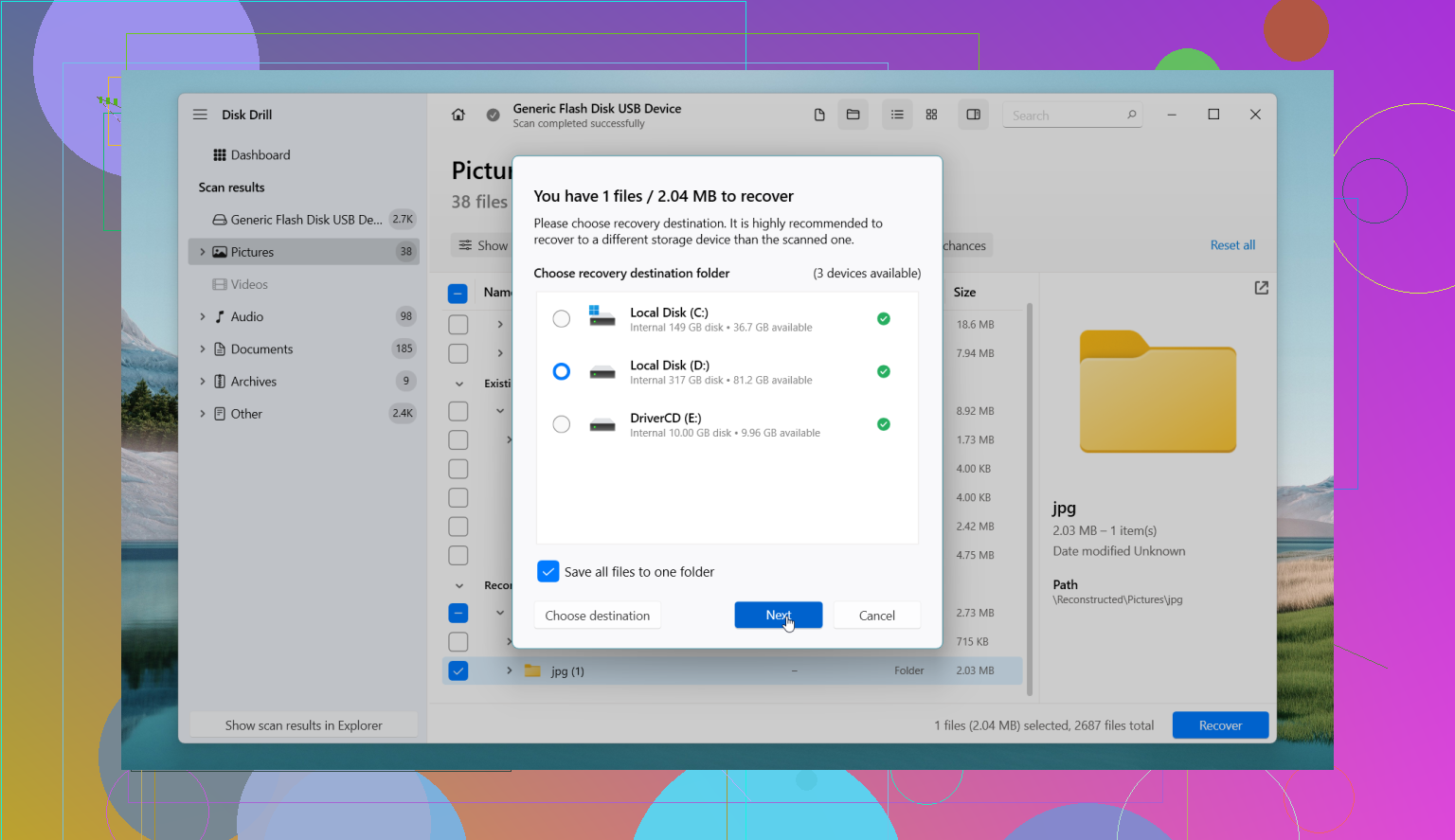
- Save recovered files somewhere else, not back to the same SD card.
If the card looks empty or wants formatting
Don’t assume it’s over. I’ve seen cards show up as empty, RAW, or unreadable when the file system was the part that broke. The photos were still there underneath. Recovery software sometimes pulls them out fine in cases like this.
Free version limits and one thing people skip
Disk Drill has a free scan and preview option. On Windows, you get free recovery up to 100 MB. On Mac, the free side is more about previewing, so bigger recoveries often mean paying.
If the card starts dropping connection, freezing your file manager, or acting flaky, I’d make a byte-to-byte backup image first and work from that copy. That saved me once with an old microSD card. It avoids hammering the original card over and over.
Other tools I’d keep in mind
-
PhotoRec
Free, strong, ugly. It works, but the interface feels old and technical. Recovered files usually lose original names and folder layout, so cleanup gets annoying fast. -
DiskGenius
Good when the card problem is tied to partitions or file system damage. More technical interface, more knobs to turn. -
DiskDigger
Useful if the card is in an Android phone and you have no PC nearby. It is not on the same level as desktop recovery tools. Deep scans often need root.
When software stops being enough
If the SD card is physically damaged, keeps disconnecting, vanishes from the system, or your computer does not detect it at all, software often won’t get you far. At that point, I’d stop poking at it. Recovery labs cost money, yeah, but repeated attempts on a failing card sometimes make things worse.
Yes, if you stopped using the SD card fast, photo recovery is still possible.
I agree with @mikeappsreviewer on the big rule. Do not write anything new to the card. That is what kills recovery rates. Deleted files often stay on the card until new data overwrites them.
Where I differ a bit is tool choice. PhotoRec is fine, but for most people it turns into a mess. Thousands of files, bad names, no folder structure, lots of sorting. If your photos matter and you want previews, filters, and less headache, Disk Drill is the easier pick for SD card photo recovery.
A few practical things I would add:
-
Check your computer first.
Sometimes the files were moved, not deleted. Search by file type, JPG, PNG, CR2, NEF, ARW, DNG. Also check hidden files. -
Use read-only handling if possible.
If your adapter has a lock switch, use it. It helps prevent accidental writes. Small thing, but worth doing. -
Sort scan results by file signature and date.
On damaged cards, file-system results miss stuff. Signature scan finds raw image data. Date filters help cut down the junk. -
Recover to your SSD or hard drive, never back to the SD card.
People still do this and then wonder why some pics are corruppt. -
If the card came from a phone, stop the phone from syncing.
Cloud sync apps sometimes alter files or cache data when you reconnect the card.
Disk Drill is solid for this because it handles common camera formats well and gives you preview support before recovery. If preview works, your odds are better. If you want a visual guide, this SD card photo recovery video tutorial walks through the process clearly.
If the card is detected with the wrong size, disconnects, or asks to format every time, stop trying random fixes. At that point, making an image of the card first is the safer move. One bad reconnection is all it takes to make things worse.
Yes, you probably can, but I’d add one thing to what @mikeappsreviewer and @voyageurdubois said: don’t assume “deleted” is the only scenario. If this happened while moving files, some of the photos may actually still be sitting on the source device, in a temp/cache location, or in a partially completed transfer folder on your computer. That’s worth checking before you go full recovery mode.
What I’d do first:
- check the PC’s Recycle Bin / Trash
- search the computer for JPG, JPEG, PNG, CR2, NEF, ARW, DNG
- check the camera’s internal memory too, if it has any
- look for hidden files on the SD card
After that, sure, use recovery software. I know both @mikeappsreviewer and @voyageurdubois leaned toward Disk Drill, and honestly that’s fair. For SD card photo recovery, it’s one of the easier tools if you want previews and don’t feel like wrestling with a clunky interface for an hour. I don’t totally agree that people should jump straight into “fixing” the card, though. Don’t run repair tools, don’t let Windows “scan and repair,” and def don’t format it just because the device suggests it.
One more thing people skip: if the card was used in a phone or camera that creates thumbnails, you might recover smaller preview versions even if some originals are damaged. Not ideal, but better than nothing.
If Disk Drill sees the card and previews the photos, that’s a very good sign. If the card keeps disconnecting or reads weird capacity, stop messing with it bc that can go downhill fast.
Also, this thread might help if you want more SD card recovery tips: real Reddit advice for recovering deleted photos from an SD card.
Short version: stop using the card, check whether the move actually failed before deletion, then scan it with Disk Drill and recover files to your computer, not back to the card.
One small disagreement with @voyageurdubois, @jeff, and @mikeappsreviewer: I would not keep rescanning the original card with different tools just to compare results. Every mount and retry is another chance for a flaky SD card to misbehave. Best practice is one careful pass, or better, clone/image the card first and test recovery on the image.
A few things they did not really stress:
- If this happened during a move, check whether the files were copied but hidden by a bad file attribute change. On Windows,
attribissues can make photos seem gone when they are still there. - Look at file timestamps on anything recovered. Sometimes you get older cached versions, thumbnails, or duplicate exports instead of the originals.
- If the card came from a camera, do not put it back into that camera to “see if it reads there.” Some cameras silently rebuild folders or metadata.
About Disk Drill specifically:
Pros
- easy previewing
- supports lots of photo formats
- good for people who do not want a command-line tool
- can recover from formatted/corrupted cards too
Cons
- free recovery limits depend on platform
- deeper scans can return lots of clutter
- not the best choice if you want highly granular manual control
If Disk Drill doesn’t find much, PhotoRec is still worth a second shot because it sometimes pulls files other apps miss, just with uglier results. So yes, recovery is possible, but I’d prioritize preserving the card’s current state over trying every trick in a hurry.