I’m trying to run my CAD software over Windows Remote Desktop from a more powerful workstation, but my 3D mouse doesn’t work at all in the remote session. Local mouse and keyboard are fine, only the 3D mouse inputs are ignored. Is there a way, workaround, or specific RDP setting or third‑party tool that lets me fully use a 3D mouse with CAD while connected via RDP?
Short answer, Windows Remote Desktop does not pass through HID devices like a 3Dconnexion mouse. It only forwards keyboard, standard mouse, clipboard, printers, audio, etc. So your 3D mouse input stops on the local machine and never reaches the CAD workstation.
You have a few realistic options:
- Use USB over network software
If your 3D mouse plugs in via USB, you can redirect it at the USB level, not as a “mouse”.
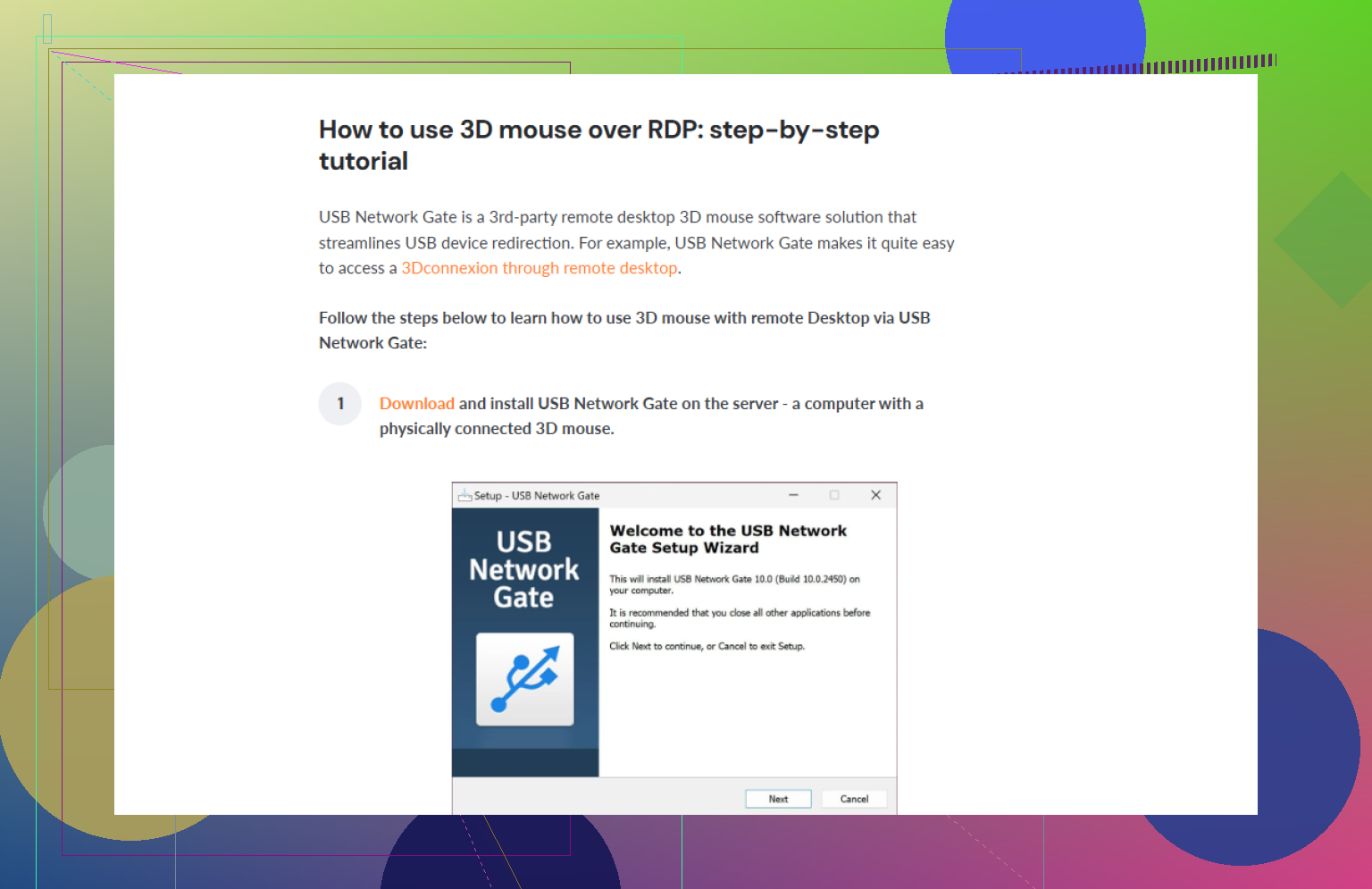
Tools like USB Network Gate share the physical USB device from your local PC to the remote workstation over TCP/IP. The remote system then sees your 3D mouse as if it were plugged in directly.
Typical setup:
• Install USB Network Gate on both local PC and remote workstation.
• On the local PC, share the 3D mouse USB device in the app.
• On the workstation, connect to that shared device in the app.
• Start your RDP session and open CAD.
• The 3D mouse driver on the workstation should now detect the device.
This approach works for a lot of 3Dconnexion and similar devices, as long as their driver runs on the remote OS.
- Avoid plain RDP
Some remote tools have better HID or USB redirection:
• Teradici PCoIP / HP Anyware
• VMware Horizon with USB redirection
• Citrix HDX with USB redirection
• Parsec or AnyDesk, then combine with USB Network Gate if direct support is weak
These tend to work better for CAD anyway, due to better graphics handling.
- Possible 3Dconnexion tricks
Older forum posts mention:
• Installing the 3Dconnexion driver on both local and remote.
• Using their “KMJ emulator” mode off and on.
• Some people had partial luck with SpaceMouse through some third party remote tools, not through pure RDP.
On plain Microsoft RDP alone, I have not seen a reliable way to get full 3D mouse input without USB tunneling.
If you want a step by step walkthrough, this guide helps a lot for CAD users:
Run a 3D mouse over Remote Desktop for smoother CAD work
That page shows how to redirect a 3D mouse from your local PC into an RDP session using USB Network Gate, so your remote CAD workstation treats the 3D mouse like a local USB device.
Short version: with plain Windows RDP, your 3D mouse basically isn’t invited to the party.
@byteguru already nailed the core point: RDP doesn’t forward HID devices like a 3Dconnexion SpaceMouse, it only sends standard mouse/keyboard stuff. So your CAD box never even “sees” the 3D mouse.
Instead of repeating the whole USB Network Gate walkthrough, here are a few other angles to look at it:
- Check if “RDP is really what you want”
If you’re serious about CAD + 3D mouse, RDP is honestly one of the worst choices:
- No proper HID passthrough
- Mediocre 3D graphics unless you fight with GPU/RDP configs
A lot of people get a much better experience with tools like: - Parsec
- AnyDesk
- HP Anyware / Teradici
Some of those still need USB redirection help, but at least they’re built with low-latency graphics in mind.
- Run CAD locally, data remotely
If your “big” workstation is mostly about storage or background processing, another route is:
- Sync your CAD files (VPN, cloud, NAS)
- Run CAD locally on the weaker PC
- Let the workstation handle rendering / batch jobs / simulations
You lose the raw interactive power of the remote GPU, but you keep native 3D mouse behavior with zero hacks.
- Hardware-level approach
Bit more extreme, but it works well in some setups:
- Use a small thin client / NUC physically near the workstation
- Plug the 3D mouse directly into that box
- Remote into that machine with a protocol that just streams the desktop to you
Now the OS sees the 3D mouse as local, no special redirection needed. This is basically turning your “remote” machine into your real workstation and your current PC into a dumb display.
- What actually does work for 3D mice
If you want to stay close to what @byteguru suggested but avoid repeating, the combo that consistently works in real CAD shops is:
- Install the vendor driver (3Dconnexion, etc.) on the workstation
- Use USB-level redirection so the OS thinks the device is plugged in locally
This is exactly where something like USB Network Gate shines. It shares the raw USB device, not just mouse events, so your 3D mouse behaves as if it’s directly connected to the CAD box instead of dying at the RDP boundary.
If you want to try that route, grab the installer from here:
download USB Network Gate for reliable 3D mouse redirection
Install it on both ends, share the 3D mouse from your local side, connect to it from the workstation, then fire up your CAD app inside the RDP session. It’s not “pure RDP” anymore, but it actually works.
So: no, you can’t realistically make RDP itself “just support” the 3D mouse. You either bolt on USB tunneling like USB Network Gate, or you ditch RDP for something that respects your input devices (and your sanity).