Windows still shows my hard drive in File Explorer/Disk Management, but I can’t open it or access any files. It started after the drive became corrupted, and I’m worried about losing important data. What’s the safest way to troubleshoot or recover files from a corrupted hard drive without making it worse?
If Windows says the drive is corrupted, don't assume the data is gone. If the disk still shows up in Disk Management and the size looks correct, that usually means the drive may have file system damage rather than totally lost files. That's a much better situation.
The main thing is to stop doing anything that writes to the drive. Don't format it when Windows prompts you. Don't copy new files onto it. Don't run CHKDSK yet. And if the drive keeps disconnecting, don't keep forcing it over and over.
All of that can make recovery worse because it changes what is on the disk.
Corruption can happen from a bunch of normal stuff: a power cut, unsafe unplugging, a crash, bad sectors, malware, or just an aging drive. A lot of the time the files are still sitting there, but Windows can't make sense of the file system anymore.
I'd handle it like this:
- Check Disk Management first and see if the drive is detected with the correct capacity.
- If it's external, try a different USB cable, port, or computer, just to rule out a bad connection.
- Recover the important files before trying to repair the drive.
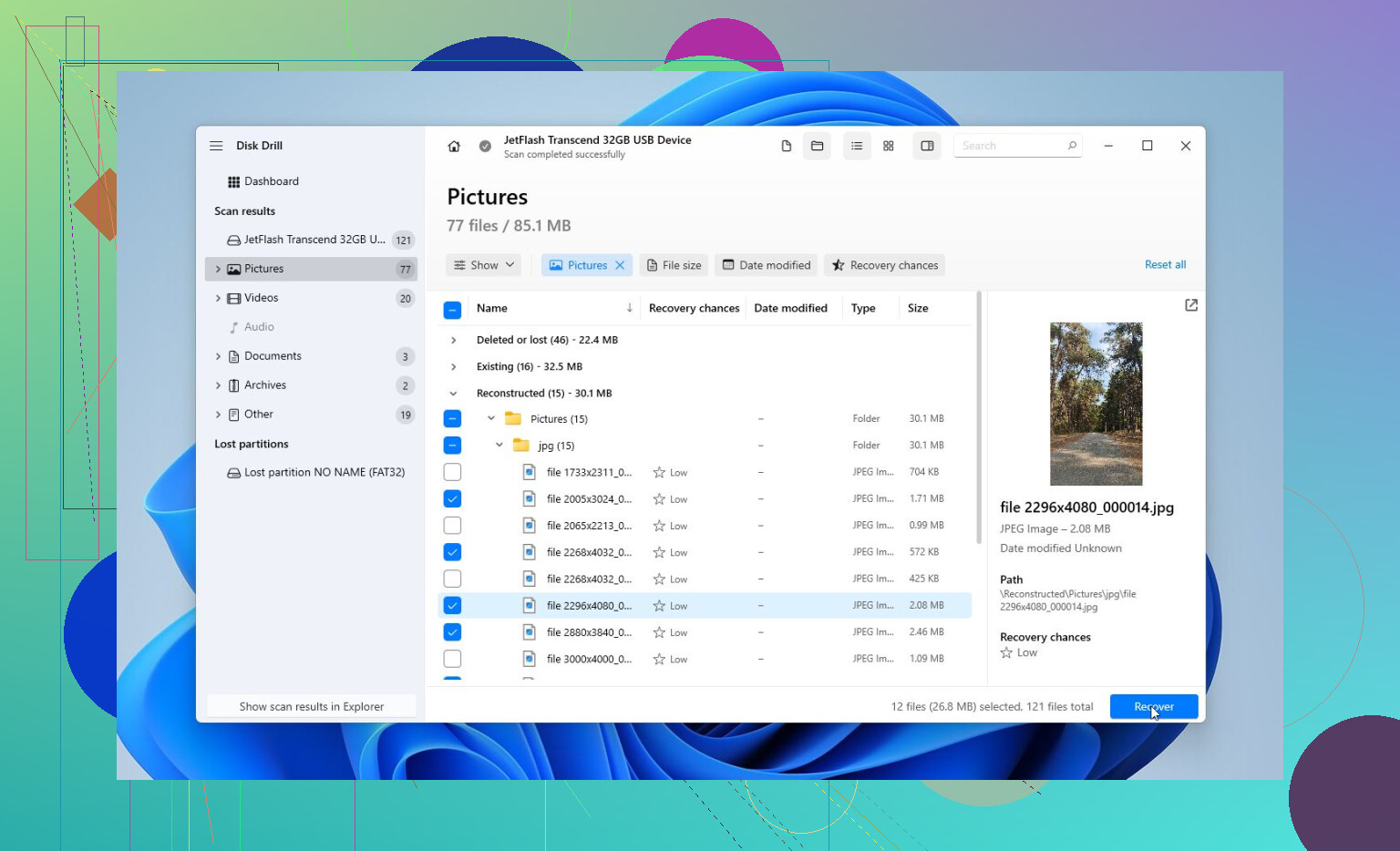
For the recovery part, Disk Drill is a good option here because it can make a full image of the drive first. That's useful if the disk is unstable, since you can scan the image instead of repeatedly stressing the original drive.
The basic workflow would be:
- Install Disk Drill somewhere else, not on the corrupted drive.
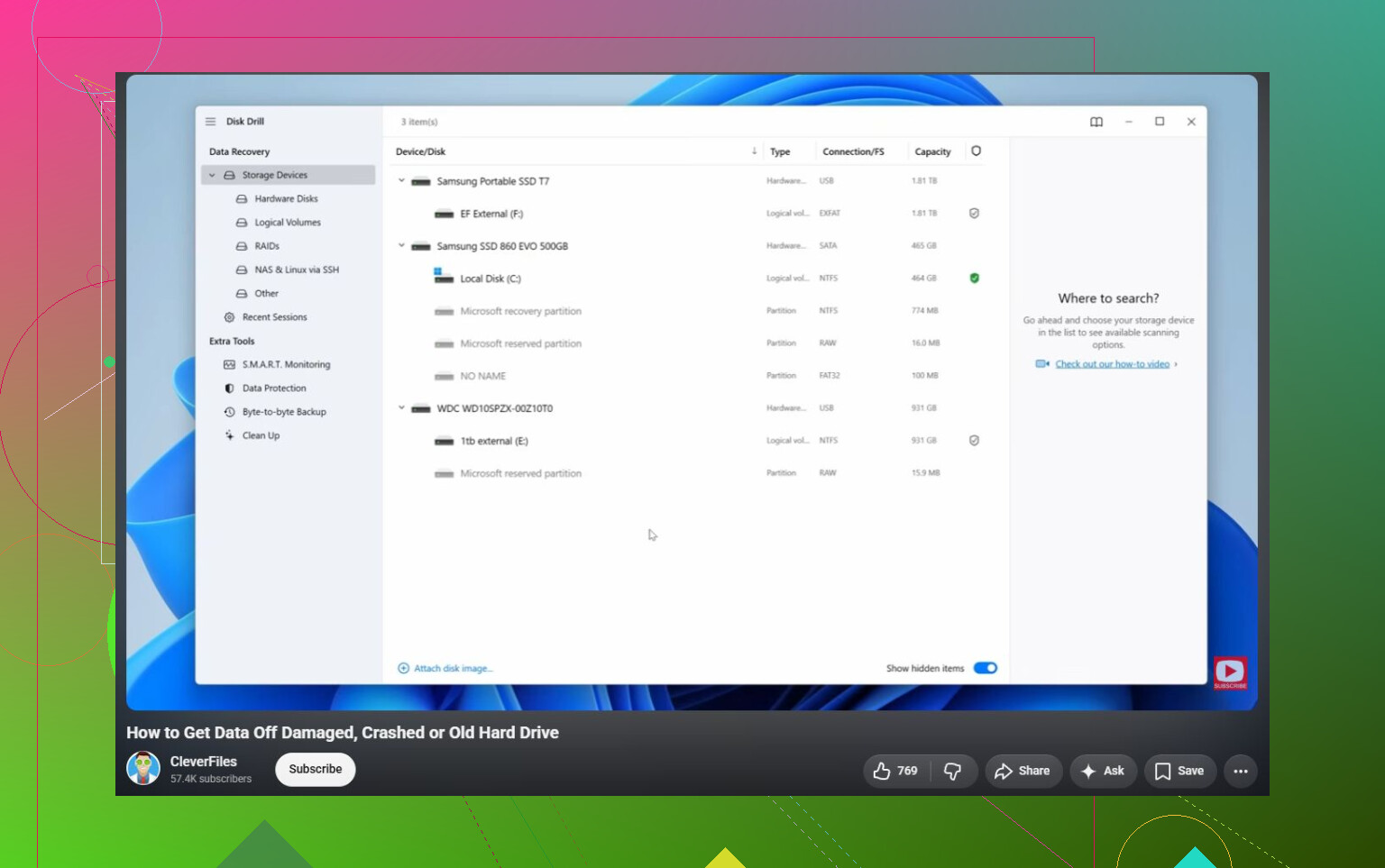
- If possible, make a complete image of the corrupted drive.
- Load that image in Disk Drill.
- Run Universal Scan.
- Preview what it finds.
- Recover the files to a different healthy drive.
The preview part matters. It lets you check whether your photos, documents, videos, and other files are actually readable before you spend time recovering everything. You can also use the scan and preview to get a feel for whether recovery is likely before buying the full version.
After your files are copied somewhere safe, then it's reasonable to think about fixing the drive.
I'd try repair options in this order:
- CHKDSK, but only after recovery. It can fix file system errors, but it writes changes to the drive, so I wouldn't use it first.
- TestDisk if the partition shows as RAW or the partition table looks damaged. Sometimes it can restore access without formatting.
- Format the drive if nothing else works. A quick format can clear logical corruption by creating a fresh file system. If the drive corrupts again after that, I wouldn't trust it with anything important.
Watch how the drive behaves, too. Clicking sounds, random disconnects, the wrong capacity showing up, or disappearing from Disk Management are bad signs. That points more toward hardware failure than simple corruption.
If you see that kind of behavior, stop with the DIY fixes. A professional recovery lab is the safer route. They can diagnose the drive, deal with damaged parts if needed, clone it with proper equipment, and recover files from the clone instead of working directly on the failing disk. A lot of reputable labs also have a 'no data, no fee' policy, so you usually only pay if they actually recover your files.
So yes, a corrupted hard drive can often be fixed. Just don't make repair the first step. Get the data off first, then repair or format the drive after you're no longer risking the files.
Check the drive’s SMART status before you run any repair tool. If it shows reallocated/pending sectors or read errors, treat it as a failing drive rather than “corruption” and focus on imaging/recovery first, because CHKDSK on a dying disk can turn a bad situation into a worse one fast.
A drive with a damaged file system and a drive with failing hardware can look almost identical in Windows, but they need opposite treatment. If it is just NTFS/exFAT corruption, recovery software or a partition repair tool may get you most of the files back. If the drive is physically failing, every extra scan can make the next scan worse.
The small thing people forget is that File Explorer is a bad testing tool for this. It may hang, keep retrying bad reads, or offer to “scan and fix” at the worst possible time. I would stop opening it there and do the next steps from a tool that can image the disk or read it more carefully. Disk Drill is fine for that if you use it to make an image first and recover to another drive, not back onto the bad one. If you want a free route and you’re comfortable with it, ddrescue from a Linux live USB is often the better imaging tool for a questionable disk, but it is less friendly.
After the data is safe, then you can play with repairs. CHKDSK, TestDisk, reassigning a drive letter, or formatting all belong after recovery, not before. And if the drive is showing the wrong size, clicking, dropping offline, or taking forever just to identify itself, I’d skip the “fix it in Windows” phase entirely. At that point you’re not fixing corruption, you’re trying not to lose what’s left.