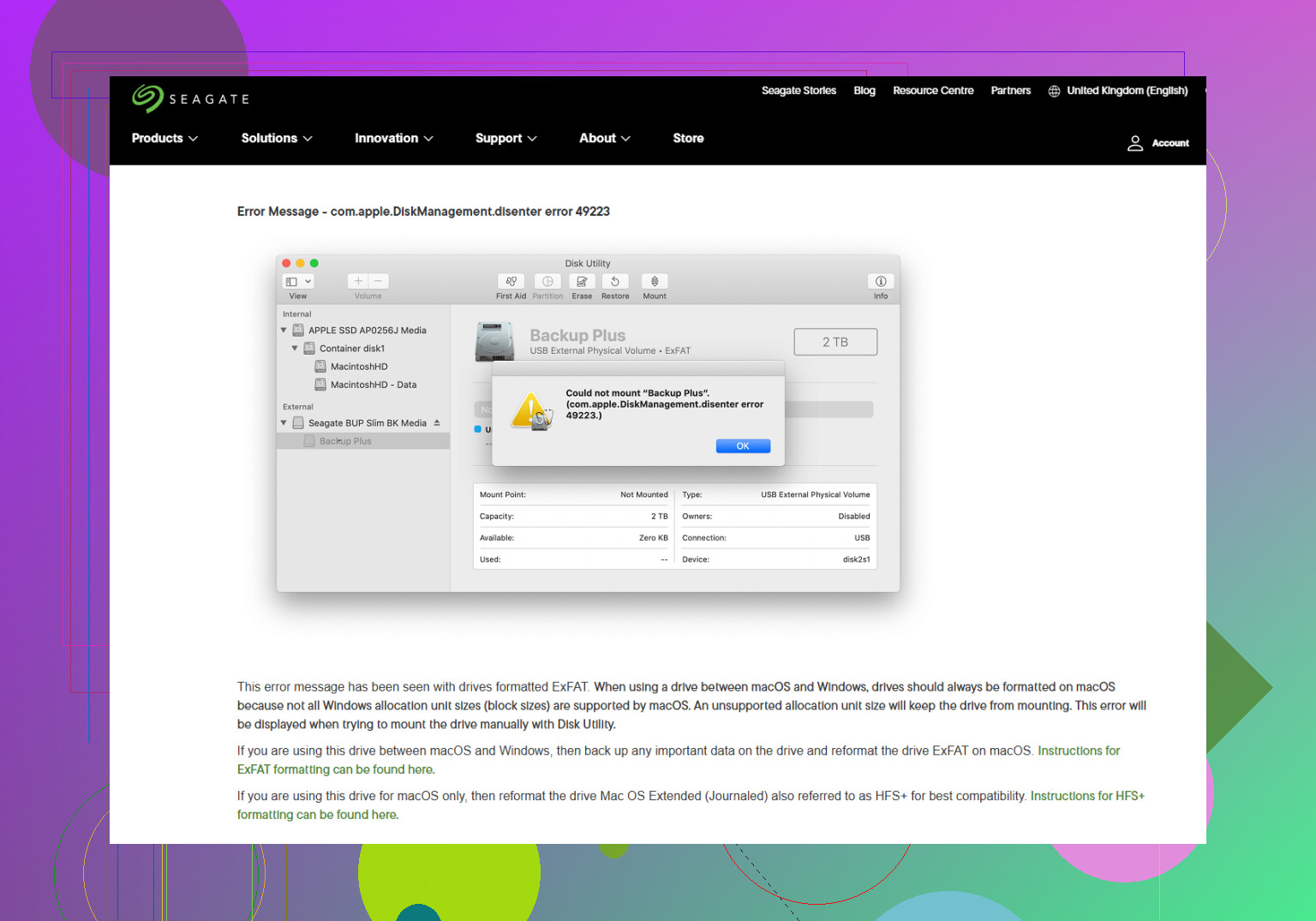
I’m trying to mount an external drive on my Mac, but it keeps failing with the message com.apple.diskmanagement.disenter error 49153. The drive shows up in Disk Utility, but I can’t access the files or mount it normally. I need help figuring out what caused this Mac disk mount error and how to safely fix it without losing data.
Drive shows up in Disk Utility but stays gray and won’t mount
I ran into this with an external drive a while back. Disk Utility saw the hardware, but the volume stayed grayed out and macOS kept throwing the com.apple.DiskManagement.disenter error. What I learned the hard way is simple. The Mac sees the drive itself, but it isn’t able to open the file system on it.
Most times I’ve seen this, one of these was behind it:
- The drive got pulled before ejecting
- The file system got messy or half-broken
- macOS started a disk check in the background and never finished
Don’t jump straight to ‘the files are gone.’ Start with the low-risk stuff first.
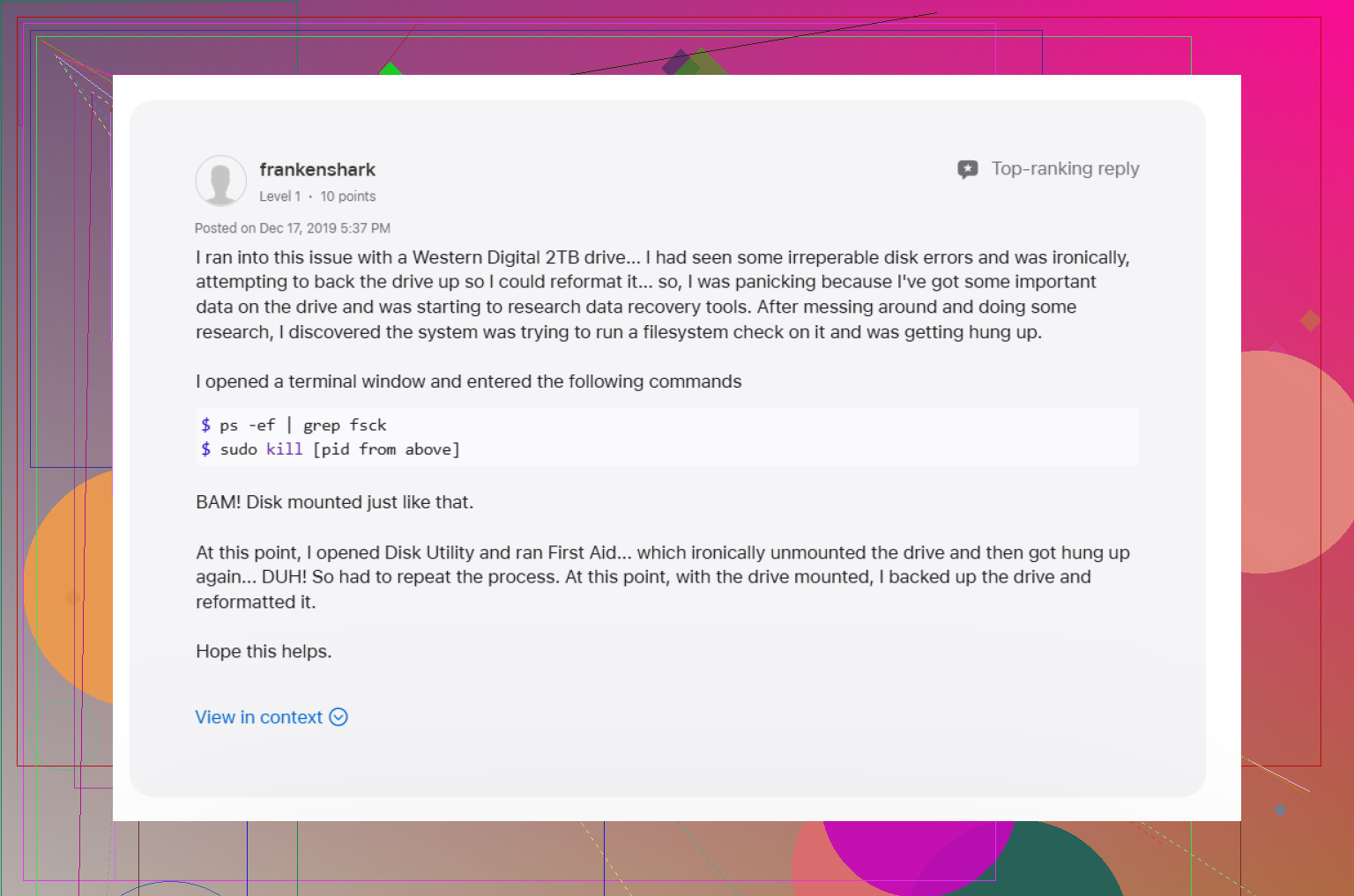
1. Kill a stuck fsck process
This is the first thing I’d try.
When a drive gets unplugged badly, macOS often starts fsck on its own. That check is supposed to help, but sometimes it grabs the disk and never lets go. I saw this more than once with exFAT drives and bigger external disks.
Open Terminal from Applications > Utilities, then run:
sudo pkill -f fsck
Type your Mac password when it asks. You won’t see the characters while typing. macOS does this on purpose.
If fsck was the thing blocking the mount, the drive often pops back up right after. If it mounts as read-only, stop there and copy your files off first. Don’t test your luck.
2. Run First Aid on the whole disk chain
A lot of people only run First Aid on the volume. I did too. Didn’t help.
Open Disk Utility, hit View, then choose Show All Devices. You want to see the full stack:
- Physical disk
- Container, if there is one
- Volume
Run First Aid in that order. Start at the top, then work downward.
I’d even run it twice if the first pass finds issues. I’ve had Disk Utility report one problem, fix part of it, then catch the rest on the next run.
3. Sign out and try again, or use another account
This sounds dumb until it works.
I’ve seen macOS act weird with DiskManagement where the drive wasn’t the real problem. Logging out of the current user session cleared it once for me. Another time, the disk mounted fine from a second user account on the same Mac.
So try this:
- Log out of your account
- Log back in and reconnect the drive
- If you have another user account, test there too
If it mounts under another account, the mess might be tied to your user profile, settings, or permissions.
4. Check whether Time Machine is hanging onto it
If this disk was ever used with Time Machine, I’d look here next.
macOS sometimes keeps a grip on drives used for backups. I had one external disk refuse to behave until I turned off automatic backups for a bit.
Open System Settings and temporarily disable Time Machine automatic backups. Then reconnect the drive and see if it mounts.
Not elegant. Still worked.
5. Stop trying to force it, recover data first
If Terminal didn’t fix it and First Aid keeps failing, I would stop pushing the drive.
Repeated repair attempts are where people dig the hole deeper. If the file system directory is damaged, each extra write or repair pass raises the risk.
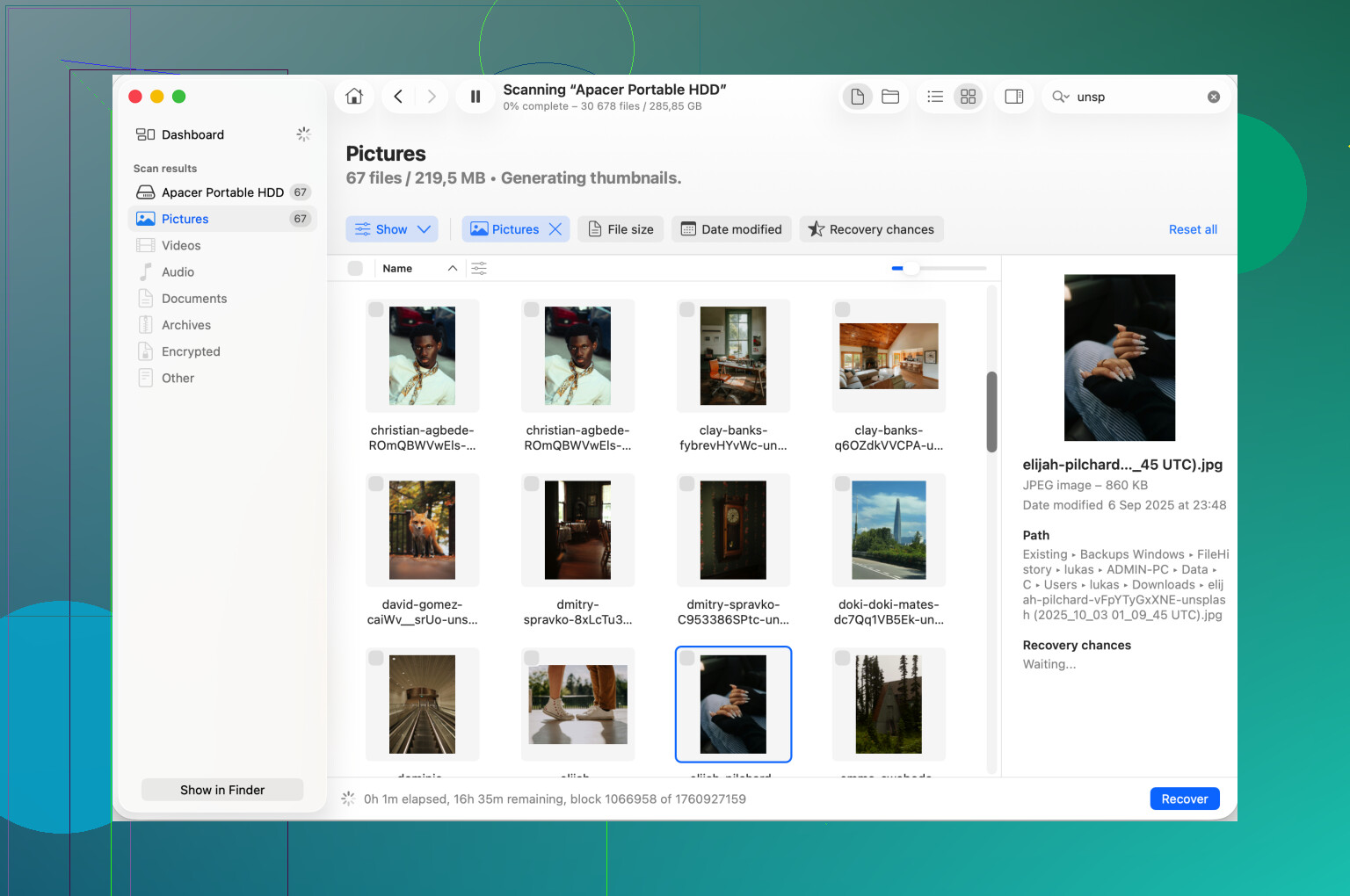
At this stage I’d switch to recovery before doing anything destructive. Disk Drill is one option. It scans the raw contents of the drive even when macOS won’t mount it in the usual way. Sometimes it pulls back enough structure to recover folders and files onto another healthy disk.
My rule after losing stuff once was this:
- Get the files out first
- Fix or erase the drive after
6. Reformat only after the data is somewhere safe
Once your important files are copied off, then erase the drive if you want to keep using it.
In Disk Utility:
- Select the physical drive
- Choose Erase
- Pick the format based on how you use it
What I’d use:
- APFS for Mac-only use
- Mac OS Extended (Journaled) for older Mac workflows
- exFAT if the drive needs to move between Mac and Windows
If you’re using exFAT, I’d format it on the Mac if the Mac is where it lives most of the time. I’ve had fewer weird mount problems that way.
A couple things worth keeping in mind
- Always eject before unplugging, even if you’re in a rush
- Bigger drives take longer to scan and repair than people expect
- If First Aid looks frozen, give it more time before killing it
- RAID does not replace a backup
Here’s the image from the original post:
Error 49153 usually points to the volume layer, not the USB cable or the whole drive. Disk Utility seeing the device is a good sign. macOS is talking to the hardware, but it fails when it tries to attach the file system.
I’d do a few checks @mikeappsreviewer did not cover.
- Mount it in Terminal and read the exact failure.
Run:
diskutil list
Find the volume identifier, like disk4s1, then run:
diskutil mount disk4s1
If it throws a more specific error, that helps narrow it down fast. Sometimes Disk Utility hides the useful part.
- Check the file system type.
In Terminal:
diskutil info /dev/disk4s1
Look at “Type (Bundle)” and “File System Personality”.
Why this matters:
APFS volumes from newer macOS versions sometimes fail on older Macs.
NTFS often shows up but won’t mount writable on macOS.
exFAT drives made on cheap TVs, cameras, or routers fail on Mac more often than people think. I’ve seen this a lot.
-
Try safe mode.
Boot into Safe Mode, plug the drive in, test mount. This disables some third-party kernel extensions and login items. Antivirus, cleanup apps, and old drive tools mess with external disks more than people admit. -
Check system logs.
Open Console and filter for “diskmanagementd” or “disenter”. If you see I/O errors, invalid B-tree, or unsupported format, you have your answer. If it says resource busy, then some process still has a hold on it. I don’t fully agree with killing fsck first every time. I’d want proof from logs or Activity Monitor before swinging at system processes. -
Test another Mac, or a Windows PC if the disk is exFAT or NTFS.
This is a fast split test. If it mounts elsewhere, your Mac setup is the issue. If it fails everywhere, the file system is damaged or the enclosure is flaking out. -
Swap the enclosure or adapter.
This one gets missed a lot. SATA-to-USB bridge boards fail in weird ways. The disk appears, size looks fine, mounting fails. I had a drive do exaclty this, new enclosure fixed it in 5 minutes.
If the data matters, stop repair attempts after 1 or 2 passes. Recover first. Disk Drill is worth a look for Mac when the drive shows up but won’t mount, since it often reads the disk even when Finder does not.
For background on stopping writes and avoiding more damage, this thread is useful:
protect your files by stopping disk activity before recovery
If Disk Utility sees the device but the volume will not mount, I’d also check whether the partition map itself is the real problem, not just the file system. That part gets overlooked a lot.
In Terminal, run:
diskutil list
gpt -r show /dev/diskX
Replace diskX with the physical disk, not the volume. If GPT looks damaged, macOS can detect the drive but still throw disenter 49153 when it tries to attach the volume. That’s a diff issue from just “run First Aid again.”
I partly disagree with going too hard on repairs early. @mikeappsreviewer and @caminantenocturno are right about recovery-first if the data matters, but if SMART is bad, stop almost immediatley and clone/image the disk first. Check:
diskutil info diskX | grep SMART
Also, try mounting read-only from Terminal:
sudo diskutil mount readOnly /dev/diskXs1
Sometimes that works when normal mount fails, and you can at least copy stuff off.
Another thing: if this is an external HDD, listen for clicking, spin-downs, or long pauses. Error 49153 can look “software-ish” while the drive is quietly dying. Seen that more than once.
If the drive still won’t mount, use Disk Drill for Mac or similar recovery software before erasing anything. It’s often useful when an external drive appears in Disk Utility but Finder won’t open it.
If this happens on a Seagate external, their own macOS Disk Utility notes are worth checking too: Seagate Mac Disk Utility error fixes for external drives.
Short version:
- check GPT/partition map
- check SMART health
- try read-only mount
- image/recover before erase
If it mounts read-only, dont “test stuff.” Copy the files first.