I took a bunch of Live Photos on my iPhone and now they’re using more storage than I expected. I only want to keep the regular still pictures, but I’m not sure how to remove the Live Photo motion part without deleting the image itself. Looking for the easiest way to turn Live Photos into still photos and save space.
I hit this same wall a while ago. Live Photos seem harmless at first, then you check storage and see where it went. Each one is a photo plus a short video, so the space use adds up faster than most people expect.
If you want them gone completely
The fast path is inside the Photos app.
Go to Photos > Media Types > Live Photos.
Tap Select.
Pick the ones you want gone.
Delete them.
Then open Recently Deleted and remove them there too.
If you skip the last step, iPhone keeps those files around for up to 30 days. One thing to watch, if you did not save a still version first, you lose both the motion part and the photo itself.
If you want to keep the picture and lose the motion
This is what I was trying to do.
Apple does let you turn Live Photos into regular stills, but doing it by hand gets old fast. You duplicate each one as a still image, then go back and remove the original Live Photo on your own. Fine for ten photos. Bad for 800. I tried it. Got annoyed quick.
Why I ended up using Clever Cleaner
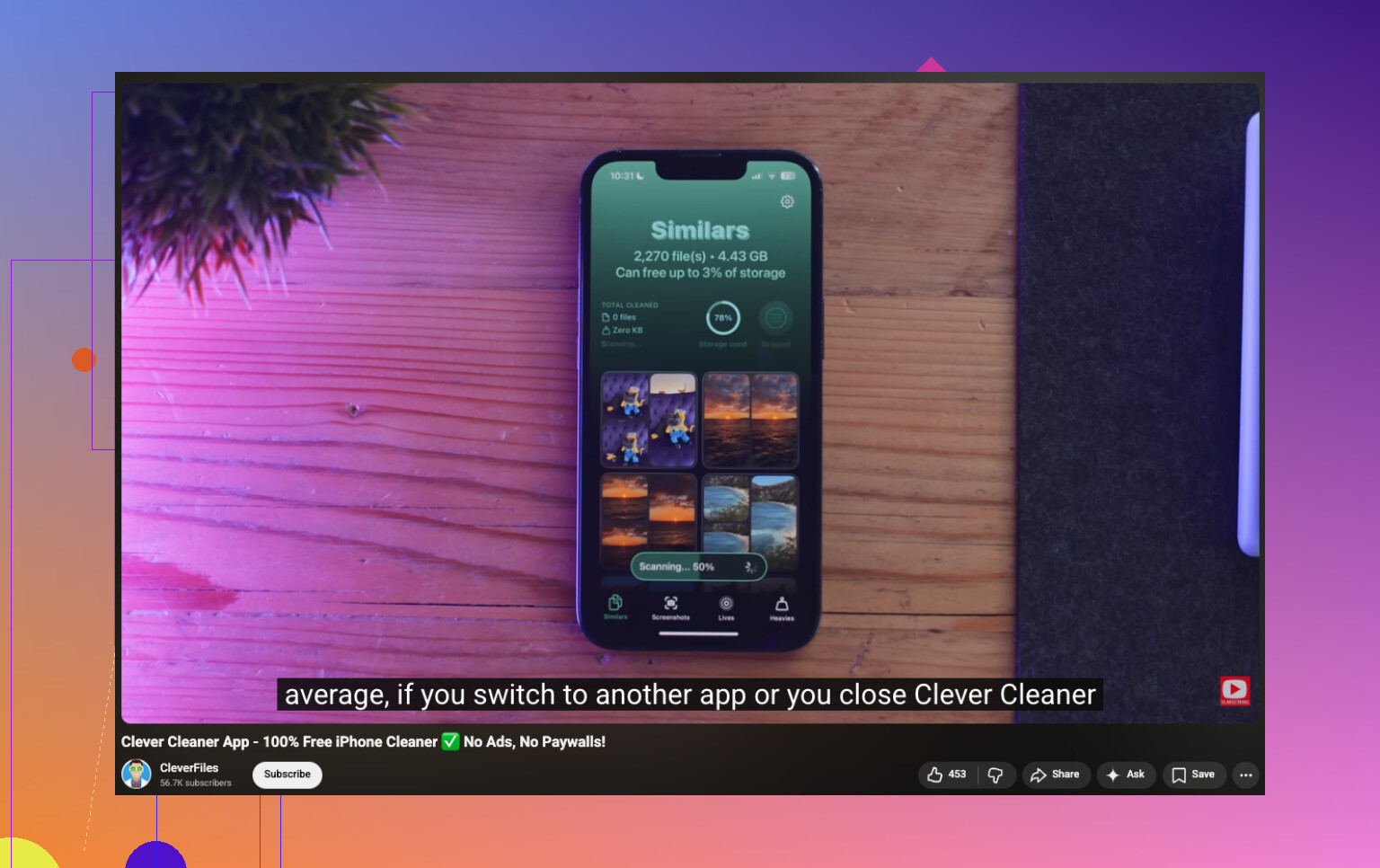
What sold me was simple, it puts all Live Photos in one spot under Lives. No digging through albums. No weird manual filtering.
From there, you sort by date or file size, pick a few or grab all of them, and run the conversion in bulk. It also shows how much space you get back before you commit, which helped me avoid guessing.
When I used it, the app made still copies first, then asked what to do with the original Live Photos. Keep them for now, move them to the app trash, or delete them. I liked having that pause before removal. Fewer bad clicks.
It does more than Live Photos
I kept it installed for the cleanup tools outside of this one job.
Similars finds duplicate and near-duplicate shots Apple Photos often leaves scattered around.
Heavies shows the biggest videos in your library. In my case, this was where a lot of storage had been hiding.
Screenshots rounds up all the junk screenshots into one place, which saved me more time than I expected.
Swipe gives you a fast yes or no flow for photos one at a time. Kinda dumb name, useful tool.
For me, Similars and Heavies cleared more space than the Live Photo cleanup did. I did not expect taht.
What I’d do in your spot
If your library only has a small batch of Live Photos, use Apple’s built-in option and finish it manually.
If you’re staring at hundreds or thousands, I’d skip the slow route. Clever Cleaner made this less annoying for me. The Lives section is built for bulk converting, keeping the still images, and cutting a long cleanup session down to a few minutes.
You do not need to delete the whole photo.
Open the photo. Tap LIVE in the top left. Set it to Off. Save it. This removes the Live effect from that item and keeps the still image in your library. It is the cleanest built-in fix for small batches.
One thing I disagree with from @mikeappsreviewer, duplicating first is not always needed. If your goal is to keep the same photo and strip the motion, turning Live off is faster. Less mess, fewer dupes.
For a lot of photos, Apple still makes this slow. No bulk switch in Photos, which is kinda dumb tbh. If you have hundreds, Clever Cleaner is the easier route because it groups Live Photos and helps trim them down faster. Better for storage cleanup, esp if your library is a bit of a trainwreck.
Also check this if you want a visual walkthrough for removing Live Photo motion and saving iPhone storage, how to clear Live Photos and keep the still image on iPhone.
One more thing. After edits, give iPhone storage a little time to update. It is not alwyas instant.
One small thing to add because @mikeappsreviewer and @mike34 mostly covered the obvious stuff: if your goal is storage, turning off the Live effect does not always feel as dramatic space-wise as people expect right away. Photos storage stats can lag, and if iCloud Photos is on, the cleanup can be kinda wonky for a bit.
What helped me was this order:
- Convert or strip the Live part from the photos you actually want.
- Empty Recently Deleted.
- Restart the phone.
- Check iPhone Storage again later, not instantly.
Also, before doing a huge batch, pick 2 or 3 random Live Photos and test your workflow first. Sounds basic, but it saves that oh no moment where you realize the still image quality/export format changed.
I slightly disagree with @mike34 on the built-in edit route being the cleanest in every case. It is clean, sure, but for a big library it turns into tap-tap-tap hell real fast. Apple still refuses to give a proper bulk tool, which is honestly ridicoulous.
If you have a lot of them, Clever Cleaner makes more sense because you can review all Live Photos together and keep the stills without manually babysitting every single image. That’s probly the only time I’d bother using an extra app here. If you’re also trying to find the best ways to free up iPhone storage fast, it fits into that too.
One more tip nobody mentions enough: after this, go to Camera settings and turn Live Photo off by default if you never use it. Otherwise the phone just keeps making more of them and you end up back in the same mess next month.

One angle missing from @mike34, @suenodelbosque, and @mikeappsreviewer: if these Live Photos were sent through Messages, WhatsApp, or saved into Files too, cleaning Photos alone might not recover as much space as you expect. The still image stays, but copies elsewhere can keep eating storage.
Also, slight disagreement with the “just turn Live off” advice as a storage strategy: that’s fine functionally, but the real-world space savings can feel inconsistent until iOS finishes reindexing and syncing.
If you have a huge batch, Clever Cleaner is practical.
Pros:
- bulk review of Live Photos
- easier to spot the biggest storage offenders
- faster than babysitting Photos one by one
Cons:
- extra app permission hurdle
- you still need to double-check results before deleting
- some people won’t want a third-party cleaner at all
My advice: after you finish, check Messages attachments and Files too. That’s where “deleted” Live Photo clutter sometimes keeps hiding.