I recently checked my iPhone storage and was surprised by how much space junk files, caches, and other data are using. What’s the safest way to remove unnecessary files and free up storage without deleting important photos, apps, or messages?
Your photo library is probably the best place to start. There really isn't a true “junk file cleaner” for iPhone because iOS doesn't give third-party apps access to system files or hidden caches. Apps that claim they can fully clean iOS are usually overstating what they can do.
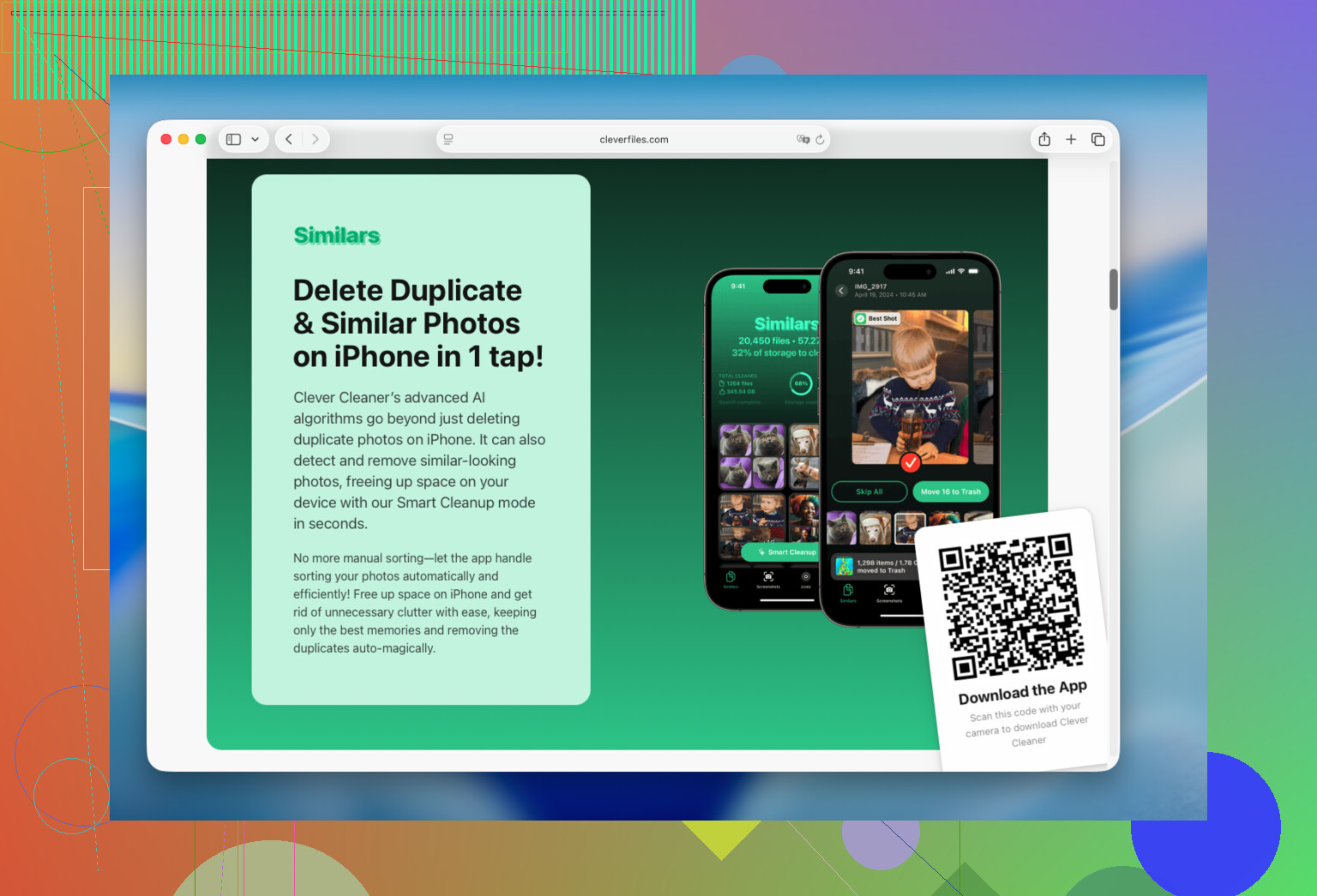
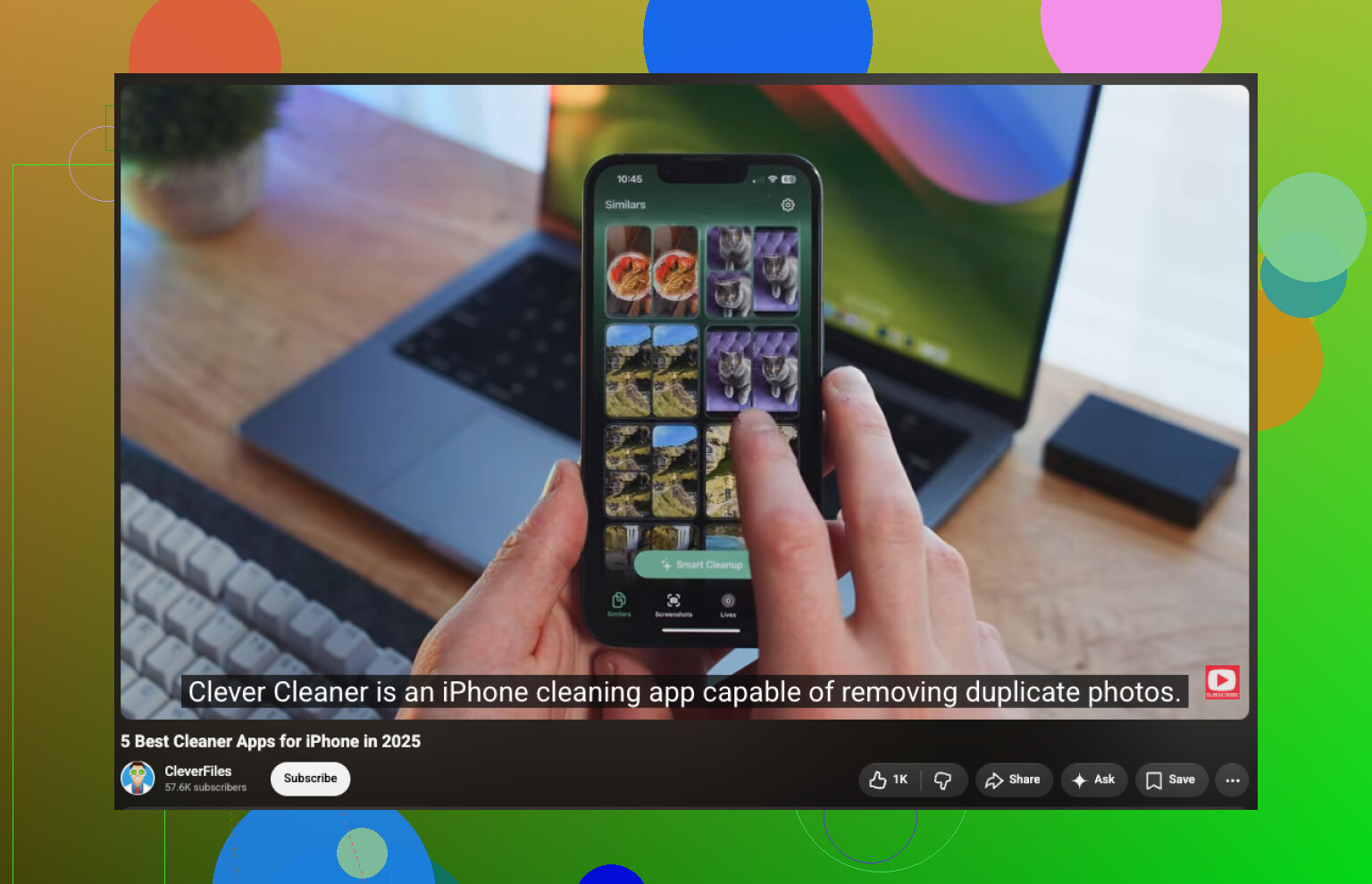
I used Clever Cleaner mainly to find duplicate photos, but it also picked up hundreds of similar shots, forgotten videos, screenshots, and Live Photos. That freed up much more space than manually checking everything. It analyzes the library on-device, doesn't have ads, and the free version is enough for routine cleanups.
The basic cleanup is straightforward:
- Install the app and give it access to your photo library.
- Go to Similars and review the duplicate or nearly identical photos. It suggests which one to keep, but you can change the selection before deleting anything.
- Check Videos, especially old or large clips you no longer need.
- Look through Live Photos and Screenshots. Those can take up more storage than you'd expect.
- Use Smart Cleanup if you want to handle several categories at once. The Swipe option is better if you'd rather review photos one at a time.
After deleting anything, remember to open Photos > Recently Deleted and empty that album. Otherwise, iOS keeps the files there and you won't get the storage back right away.
Once the photo library is under control, open Settings > General > iPhone Storage and see what else is taking up space. You can offload or remove apps you haven't touched in months, clear offline downloads and caches in apps such as Telegram, Spotify, Netflix, or YouTube, and check the Files app for old downloads.
For me, photos and videos were easily the biggest source of wasted storage. I recovered more space there than I did by removing apps or clearing caches, and reviewing the library took around 15 minutes.
Don’t expect the “System Data” section to drop to zero. iOS uses part of it for temporary files, logs, updates, and caches, and the number can change on its own. Restarting the phone and installing any pending iOS update may reduce it, but “cleaner” apps cannot directly erase that area.
I’d start in Settings > General > iPhone Storage and check Messages, Safari, Podcasts, and downloaded media. Large message attachments and forgotten offline downloads are often easier to remove than app caches. If a particular app has grown unusually large and offers no clear-cache option, deleting and reinstalling it can help, but make sure its data is synced or backed up first.
The photo advice from @nick_bash is useful, but there’s an important catch: if iCloud Photos is enabled, deleting a photo removes it from your other synced Apple devices too. Review everything carefully before emptying Recently Deleted. Clever Cleaner can make sorting faster, but I wouldn’t approve a large automatic selection without checking it first, especially with similar photos that may have different edits or image quality.
Offloading an app is not the same as clearing its junk. It removes the app itself but keeps its documents and data, so it may recover very little if that data is what grew huge. Check the size breakdown in iPhone Storage first. If “Documents & Data” is the problem, deleting and reinstalling the app is more effective, but only after confirming your account, saves, and files are synced somewhere.
I wouldn’t assume photos are the best target until you see which category is actually large. Messaging apps, downloaded podcast episodes, offline maps, streaming downloads, and browser data can quietly consume more space than duplicate pictures. Check the trash folders too. Photos, Files, Voice Memos, and some apps keep deleted items for a while, so removing something does not always free the space immediately.
Clever Cleaner can make photo sorting less tedious, but it cannot touch app caches or iOS System Data. For the safest cleanup, remove obvious downloads first, restart the phone, then reassess the storage screen before deleting anything harder to replace.

Don’t delete iCloud Drive files just to reclaim space. In the Files app, press and hold a cloud-stored file and choose “Remove Download” instead of “Delete.” That removes the local copy from the phone while leaving the file in iCloud. Anything under “On My iPhone” is different, so move important files elsewhere before removing them.
I’d do the low-risk cleanup first: clear Safari website data if you do not mind signing back into some sites, remove offline music and video downloads from inside their apps, and review large Messages attachments from the iPhone Storage screen. Downloads are usually safer targets than app data because you can fetch them again.
For photos, an organizer such as Clever Cleaner can speed up reviewing duplicates and screenshots, but I would treat its selections as suggestions. Similar-looking pictures may have different edits, resolutions, or people in the background. @kernel_loop’s warning about iCloud Photos matters here because deleting an image is a synced action, not a phone-only cleanup. If you want to keep the library but reduce local storage, “Optimize iPhone Storage” is often safer than deleting photos.
Afterward, restart the phone and give the storage screen a little time to recalculate. If an app is still taking up several times more space in Documents & Data than the app itself, check whether it has its own cache or download controls. Deleting and reinstalling should be the last move, after confirming that logins, projects, chats, and game saves are backed up.
Set your expectations low on the ‘junk files’ idea. iPhones don’t accumulate the kind of loose garbage that a Windows machine does, so anyone hoping a single button will free up 20GB is going to be let down. Most of what shows as wasted space is stuff you actually put there, mainly photos, videos, and downloads that piled up quietly.
The bit about System Data from @kernel_loop is the part most people trip over. It swells, it shrinks, and no app touches it directly. What nobody mentioned is that the only reliable way to knock a bloated System Data figure back down is a full backup and restore. Back up the phone, erase it, restore from that backup, and the temporary junk that iOS refused to clear usually gets rebuilt from scratch at a smaller size. It’s a hassle and not worth doing for a couple of gigs, but if System Data is sitting at 20GB or more, that’s the real fix, not a cleaner app.
One thing worth checking before you go hunting through apps: Messages. If you never set an expiration, every text, photo, and video attachment from years back is still sitting on your phone. Settings > Messages > Keep Messages, switch it to one year, and you might reclaim more than any photo cleanup does. Same goes for the audio and video messages people forget they even received.
On the photo side, the advice above is solid and Clever Cleaner is fine for chewing through similar shots and screenshots faster than the stock Photos app lets you. I’d just treat its picks as a starting point, not gospel, since the ‘keep this one’ guess doesn’t know which version you actually care about. The point @openwolf7019 raised about Optimize iPhone Storage is the underrated move here. If your library is huge and mostly stuff you want to keep, offloading the full-res copies to iCloud beats deleting anything, assuming you have the iCloud space for it.
Last thing, and it’s more of an annoyance than a tip. The storage screen lags badly after you delete things. You’ll clear a bunch, look at the number, and it barely moved. Empty Recently Deleted, restart, then leave it alone for an hour before you decide whether it worked. People panic and start deleting apps they need because the graph didn’t update fast enough.