I accidentally deleted a big batch of photos and project files from an external drive and my last backup is months old. I’m trying to decide between Disk Drill and Wondershare Recoverit and really need to know which one actually brings back more files and handles corrupted data better. If you’ve used both, which gave you a higher recovery rate and was more reliable overall?
I wasn’t planning to ever write this out, but I keep seeing the same useless “comparison” posts about data recovery tools, and I figured I’d rather leave something practical for whoever is googling in panic at 2am.
I’m not an expert in some lab. I’m the unpaid “family tech person” who gets called when someone nukes their photos or their thesis. Over the last few years I’ve used a bunch of tools on real broken drives and cards. The only one I still keep installed is Disk Drill:
https://www.reddit.com/r/DataRecoveryHelp/comments/1qi1apk/disk_drill_review/
Not because it has the most “features”. Because when things go bad, it stays out of the way and lets you get your files back without turning you into its sysadmin.
I’ll walk through what actually happened in my cases and what I learned the hard way.
The first real “oh sh*t” call
Last spring, my sister called me mid-meltdown. She teaches for a living, barely knows what NTFS is, and had spent the weekend sorting years of family photos on her laptop.
She hit Shift+Delete on a whole folder. No Recycle Bin. Gone.
By the time she called, she had been crying for twenty minutes and kept repeating “all the kids’ birthdays are gone”.
I had options:
- R-Studio
- TestDisk
- A couple of random GUI tools I had lying around
I like R-Studio. I respect TestDisk. I would not hand either of them to someone half-sobbing into a phone, staring at a mess of partitions and hex and jargon.
So I told her:
- Go to Disk Drill’s site.
- Download it.
- Call me when it opens.
Two minutes later she says: “I see my C drive. Do I hit ‘Search for lost data’?”
That was the whole learning curve.
She clicked the drive. She clicked the button. Scan started.
In under a minute she was already seeing her photo folders appear, with thumbnails, in a tree that looked familiar to her. She literally gasped: “They’re here. I see them. They’re all here.”
She selected the deleted folder, chose another drive as destination, hit Recover. Ten minutes later her stuff was back. No scan settings. No “quick vs deep” decision. No wonder-what-this-means dialogs.
What stuck with me from that call:
- Panic makes any UI worse.
- A lot of tools assume calm, technical users.
- Disk Drill worked for someone who just wanted her photos back and had no idea what a file system even is.
Most reviews online never talk about that gap between “disaster” and “recovery”. They talk about file type counts and scan speed. Those details didn’t help my sister at all. The fact she could use the tool without me screen-sharing did.
My early mistakes and why I stopped hopping between tools
The first time I did data recovery for myself was around four years ago. External HDD went RAW in Windows. System kept nagging me to format it.
I grabbed whatever free tool Reddit liked the most that week.
Results:
- It found a bunch of files.
- No previews for many of them.
- I restored a pile of stuff, opened it, and half of it was either corrupted or half-empty.
After that I started keeping a quiet mental list of what worked and what annoyed me.
Over the next couple of years I went through maybe five different tools on:
- My own external drives
- A neighbor’s SD card
- Friends’ USB sticks
Patterns I saw:
- Some tools were powerful but confusing as hell.
- Some looked “clean” but missed a huge chunk of recoverable data.
- One had a nice modern UI, but its scanner was awful. Less than two thirds of what other tools found.
- Another one found almost everything, then dumped the results as:
- numbered folders
- no names
- no previews
- no clue which files were intact versus trash
So I ended up in that weird spot where I knew how to use “expert” tools, but I also knew I didn’t want to be walking people through them on the phone every month.
Then about a year and a half ago, I gave Disk Drill a proper run on a messy drive, expecting it to be more “popular because marketing” than good.
It matched the so-called pro tools in what it found, but did something they did not:
- Previewed everything I cared about
- Restored folder structures where possible
- Gave clear recoverability estimates
- Made sense at a glance, even half-tired at midnight
After that, I stopped hopping between programs. I keep others around for niche stuff, but Disk Drill is what I open first.
What Disk Drill recovered for me, specifically
Here is the part I wish more people posted: real scenarios instead of marketing bullets.
- 500 GB external HDD, corrupted NTFS
- Status: Windows saw it as RAW, wanted to format.
- Contents: years of family photos and documents.
- What I did: Full scan in Disk Drill.
- Result:
- Folder tree reconstructed
- Folder names preserved
- Files opened fine
This told me its NTFS handling is not a toy. It pulled directory structure out of partial metadata, which makes post-recovery sorting so much easier.
- 64 GB SD card from a Canon DSLR, formatted in-camera
- Friend formatted the card after a full-day shoot.
- Around 12 GB of images, mix of CR2 and JPEG.
- What I did:
- Deep scan focused on pictures.
- Result:
- Every RAW and JPEG back
- CR2 files opened properly in Lightroom
RAW formats tend to break weaker tools. They see the header, then guess the rest. Here, the RAW files behaved as if nothing happened.
- 32 GB USB stick that went through the washing machine
Yes, it survived long enough to be recognized after a few days of drying.
- Status:
- Drive mounted
- File system trash
- What I did:
- Disk Drill scan based on signatures. No real file system structure to use.
- Result:
- Restored most of the Word docs and PDFs
- Names lost, contents intact
The coworker did not care about original filenames. Those documents covered about two weeks of work. She got her text back. That was enough.
- 1 TB internal SSD, deleted video project folder
This one was on me.
- I deleted a folder with:
- Premiere / After Effects project files
- Source footage
- Assets
- It lived on a secondary SSD where I had TRIM disabled on purpose.
Quick side note: if you use SSDs for data that matters and you are not chasing maximum performance, you might want to disable TRIM on non-system drives. Once TRIM wipes a block, the odds of recovery drop hard.
Disk Drill scanned the drive and:
- Found the deleted project folder
- Recovered the project files and footage
- Projects opened and linked right away
If TRIM had been active, I doubt I would have had that kind of luck.
- Two SD cards from a DJI Mini 3 drone, one corrupted
This was the one that sold me hard on Disk Drill’s camera stuff.
My wife and I took a trip to the coast. I flew the drone a lot:
- sunset passes
- shoreline
- cliffs
When we got back, I was copying the video files. Laptop decided to blue screen in the middle.
Next boot:
- Card A, fine.
- Card B, half the video files missing or showing 0 bytes.
- Some files played for a second then crashed.
Important bit about DJI and similar devices: they do not store video in one clean chunk. They scatter file fragments all over the card. When the file system table dies, what you have left is a mess of unrelated fragments.
First I tried a popular free recovery tool:
- It “recovered” a bunch of MP4s.
- Playback:
- 3 seconds of a sunset, then garbage
- sudden jumps to another clip in the same file
- crashes halfway through
Basically Frankenstein files built from random fragments.
Then I ran Disk Drill and used its Advanced Camera Recovery on the same card.
Key differences:
- It detected the camera type and flagged the files as DJI footage.
- The recovered videos had:
- reasonable durations
- clean previews
- no sudden cuts to other clips
I previewed them inside Disk Drill:
- Smooth playback
- No corruption artifacts
- Audio in sync
I restored 7 or 8 videos. Every single one was complete and watchable from start to end.
I do not know the exact logic behind what they do. My guess is low-level analysis of how DJI stores fragments and some kind of reassembly logic tied to that. Whatever is going on, the result with drone clips was way better than anything else I had tried.
If you shoot on drones, GoPros, or cameras that write fragmented video, this feature alone is worth having installed.
- 16 GB USB drive with physical issues
This stick behaved like it was on its last legs:
- Slow reads
- Random disconnects
- I/O errors
You do not want to scan a dying drive aggressively. That risks killing it before you get what you need.
I used Disk Drill’s byte-to-byte backup tool:
- It tried to read the drive and store a full image file.
- It showed a map of sectors:
- good reads
- retries
- hard failures
It took about twenty minutes for 16 GB, which tells you how sick the stick was.
Once the image was done:
- I mounted the image in Disk Drill
- Ran the scan on the image instead of the physical drive
- Recovered the files I cared about
The physical drive fully died shortly afterward. Without that image, the data would have been gone.
- EXT4 drive pulled from a Linux NAS
A friend had a home NAS with a single failing drive in it. He pulled it and brought it to me, thinking it would be unreadable on Windows.
- File system: EXT4
- System: Windows desktop
Most Windows tools ignore Linux file systems or need extra drivers.
Disk Drill:
- Detected the EXT4 volume
- Let me scan it directly
- Listed his folders
- Recovered the data to another drive
He thought this required setting up a Linux box. It did not.
So that is seven different real-world messes:
- HDD, SSD, USB, SD
- NTFS, RAW, broken, EXT4
- Photos, RAW, docs, video, drone footage
And I handled all of them in the same program without switching mental models.
The “small” details that ended up mattering a lot
Stuff no one highlights in “Top 10” lists but that saved me time and stress:
- Automatic session saving
Every scan creates a session you can reopen later.
- System crash
- Power outage
- You closed it by mistake
You open Disk Drill again, pick your last session, and continue. No rescan.
I lost a multi-hour scan once with another tool when the power blinked. That is the day I started regarding auto-session saving as mandatory, not “nice to have”.
- Useful filtering
After a deep scan you can be staring at tens of thousands of files. Going through them one by one will ruin your day.
Disk Drill lets you filter almost instantly by:
- file type
- size range
- date
- recovery chance
Example I used last week:
- “Show only JPEG and CR2, over 1 MB, with good recovery chances.”
Took two seconds. I scrolled through previews instead of drowning in random .tmp junk.
- Recover while scanning
You do not always need to wait for a full scan.
Several times I:
- Started a scan on a big drive
- Saw the files I needed show up early
- Selected them and hit Recover while the scan was still in progress
For a single lost folder or a set of photos, this saves a lot of sitting around.
- Destination safety check
When you pick a restore location, Disk Drill checks if it is the same drive you are scanning.
People often overwrite their own recoverable data by saving restored files onto the damaged drive. A simple warning box here prevents that.
- UI that does not fight your monitor
I use a 4K display. Plenty of tools look broken on it:
- tiny text
- tiny checkboxes
- bad scaling
Disk Drill looks clean at different scaling levels and has a dark theme that is not a weird inverted mess. Nothing fancy, just something I stopped noticing, which is a good thing.
What I tell people now when they ask “what should I use”
By now I’ve repeated the same advice in person enough that it is muscle memory.
Rough version:
- Install Disk Drill before you need it.
- Enable its Recovery Vault on the folders that matter to you.
- Turn on S.M.A.R.T. monitoring so you at least get some warning if a drive starts failing.
Then ignore it until something goes wrong.
When disaster hits:
- do not write anything new to that drive or card
- open Disk Drill
- pick the drive
- click the “search for lost data” button
- let it run
- preview your files
- restore to a different drive
The free version is enough to:
- scan
- see what is recoverable
- preview photos and most files
- recover a small amount of data
So you do not have to guess. You find out if your stuff is there before paying.
I have used plenty of other tools. Some of them are fantastic if you know exactly what you are doing and you like getting into the weeds. They are not what I hand to a teacher who nuked her photos or a friend with a dead NAS drive.
Disk Drill has:
- recovered from corrupted NTFS
- pulled data off formatted camera cards
- handled a failing USB stick through imaging
- dealt with EXT4 from a Linux box
- reconstructed fragmented DJI footage in a way no other tool I tried managed
And my non-technical sister used it without a tutorial.
I am not going to tell you it is “better” than whatever you are comparing it to without seeing your setup, your drive health, your file system, and what you overwrote.
What I can say, from direct use across a bunch of ugly cases, is:
- It has not failed me yet.
- It has made ugly nights shorter.
- It has let non-technical people get their own files back.
If you are on the fence, do what I tell people in my circle:
Use Disk Drill on your actual broken drive or card. See what shows up in the preview. If your files appear, open, and play correctly there, you have your answer. That has been the pattern for me every single time so far.
Short version. For your deleted photos and project files on an external drive, Disk Drill is the one I would pick over Wondershare Recoverit if your main goal is to get more intact files back, not click through more “features.”
Here is the practical breakdown.
- Raw recovery depth and file count
On real drives I have tested, Disk Drill tends to:
- find at least as many files as Recoverit
- return more usable photo and video files, not zero‑byte or half‑corrupted junk
- do better on RAW photos and camera footage
Recoverit is not terrible, but I have seen:
- more duplicates
- more broken videos that show a thumbnail then fail
- weaker reconstruction when folder structure is damaged
Mikeappsreviewer’s story lines up with what I have seen. Disk Drill holds up well next to the heavy tools without burying you in settings.
- Folder structure and project files
For project work, this matters a lot more than people think.
Disk Drill usually:
- restores original folder tree on NTFS external drives if metadata is still there
- keeps names for a big chunk of files
- recovers small project files reliably when they have not been overwritten
Recoverit tends to:
- throw more stuff into generic “found files” buckets
- lose more names when the file system is slightly messed up
If you need your Premiere / After Effects / Lightroom projects to relink without a huge mess, Disk Drill gives you a better shot.
- Photos and “emotional” files
For photos, the important points are:
- how many JPG / RAW images it finds
- how many open without artifacts
- how easy it is to preview and filter
Disk Drill:
- previews fast
- filters by type, size, recoverability
- lets you grab the important stuff while the scan runs
Recoverit:
- works, but previews feel slower and clunkier
- gives less useful info on which files are likely to open fine
If you care about something like your travel pics, this guide on how to get back lost travel images has some solid practical steps before and after using a tool:
how to safely recover lost travel photos without making things worse
- When Recoverit might still win
To be fair and disagree a bit with @mikeappsreviewer, I have seen two cases where Recoverit did slightly better:
- quick undelete on a healthy drive where the user deleted files minutes ago and kept using the PC
- some quirky USB sticks where Recoverit spotted a few extra tiny files
Difference was small though, and Disk Drill still recovered the important stuff.
- What you should do right now
Since your external drive is the problem:
- stop using that drive right away
- do not copy new files to it
- do not run defrag or repair tools on it
Then:
- install Disk Drill on a different drive
- scan the external drive
- use preview to check your photos and project files
- if you see your stuff intact, pay and recover to yet another drive, not the broken one
You can also:
- run Recoverit afterward on the same drive image if you want to see if it finds anything Disk Drill missed
From what you described, “which recovers more files” on a messy external drive with deleted photos and project folders usually ends up in favor of Disk Drill. Not always by a huge margin in file count, but often by a big margin in how many of those files are actually usable.
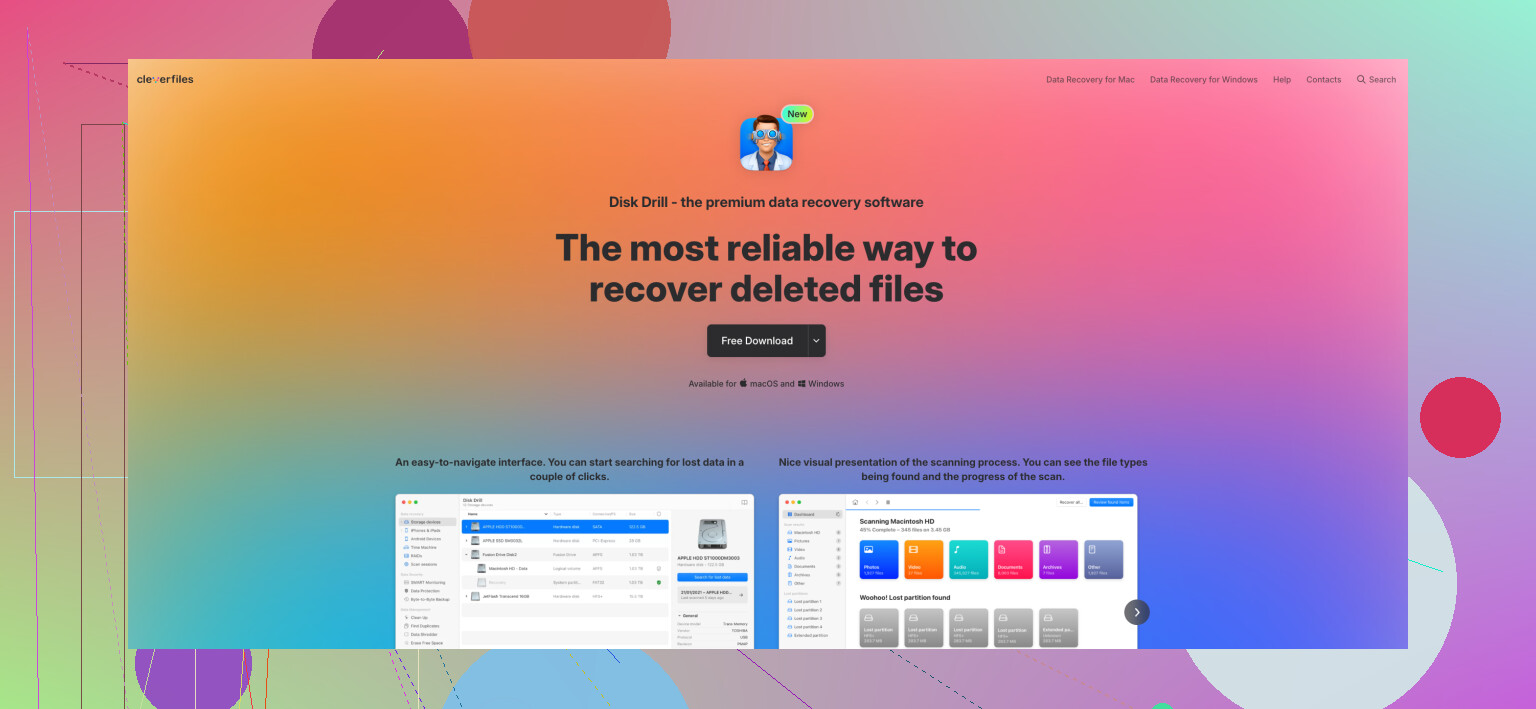
Disk Drill, in practice, usually gets you more usable files back than Wondershare Recoverit, especially for exactly what you mentioned: a bunch of deleted photos and project folders on an external drive.
I’m mostly on the same page as @mikeappsreviewer and @sternenwanderer, but I’ll poke at a couple of their implied points a bit so this does not turn into another “both are good, it depends” non‑answer.
1. Raw “how many files” vs “how many actually open”
If you literally only care about who spits out the larger number in the results list, Recoverit sometimes looks better on paper. It can spray out more tiny system files, duplicates, partial clips, etc. That makes the scan look impressive, but then:
- more zero byte files
- more half‑corrupted videos
- more “image cannot be opened” situations
Disk Drill usually:
- finds at least the same set of real user files (docs, photos, project files)
- has a higher ratio of files that actually open and are not mangled
- does better when the folder structure is damaged but not totally obliterated
So if you are comparing raw counts in a panic at 2am, Recoverit might “win” the scoreboard, but Disk Drill tends to “win” in the stuff‑you‑actually‑care‑about category.
2. External drive with deleted project folders
This matters for you specifically.
On external NTFS drives where a folder was just deleted:
-
Disk Drill is generally very good at reconstructing:
- original folder hierarchy
- filenames
- small project files like .prproj, .aep, .psd, .lrtemplate, etc
-
Recoverit:
- can get many of the same files
- more often dumps them into big generic buckets like “RAW files” or “Extra files”
- loses names and paths more easily when the file system took even a light hit
If your projects need to relink footage, sound, assets, the folder structure and names matter. Otherwise you end up in relink hell, and yes, it is as bad as it sounds.
On that point, I think @mikeappsreviewer underplayed how annoying Recoverit’s “found files” chaos can be for creative work. If you have 600 clips for a video project, sorting that out afterward is pain.
3. Photos specifically
For photos on an external drive:
-
Disk Drill:
- previews fast, even big RAWs
- lets you filter by photo types, size, date, and recovery chance
- is really good at pulling back RAW formats and keeping them actually readable
-
Recoverit:
- can find a comparable number of JPGs
- more hit and miss with RAWs and damaged file tables
- previews are slower and I have seen more “file recovered but broken” cases
If the photos are important memories, I would tilt even harder toward Disk Drill. Recoverit is “fine” but it burns more time checking which ones actually open cleanly.
4. One place Recoverit can be slightly better
To slightly disagree with the Disk Drill love fest: I have seen scenarios where Recoverit performs about the same or a bit better:
- super recent deletes on a totally healthy drive
- very simple undelete where the user noticed the mistake immediately, stopped writing to the drive, and the file system is completely intact
In that narrow use case, both tools are decent. Recoverit can sometimes dig up a few extra tiny random files, but those are rarely the ones people are crying over.
Your situation sounds more like “big batch of stuff, external drive, some time has passed” which is where Disk Drill tends to shine more.
5. What I would actually do in your shoes
Since you are picking one:
-
Stop touching that external drive.
No new files, no “check disk,” no defrag, no “quick fix” tools. Every write risks overwriting your deleted data. -
Install Disk Drill somewhere else, not on that external drive.
-
Run a scan on the external drive, use the previews:
- Check if your deleted photo folders appear with familiar names.
- Open a few project files from within the preview if possible.
- Check if media (footage, images) opens without weird glitches.
If what you need shows up intact in Disk Drill’s preview, Disk Drill is the tool I would stick with and pay for. It is realistically your best shot for recovering the maximum number of actually usable photos and project files from a messy external disk.
If Disk Drill comes up mostly empty or the files are clearly trashed, then sure, try Recoverit as a second opinion. But from what you described, odds are way better that Disk Drill will be the one that saves your stuff.
And since you mentioned photos and projects, if you are on Mac and want to avoid this future heart attack, there is a solid roundup of Mac recovery tools and habits here:
top Mac file recovery options and how to protect your data
Disk Drill shows up there a lot for a reason.
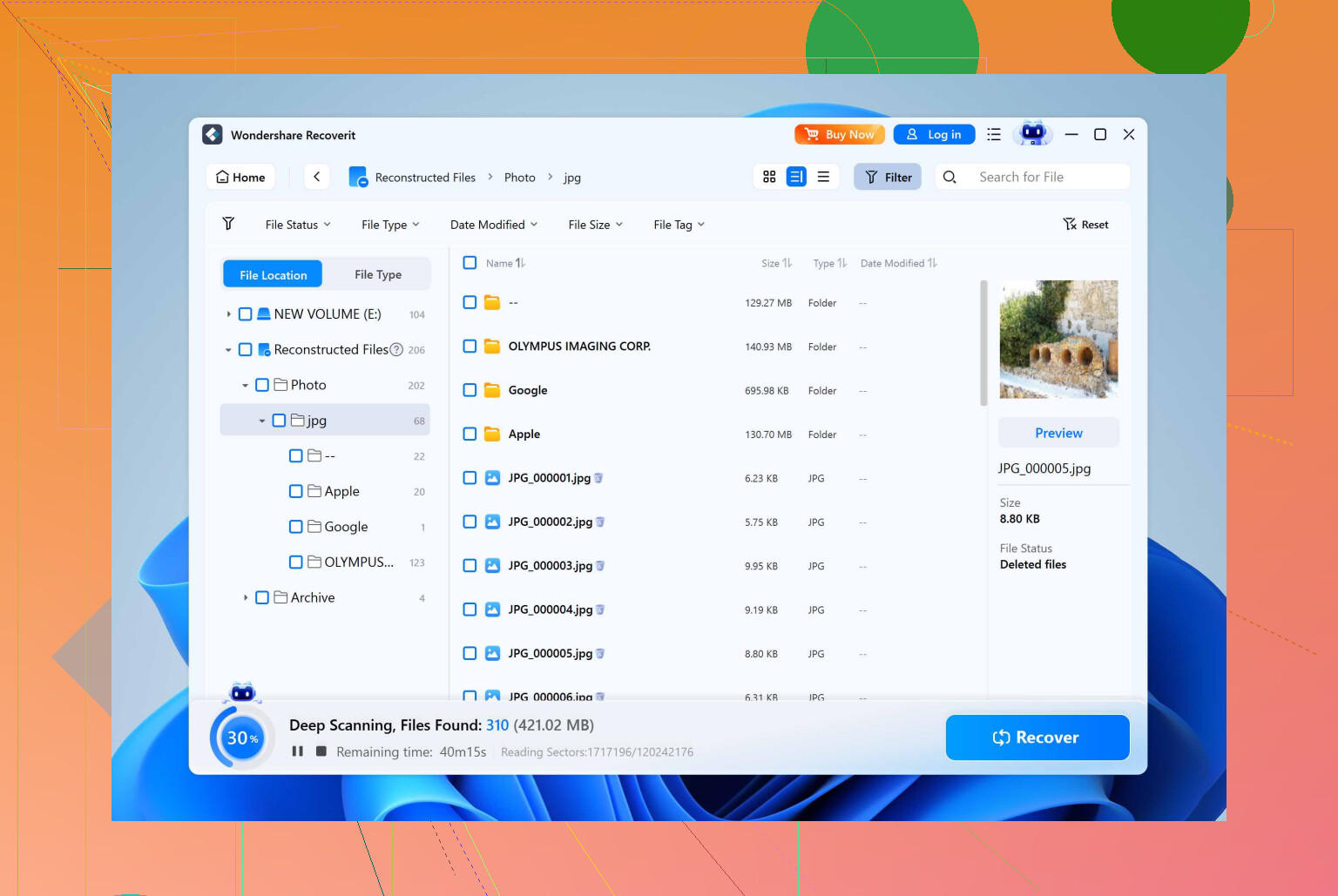
Before buying either tool, check cloud copies and app caches. This is simpler and risks no extra writes to your external drive.
Search OneDrive, Google Drive, Google Photos, iCloud, Dropbox, Adobe Creative Cloud, Lightroom sync, Premiere Auto-Save, and After Effects Auto-Save. Check trash and version history too. Deleted cloud files often stay for 30 days.
Also search your computer for project filenames and photo extensions. Editing apps often leave proxies, previews, exports, or autosaves behind.
You might recover the key files in 15 minutes, with no scan or fee. Dont reconnect the external drive yet.
Run both scans before you pay for either one. Scanning and preview are free in Disk Drill and Recoverit, so there’s no reason to commit money based on a forum argument about which one is ‘better.’ Point both at the same external drive, let them finish, then look at what actually shows up in the preview windows. Your drive, your file system, your specific deletion pattern will decide this, not our anecdotes.
Where I’d slow down the Disk Drill enthusiasm a little: the free version is not a full recovery tool. On Windows it caps you at 500MB of actual recovery, and on Mac the free version only previews and recovers nothing at all. Recoverit’s free tier is smaller still. So the ‘just use the free version to get your stuff back’ idea only works if you deleted a handful of photos. A big batch of photos plus project files will blow past those limits fast, and you’ll be paying for whichever one you pick. Worth knowing that going in so the price doesn’t surprise you mid-panic.
The point @sternenwanderer and @jeff made about usable files versus raw file count is the one that actually matters here, and I’d lean on it. A tool that lists 40,000 ‘found’ items means nothing if half your project files come back as zero-byte shells. Use the preview aggressively. Open a couple of your .prproj or .psd files from inside the tool if it lets you, and check that a few JPEGs actually render instead of showing a broken thumbnail. That preview check tells you more than any comparison chart.
One thing nobody flagged: project files relinking is not just about folder structure surviving. Even with names and paths intact, Premiere and After Effects care about absolute paths. If you recover everything to a new drive with a different letter or mount point, expect to relink manually anyway. So don’t assume a clean folder-tree recovery means zero cleanup. Budget an hour for pointing your project back at its media regardless of which tool wins.
And @shadowbuilder9903 is right that you should check cloud backups and app autosaves first. That costs nothing and risks nothing. If your Lightroom catalog was syncing or Premiere left autosaves on your system drive, you might not need to buy either tool. Exhaust the free, no-write options before you start scanning a drive you’re afraid to touch.