My iPhone storage keeps filling up because the Documents and Data section gets bigger even when I am not downloading anything new. I have deleted apps, cleared photos, and restarted the phone, but the storage usage keeps coming back. Is this normal, and how can I stop Documents and Data from growing on its own without having to reset my iPhone?
If you open iPhone storage and see “Documents & Data” eating a huge chunk, yeah, it looks vague because Apple lumps a lot of junk into one bucket. I ran into this on my own phone. The app size looked small, then the extra stored stuff was way bigger.
What “Documents & Data” means on iPhone
It is all the stuff an app keeps besides the app file itself. Cached images, cached video, cookies, login tokens, history, downloaded files, message attachments, sticker packs, theme files, offline content, all of it lands there.
I think of it as leftover app baggage. You install a 300 MB app, then over time it drags along 2 GB of saved junk from normal use.
Why it grows is simple. Apps save local copies so they load faster later. Scroll Instagram for ten minutes, stream some clips, open the same chats over and over, and your phone starts stockpiling data in the background. You do not get much warning while it happens.
Why an app you barely touch still shows huge storage use
This part got me once. I had apps I had not used in months, yet they still held gigabytes. The reason is old cache usually stays put until you remove it yourself. Heavy use from weeks or months back still counts today.
So if you binged a bunch of content in one app last winter, the remains of it might still be sitting there right now. Kinda dumb, but yep.
Why this slows the phone down
When your iPhone storage gets cramped, iOS loses room for temp files and background tasks. Then you start feeling it. App switching gets sticky. Some apps reopen instead of resuming. Random crashes show up. Saving photos or downloading updates turns into a chore.
Freeing up Documents & Data helped more on my phone than deleting random apps, because the hidden stored junk was the real problem.
How to remove documents and data without deleting the app
There is no one-button fix for most apps. You have to go app by app.
Safari. Go to Settings, Apps, Safari, then Clear History and Website Data. This wipes cached site files, cookies, and history. Your saved passwords and bookmarks stay.
Messages. Go to Settings, General, iPhone Storage, Messages. Check Review Large Attachments. Old videos, voice notes, PDFs, and random files from text threads pile up fast. You can delete those without wiping the full conversation.
Streaming apps. Open Netflix, YouTube, and similar apps, then look for downloads inside their own settings. Offline video is often the biggest single chunk.
Facebook, Instagram, Messenger, and similar apps
This one is annoying. These apps usually do not give you a real cache clear option on iPhone. What worked for me was deleting the app and installing it again from the App Store.
Important part, offloading is not the same thing. Offloading removes the app binary but keeps its stored data. If your goal is to cut down Documents & Data, offloading does the opposite of what you need.
Why Photos still looks huge after you deleted pictures
I thought deleting photos would free space instantly. Nope. The Photos app keeps deleted items in Recently Deleted for around 30 to 40 days. During that window, they still take up storage.
Go to Photos, Albums, Recently Deleted, then tap Delete All if you want the space back now. Shared Albums and Photo Stream stuff can add to the total too, so the number in storage settings may stay higher than you expect.
When manual cleanup stops being enough
On most iPhones, the photo library is still the main storage hog, apart from the app junk above. I ended up using Clever Cleaner because manual cleanup did not touch the worst part of my storage mess.
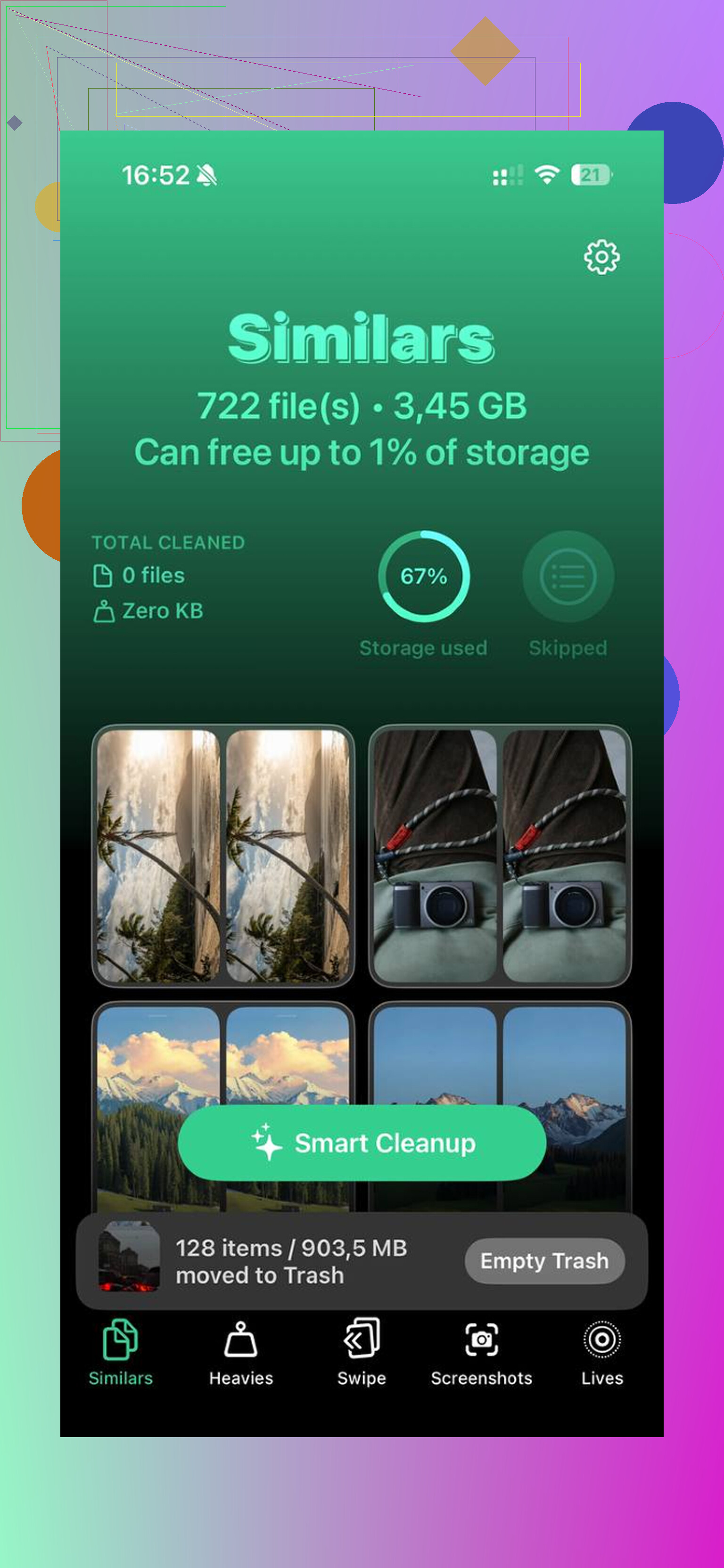
What stood out for me was the Heavies section. It sorts files from biggest to smallest and shows the exact size, so giant 4K videos jump right to the top. Mine had a few accidental clips taking multiple gigabytes each, which I had missed before.
The Similars section groups near-duplicate photos and picks a Best Shot, which made burst-photo cleanup way faster on my end. Processing stays on the device, so nothing gets uploaded somewhere else.
After I cleaned the photo library and cleared the app junk listed earlier, my phone went from full storage to about 15 GB free. The lag mostly went away. Apps stopped choking every time I switched screens. Felt normal again.
Yes, normal. Annoying, but normal.
What grows is often iOS system cache, logs, message indexes, Safari reading list files, Mail attachments, Siri voices, and app background data. So even if you stop downloading stuff, the phone still writes temp data. iOS also re-labels storage categories after indexing, so numbers jump around for a day or two.
I slightly disagree with @mikeappsreviewer on one part. It is not always “junk” left by bad apps. Sometimes iOS keeps temp space on purpose for performance. The issue is when it never shrinks back.
What to check next.
- Mail app. Big hidden offender. Remove and re-add bloated email accounts if attachments piled up.
- Podcasts, Music, Maps. Offline files hide there.
- Files app, On My iPhone. Old downloads sit there forever.
- WhatsApp or Telegram. Their media cache grows fast inside the app.
- iCloud Photos. If Optimize iPhone Storage is off, local originals eat space fast.
- System Data after an iOS update. This often swells for 24 to 72 hours.
Best test. Sync or back up your iPhone, erase it, restore it. If storage drops a lot, the growth was cache and system debris. If it comes back fast, one app is the pig.
If photos are still the main problem, use Clever Cleaner. It is an iPhone storage cleaner app for finding large videos, duplicates, and similar shots fast. This walkthrough on cleaning up iPhone storage and duplicate photos shows the idea pretty well.
Also, keep 10 to 15 percent free space. iPhones get weird when storage is almost full. Kinda dumb, yep.

Yep, pretty normal, but not always harmless.
I agree with parts of what @mikeappsreviewer and @stellacadente said, but I think people over-blame apps sometimes. A lot of the growth is iOS doing background housekeeping: log files, Spotlight indexing, photo analysis, message database rebuilds, failed update leftovers, even voice processing data. So if “Documents & Data” keeps creeping up by a few hundred MB, that’s not weird. If it balloons by multiple GB and stays there, somthing is stuck.
One thing I’d check that they did not really dig into is synced accounts. Calendar, Notes, Mail, and cloud drives can re-download local caches after every reboot or re-sync. Same with Files providers like Google Drive or Dropbox. You delete stuff, then iPhone quietly pulls temp copies back. Super annoying.
Also, low storage itself can make storage reporting look buggy for a while. iOS starts purging and reclassifying cache in the background, so numbers can look fake for 24 to 48 hrs.
What actually helped me:
- Sign out/in of Mail or remove giant mail accounts
- Disable and re-enable iCloud Drive if Files storage is acting dumb
- Check Settings, Apple Intelligence/Siri stuff if available, since language data can swell
- Update iOS, because some versions have legit storage bugs
- Use an app like Clever Cleaner if the real issue is hidden large videos and duplicate pics, not app cache
And if you want a solid real-world thread on free iPhone storage cleanup with duplicate photo removal, that one is worth reading.
If the number keeps growing after all that, backup, erase, restore is honestly the least stupid fix. Tedious, yes. But it works way more often than Apple admits.
Normal-ish, but I’d push back a bit on @stellacadente, @cazadordeestrellas, and @mikeappsreviewer here: if it keeps growing forever, that is not just “how iPhone works.” That usually points to one stubborn database, a sync loop, or corrupted local storage.
A less-mentioned culprit is message/search indexing. If Spotlight or Messages search gets weird, the phone can keep rebuilding indexes silently. Also check whether one app’s storage number grows every single day after you open it once. That is usually the smoking gun.
One useful test: turn off Background App Refresh for 24 hours and watch storage. If growth slows a lot, you found the pattern. Also compare storage after a full charge overnight on Wi-Fi versus after a day of use. iOS cleanup often happens only when idle.
If your photos are the real bulk, Clever Cleaner is worth a look.
Pros:
- easy duplicate and large video finding
- faster than manual photo cleanup
- good for spotting hidden space hogs
Cons:
- won’t fix broken system caches
- limited if the issue is Mail, Messages, or iOS indexing
- still another app taking temporary space while you use it
So yes, some growth is normal. Endless growth is not.