I emptied the Trash on my Mac last night and just realized some important files were still in there. I didn’t back them up, and I really need help figuring out if there’s any way to recover deleted Mac files before they’re gone for good.
I’ve done this once on a MacBook, and the first few minutes mattered more than anything else. If you emptied Trash, stop using the machine now. Don’t open apps. Don’t save files. Don’t let it keep doing normal stuff if you have a choice.
What I learned the hard way is simple. Emptying Trash usually removes the file’s entry from macOS, not the file data right away. The storage space gets marked as available. Your old data might still be sitting there until new writes land on top of it. So if you keep clicking around, you raise the odds of overwriting the stuff you want back.
There’s one ugly detail on newer MacBooks. SSDs use TRIM, and macOS works with it in the background. TRIM helps the drive stay fast, but for recovery it’s bad news. Deleted blocks might get cleaned up fast, sometimes faster than people expect. So yeah, time matters here.
If you want the short version, check these places first before doing anything heavier:
- Cloud accounts
If the files ever synced with iCloud Drive, Dropbox, or Google Drive, check from your phone or another computer. Go look in each service’s deleted items area. Those bins are separate from Mac Trash and often keep stuff for around 30 days. - Photos and Notes
If the missing items were pictures or notes, open those apps and check their Recently Deleted sections. Apple usually keeps deleted items there for about 30 to 40 days. - Time Machine
If you set up Time Machine at any point, look there. Go back to the folder where the files used to live. Even without the backup disk connected, macOS sometimes keeps local snapshots from the last day on the internal drive. I’ve seen people get lucky here.
If those checks come up empty, recovery software is the next step.
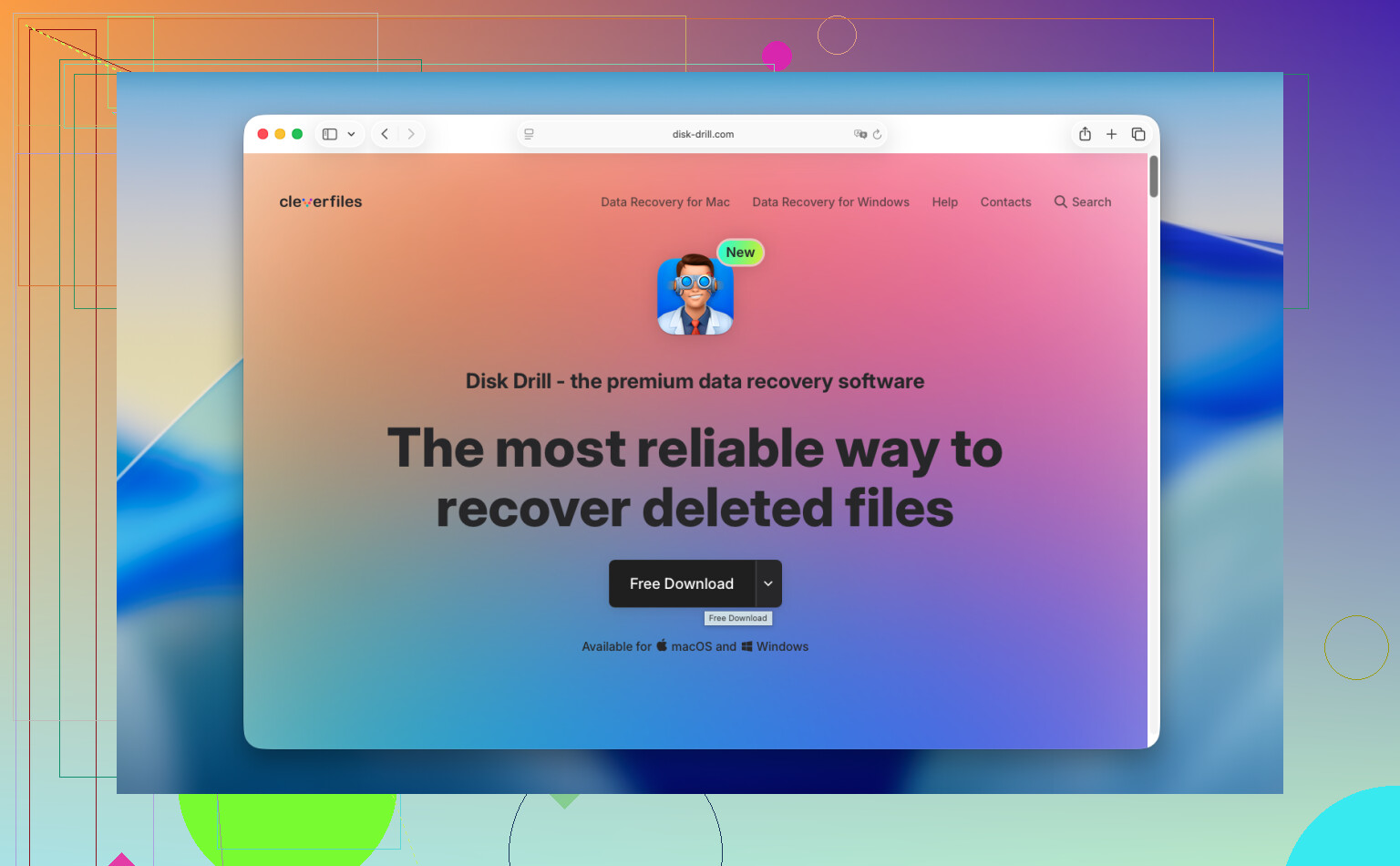
Move fast, and don’t install recovery software onto the MacBook’s internal drive. I usually point people to Disk Drill. On newer Macs, especially Apple Silicon models and systems with the T2 chip, the internal drive setup is a pain for generic recovery apps. Some tools choke on it. This one tends to handle modern Macs better.
The approach I’d take:
- Use another computer to set it up
Download Disk Drill on a different machine and put it on a USB drive if possible. Don’t write new stuff onto the same MacBook drive you’re trying to recover from. That part gets ignored a lot, and it bites people. - Make a disk image first
This step is boring, but I wouldn’t skip it. Create a full image of the internal drive and save it to an external disk. Byte for byte. If recovery fails the first time, you still have a frozen copy to scan again later. Also helps if TRIM or later activity wipes more data after your first attempt. - Scan the original drive or the image
Point the tool at the internal disk, or better, the image file you made. Then let it run. Deep scans take time. On a big SSD, it might be a while. - Preview the results
One thing I like here, the scan and preview let you see what’s recoverable before paying. Photos, docs, videos, thumbnails, all of it. I’d check file integrity before spending anything. - Restore somewhere else
When you recover files, save them to an external drive or USB stick. Don’t dump them back onto the same internal SSD. That’s a mess, and yeah, people do it.
If you want a free route, PhotoRec is still around and it works better than its rough look suggests. The catch is the interface is command-line only, and the output is messy. File names are often gone. Folder structure too. You might end up sorting thousands of files named like gibberish. If you’re patient, it’s usable. If not, it gets old fast.
If software doesn’t pull anything back, a recovery lab is the next stop. Those shops do diagnostics, tell you what they think they can recover, and quote the job before they go further. Turnaround is often a few days up to a week. Cost tends to land somewhere around $300 to $1,500 for normal cases, more if the drive has other problems. Painful price, yeah. Still worth it if the files matter enough.
So the order I’d follow is this. Stop using the MacBook. Check cloud bins. Check Photos, Notes, and Time Machine. If nothing shows up, use recovery software from external media and save recovered files somewhere else. If that fails, call a pro shop.
If the files matter, shut the Mac down. Not sleep. Full shutdown. I differ a bit from @mikeappsreviewer there, because even “light use” keeps writes happening in the background on macOS.
Then do these checks people skip:
-
Terminal history.
If you know the filename, run Spotlight from another boot disk or Recovery mode later and search exact names. Sometimes the file was duplicated somewhere else first. -
Mail attachments.
A lot of “lost files” were sent in Mail at some point. Check Sent mail, old threads, and Downloads in Mail. Same for Messages. It saves attachments in caches and convo threads more often than ppl think. -
App-specific recovery.
Word, Excel, Pages, Photoshop, and some editors keep autosave or temp versions. Open the app, look for “Open Recent,” autosave folders, or recovery panes. Office files are a common save. -
APFS snapshots.
Not only Time Machine. Local APFS snapshots sometimes exist even when users never noticed them. From Terminal, tmutil listlocalsnapshots / can show them. If you see one from before deletion, you’ve got a shot.
If none of that works, use Disk Drill. Best move is scan from an external macOS boot drive, not your internal disk. Recover to another drive only. If your Mac has an SSD with TRIM, odds drop fast, so don’t wait around.
Also, this short guide on Mac file recovery is decent for a fast overview:
watch this Mac deleted file recovery quick guide
Hard truth, if the Mac stayed on all night and it’s a newer SSD Mac, recovery odds are lower. Not zero, but lower. If the data is worth serious money, stop DIY stuff after the first scan fails and send it to a lab. That saves time and avoids making it worse.

If it was just last night, there’s still a chance, but I’d add one thing that @mikeappsreviewer and @espritlibre only touched on indirectly: check for version history inside the apps themselves, not just deleted-items folders or snapshots.
A lot of Mac users forget this. If the missing file was a Pages, Numbers, Keynote, or even some third-party document, try reopening the app and look for Browse All Versions or any built-in recovery/version history. Same idea for cloud-backed docs that may have older revisions even when the file itself looks gone. I’ve seen people think a file was totally deleted when the app still had an earlier version floating around.
Also, if the file was ever dragged into another app, look in that app’s recent items or library. Preview, PDF editors, DAWs, design apps, even note apps sometimes keep imported copies or cached assets. It’s kinda dumb, but dumb can be useful here.
One small disagreement: I would not spend too long poking around in Terminal unless you already know what you’re doing. Easy to burn time while the SSD keeps doing background cleanup. For most ppl, check app-level recovery fast, then move to actual scanning.
If you do scan, Disk Drill for Mac deleted file recovery is the most practical option for normal users. Not magic, obviously, but easier than wrestling with forensic tools. Just install/run it from external storage if possible and recover to a different drive.
Also found a decent discussion here with more Mac recovery angles:
Facebook discussion on recovering deleted Mac files after emptying Trash
Short version: app version history, app caches/import libraries, then Disk Drill. If the Mac was on all nite and it’s a newer SSD, odds drop fast.