My external hard drive is detected normally on my PC, but all of my files suddenly disappeared from the drive. It still shows the correct name and opens, but the folders and documents I saved there are missing. I need help figuring out if the files were deleted, hidden, or if the drive is starting to fail, because I have important data on it.
I ran into almost the same mess a while back. My external drive still showed up in Windows, same label, same drive letter, but a bunch of folders looked gone. I thought I nuked years of stuff. What I found later was simpler and worse, the file system had gotten corrupted. The files were still on the disk, but Windows was showing a broken view of it. I got most of it back.
If your drive is still detected, I would not assume the data is gone. There’s still a fair shot the files are sitting there untouched. What matters now is what you do next. The early mistakes are the ones people regret.
First thing, stop writing to the drive. Don’t copy anything onto it. Don’t format it. Don’t run CHKDSK yet, and don’t use random “repair” tools from search results. Those tools write changes to the file system, and if recovery is your goal, that can make a bad situation worse fast.
A few quick checks before you do anything heavier:
- In File Explorer, enable Hidden items. I’ve seen files look “gone” when they were only hidden.
- Look at used space on the drive. If the folders look empty but the drive still shows most of its space as occupied, I’d take that as a good sign. Usually it means the data is still there, and the directory info is what got messed up.
- Swap the USB cable, or move the drive to another USB port. Sounds dumb, but I’ve seen flaky cables cause weird read behavior.
If those checks don’t change anything, and you don’t have a backup, I’d skip repair attempts and go straight to recovery software.
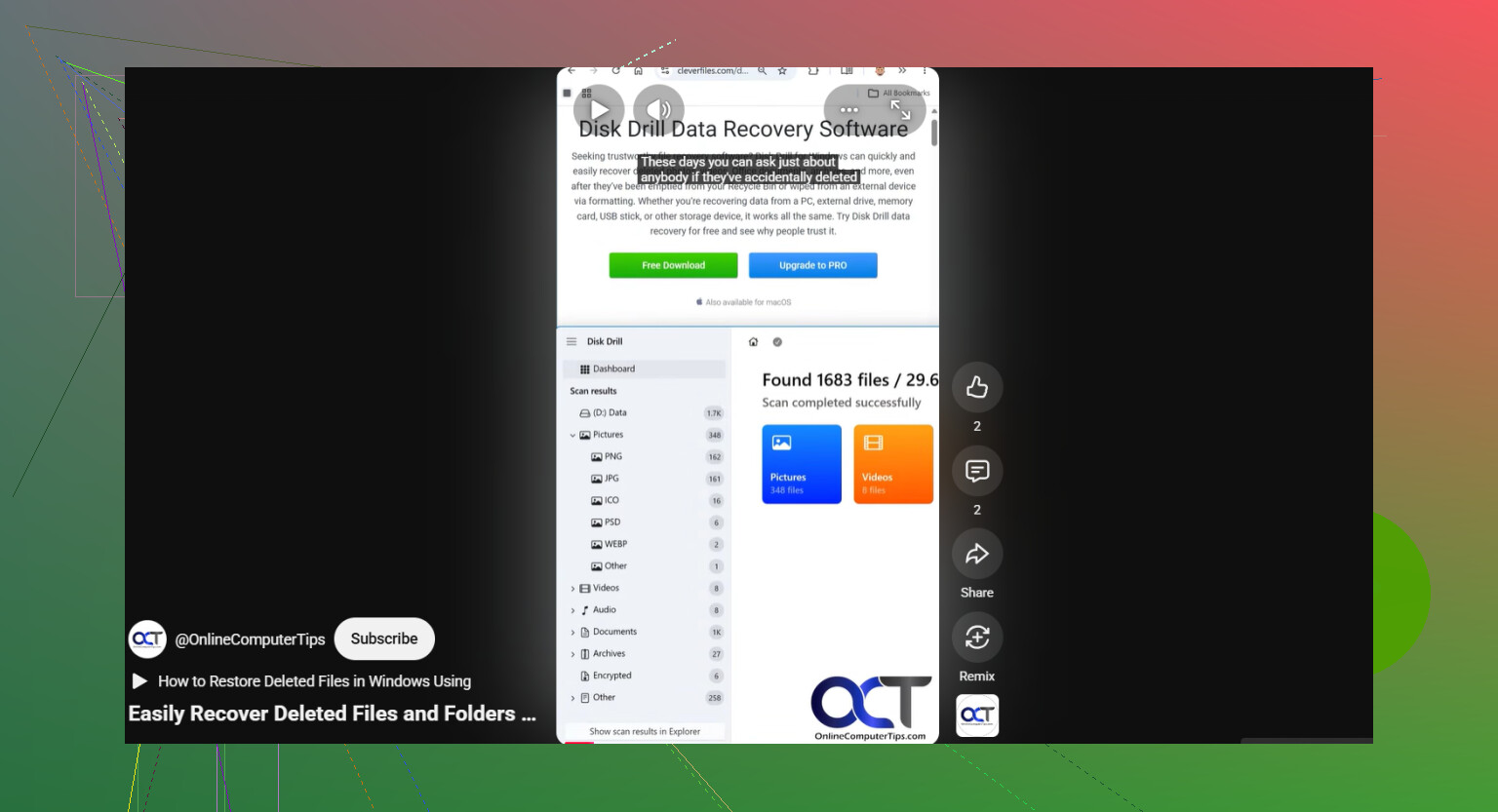
I’d start with Disk Drill. I used it because the workflow is simple and it handles the usual file systems external drives use. The part I cared about most was the disk imaging option. That matters more than people think.
A disk image is a sector-by-sector copy of the drive. It includes normal files, deleted entries, damaged metadata, the lot. If your external drive is unstable, disconnects at random, or seems like it’s getting worse while plugged in, imaging first is safer. You scan the copy instead of hammering the original drive again and again. I learned this a bit too late on one old Seagate, still worked out, but yeah, I would image first now.
This is the order I’d use:
- Install Disk Drill on your system drive, or on another healthy disk. Do not install it onto the external drive you’re trying to save.
- Plug in the external drive and open Disk Drill.
- If the drive drops offline, freezes, or feels unstable, create a disk image first with the built-in tool. Then scan the image, not the original device.
- If the drive stays connected normally, select it and hit Search for lost data.
- When it asks for scan method, pick Universal Scan. I’d do that almost every time. It rolls multiple recovery methods into one pass, deleted file search, lost partition detection, damaged file system records, and signature scan. Saves you from guessing wrong.
- Let the scan finish. On a big drive it can drag. Leave it alone. I’ve had extra files show up late in the scan, so stopping early cost me results once.
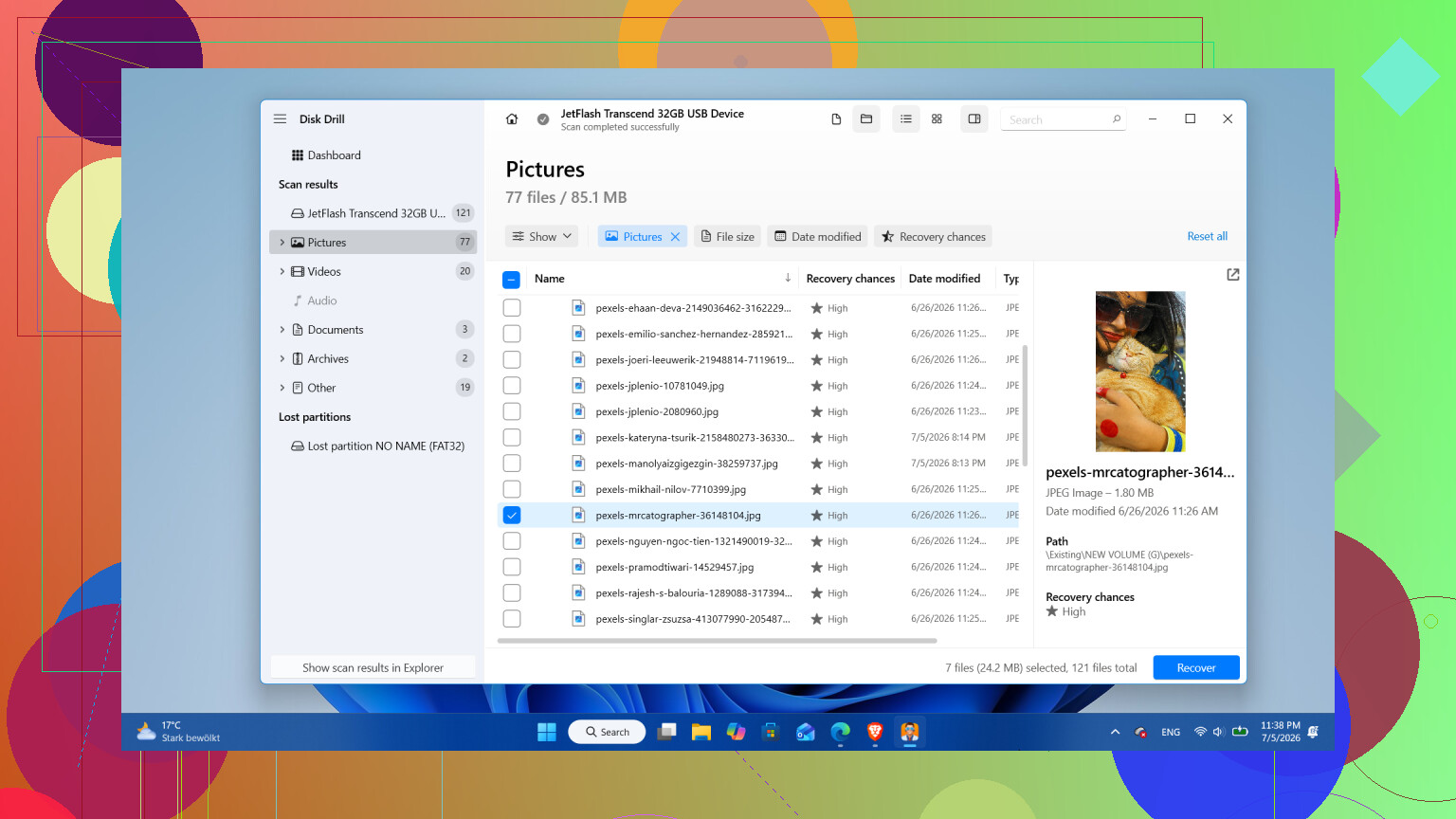
- Go through the results with filters or categories. Preview a few files you care about, photos, docs, video, whatever, and make sure they open properly.
- Recover the files to a different drive. Never write them back to the same external disk you’re recovering from.
On Windows, one useful detail is the free limit. Disk Drill lets you recover up to 100 MB for free. That won’t save a giant archive, sure, but it’s enough to test whether your files are recoverable before you spend money.
Only after the important files are copied somewhere safe would I try any repair step or reformat on the original drive.
One exception. If the drive is making clicking noises, grinding, dropping off every few minutes, reading at a crawl, or vanishing from Windows on and off, I would stop there. That points more to physical trouble than file system damage. Keeping it powered on in that state is risky. At that point I’d leave software alone and send it to a recovery lab.
Also, after recovery, I’d think hard about whether the drive deserves any trust. If this was caused by a bad unplug or one-time corruption, a reformat might be enough. If it starts disappearing from Windows, shows bad sectors, or loses files again, I’d retire it. Drives are cheap compared to rebuilding lost photos or documents. I’d pull the data off, replace the drive if there’s any doubt, and keep another backup this time. Learned tha t one the annoying way.
If the drive opens and shows the right size, I’d check for file system issues before assuming total loss. I agree with @mikeappsreviewer on one big point, stop using the drive. Every write lowers your odds.
A couple things they didn’t mention much:
- Check the file system in Disk Management. If it shows RAW, blank, or weird capacity, the directory structure is damaged.
- Open Command Prompt and run dir /a X: replacing X with your drive letter. Sometimes Explorer shows nothing, but the files still list there.
- Check another PC. If the folders appear there, your Windows profile or Explorer cache is the problem, not the drive.
- Look in Antivirus quarantine. I’ve seen AV tools hide or remove folder trees after a false positive. Annoying, but it hapens.
I’m a little less strict on CHKDSK than @mikeappsreviewer. I would not run it first. But after you recover the important stuff, CHKDSK is fine for testing whether the drive is still usable.
If the data matters, use Disk Drill and recover to a different disk. Also read this thread on best data recovery software and recovery tips. It covers what tools people had success with.
If SMART data shows reallocated or pending sectors climbing, retire the drive. Don’t trust it agian.
If the drive mounts normally but the files vanished, I’d also check whether the folders got hit with the hidden + system attributes. That happens a lot after sketchy USB ejects, malware, or a buggy sync/app backup tool. Explorer can make it look like the drive is empty when it’s not.
Open Command Prompt and try:
attrib -h -r -s /s /d X:\*.*
Replace X: with the external drive letter. That won’t recover deleted data, but it can unhide stuff if the files are still there and just flagged wrong. I’m a little surprised neither @mikeappsreviewer nor @vrijheidsvogel pushed that one harder, because it fixes this exact symptom more often than people think.
Another thing: check if the missing files were redirected into a hidden FOUND.000 folder after a crash. Windows sometimes dumps damaged file fragments there as .CHK files. Not ideal, but for docs/photos, some of it can be rebuilt.
If the attrib trick does nothing, then yeah, recovery path. Disk Drill is a solid choice for external hard drive file recovery because it’s easy to preview what’s actually recoverable before you start messing with the disk more. I’d still avoid “repair first, recover later” logic. That order burns people alll the time.
Also worth checking:
- Event Viewer for disk/ntfs errors
- Device Manager for USB disconnects
- Whether the drive was used on a Mac, which can create weird visibility issues on Windows
For a quick visual walkthrough, this external hard drive file recovery walkthrough might help.
If the files matter, recover them off first, then test the drive. If it pulled this once, I wouldn’t trust it much tbh.