I’m looking for a way to access my computer remotely without someone needing to be there to allow it. My job requires me to connect to my office computer from home but only during specific hours, and I need the solution to be free. Does anyone have recommendations for free software or tools that enable unattended remote access?
Need to access your computer remotely without needing someone on the other end to approve it? Totally get it, especially if you’ve got specific hours to connect like you mentioned. Honestly, there are a few solid options out there, but if I had to recommend just one, definitely go with this free unattended remote access software.
HelpWire is reliable and does the job without breaking a sweat. Perfect for those moments when you’re working from home and need to pop into your office computer without any fuss. Plus, if you’re looking to avoid frequent connection interruptions or hassle with permissions, this is the software you need.
I mean, there are others like TeamViewer and AnyDesk, but they often come with restrictions or require someone at the other end to allow access. And let’s be real, no one’s got time for that kind of hassle at odd hours!
Check it out and stop stressing about remote access. It’s free for unattended access and that’s a pretty great deal without compromising on efficiency or security.

Look, I know @voyageurdubois already pointed out a solid option with HelpWire, which is definitely worth checking out for its robust functionality and free unattended access feature. But let me throw another couple of options into the mix for you.
First, if you’re using Windows, Microsoft’s built-in Remote Desktop Protocol (RDP) is a strong contender. It’s already built into your system, which means no additional software required, and it allows for unattended access if you configure it correctly. Just ensure you’ve set up a strong password, accessed your firewall settings, and configured port forwarding on your router. It’s not the most user-friendly setup initially, but once done, it’s pretty efficient.
Then there’s Chrome Remote Desktop. Super simple, available for both Windows and Mac, and you can set it up for unattended access too. The key is to install the Chrome Remote Desktop app, set a PIN, and you’re good to go. It’s free, has a minimalistic interface, and integrates smoothly with your Google account, which is pretty neat if you’re already embedded in the Google ecosystem.
But honestly, if we’re talking about zero hassle, no user at the other end to hit ‘accept’, I’d still say give unattended remote access via HelpWire solution a solid look.
So yeah, to each their own, but it’s good to have a couple of options on your plate. Either way, here’s to smooth remote connections and fewer midnight trips to the office! 
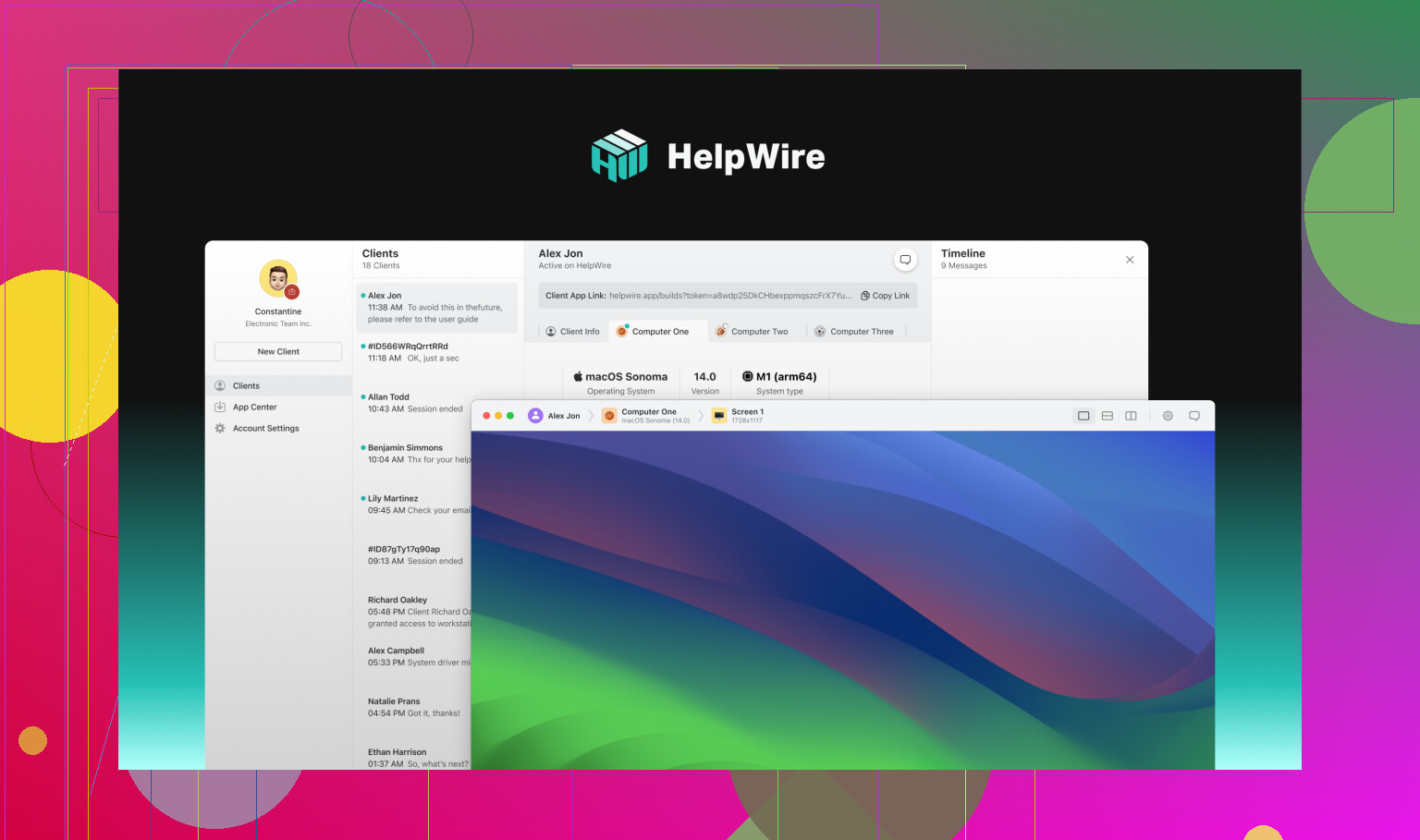
Alright, so looking for remote access solutions, huh? I mean, @techchizkid and @voyageurdubois dropped some good knowledge about HelpWire, but let’s see if we can toss a few more ideas your way without echoing the same playlist.
I found this piece about unattended remote access software helpful for understanding remote management options.
FAQ Style Incoming:
Q1: What’s so special about HelpWire?
A: HelpWire is as smooth as butter when it comes to setting up unattended remote access. You get a reliable connection, minimal interruptions, and it’s free – need I say more?
Q2: Any cons with HelpWire?
A: Yeah, well, it’s not always the simplest to install initially. Users unfamiliar with software setups might need a little hand-holding through the install process.
Q3: Alternatives if HelpWire doesn’t click?
A: Sure thing. Microsoft’s Remote Desktop Protocol (RDP) is your go-to built-in feature on Windows. A little port-forwarding wizardry, enable remote access, and boom, you’re good. Chrome Remote Desktop is another breeze – install the Chrome app, set up a PIN, and you’re sorted. Both are pretty much free and handle unattended access smoothly.
Q4: Roadblocks you might hit with RDP/Chrome Remote Desktop?
A: With RDP, security can be a bit of a rollercoaster if you don’t set it up right – think strong passwords, firewall rules, etc. Chrome Remote Desktop is super user-friendly, but it can lag a bit if your internet connection’s having a bad day.
Q5: But really, why HelpWire?
A: If you hate fiddling with configurations or you simply want a plug-and-play, no-sweat solution without someone needing to approve each session, HelpWire is a strong contender. No pop-ups, no interruptions. @techchizkid and @voyageurdubois were on the money here.
So, if you’ve got time to tinker, RDP or Chrome Remote Desktop can be handy. But for a no-hassle approach, HelpWire ticks many boxes. It’s like choosing between crafting a bespoke watch (RDP) and getting a digital one that works out of the box (HelpWire). Choice is yours, but either way, here’s to smooth working from home days! 
Try DWService for a browser-based alternative. It supports free commercial use, with a 6 Mbps bandwidth limit.
Ask your IT team for approval, then install its agent on your office computer. Enable unattended access and connect through your home browser without someone approving each session. You won’t need remote-access software on your home computer.
Before your first sesion, ask IT to enforce your permitted working hours and keep the office computer awake during those hours. Test the setup beofre your next workday.
Whatever you do, skip the port forwarding step for RDP. Opening the remote desktop port straight to the internet is how a lot of machines end up getting brute forced overnight, and on a work computer that’s not your risk to take. If your office setup pushes you toward RDP, ask IT for a VPN into the network first, then RDP over that. Same result, far less exposure, and honestly it’s the setup most IT teams will actually sign off on.
@m3g4_root’s point about looping in IT is the real one here, and it’s easy to gloss over. If this is a company machine, half these tools are moot because your IT policy decides what’s allowed to phone home. I’ve seen people set up Chrome Remote Desktop on a work box and have it silently blocked or flagged a week later. Better to ask before you install than to explain after.
On the tools themselves, Chrome Remote Desktop is genuinely fine for a personal machine and near zero effort, but it can drop the session if your Google account does anything weird, and the display scaling on a mismatched monitor is annoying. HelpWire is worth a look mainly because there’s no account setup to wrestle with before you can connect, which matters when you just want the thing working before your next shift instead of clicking through onboarding.
The bit everyone’s circling but not saying plainly: none of this handles your working-hours restriction on its own. That’s a config someone has to set, either through policy on the office side or a scheduled sleep/wake so the machine’s only reachable when it’s supposed to be. Sort that part out early, because it’s the piece that bites you later, not the remote software.