My GPT drive suddenly shows as RAW in Windows, and I can’t access the files or partition. I’m looking for safe GPT partition recovery steps or tools that can restore the partition without formatting or losing data.
First thing: stop using that drive. Seriously, don’t copy anything to it, don’t run repairs, don’t initialize it, and don’t start clicking around in Disk Management hoping Windows fixes it. If it’s your boot drive, power down and boot from a live USB. If it’s a secondary or external drive, unmount it or unplug it for now.
A missing partition does not always mean the files are gone. With GPT disks, recovery is often pretty decent because GPT stores backup partition information at the end of the drive. So if the main partition table got damaged, there may still be enough information left to recover the layout or at least pull the files off.
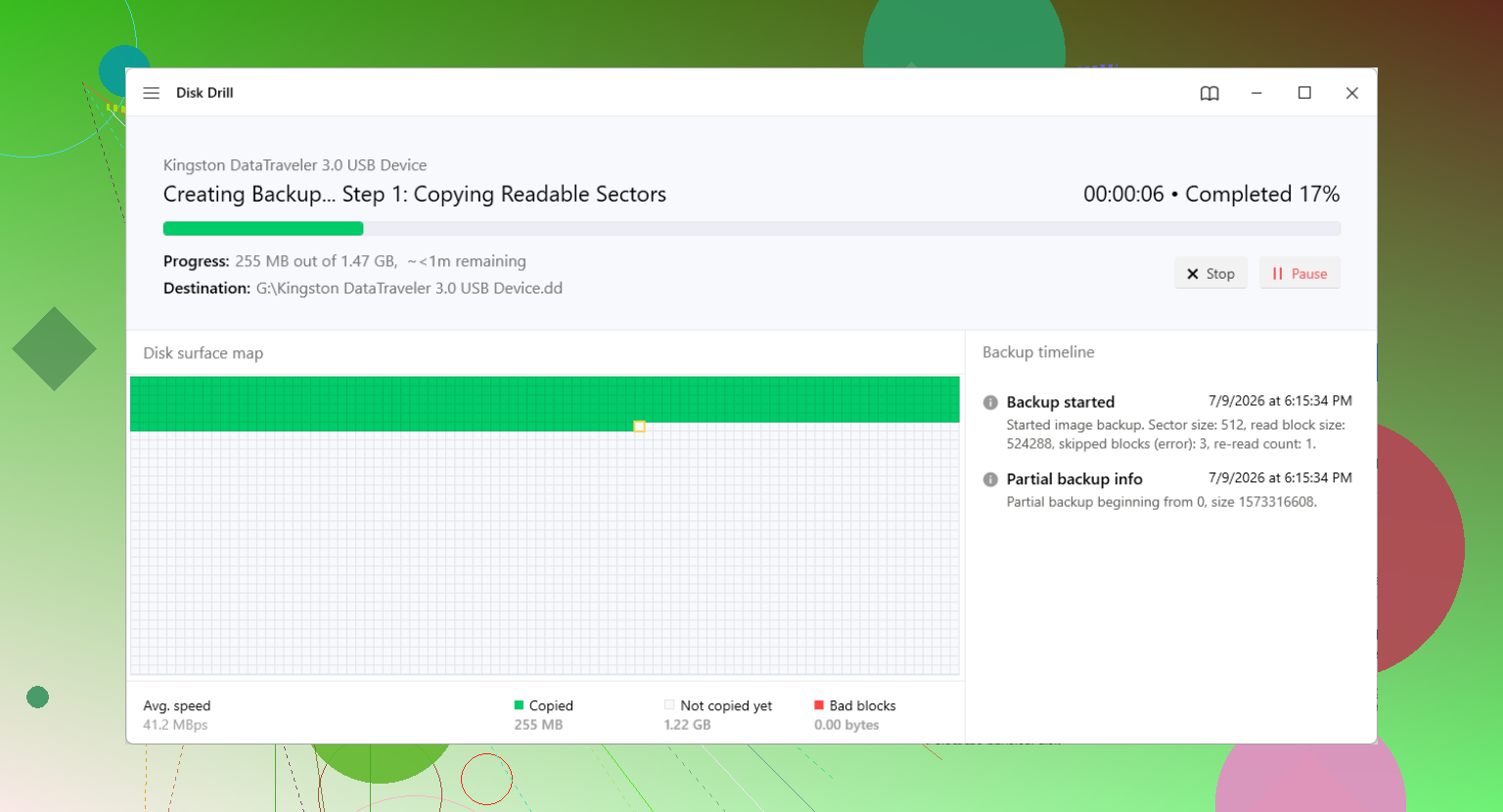
If you have another drive with enough free space, the safest move is to make a full sector-by-sector image before trying anything else. Use something like ddrescue, dd, or a disk imaging tool you trust. Then work from the image instead of the original disk. That way, if a recovery attempt makes things worse, you still have the untouched source drive.
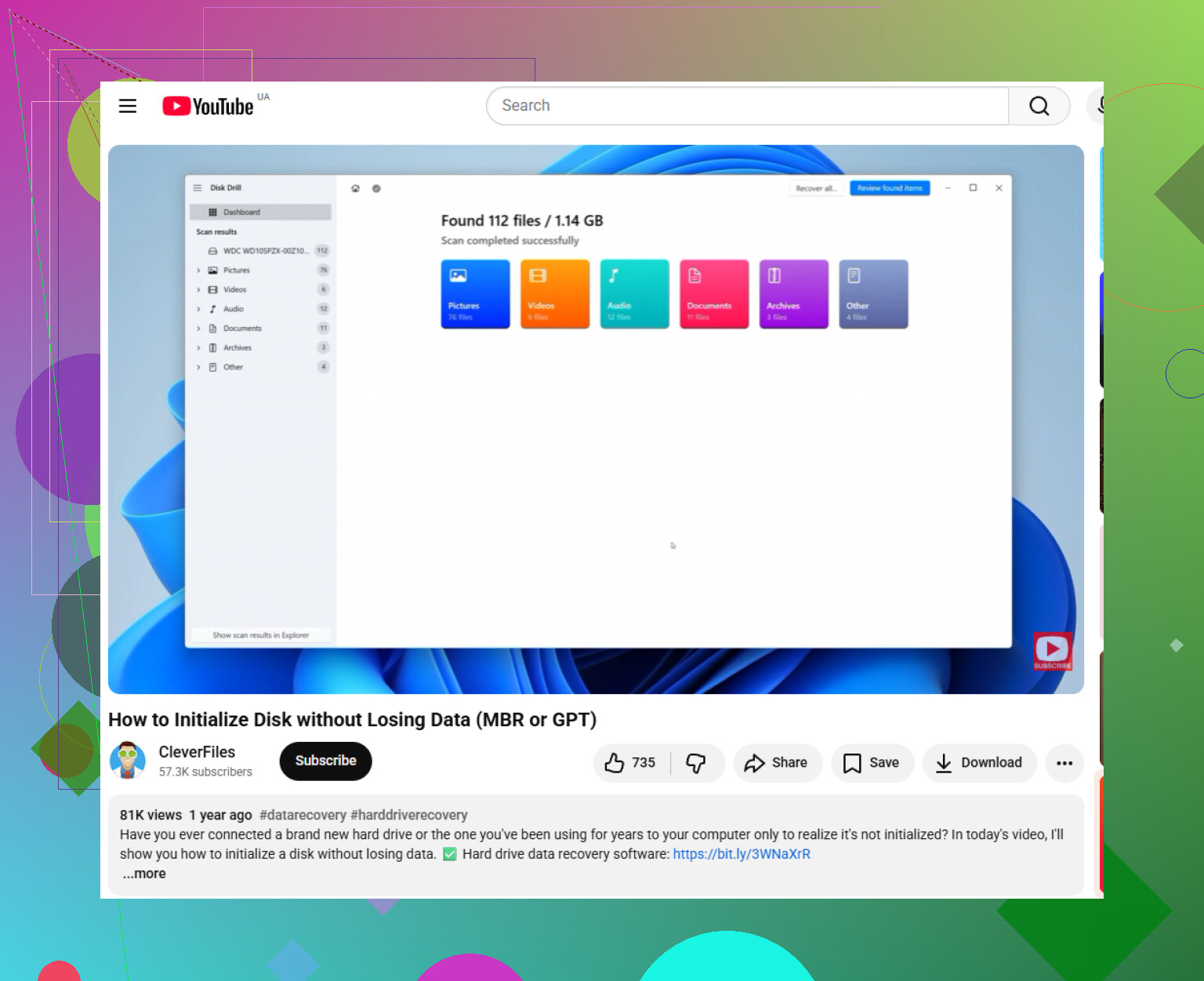
For most people, dedicated recovery software is the easier path. The OS may not see the partition anymore, but the actual file data can still be sitting there. A tool like Disk Drill is a good option for this kind of GPT issue because it can scan the physical drive, detect lost partitions, and rebuild file listings based on file system signatures. It also lets you preview files before recovering them, which is useful so you’re not blindly copying junk.
The basic flow is:
- Choose the physical disk, not just a visible volume.
- Run the lost data scan.
- Check the existing, lost, or reconstructed results.
- Recover anything important to a completely different drive.
That last part matters. Don’t recover files back onto the same disk you’re trying to save.
If you want to try restoring the actual partition table instead of just copying files out, look at TestDisk or gdisk. TestDisk can scan for old partition signatures and write the partition entries back if it finds a valid layout. Just be careful with the final write step. Scanning is one thing, but writing the table changes the disk.
gdisk can also help in some GPT cases because it can use the backup GPT header from the end of the disk to repair the primary one. That’s especially useful when the corruption is near the beginning of the drive.
One more thing: if Windows shows the drive as a “GPT Protective Partition,” don’t immediately run Diskpart clean or convert it to MBR. That can happen after a weird enclosure swap, sector size mismatch, or driver issue. Cleaning it wipes the partition table, which is the opposite of what you want right now. Try file recovery first, then mess with partition repairs after your important data is safe.
Don’t assume the partition table is the only problem.
Before you try to “fix” GPT, check whether the drive is being read correctly. A bad USB enclosure, loose SATA cable, failing adapter, or 4K/512-byte sector translation mismatch can make a perfectly valid disk look like nonsense to Windows. This is especially common if the drive was moved from one external case/dock to another. If it is an external drive, try the original enclosure if you still have it, or connect it directly by SATA if possible. Do that before writing any repair changes.
I agree with @mikeappsreviewer about imaging first, but I’d be even more boring about it: check SMART/health before doing long scans. If the drive has reallocated sectors, pending sectors, or keeps disconnecting, don’t run repeated deep scans on the physical disk. Image it with ddrescue or a similar tool and scan the image. Recovery tools like Disk Drill, R-Studio, DMDE, UFS Explorer, or TestDisk can all be useful, but any full scan can stress a dying drive.
And don’t run CHKDSK on a RAW volume. People see “file system error” and try chkdsk /f, but CHKDSK needs a readable file system to repair. On a RAW volume it either refuses or risks making a mess if Windows is misidentifying the layout. Safer order is: confirm hardware/connection, clone if the data matters, recover files to another disk, then consider repairing GPT with TestDisk/gdisk only after the important stuff is copied off. If the data is irreplaceable and the drive is clicking, vanishing, or showing bad SMART data, skip DIY writes entirely and price a lab before making it worse.
If the volume was BitLocker-encrypted, the answer changes a lot. Windows can sometimes show an encrypted or half-unlocked volume as RAW when the BitLocker metadata or unlock state is the real issue. Before trying to rebuild GPT, check whether the drive ever had BitLocker, device encryption, VeraCrypt, or anything similar on it. If yes, you need the recovery key or password first. Partition tools won’t make encrypted data readable by guessing the layout.
I’m with @boswandelaar on not treating this as automatically a partition table problem. GPT only describes where partitions start and end. It does not repair NTFS, exFAT, BitLocker, or whatever file system was inside the partition. So if the GPT entries are still correct but the file system boot sector or MFT is damaged, “restore partition” may change nothing, or worse, make Windows try to mount something it shouldn’t.
My safe order would be: confirm it is the right disk, image it if the files matter, then use recovery software against the physical disk or image and copy files out to another drive. Disk Drill, DMDE, R-Studio, UFS Explorer, and similar tools can all find files even when Windows only says RAW, but don’t judge success by whether the partition becomes visible again. Judge it by whether the recovered files open correctly. Only after that would I consider writing a GPT repair with TestDisk or gdisk, and only if the found partition start and size match what you expect. GPT repair is the last step, not the first rescue attempt.
If this drive was ever part of RAID, Storage Spaces, a NAS, or a multi-disk USB box, don’t treat it like a normal single GPT disk yet. Windows may show RAW simply because the array/container metadata is missing, and tools like Disk Drill or TestDisk will give messy results unless the original layout is assembled first. In that case, image the member disks separately and recover from the rebuilt virtual volume, not from one random disk by itself.