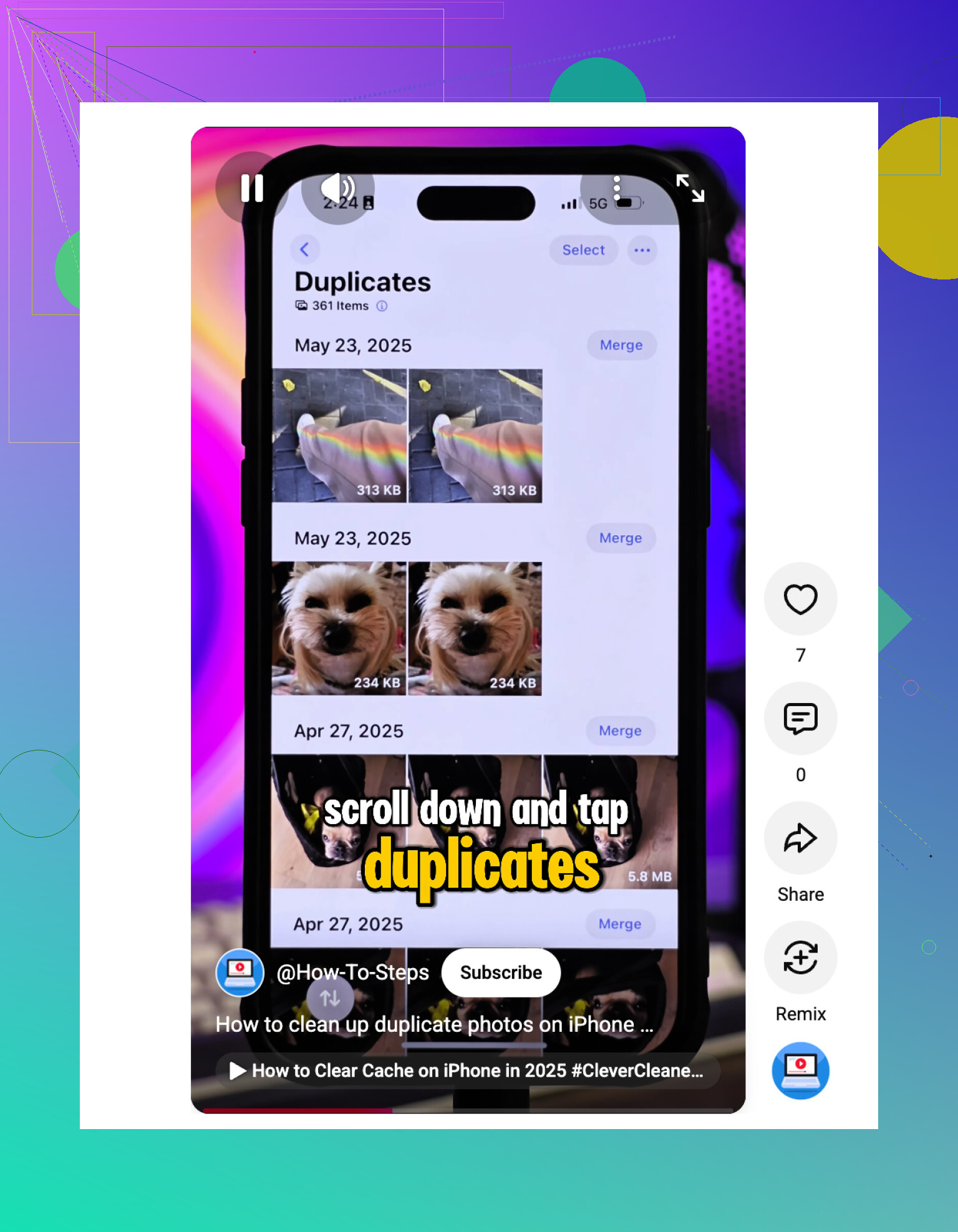
My iPhone Photos app has a bunch of duplicate pictures, but the Duplicates album isn’t catching them. Some look identical or nearly identical, and they’re taking up storage. What’s the best way to find and delete iPhone duplicate photos when Apple Photos won’t detect them?
If your Photos app is packed with near-identical pictures, I’d start with the stuff that can find “almost duplicates,” not just exact copies. That’s usually where most of the wasted storage is. The annoying part is that you don’t want to delete the one good photo while clearing out five blurry versions of it.
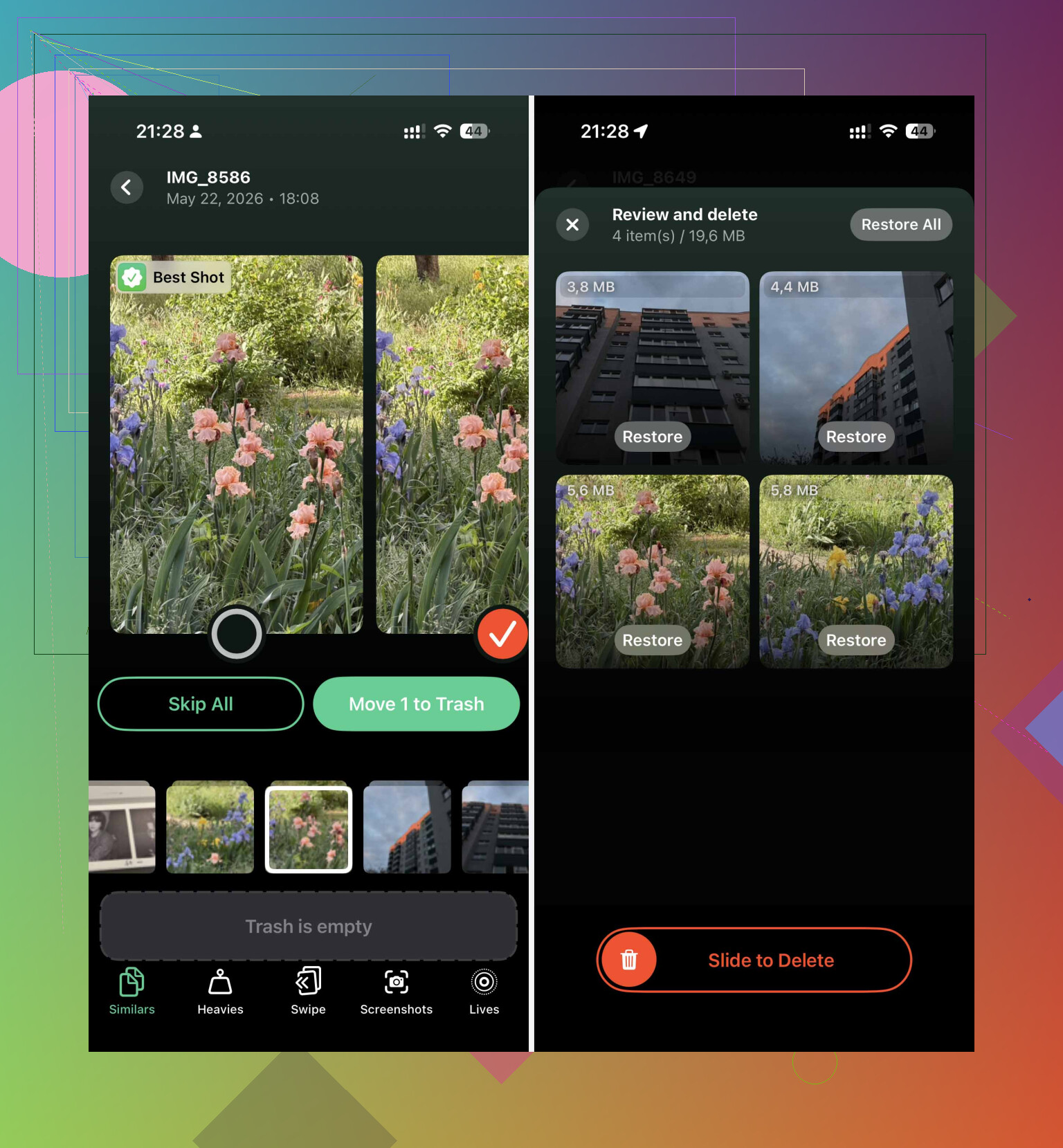
For a big library, the built-in iPhone duplicate finder helps, but it can miss a lot. I had better luck using Clever Cleaner, mainly because its “Similars” feature looks for photos that are basically the same, even if they aren’t exact file matches.

That matters for things like ten selfies in a row, burst shots, slightly edited copies, or a bunch of dog photos where only one is actually sharp. It scans the library, groups the similar shots, and marks what it thinks is the “Best Shot,” so you’re not comparing every single image one by one.
The privacy part is worth mentioning too. The cleanup happens locally on the iPhone, so your photos aren’t being uploaded somewhere just to be analyzed.
It also does more than duplicate cleanup. The “Heavies” section is useful if storage is the real problem, because it shows the biggest videos first. That’s often where the missing gigabytes are hiding. It can also group screenshots and convert Live Photos into regular still images if you don’t care about keeping the short video part.
Don’t skip Apple’s built-in duplicate tool
If your iPhone is on iOS 16 or newer, check the native Duplicates album too. Open Photos, go to “Collections,” then scroll down to “Utilities.” If your phone has found duplicates, they should show up there.
The nice thing about Apple’s version is the “Merge” button. It doesn’t just throw away a copy. It keeps the best-quality version and combines useful metadata like captions and location details into one photo.
There are two catches, though:
- It’s mostly looking for true duplicates, so similar shots usually won’t appear there.
- It can take a while to show anything. The iPhone scans when it’s locked and charging, so after a big import, the folder may not appear right away.
A couple of manual tricks that still work
If your library isn’t huge, manual cleanup can be faster than you’d expect. Use Search in Photos and look for a month, year, place, or subject like “Dog” or “Beach.” That pulls related photos together, which makes it easier to select the extras and delete them in batches.
The Map view in Utilities is another good one. If you see a giant cluster from one restaurant, vacation spot, or event, there’s a good chance that group has a bunch of repeated shots you don’t need anymore.
Keeping the duplicates from coming back
The cleanup is only useful if the same mess doesn’t rebuild itself a month later. A common cause is syncing photos through more than one service, like iCloud and Google Photos at the same time. If you delete or restore something in one place, it can sometimes come back as a new file somewhere else. It’s usually cleaner to pick one main photo service and stick with it.
Also check Settings > Camera and turn off “Use Volume Up for Burst” if you keep accidentally taking burst photos. That one setting can save you from a lot of junk shots.
It also helps to clean up right after taking a bunch of photos, while you still remember which ones were good. And try not to download the same images again from multiple messaging apps or cloud folders.
One last thing: deleted photos still sit in “Recently Deleted” for 30 days. They keep taking up storage until that folder is emptied, so if you need the space right away, go in there and clear it manually.
Once the first big cleanup is done, staying on top of it is a lot less painful.
Exact duplicates are a cleanup job; lookalike photos are a judgement call. The built-in Duplicates album is picky, so if one photo came from Messages, WhatsApp, an edit, a screenshot, or a resized download, it may look the same to you but not to iOS. I’d use a similar-photo cleaner for grouping, like mike mentioned with Clever Cleaner, but I would not bulk-delete everything it suggests. Open the groups, keep the original with the best resolution/date/location, then delete the obvious extras. The sneaky trap is keeping the tiny compressed copy and deleting the real camera original. Afterward, empty Recently Deleted or the storage number won’t change right away.
Do not start mass-deleting until you know whether iCloud Photos is on, because a deletion on the phone is usually a deletion everywhere, not just “freeing up this iPhone.” If you care about any of these pictures, make a quick backup first: export the messy album to a computer, AirDrop the keepers, or at least let iCloud/Google Photos finish syncing before you clean.
I agree with the general point above that Apple’s Duplicates album is too strict. For the ones it misses, I’d use a cleaner app like Clever Cleaner only as a sorting tool, not as the final decision maker. Let it group the similar shots, then check the file info before deleting. The photo that looks the same in the thumbnail may be a tiny WhatsApp save, a screenshot, or an edited copy, while the “extra” is actually the full-resolution original.
A cheap manual trick that helps: go into Photos, find one of the repeated images, tap the info button, and look at the date/time, file size, and dimensions. Then jump to that date in All Photos. Duplicates are often sitting right next to each other if they came from burst shots, edits, or repeated saves. It is slower than an app, but safer for the questionable groups where everything looks identical in the grid.