My iPhone storage keeps filling up even after I delete photos, apps, and messages. System data seems to grow back fast, and now I can’t update iOS or save new files. I need help figuring out what’s causing the storage issue and how to free up space for good.
If your iPhone throws a storage warning out of nowhere, I wouldn’t assume it made a pile of data overnight. I’ve checked this on a few phones, mine included, and the usual pattern was slower than people think. Space had been shrinking for weeks, then iOS finally hit the point where it started complaining.
The first thing I’d do is open Settings > General > iPhone Storage and stare at the category bar for a minute. Usually one or two sections are doing most of the damage. It’s rarely some mystery process.
Photos are often the main problem
On a lot of phones, Photos eats the most space.
And it’s not only the pics you meant to keep. I kept finding junk like this:
- Near-identical shots from the same moment
- Screenshots I forgot about
- Screen recordings
- Live Photos
- Big video clips
- Burst shots
This stuff stacks up fast. A couple trip videos, random screenshots, some Live Photos left on for months, and you’re down multiple GB before you notice. I did this myself. Thought apps were the issue. Nope, it was my camera roll being a mess.
Apps grow after install
A lot of people look at the App Store size and assume it stays close to that. It doesn’t.
Apps for social media, chat, shopping, and streaming keep local files around. Cached images, saved video chunks, temp files, offline downloads, all of it adds weight over time. Podcasts and playlists do the same thing. So do downloaded Netflix episodes and random documents in other apps.
I’ve seen an app listed at a few hundred MB end up taking several GB on-device. If one app looks bloated in iPhone Storage, deleting it and installing it again sometimes cuts out the garbage it built up.
Messages and Downloads get ignored too much
People skip over Messages all the time when cleaning storage. I used to.
Texts are small. Attachments aren’t. Photos, GIFs, videos, voice notes, and other files from conversations stay on the phone. Same deal with the Downloads folder in the Files app. Stuff lands there and then sits forever.
These categories usually aren’t the top offender, though I’ve seen them take up enough space to matter.
System Data is annoying
If you already cleared media and some apps still look normal, check System Data.
This is where iOS keeps caches, logs, update leftovers, and other temporary files. Some amount is expected. Sometimes it gets weirdly large. Apple doesn’t give you a clean button for it, which is part of why this annoys people so much.
I’d start with the photo library first
If Photos is the biggest block, I wouldn’t begin by removing apps. Media cleanup tends to free the most space with the least damage.
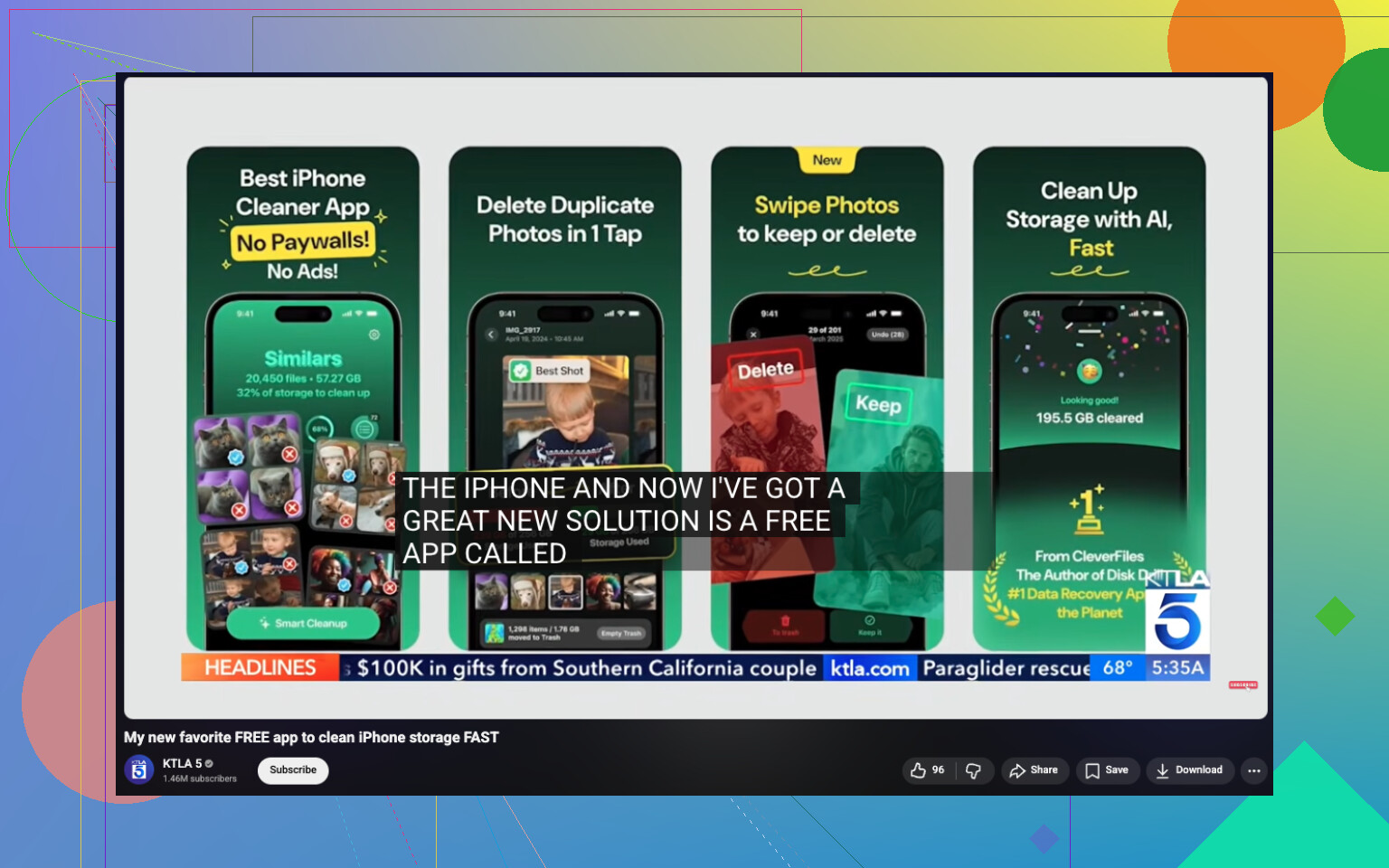
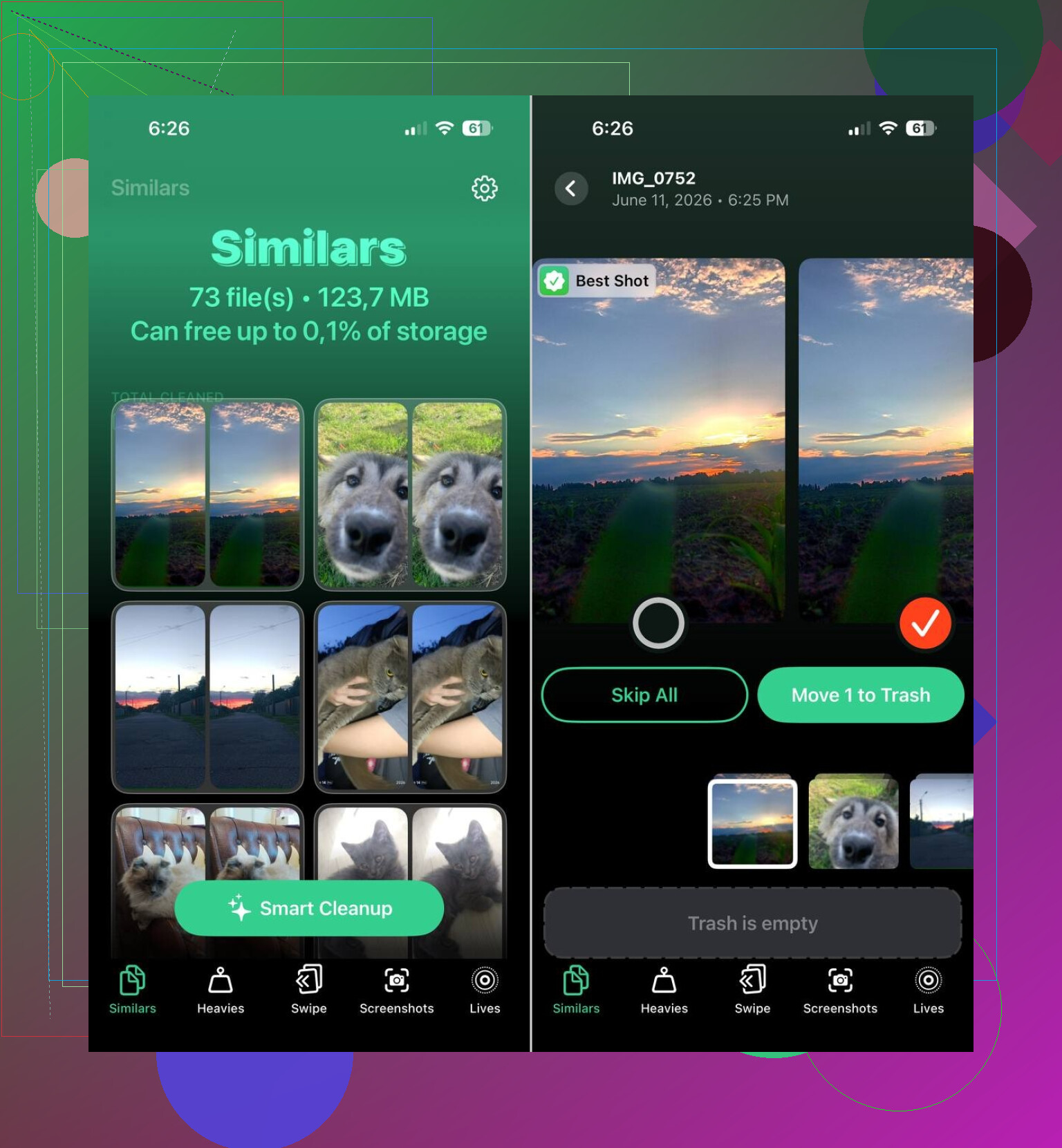
I’ve seen people use Clever Cleaner for this. The reason it gets mentioned is simple. Apple’s built-in Duplicates album only catches exact copies. This one also flags similar-looking shots, which is where a lot of wasted space hides.
The parts people seem to find useful most often:
- It finds similar photos automatically
- It shows the largest photos and videos
- It groups screenshots for bulk deletion
- It turns Live Photos into standard photos
I’ve seen reports from users who cleared 10 GB, 20 GB, sometimes 30 GB after going through similar images, screenshots, and Live Photos. Sounds high until you look at a cluttered library. Then it makes sense.
The order I’d follow
If your storage keeps creeping up, this is the path I’d take:
- Open iPhone Storage and see which category is largest
- Clean similar photos, screenshots, and Live Photos
- Check your biggest videos
- Remove downloaded content inside apps
- Look through Messages attachments and Files downloads
- Inspect any app with an odd size
Most of the time, this turns out to be accumulated media, not some broken iPhone behavior. Once I found where the space was going, I usually got back more storage than I expected, and I didn’t need to wipe important stuff.
Yep. I fixed this on my 128 GB iPhone, and the cause was not Photos alone.
I agree with @mikeappsreviewer on checking the storage chart first, but I’d push harder on hidden sync data and failed updates. Those two eat space fast.
What helped me:
- Restart, then check storage again. iOS sometimes reports junk until a reboot.
- Look for a downloaded iOS update in Settings > General > iPhone Storage. If it’s there, delete it.
- Turn off iCloud Photos for a minute, then turn it back on if photo sync looks stuck. Mine kept re-caching thumbnails and temp files.
- Safari was a pig on my phone. Clear History and Website Data.
- Mail app caches attachments hard. Remove and re-add the mail account if Mail is huge.
- Streaming apps keep offline junk even after you watch stuff. Open each app and delete downloads inside the app.
- If System Data stays absurd, back up the phone, erase it, restore from backup. Annoying, yes. Worked for me.
One thing I disagree on a bit. Reinstalling apps helps, but if the app stores data in iCloud, some junk comes right back.
For photos, Clever Cleaner is worth a look if you want a free iPhone cleaning app with duplicate and similar photo cleanup. Also see how to free up iPhone storage fast.
If System Data is over 20 GB and grows daily, I’d suspect a bug or bad cache loop, not normal use.
I fixed this once, but not by doing the usual “delete 500 photos and pray” routine.
I mostly agree with @mikeappsreviewer and @viajantedoceu, but I think people blame System Data a little too fast. Sometimes the real problem is app data that iOS shoves into weird categories, so it looks like System Data is exploding when it’s really corrupted caches, stuck sync indexes, or local database junk.
A few things I’d check that they didn’t really hit:
-
Voice Memos
This one sneaks up on people. Long recordings can eat gigs. -
Notes app with attachments
Scanned PDFs, embedded images, and shared files in Notes can get huge. Open Notes, check your big folders. -
Books / PDFs
The Books app and Files app can hoard giant PDFs and epubs you forgot existed. -
WhatsApp / Telegram / Messenger storage inside the app
Don’t just delete chats. Go into each app’s own storage manager. These apps keep media copies foreverrr. -
Podcast app buginess
I had downloaded episodes show as removed, but storage stayed full until I toggled sync settings and manually removed the app. -
Photo edits
Weird one, but heavily edited videos/photos can keep original + edited versions tied together.
Also, if your phone is under like 5 GB free, iOS gets dumb. Indexing, temp files, failed updates, retry loops, all that can snowball. You sometimes need to free a decent buffer first, not just 800 MB here and there.
If your photo library is still a mess, Clever Cleaner is probly worth trying because it catches similar pics, screenshots, Live Photos, and big videos faster than doing it by hand. If you want a solid breakdown, this guide to the truly free Clever Cleaner app for iPhone storage cleanup explains it pretty clearly.
My blunt opinion: if storage refills within a day after cleanup, that’s not normal clutter anymore. That’s usually a sync/cache loop, a bloated messaging app, or a restore-worthy iOS bug. At that point I’d stop randomly deleting stuff and start isolating which app grows overnight.
I’d add one angle the others only touched indirectly: look for a single process that regrows storage after cleanup, not just what is big right now. @viajantedoceu, @kakeru, and @mikeappsreviewer are right about checking categories, but I don’t fully agree that Photos is the best first target every time. If storage rebounds fast, that usually points to sync churn more than old media.
What I’d do differently:
- Check Analytics Data in Privacy & Security. If the same app/process is spamming logs, that can hint at the culprit.
- Turn off Background App Refresh for the worst suspects for 24 hours and watch storage.
- Check whether Messages in iCloud or a mail account is re-downloading old attachments.
- If you use cloud drives, open Files and look for offline-pinned folders.
Big clue: if free space drops overnight while you barely use the phone, it is usually mail, cloud sync, messaging media, or a stuck indexing job.
For photo cleanup, Clever Cleaner is decent if your library is chaotic.
Pros
- good at similar shots, not just exact duplicates
- helps surface big videos and screenshot clutter
- faster than manual cleanup
Cons
- you still need to review results carefully
- “similar” photos can include ones you wanted
- won’t fix a true iOS cache bug by itself
So yes, this is fixable, but if space refills daily, stop deleting random stuff and start tracking what category grows back first. That’s usually where the real issue is.
Try Apple’s built-in Offload Unused Apps setting. Search Settings for “Offload Unused Apps,” then enable it.
Your iPhone removes rarely used app files while keeping documents, accounts, and icons. Reinstalling an app later restores its saved data. On a 128 GB phone, offloading several large games or editing apps might free 5 to 15 GB with little effort.
Keep at least 10 GB free so iOS has room for updates and temporary files. This wont fix runaway System Data, but it gives you breathing room fast without sorting thousands of photos.
Overnight regrowth is often just Messages set to keep everything forever. Change Keep Messages to 1 Year and it dumps years of attachments in one shot, which @techchizkid’s ‘what grows back’ hunt sometimes misses. Clever Cleaner is fine for the photo mess, but it won’t touch that setting.