My iPhone storage is almost full, and I think old video files are taking up most of the space. I have a lot of clips in Photos, and opening each one to check the size is taking forever. I need a quick way to find large videos on an iPhone so I can delete or move them and free up storage.
I ran into the same wall. Even on iOS 26, Photos still does not give you a plain sort-by-size view for videos. I kept looking for it, figured I missed a menu somewhere, nope. It still isn't there.
If you want to do this inside Photos itself, the answer is annoying. You don't. Not directly. If your library is small, you can survive the manual route. Open one clip, swipe up or hit the little “i” button, then check the file size. I did this once with a small batch and it was tolerable. With a few hundred videos, it turns into dumb repetitive labor fast.
Sorting by duration is the usual workaround, but it falls apart pretty quick. A short 4K 60 fps clip can eat more space than a much longer 1080p one. So if you're trying to free storage, duration only gets you in the ballpark.
What I ended up trying, from least painful to most painful:
- Use an iPhone cleaner app
I used to avoid these because a lot of them feel like paywall bait. Still, for this one job, the built-in options on iPhone are clumsy enough that I gave one a shot.
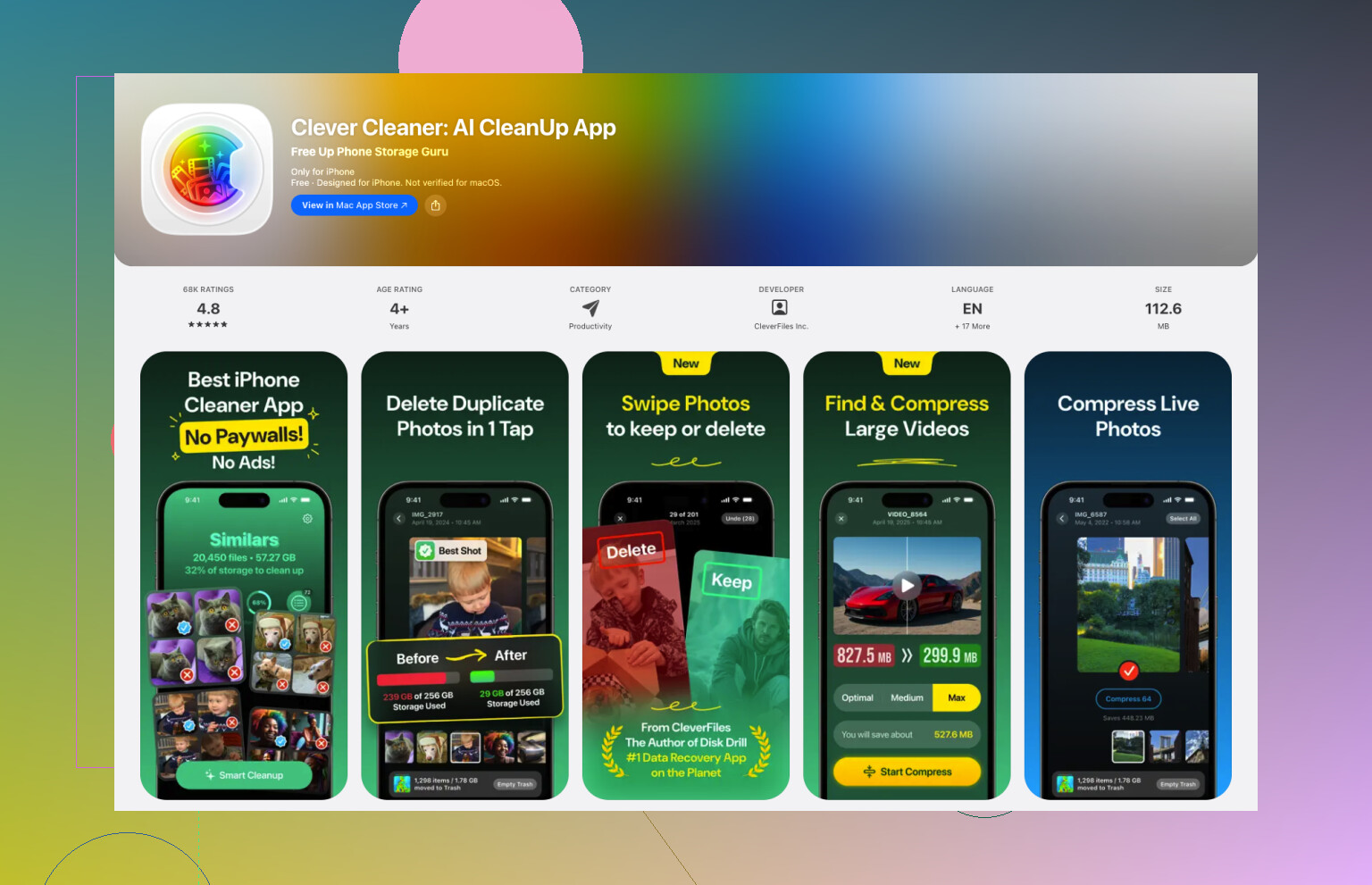
The one I kept is Clever Cleaner. In my case, it solved the exact problem. After you allow photo access, there’s a section called Heavies. It scans the library and lays out your videos from biggest to smallest, with the file sizes shown in MB or GB. No tapping into each file. No guessing from runtime. You scroll, pick the worst offenders, and send them to trash in batches.
I also noticed the Compress option helped with clips I wanted to keep. If you don't want to delete family stuff or travel videos, shrinking them is a decent middle path. On a phone screen, the difference looked fine to me.
- Look in iPhone Storage
If you don't want another app on your phone, go to Settings, then General, then iPhone Storage. Sometimes iOS shows a “Review Large Videos” suggestion. When it appears, it's useful. I found a couple old clips there I forgot existed. The catch is simple, it isn't a full sortable list of everything in Photos, so you're stuck with whatever Apple decides to surface.
- Build a Shortcut
I tried this too. It works, sort of. In Shortcuts, use “Find Photos,” filter for videos, then add a duration rule like over 5 minutes. After that, sort by duration with longest first. This helps if your biggest files also happen to be long files. Mine weren't always. So it gets partway there, not all the way.
- Check the Files app
This one only matters for videos stored outside the camera roll. If you saved clips into “On My iPhone” or iCloud Drive, Files lets you sort by size from the folder menu. Tap the three dots, choose sort, then size. Clean and easy. The bad part, it won't show your main Photos library. You could move videos over, sort them there, then move them back, but yeah, I wouldn't do all that unless I was desperate or already organizing a mess.
- Open each video one at a time in Photos
If you only have a few clips, this still works. Open, swipe up, check size, repeat. For ten videos, fine. For a thousand, no thx.
So yeah, if your goal is to find the biggest storage hogs fast, Clever Cleaner was the only option I found that felt sane. The Heavies section did what Photos should have done years ago.
One last thing, if you delete anything, check the Recently Deleted album. Files sit there for 30 days and still take space until you clear them out. I forgot this once and thought my phone was bugging out. It wasn't. I had to empty Recently Deleted by hand.
Best built-in trick is a Mac or PC. Skip Photos on the phone.
If you plug your iPhone into a Mac, open Image Capture. It lists your photos and videos with file sizes right there. You do not need to open each clip. Sort by Size, then remove the biggest ones from the phone after you review them. On Windows, import from DCIM to a folder and sort by size in File Explorer. Crude, but fast.
I slightly disagree with @mikeappsreviewer on one point. Duration sorting is not useless, it’s jsut weak. It helps for old 1080p clips, less so for mixed 4K and slo-mo libraries.
If you want to stay on the iPhone, Clever Cleaner is still one of the few faster options for big video cleanup. Their newer video tools are covered here, see this Clever Cleaner video compression and cleanup overview. That’s closer to a full Clever Cleaner review and feature roundup than Apple gives you in Photos.
Also check Messages. A lot of people miss this. Settings, General, iPhone Storage, Messages, then review large attachments. I found gigs there once. Kinda annoying, but yep.
Honestly, I’d skip the “check each file” approach entirely and use a different angle than @mikeappsreviewer and @espritlibre mentioned.
If you have a Mac, the fastest low-drama method is this:
- connect iPhone
- open Finder or Image Capture
- sort imported items by size
- delete the worst offenders from the phone after you confirm what they are
Why I like this better: you get actual file sizes in a normal list view, and you can scan way faster than on the phone. No weird iOS limitations, no tapping 400 vids one by one like some kind of punishment.
Also, if your storage is “almost full,” check whether Photos is even the real problem. Go to Settings > Camera > Record Video and see if you’ve been shooting in 4K/60 or ProRes without realizing it. Sometimes the fix is not just deleting old stuff, but stopping future giant files from piling up. Same for slo-mo. Those clips can get big real fast.
I slightly disagree with the “duration is weak but kinda useful” take. In mixed libraries, duration can be straight-up misleading. A 20-second cinematic clip can be fatter than a 3-minute old video. So I would not spend much time sorting that way unless you’re desperate.
If you want to stay on the phone, Clever Cleaner is probly the most practical option for finding large videos on iPhone without opening each one. It’s basically an easy iPhone storage cleaner for large videos, which is what Apple should have built in already. This see how Clever Cleaner finds and clears huge iPhone videos gives a decent look at it.
One more thing people forget: if “Optimize iPhone Storage” is enabled for Photos, the sizes you see on-device can feel a bit inconsistent vs originals in iCloud. Not broken, just Apple being Apple.

One angle nobody’s mentioned much: use Albums > Media Types > Videos, then switch Photos to zoomed-out thumbnail view and look for the little runtime badges plus obvious format clues. Not perfect, but huge 4K, Cinematic, slo-mo, and long HDR clips usually stand out visually way faster than opening each file. I actually think duration is worse than @espritlibre and @mikeappsreviewer give it credit for in mixed libraries, because codec and frame rate matter more than people expect.
Also check Settings > General > iPhone Storage > Photos and compare that total against Messages and apps like CapCut, Instagram, or Downloads. A lot of “video clutter” is exported copies, not originals.
If you want an on-phone shortcut, Clever Cleaner is the practical pick.
Pros: shows large items fast, batch cleanup, compression option.
Cons: extra app, photo permissions, you still need to review before deleting.
So I’d combine @chasseurdetoiles’ storage-check mindset with a quick visual scan, then use Clever Cleaner only if Photos is clearly the hog.
Recap: You covered Mac Image Capture and Windows sorting. On iPhone, Clever Cleaner Heavies shows sizes and batch deletes, with compression. Settings storage tips help, Shortcuts by duration help a bit. Files works for non-Photos. Visual scanning, Messages, third party app caches, and clearing Recently Deleted round it out.
Alternative, simpler: use Google Photos Storage Manager.
- Install Google Photos.
- Tap profile, Storage Manager, Large photos and videos.
- Review largest items first, select, Delete from device.
- It shows sizes in MB or GB. Ten 500 MB vidoes frees 5 GB.
No photo import, no Mac or PC.