My iPhone storage is almost full because I’ve got years of photos, many of them duplicates from bursts, edits, and downloads from apps. I’d like an easy way to find and remove duplicate photos without accidentally deleting important shots. What’s the best method or app to safely clean up duplicate photos on an iPhone?
Short version so you can get space back fast without nuking important stuff.
-
Use the built in Duplicates tool
• iOS 16 and newer.
• Photos app → Albums → scroll down to Utilities → Duplicates.
• iPhone groups “exact” and “near” duplicates.
• Tap Merge on each pair or use Select → Select All → Merge.
• Merging keeps the highest quality version, plus metadata like favorites and albums.
• Check a few samples first so you trust what it keeps. -
Clean up bursts and similar shots
• Albums → scroll to Media Types → Bursts.
• Open a burst → tap Select → keep the best 1 or 2 → tap Done → Keep Only 1 Favorite.
• Do the same with Live Photos if you do not need the motion on all of them. -
Remove junk from apps and downloads
• Sort by date in Photos.
• Look for blocks of memes, screenshots, WhatsApp images, Instagram/TikTok exports.
• Long press on one → drag to multi select more → delete in batches.
• Also check Albums → Media Types → Screenshots, Screen Recordings, Animated.
• Those folders often hold hundreds of useless files. -
Use a smart cleaner app when the built in tool is not enough
If your library is huge or you want more control, use an app that scans for:
• Similar photos, not only exact duplicates.
• Old screenshots, blurred photos, photos of documents.
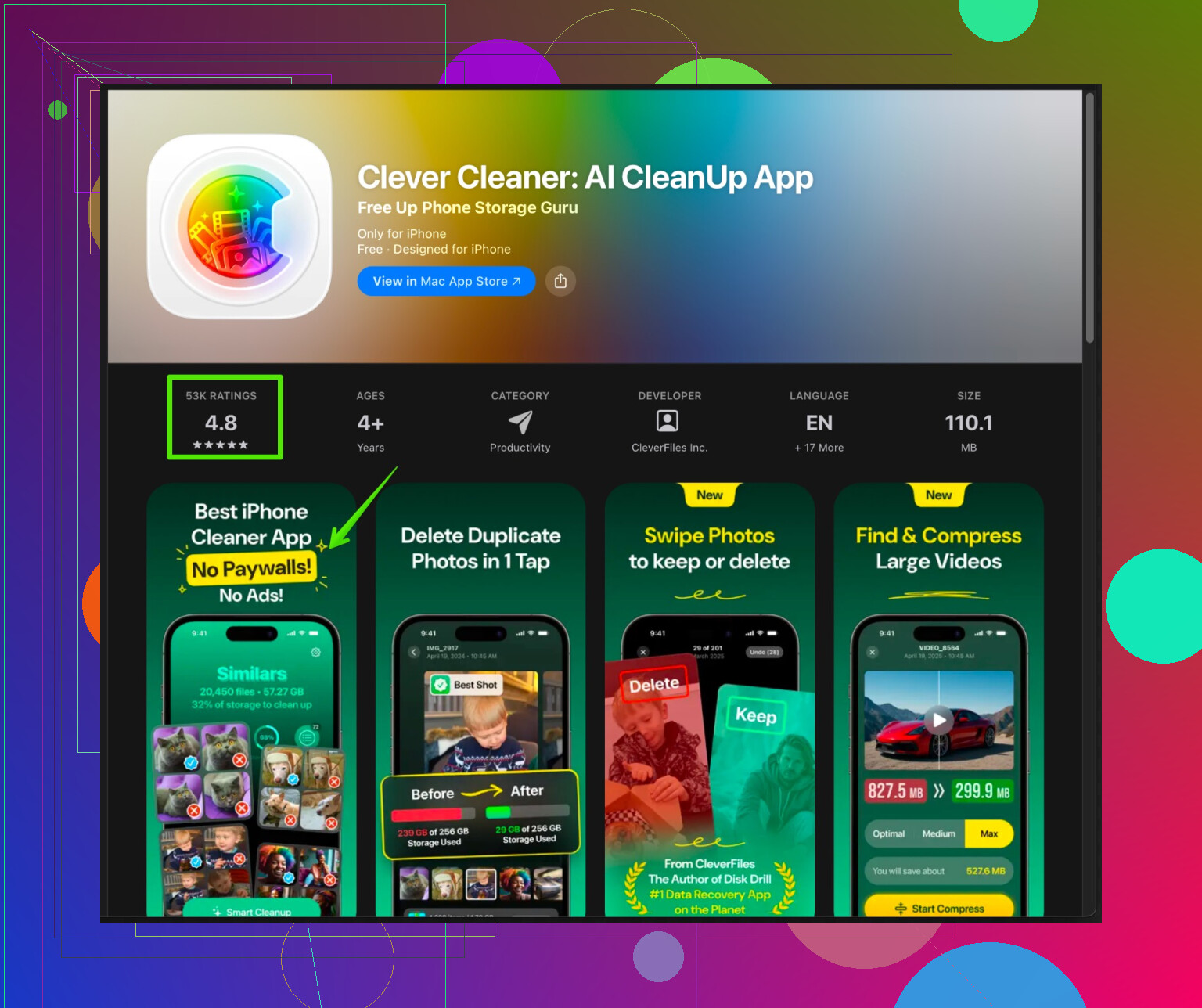
• Big videos and edited copies.The Clever Cleaner App for iPhone is good for this. It has AI based scanning for similar images and junk files, groups them into safe categories, and lets you review before deleting. You work in batches and see previews, so you avoid deleting important photos.
You can check it here:
Clean up duplicate and similar photos on your iPhone with Clever Cleaner -
Protect yourself before you delete a lot
• Turn on iCloud Photos if you have storage there, or back up to a computer.
• Let the backup finish.
• Only then start aggressive cleanup. -
Keep things under control next time
• Photos → your profile → iCloud → optimize iPhone storage to save local space.
• Get rid of “save original to camera roll” in social apps if they have that toggle.
• Delete meme and download folders every few weeks.
Do Duplicates and Bursts first. Then a pass with Clever Cleaner. Most people free up several GB in under an hour.
Couple of extra angles you can try that build on what @stellacadente already laid out, without just re-telling the same steps.
-
Use “Search” to find hidden duplicate clusters
Photos is actually decent at surfacing the worst offenders if you search smartly:- Open Photos → Search tab.
- Try searches like: “screenshot”, “receipt”, “document”, “WhatsApp”, “Instagram”, “TikTok”, “Snapchat”.
- You’ll often see big chunks of nearly identical stuff from when you were editing or re-exporting.
- Use “Select” at the top, then drag your finger across rows to quickly select a ton of images.
This is a good way to catch duplicates from apps that don’t always show up as “Duplicates” in the Utilities section.
-
Sort by file size to kill the biggest space hogs first
iOS annoyingly doesn’t let you sort by size in Photos, but you can still target large junk:- Settings → General → iPhone Storage → Photos.
- Look at “Review Personal Videos” and “Review Large Attachments.”
- That’s where you’ll find the 2‑minute “test clip of my feet” videos and 10 identical TikTok exports.
- Delete from there first; you free GBs way faster than by poking at tiny screenshots.
-
Stop creating so many duplicates in the first place
People always say “clean it up regularly,” which is vague and useless. Do these specific toggles instead:- In Instagram, TikTok, Snapchat, etc., turn off “Save original photos/videos to camera roll” if you already have them inside the app.
- In camera settings, only use HDR and Live Photos when needed. Each edit and export can create more versions.
- When you crop or tweak a photo, avoid apps that auto-save a new copy; use the native editor so changes are non-destructive.
-
Be careful with “Select All” merges
Slight disagreement with the “Select All → Merge” idea: on very messy libraries, that can bite you if you have, say, RAW + JPEG pairs or slightly different edits you care about.
What I’d do:- In Duplicates, first tap into some pairs that look suspicious and compare closely.
- If you see important variants (RAW vs edited JPEG, or a color-corrected version), handle those manually and then mass-merge the obvious junk.
It’s slower up front but safer than discovering later that the “better quality” version it kept is not the one you actually like.
-
Use a smarter cleaner app when Photos hits its limits
Photos only catches “obvious” duplicates. For years of bursts, slightly shifted angles, and multiple versions of the same scene, you’ll go insane doing it by hand.
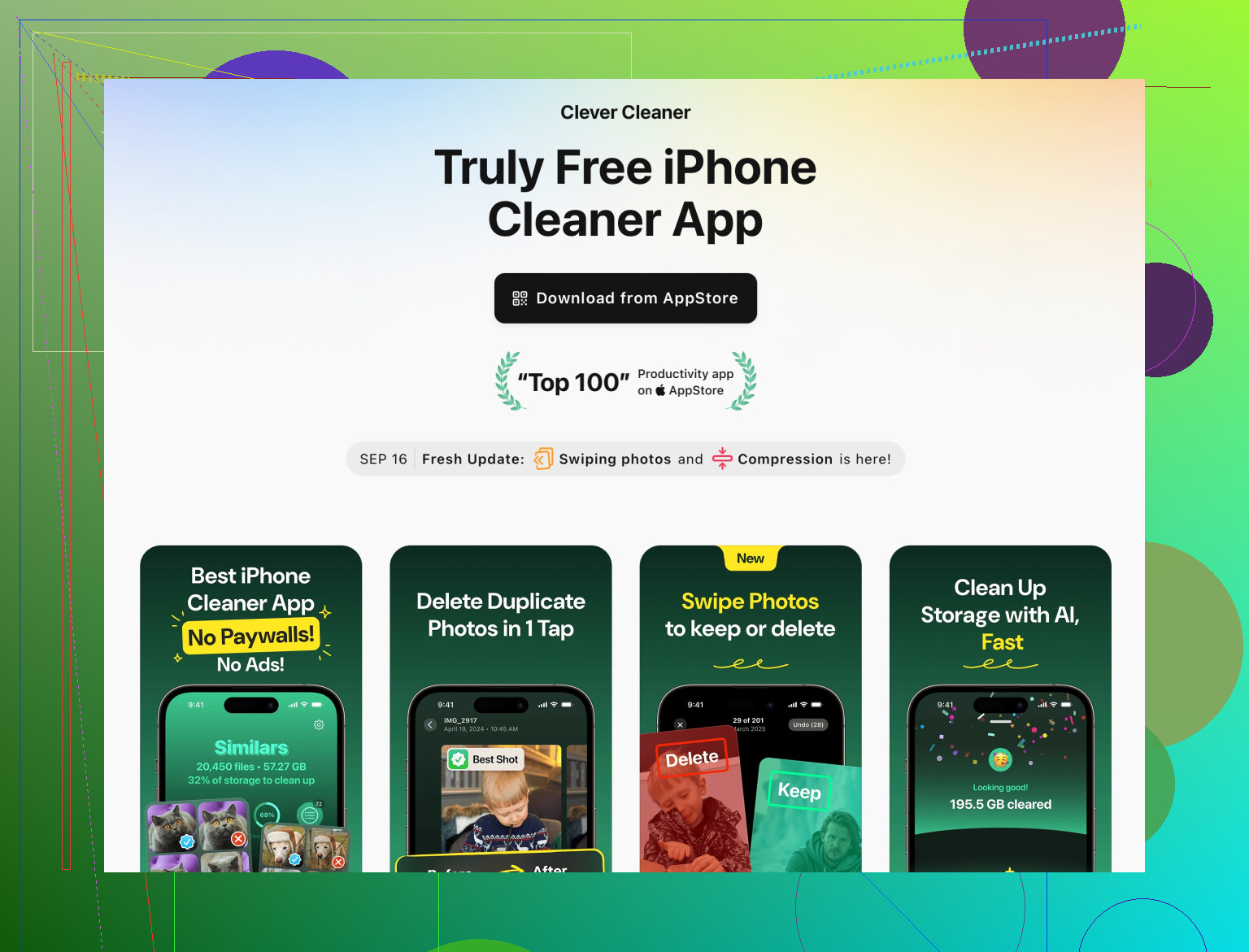
That’s where a tool like the Clever Cleaner App is actually worth it:- It scans for similar photos, not only exact copies.
- Groups blurry pics, near-identical selfies, document shots, memes, etc.
- Shows side‑by‑side previews so you can pick the keeper.
- Lets you batch-delete the losers and reclaim space super fast.
If you want more control and less manual hunting, check this out:
clean up and organize photos on your iPhone the smart wayThat page walks through how the tool works specifically for photo clutter and storage cleanup, which is a lot more useful than generic “storage cleaner” apps.
-
Always have a “panic button” backup
Before you go on a deletion spree:- Plug into a Mac/PC, use Photos or Image Capture (Mac) or a file transfer tool (Windows) to pull the whole library.
- Or turn on iCloud Photos, let it fully upload, then export key albums to a computer or external drive.
- Even if you never look at it again, having one full backup means you can be more agressive about nuking duplicates on the phone without worrying you’ll lose a once‑in‑a‑lifetime shot.
If you’re nearly full and overwhelmed:
- Kill the large videos first in iPhone Storage.
- Use Duplicates, but manually spot-check before “Select All.”
- Run a pass with something like Clever Cleaner App to auto-group similars.
That combo usually frees several GB in under an hour without risking your important photos.
Building on what @byteguru and @stellacadente already covered, here are a few extra angles so you can clean fast without wrecking your library:
-
Triage by “how painful would this be to lose?”
Before any tools, mentally split your photos into 3 buckets:
• Irreplaceable: family, trips, events, baby pics, once‑in‑a‑lifetime stuff
• Nice to have: random outings, pets, landscapes, casual selfies
• Zero‑regret: screenshots, memes, app exports, receipts, blurry junk
Attack the zero‑regret stuff first. That alone often frees gigs and is much safer than going straight after “duplicates” of meaningful photos. -
Use albums as a safety net
Duplicates detection is good, not perfect. Instead of trusting it blindly:
• Create an album like “Do Not Touch.”
• Toss key photos there (important trips, kids, big life events).
• When you use Duplicates or any cleaner, deselect or uncheck anything that is in those protected albums.
Slightly slower, but it prevents those “oops, my favorite edit vanished” moments. -
Check how edits are handled
One subtle gotcha:
• The Photos app uses non‑destructive edits, but some third‑party apps save a completely new file.
• If you have both the original and an “improved” version, Duplicates or cleaners might decide the “higher resolution” original is the keeper, not the one you actually like.
So anytime you see before/after pairs from editing apps, manually pick the one you visually prefer, not the one the tool suggests. -
Where I slightly disagree with the others
• I would not rush to mass‑merge everything just because Apple groups it. Near‑duplicates can be things like bracketed exposures, RAW + JPEG, or alternate crops you really like. Use bulk merges only after you’ve done a test pass and understand what type of pairs your library has.
• I also would not obsess over every last duplicate screenshot. Your time is worth something. Once you have several GB free and the phone is responsive again, stop. Perfectionism here burns hours for a few hundred MB. -
Using a cleaner app smartly, not blindly
A dedicated tool can help with years of slightly different angles and bursts that Apple’s Duplicates misses. The Clever Cleaner App is good for that as long as you treat it like a power tool, not a magic button.Pros of Clever Cleaner App:
• Finds similar photos, not just exact copies, which is what actually clutters long‑time libraries.
• Groups things like blurry shots, near‑identical selfies, and documents so you can clear batches quickly.
• Visual previews and side‑by‑side comparisons, so you can pick the best shot instead of trusting blind rules.
• Also surfaces large videos and junk categories to get space back fast.Cons of Clever Cleaner App:
• It is very tempting to accept default suggestions and purge too aggressively, especially when you are tired. You must slow down on anything that looks like family or travel.
• Any cleaner that touches a big library will take time to scan and review; this is not a 30‑second operation.
• If you already use iCloud and a computer backup, the “extra safety” feels redundant for cautious users.The way I like to use it:
• First pass: only delete clearly low‑value stuff it groups, like obvious memes, screenshots, totally blurred photos, and accidental shots.
• Second pass: go through “similar photos” but only for categories where you know you overshoot, like selfies or pet bursts.
Stop there. You do not need to squeeze every last duplicate out. -
Compare strategies
• @byteguru leans more into system tools and structured searching.
• @stellacadente adds smart searches, size‑based triage, and a careful warning about RAW/JPEG pairs.
Both are solid. The missing layer is your personal risk tolerance. Decide upfront: “I am okay losing some redundant selfies, but I will not risk trip photos,” and let that rule which suggestions you follow and which you ignore.
Wrap it up like this:
• Protect important stuff with at least one backup and a “Do Not Touch” album.
• Clear the obvious junk buckets first.
• Use the Duplicates feature conservatively, then add the Clever Cleaner App for the ugly, similar-photo clutter.
• Quit once you have comfortable free space instead of chasing a perfectly pristine library.
I’d skip another cleaner and start with a five-minute burst cleanup.
Open a burst in Photos, tap Burst or Select, and mark the shots you want. Tap Done, then choose Keep Only Favorites if prompted. You choose the keepers yourself.
For example, keep two shots from a 30-photo burst rather than reviewing 30 seperate files across your library.
Try three bursts first, then check your chosen photos before continuing. Leave uncertain groups for tomorow. This gives you a small, manageable task instead of another whole-library project.
iCloud Photos is not a backup, and half the advice above quietly assumes it is. If you turn it on and then delete a photo on your phone, that deletion syncs to every device signed into the same account, usually within seconds. Recently Deleted keeps it for thirty days and then it’s gone everywhere. So before any big cleanup, the real safety net is a copy that does not sync back, meaning files dragged onto a computer or an external drive, or a separate cloud account you are not actively deleting from.
The thing almost nobody warns you about when your storage is nearly full: deleting photos does not give you space right away. Everything you remove drops into Recently Deleted and still counts against your storage for those thirty days. If you free up several gigs and the phone still says it’s full, that’s why. Go to Albums, scroll to Recently Deleted, and empty it manually. That step is the actual ‘get my space back now’ button, not the deleting itself.
@reveurdenuit has the right instinct with the bursts. Starting small and checking your keepers before moving on beats treating the whole library as one giant project you’ll never finish. Bursts are also the safest thing to trim because you’re choosing the keeper yourself instead of trusting the phone to guess.
Where the built in Duplicates tool falls down is the near identical stuff that isn’t technically a duplicate. Ten slightly shifted shots of the same view won’t group together, so you end up hunting them by hand forever. For that part I’d just run the Clever Cleaner App, which is free, and let it group the lookalikes so you’re picking one out of a batch instead of scrolling endlessly. Use it for that pile, then empty Recently Deleted, and stop once the phone feels comfortable again rather than chasing every last copy.