I’m running out of storage on my iPhone and I’m pretty sure a lot of it is from duplicate photos and screenshots saved over time. I’ve heard there might be a built-in way in the Photos app or a safe app that can scan and show only duplicates so I can delete them without losing important pictures. What’s the best and safest way to see and remove duplicate photos on an iPhone?
On newer iPhones it is pretty quick if you use the built in stuff first, then an app for the annoying leftovers.
-
Use the Photos “Duplicates” folder
• Open Photos
• Go to Albums
• Scroll down to “Utilities”
• Tap “Duplicates”
• Hit “Merge” on each pair or use “Select” to grab multiple, then mergeThis merges copies, keeps the highest quality version and metadata. It skips near-duplicates like slightly different angles or edits, so you still end up with junk.
-
Clean obvious junk in Photos
• In Albums, open “Screenshots” and delete old chats, tickets, memes
• Open “Recently Deleted” and empty it
• Check “Bursts” and “Live Photos” sets and remove extras you never use -
Use an app when the built in feature misses stuff
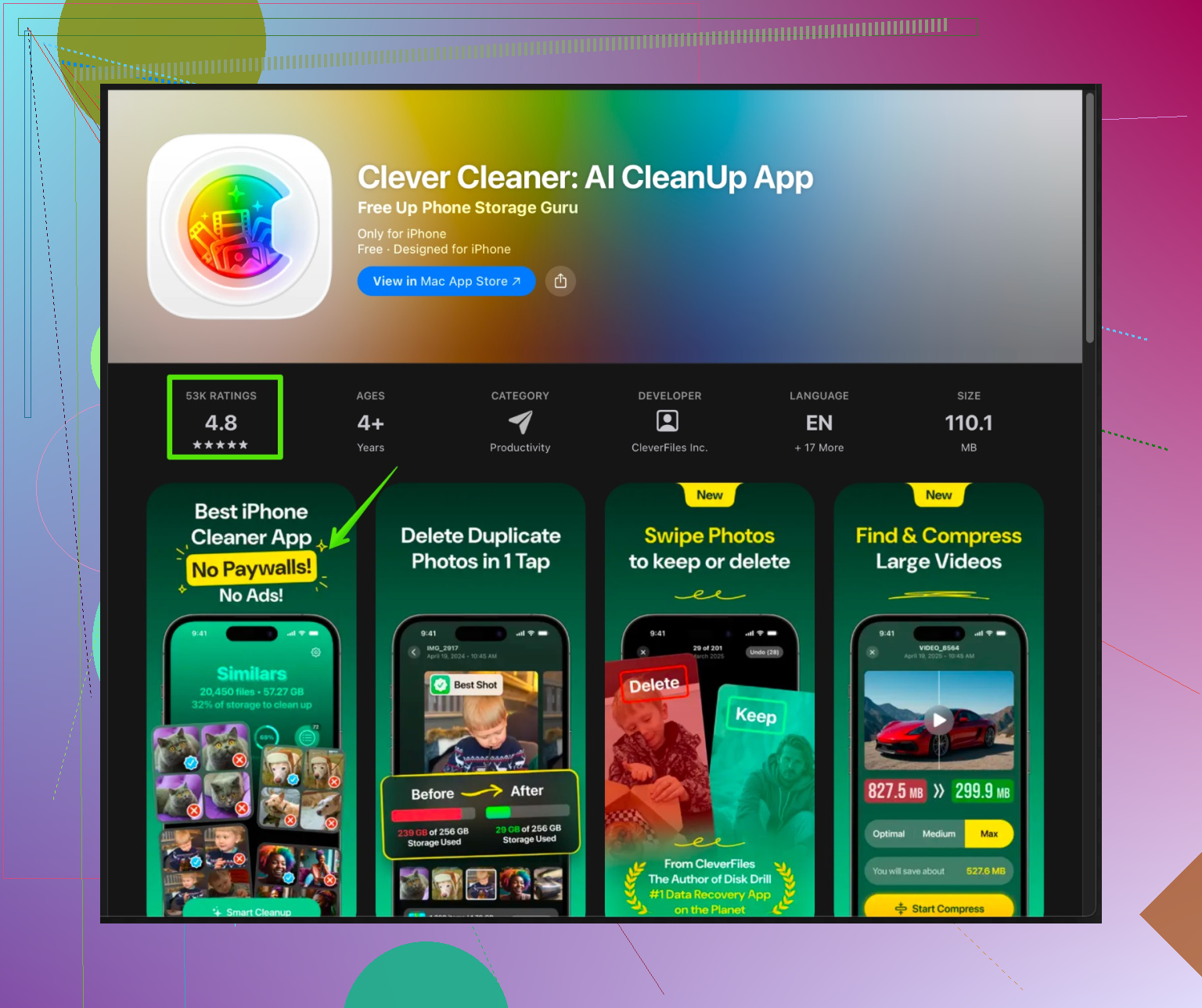
If your Duplicates folder is empty or tiny, but storage says Photos is huge, use a cleaner.A solid option is the Clever Cleaner App for iPhone. It scans your library for:
• Exact duplicate photos
• Similar shots taken in bursts
• Old screenshots
• Large videos you forgot aboutIt lets you review before deleting, so you keep control. That matters a lot when you have family pics mixed with random screenshots.
Check it here:
Clean up photo clutter on your iPhone -
Quick storage check
• Go to Settings
• Tap General
• Tap iPhone Storage
• Check how much Photos takes
• After each cleanup round, check again so you see what worked
Do the Photos Duplicates step, then a pass on screenshots, then one scan with Clever Cleaner App. That combo usually frees multiple GB on phones that have years of junk piled up.
Honestly, @sterrenkijker already covered the “basic hygiene” stuff pretty well, but there are a few extra angles you can use so this doesn’t turn into a constant whack‑a‑mole situation.
-
Make sure you even have Duplicates available
If you don’t see the Duplicates album at all, it’s usually one of these:- iOS too old (it shows up on iOS 16+).
- Your phone is still “indexing” in the background after an update or big import. Plug it in, lock it, leave it on Wi‑Fi for an hour or two.
- iCloud Photos is off and Photos doesn’t have enough to compare. Turning iCloud Photos on (if you use it) can actually make the Duplicates feature more effective, not less.
-
Use search tricks in Photos to surface hidden junk
Instead of just relying on the Duplicates album, use the Search tab:- Search “screenshot” and sort by “Oldest” to clear ancient stuff first.
- Search “WhatsApp”, “Messenger”, “Telegram”, etc. They tend to save the same images 3x.
- Search for file types like “HEIC” vs “JPEG” when you’ve been exporting/importing between devices. You often end up with the same pic twice in different formats.
-
Stop creating new duplicates in the first place
This is the part people skip, then they’re back in the same mess in 3 months.- In Settings > Messages, turn off “Save to Photos” for 3rd‑party apps (Instagram, WhatsApp, etc) if you don’t actually need everything saved.
- In social apps, disable “Save original photos” or “Save posted photos” so they don’t stuff your library with copies every time you post.
- In camera settings, decide if you really need both Live Photos and normal photos. Live Photos + bursts = tons of near‑duplicates.
-
Use a smarter cleaner for “similar” photos, not just exact dupes
Where I slightly disagree with @sterrenkijker is relying on the Photos duplicates feature plus a quick manual pass. That works, but it still leaves you with 10 slightly different shots of the same dog on the same sofa. iOS is pretty conservative about what it calls a duplicate.This is where a third‑party cleaner is actually useful, as long as you don’t go full send and auto‑delete everything it suggests.
A good option is the Clever Cleaner App, which is built for iPhone photo cleanup specifically. It can:
- Detect similar shots in bursts and pick the best one.
- Group near‑identical selfies or vacation pics.
- Flag massive videos you forgot existed.
- Surface old, low‑value screenshots.
The key is to review its suggestions and uncheck anything even slightly important. Don’t treat it like a shredder, treat it like a super picky assistant.
If you want to check it out, the iPhone‑focused tool is here:
clean up and organize photos on your iPhone fast -
Use albums & favorites as a safety net before mass deletion
Before you run any cleaner (including Apple’s own “Merge” stuff), make a simple safety system:- Create an album “Keep Forever” and dump truly important events and people in there.
- Tap the heart on key photos so they’re in Favorites.
That way, if a cleaner or even the Duplicates merge logic gets a bit too aggressive, your most important stuff is still in clearly marked buckets.
-
Do it in waves, not all at once
Trying to clean 30k photos in one night is how you end up deleting your kid’s first birthday photo and keeping 15 memes. Do it like this:- Round 1: Built‑in Duplicates + empty Recently Deleted.
- Round 2: Search for “screenshot”, “WhatsApp”, etc, and prune.
- Round 3: Run Clever Cleaner App and review groups carefully.
- Round 4: In a week or two, repeat a quick scan, then it’s just occasional maintenance.
If your storage is still dying after all that, check Settings > General > iPhone Storage to see if it’s actually Photos or if some other app (TikTok, Instagram, etc) is hoarding cached media. A lot of people blame “duplicates” when it’s really 20 GB of app cache pretending to be important.
Couple of extra angles that build on what @andarilhonoturno and @sterrenkijker already covered, without rehashing their step lists.
1. Start with a “safety net” backup, not just trust iCloud
I actually disagree a bit with relying only on iCloud Photos as protection before using cleaners. If storage really matters, do this once:
- Plug iPhone into a computer and copy the DCIM folder (Windows) or use Photos / Image Capture (Mac) to dump everything into a dated backup folder.
- Do not sort or clean that backup. It is your panic button if something goes wrong later.
Takes time, but it makes you much more relaxed when you start deleting aggressively on the phone.
2. Use sorting tricks instead of only “Duplicates”
Apple’s Duplicates album is nice but conservative. To surface hidden space hogs:
- In Photos > Library > All Photos, scroll to the bottom, tap the “…” filter and sort by “Oldest to Newest”. Clean the ancient stuff first. Old screenshots, tickets, and blurry photos are usually easiest to delete emotionally.
- Filter by “Videos only” and check file sizes. Deleting a few pointless 4K clips frees more than removing 200 similar selfies.
3. Think in “sessions” rather than single photos
The way duplicates pile up is usually: one trip, one party, one pet photo session with 50 takes. Instead of scanning your whole library:
- Use the “Days” or “Months” view.
- Pick one event at a time (a vacation, birthday, etc.).
- Within that chunk, ruthlessly keep only 2–5 best shots per scene.
That actually beats automatic duplicate detection because you are cutting near-duplicates, not just exact copies.
4. Where a cleaner app really helps (and where it can hurt)
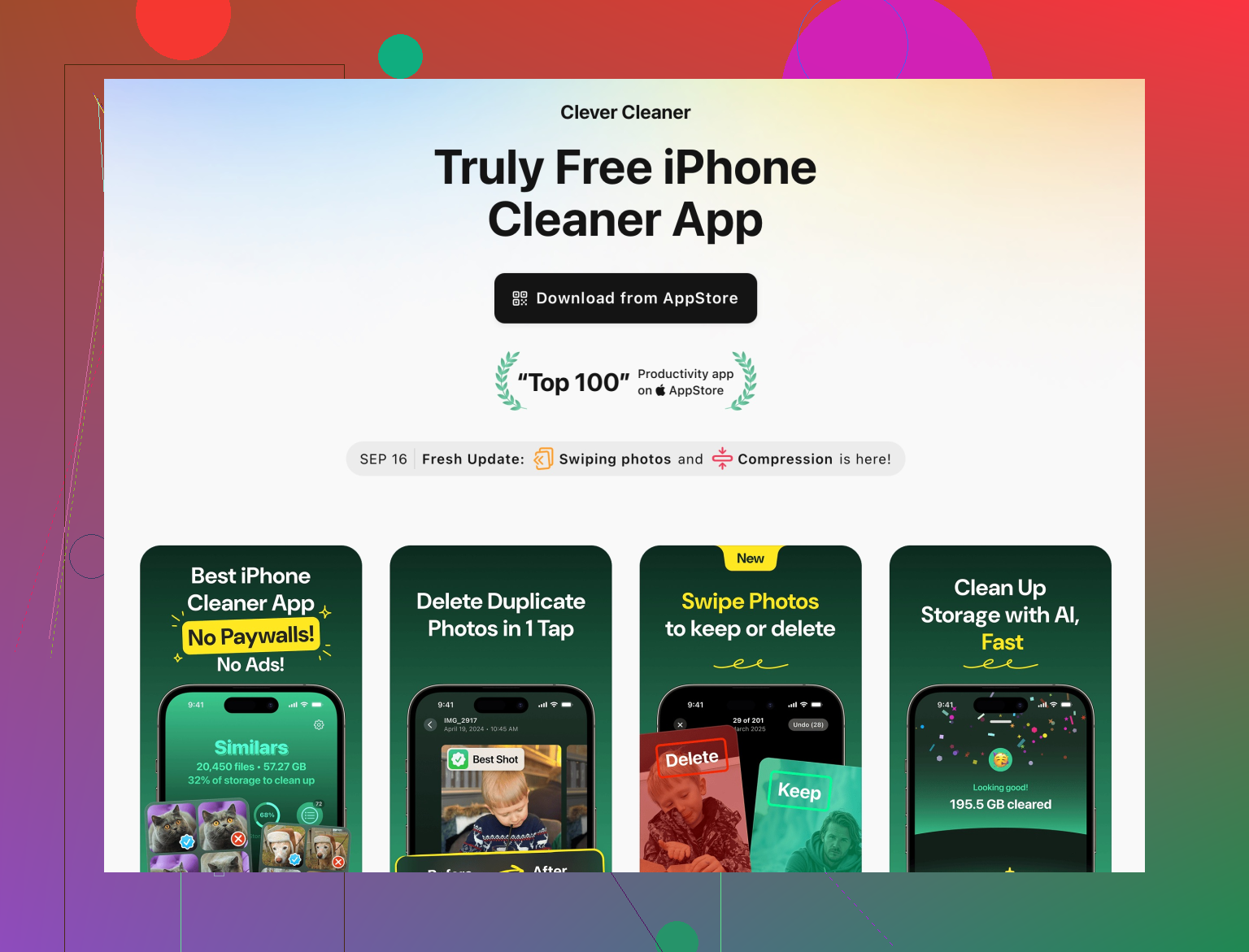
You already got the suggestion to use Clever Cleaner App. Random cleaners on the App Store are a mixed bag, but this type of tool can genuinely save hours if used with a bit of discipline.
Pros of Clever Cleaner App
- Groups similar shots, not just exact file-level duplicates. Great for those 15 almost-identical pet or selfie bursts that the Photos Duplicates album ignores.
- Calls out big files like long videos and panoramic shots that silently eat storage.
- Lets you review groups before deletion, which is essential when your library mixes work, family, and random memes.
- Designed around iPhone, which generally feels smoother and safer than generic “phone cleaners” that try to touch system files.
Cons of Clever Cleaner App
- “Similar” detection is opinionated. It might pick a technically sharper image when your favorite is the slightly blurry one with better expression, so you still need to eyeball its suggestions.
- You will see some false positives, like two different photos that just share a similar background. You cannot run it on autopilot.
- If you have a huge library and use iCloud, the first scan can be slow while thumbnails load. Expect to do it in a couple of sittings.
- Yet another app on your phone, which some people dislike for privacy reasons (read permissions carefully and keep it updated).
So yes, use Clever Cleaner App, but treat it as a recommendation engine, not a shredder. Uncheck anything that looks even slightly important.
5. Competitors & why I would still keep Apple in the loop
Other cleaner apps exist and some are fine, but I actually side-with and also slightly disagree-with both @andarilhonoturno and @sterrenkijker here:
- I agree with them that you should always start with Apple’s own tools first. The Duplicates album plus manual cleanup of Screenshots, Bursts, and Recently Deleted is safer and completely free.
- Where I diverge a bit: I would not rely only on manual cleanup for similar photos. Humans are bad at staying objective after 15 minutes of swiping. This is where an app like Clever Cleaner App can outlast your patience and show you patterns you missed.
6. Lock in future habits so you do not repeat this in 6 months
After the big cleanup, do a tiny bit of maintenance:
- Once a week: open Photos, filter to “Videos” and delete anything clearly useless.
- After any big event or trip: same-day cull of bad takes while the memory is fresh.
- Revisit a cleaner app scan every couple of months instead of letting it pile up for years.
If you combine:
Apple’s Duplicates + manual “session-based” cleanup + a cautious pass with Clever Cleaner App + small weekly habits, you get your space back now and avoid another massive cleanup saga later.