My USB drive suddenly stopped opening on my Windows PC, and now it shows errors or asks me to format it. It has important photos and work files I haven’t backed up, so I really need help with safe ways to recover data from a corrupted flash drive without making things worse. Any tips on what to try first?
USB drive went bad? I’d slow down first
Yeah, this is one of those problems people ignore until the stick stops opening and Windows throws a format prompt in their face.
What I did in similar cases was simple. I stopped touching the drive.
Do not format it yet. Do not run CHKDSK yet. Do not throw random “repair” apps at it. Those are the moves people make in a rush, then later find out the files got harder to pull back.
Why USB drives end up corrupted
I’ve seen a few common causes:
- Pulling the drive during a file copy
- File system damage
- Bad flash memory cells
- Malware
- Sudden power loss
- Driver issues
- Old age
Flash storage wears out. It does not fail on a polite schedule either. Sometimes it works fine for months, then starts giving weird errors out of nowhere.
When I’d try software first
If your USB still shows signs of life, I’d usually start with recovery software.
Good signs:
- It appears in Disk Management
- The size looks correct
- Windows says it needs formatting
- It shows up as RAW
- You see the device, but you can’t open files
In those cases, I’d try to copy data off before doing any repair work.
When I’d stop doing DIY stuff
There are cases where I would not keep poking at it.
I’d back off and look at a recovery service if:
- The drive is missing everywhere
- It keeps disconnecting
- The USB connector looks bent or broken
- The stick gets hot fast
- The files matter enough where one bad step would hurt
A dead or unstable flash drive can get worse from repeated reads. I learned this the annoying way on an old work stick. It mounted once, dropped off, then never came back.
What I’d use for file recovery
For software, I’d go with Disk Drill.
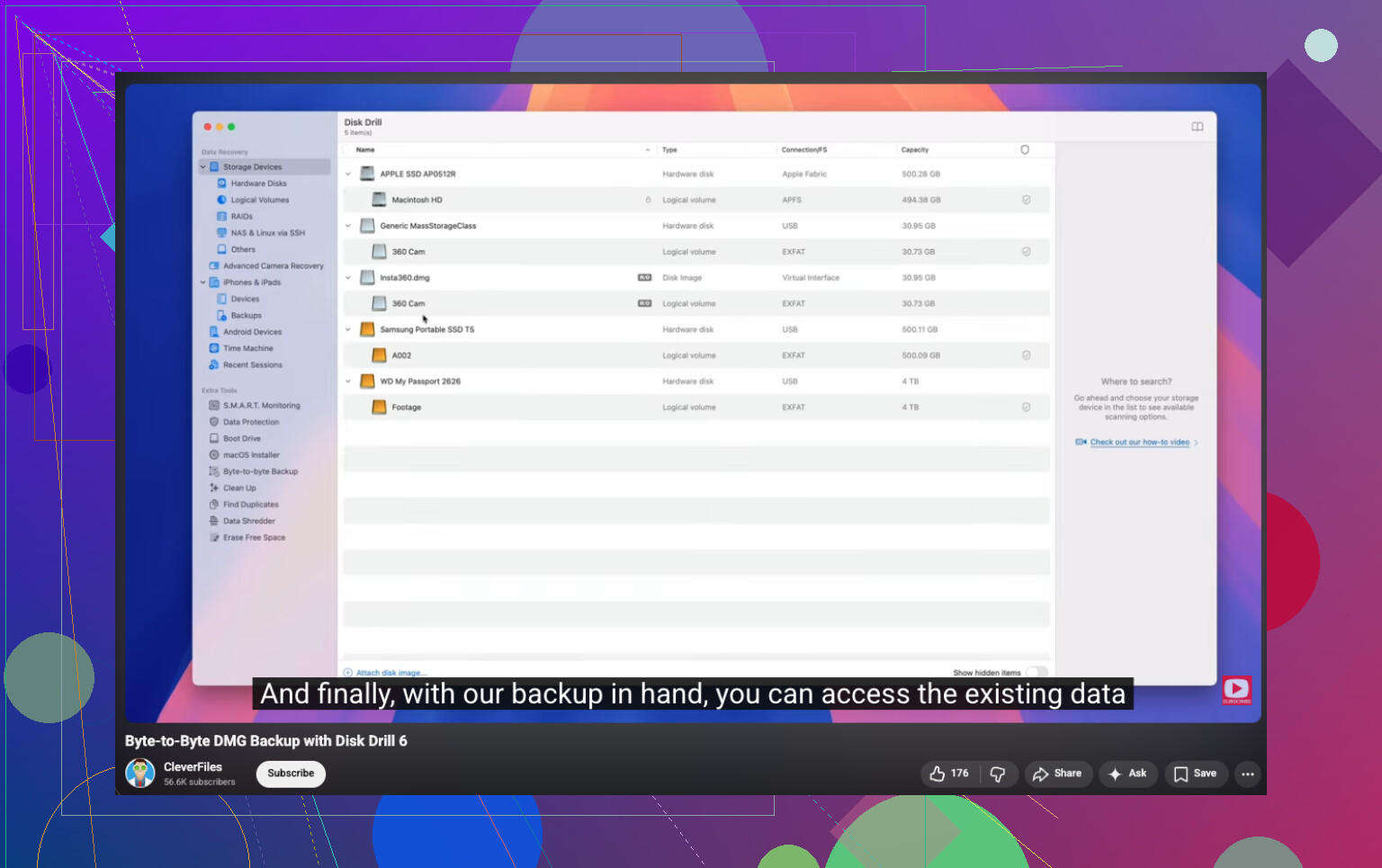
I used it on broken flash drives, RAW volumes, and drives Windows refused to open. The part I like most is the byte-for-byte backup option. If the USB is flaky, I’d rather scan the image than keep hammering the original device.
This is the video for it:
The order I’d follow
This is the rough process I’d use:
- Install Disk Drill on your computer, not on the bad USB
- Plug in the USB drive
- Open Disk Drill and pick the USB device
- Make a byte-to-byte backup first if the drive seems unstable
- Run a full scan
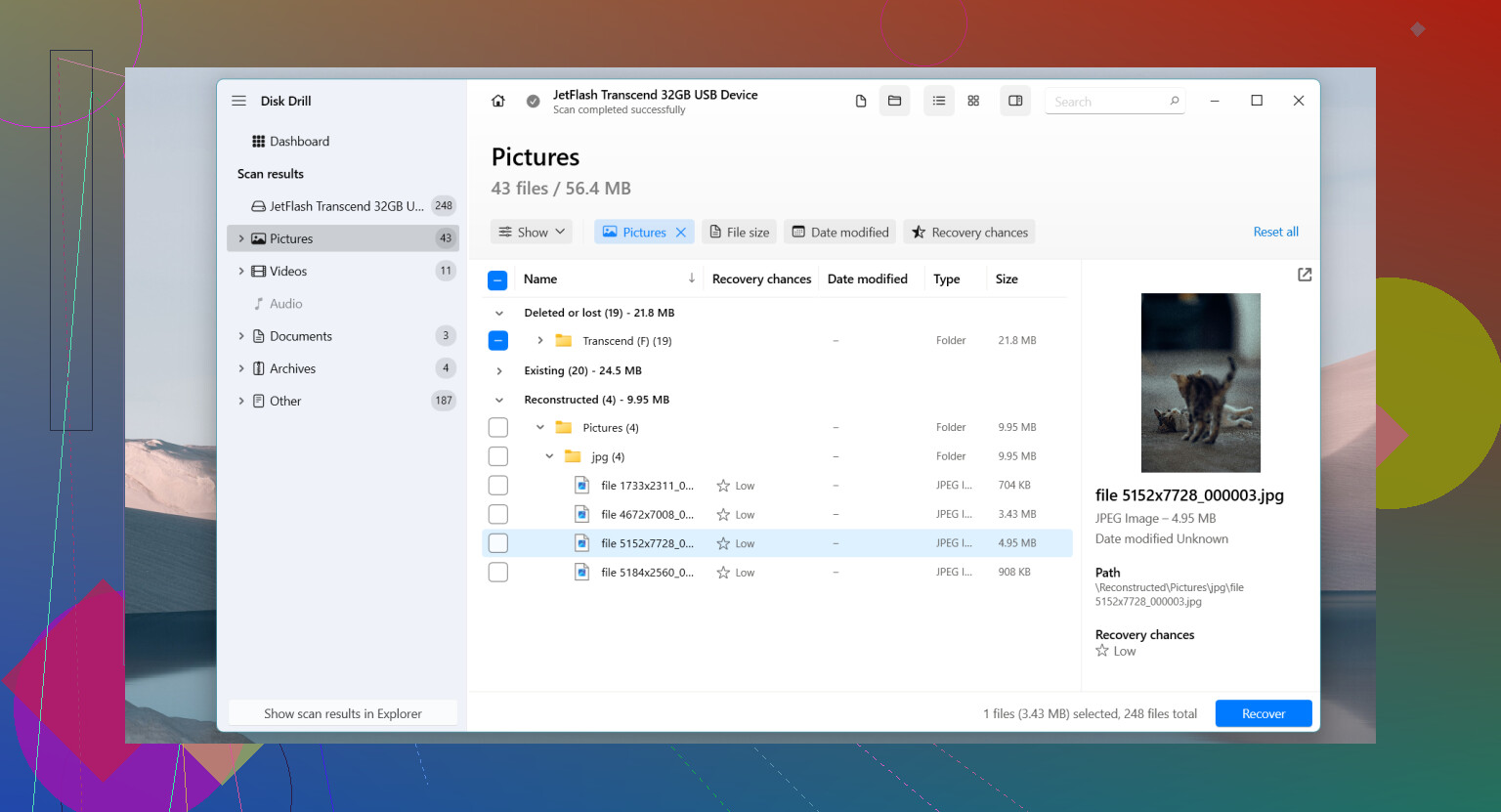
- Preview what shows up
- Recover the important files to another drive
Do not recover files back onto the same USB. I’ve seen people do this and make a bad drive worse. Save everything somewhere else.
Only after the files are safe
Once your data is off, then I’d mess with repairs.
Stuff worth trying after recovery:
- Give the drive a new letter in Disk Management
- Run CHKDSK if the file system looks damaged
- Use Windows error checking
- Reinstall the USB device in Device Manager
- Reformat it if corruption keeps hanging around
Would I keep using the stick after this?
Honestly, no, not if it keeps acting up.
If it starts dropping files, fails during writes, disconnects for no reason, or gets corrupted again after a format, I’d retire it. USB sticks are cheap. Data recovery is where people get burned.
First thing, ignore the format prompt.
I agree with @mikeappsreviewer on one part, stop writing anything to the USB. I differ a bit on CHKDSK. I would not touch CHKDSK at all until your files are copied out. On flash drives with file system damage, CHKDSK sometimes ‘fixes’ the structure by dropping files into found.000 or removing broken entries. That is fine for a spare drive, bad for photos and work docs.
What I’d do on Windows:
- Test the drive on another USB port, and on another PC if you have one.
- Open Disk Management and check what Windows sees.
- If the USB shows the right size, try recovery before repair.
- If it shows 0 bytes, keeps reconnecting, or vanishes, stop DIY.
A few checks matter here:
- Shows as RAW, unallocated, or asks to format, recovery software is the next step.
- Shows wrong capacity, like 31 MB instead of 64 GB, that points to hardware failure.
- Gets hot or disconnects during reads, stop. Repeated scans make it worse.
For recovery software, Disk Drill is a solid pick because it handles lost partitions, RAW USB drives, and deleted file system records well. The feature I care about most is making a disk image first, then scanning the image instead of beating up the failing stick. That step saves data on unstable flash media more often than people think.
Use this order:
- Install Disk Drill on your PC drive, not the USB.
- If possible, create a byte-for-byte image of the USB.
- Scan the image or the USB.
- Preview photos and docs first.
- Recover to your internal drive or another external disk.
If your photos matter, sort results by file type and preview file headers. JPEGs and Office docs often preview fine even when folder names are gone. That helps you judge if recovery is clean or half-broken.
If you want a step-by-step visual, this USB file recovery video guide for corrupted flash drives walks through the process.
One more thing people skip, check Event Viewer, Windows Logs, System. Look for disk or ntfs errors around the time you plug it in. If you see I/O errors or reset messages, the issue is lower-level than a simple file system mess.
If the drive is not detected in Disk Management at all, or keeps dropping mid-scan, a lab is the safer move. USB sticks are annoying because when the controller starts dying, things go south fast. I learned this the dumb way years ago, kept retrying, got less data each time. So yeah, move slow and dont keep poking it.
Don’t click Format. That prompt is Windows basically saying “I can see something, but I can’t read the file system.”
I agree with @mikeappsreviewer and @boswandelaar on the main point: stop using the USB right now. Where I slightly differ is that I’d also avoid repeatedly unplugging/replugging it like a troubleshooting fidget toy. Every reconnect is another chance for a dying flash controller to act worse.
A few things I’d check that haven’t really been stressed enough:
- Open Device Manager and see whether it shows under Disk drives with a normal name or as a generic USB device
- In Disk Management, note whether it says No Media, RAW, Unallocated, or shows the correct partition
- If it appears with the correct capacity, that’s way more promising than if it shows some weird tiny size
If the drive is still readable at all, copy the most irreplaceable stuff first. Not folders, not everything, just the top-priority files. Photos, work docs, anything you can’t recreate. Sometimes you only get one semi-working session.
If normal copying fails, then yeah, I’d use Disk Drill. The useful part for this situation is not just scanning, it’s that you can try recovering from a damaged or RAW USB without doing repair writes to the device first. Recover to your PC or another drive, never back onto the same stick. Basic rule, but ppl still do it.
Also, if you want more opinions on best USB flash drive recovery software and data recovery tools, this thread is worth a look:
best USB flash drive recovery software discussions
One more thing: if the USB gets hot, disappears mid-read, or shows No Media, skip software heroics and go straight to a pro lab. That’s not “corruption” in the simple sense, that’s often hardware failure. At that point, DIY can make it worse real fast.
I’m with @boswandelaar and @reveurdenuit on avoiding repair-first moves, but I’ll disagree slightly on one thing people often overdo: trying the drive on five different machines in a row. If the USB is physically unstable, that can turn one bad day into a dead stick.
What I’d add is this: check SMART-like behavior isn’t available on most USB flash drives, so Windows can look vague even when the hardware is failing. That means your best clue is behavior, not status.
Quick triage:
- If it mounts once, copy only the most valuable files first
- If Explorer freezes, use a recovery tool instead of forcing access
- If it shows No Media, wrong size, or drops out during reads, stop DIY
I’d also avoid antivirus scans on the USB right now. They hammer the file system and can waste the little life a failing stick has left.
If it’s still detected stably, Disk Drill is reasonable for imaging and file recovery.
Pros of Disk Drill
- Good at RAW/corrupt USB scans
- Can create a backup image first
- Simple preview for photos/docs
- Easier than command-line tools
Cons
- Deep scans can take a while
- File names/folders may be lost on badly damaged media
- Not magic if the controller is failing
- Best features matter more when the drive is still readable enough to image
Compared with the general advice from @mikeappsreviewer, I’d say the real priority is not “fix the USB,” it’s “reduce stress on the NAND and extract data once.” After recovery, retire the drive. If corruption happened without an obvious cause, trust is gone.