I accidentally deleted photos and videos from my SD card and I’m scared of making things worse by using it again. I need help with the safest way to recover lost files from an SD card without overwriting data, including what steps to avoid and which recovery methods actually work.
I did this once with a 128GB card after a weekend trip. Hit delete on the wrong folder, then sat there staring at the camera like it owed me an apology. So, first thing, take the SD card out now and stop using it.
That part matters more than people think. When photos get deleted, the card usually does not erase the image data right away. It drops the entry pointing to the file and marks the space as free. Your shots are often still sitting there until new data lands on top of them. If you keep shooting, copying, or editing on the card, you raise the odds of wiping out what you want back.
What worked for me was keeping the process simple:
1. Use a real SD card reader. Put the card into your computer’s SD slot or a USB card reader. Do not connect the camera or phone with a cable and hope for the best. A lot of devices show up in MTP mode, and recovery apps do a worse job when they cannot access the card more directly.
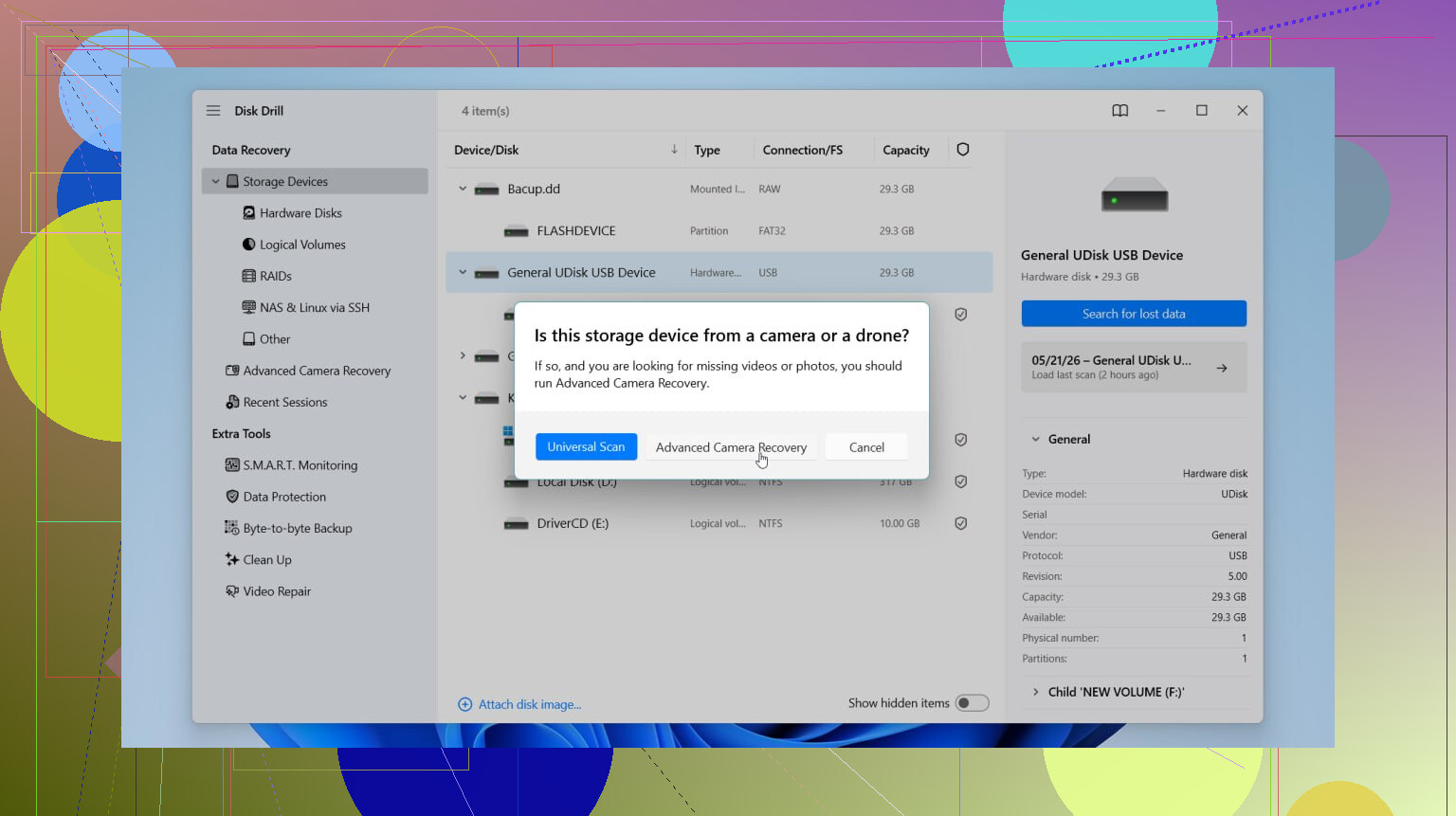
2. Scan it with recovery software. I’ve tried a few. The one I had the least friction with was Disk Drill. What sold me was the preview. I could check if a photo opened before restoring a pile of junk. For video files, especially from cameras and drones, its camera recovery mode did better than I expected with split or broken clips. On Windows, the free tier lets you test and recover up to 100MB, which is enough to see if your files are still there.
3. Recover to a different drive. This is where people blow it. Do not save recovered files back onto the same SD card. If you write data onto the card during recovery, you risk overwriting the hidden files you are trying to pull back. Put the recovered stuff on your computer’s internal drive or an external SSD or hard drive.
If you want other options, here’s the short version.
- R-Studio felt better when I was dealing with RAW files like NEF and CR2. It also lets you make a full image of the SD card first, which is smart if the card seems flaky. Downside, the interface is a bit of a mess if you are new to this, and the trial has limits.
- TestDisk is free and has been around forever. It is strong when the partition itself is damaged. I would not hand it to someone who wants a clean visual workflow though. No GUI, more terminal-style work, more room for user error if you are tired or rushing.
- DiskDigger is lighter and easy to run on Windows without installing much. Good signature scanning for photos and video. The free version gets annoying fast if you have a big card, since you end up confirming files one by one with delays. There’s an Android build too, though it tends to be more useful on rooted phones.
One thing I would skip, hard stop, is using repair tools like CHKDSK or Mac First Aid on a card with deleted photos you want back. Those tools are for file system repair, not photo recovery. Sometimes they clean up the card in a way that trashes the leftover file records you needed.
So yeah, card reader, recovery app, save elsewhere. Do those in order and your chances are still decent. I’d start there before trying anything fancy.
Pull the card out and lock it with the little side switch if your SD adapter has one. That step gets skipped a lot. It helps prevent accidental writes while you work.
I agree with @mikeappsreviewer on not using the card again. I disagree a bit on going straight into a live scan first if the card seems unstable. If the card is old, throws read errors, or disconnects, make an image of it first and work from the image, not the card. One bad read pass is better than ten.
Best safe order:
-
Stop all writes.
No new photos. No formatting. No edits. No copy-paste back to the card. -
Use a card reader.
Direct access is cleaner and faster. -
Check the card health.
If Windows asks to fix it, hit no. Same idea on Mac. Skip repair tools for now. -
Make a byte-for-byte image if the card is flaky.
On Linux or macOS, ddrescue is the tool I trust more than most GUI apps.
On Windows, some recovery apps offer imaging too. -
Scan the image, or the card if it reads fine.
Disk Drill is fine for this. The preview helps sort real files from junk, and it handles common photo and video formats well. If you want a quick look at a Disk Drill review and walkthrough, watch see how Disk Drill recovers deleted SD card files. -
Restore files to a different drive.
Internal SSD, external drive, anywhere except the SD card.
One more thing people miss. If you deleted files in a camera, the folder structure often matters for videos. Recovering by file signature gets the clip back, but names and dates might be wrong. Sort by file size and preview them one by one. It is annoyng, but it works.
If nothing shows up after a deep scan, stop there. More random tools do not always help, and they waste read cycles on a dying card. At tht point, a pro lab is the safer move.

One thing I’d add to what @mikeappsreviewer and @nachtdromer said: check whether the card was used in a phone, Switch, or newer camera that might use encryption or aggressive TRIM-like cleanup. If it was just a normal camera SD card, your odds are way better. If it was from a phone, recovery can be a lot more hit-or-miss than people on forums like to pretend.
My version of “safest” is this:
- Put the card aside and do not even browse it in-camera again
- If you have a physical write-protect switch, use it
- On your computer, disable auto-import apps like Photos, Lightroom, Dropbox camera upload, etc.
- If the card mounts, copy nothing to it and do not let the OS “fix” anything
- If the files matter a lot, clone/image the card first, then recover from the image
That last part is where I slightly disagree with the “just scan it” crowd. Scanning is fine on a healthy card, sure. But if this is a cheap microSD that’s been in a drone, dashcam, or phone for ages, they fail in ugly ways. Imaging first is more boring, but boring is what you want.
For actual recovery, Disk Drill is a reasonable pick because it previews photos/videos well and is easy for normal humans to use without turning recovery into a science project. Just make sure you recover to your computer or an external drive, not back to the SD card. That’s the part people mess up all the time.
Also, if filenames and folders are gone, don’t panic. A lot of recovered photos come back with weird names but still open fine. Sort by date taken in EXIF later. Videos are messier, especailly if the camera split clips.
If the card starts disconnecting, gets super slow, or makes your reader freak out, stop messing with DIY tools. That’s when pro recovery is worth more than another 6-hour scan.
If you want more user experiences and tool comparisons, this Reddit thread on recovering deleted files from an SD card is worth a read.
One small disagreement with the “image first no matter what” advice from @nachtdromer and @ombrasilente: if the card is healthy, stable, and reads normally, an immediate read-only scan can be fine. Imaging is safest, but it also doubles the waiting if you are just trying to recover a few deleted JPGs from a good card.
What I would add instead is this: check whether the deletions happened after an in-camera format, not just a normal delete. On many cameras, a quick format still leaves recoverable data. On some newer devices, especially phones and certain action cams, cleanup is more aggressive and recovery odds drop fast.
A practical trick people skip: compare the card’s used/free space before doing anything. If “free space” suddenly jumped by exactly the size of the missing files, they were likely just deindexed. That is good news. If the card shows weird capacity, RAW, or asks to be initialized, stop treating it like a simple delete case.
For software, Disk Drill is a sensible middle ground.
Pros:
- easy preview for photos and videos
- friendly enough for non-technical users
- good at common SD card media formats
Cons:
- not the cheapest option
- deep scans can return lots of renamed files
- less ideal than hardcore tools when filesystem damage is severe
So my version is: verify the card condition, decide whether this is a delete case or a corruption case, then use something like Disk Drill only in read mode and restore elsewhere. If results look messy, that does not mean failure. It often just means the directory info is gone.