My iPhone keeps saying memory full even after I delete photos, apps, and old messages. Storage fills back up fast, my phone is getting slow, and I can’t update iOS or save new pictures. I need help figuring out what is actually taking up space and how to permanently free up iPhone storage.
The “iPhone Storage Full” alert got old fast on my iPhone 13. Mine started acting weird before I even connected it to storage. Apps hung. The camera took a second too long. A couple times the phone restarted on its own. From what I saw, once the phone runs out of free room, iOS has less space for temp files and background stuff, so the whole thing starts dragging.
If you want to know what to remove first, don’t start with random small apps. I wasted time doing that. The bigger offenders were old 4K clips, huge attachments in Messages, and cached junk buried in system storage. Check it here:
Settings > General > iPhone Storage
Give it a bit to load. You’ll get the color bar and a breakdown of what is eating space, Photos, Apps, or the annoying “System Data” bucket.
If your phone says storage is full while you’re paying for iCloud, yeah, that confused me too. iCloud does not work like extra internal storage unless you turn on the right option. Go here:
Settings > Photos
Make sure “Optimize iPhone Storage” is on. If it isn’t, your phone keeps full copies of everything on the device. With it on, the originals stay in iCloud and your phone keeps smaller versions.
I tried the manual cleanup route first. Bad time. I sat there sorting the “Recently Deleted” album, because deleted photos still sit there for 30 days and keep using space. Then I went through duplicate shots and blurry pics one by one. Took forever, ngl.
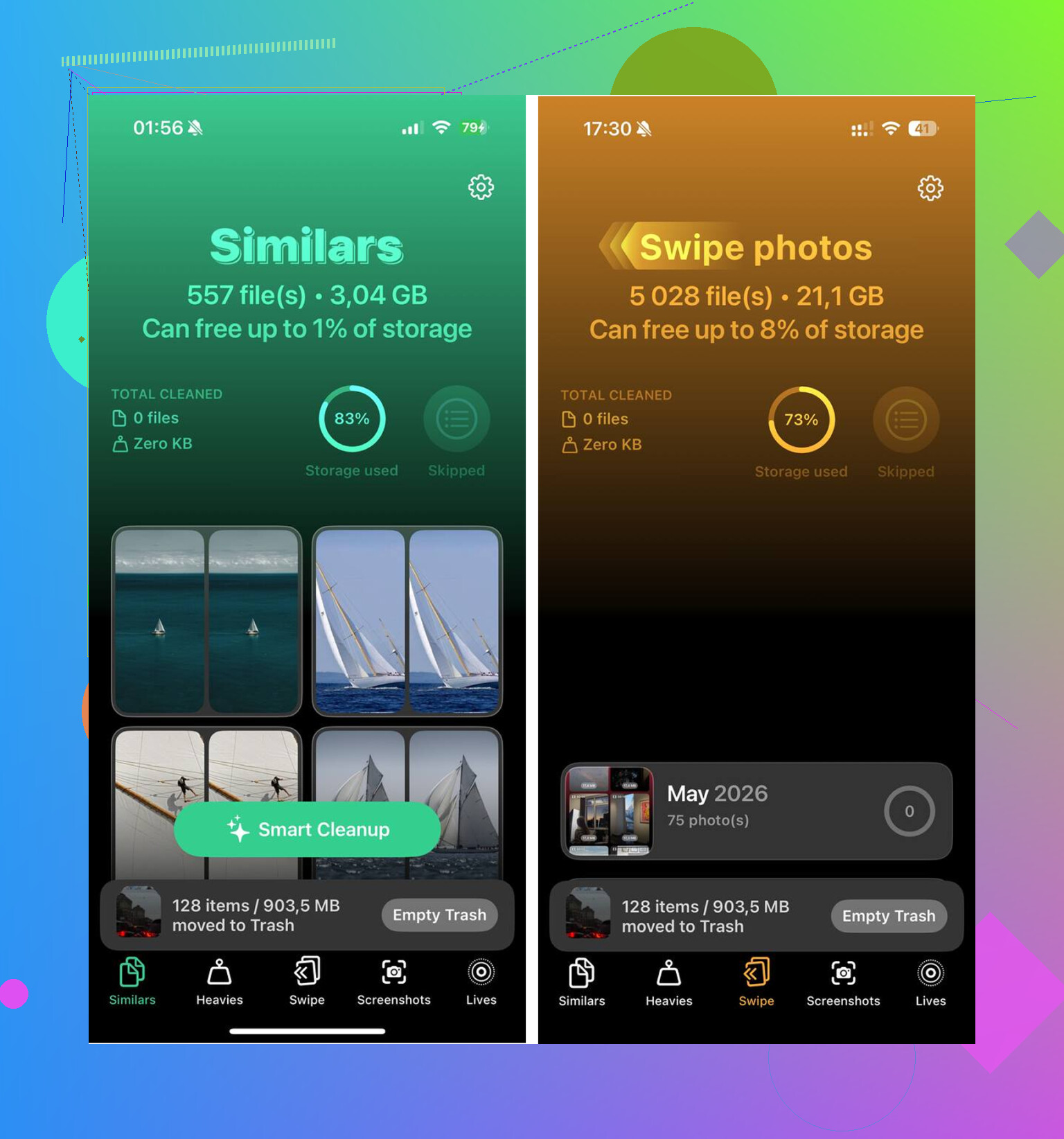
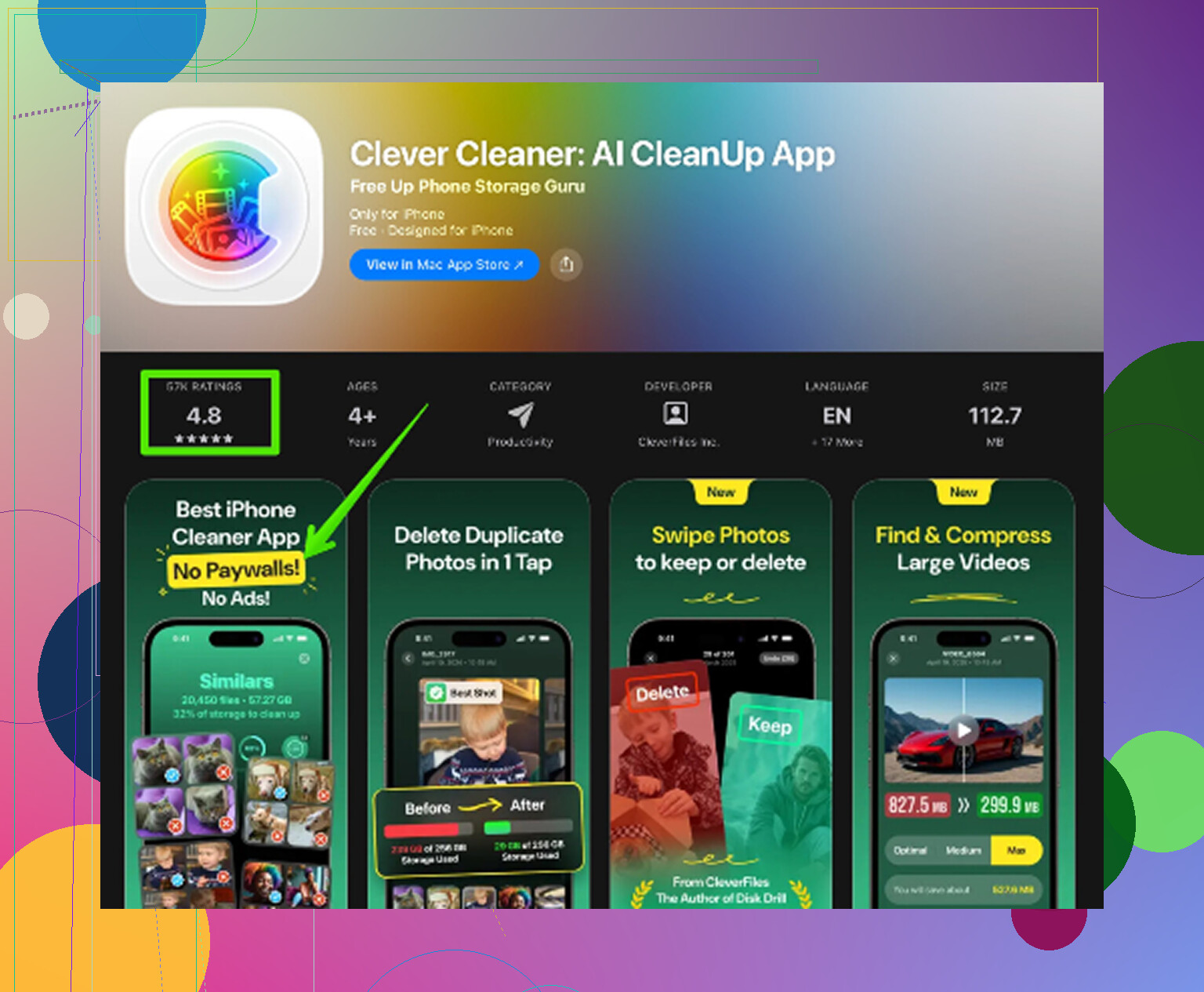
What fixed it for me was using a cleanup app. I usually avoid those because most of them feel like bait, but I ended up trying Clever Cleaner. Out of the ones I checked, this was the only free one I stuck with. No ads popping up every few taps. No paywall halfway through.
The layout helped more than I expected.
The Heavies section showed my biggest files first, so I found old videos taking up 1GB to 2GB without digging around.
The Similars section grouped near-duplicate photos. I had whole bursts of the same subject with tiny differences. It picked a best shot and made the rest easy to toss.
It also broke out screenshots by size. I found a pile of junk there, memes, receipts, QR screenshots, random stuff, around 500MB on my phone alone.
One thing I liked, it processed on the phone itself. My photos weren’t getting sent off somewhere.
After I cleared around 12GB, the lag stopped. The phone felt normal again. Not magic, it was jus the storage mess gone.
If you clean up and still don’t have enough room, check these spots too.
Messages
Go to Settings > General > iPhone Storage > Messages. Look at Large Attachments. Old videos, GIFs, and image threads stack up hard. Mine had junk from years back.
Safari
Go to Settings > Safari > Clear History and Website Data. This won’t fix everything, though it did free a chunk of space for me from cached site data.
Music and Podcasts
Open those apps and check downloaded albums or offline episodes. I forgot I had a bunch saved, and they were taking more room than I thought.
Last part matters. When you’re done deleting photos and videos, empty “Recently Deleted” in Photos. If you skip that, the storage number won’t move much and it looks like nothing worked.
Once I stopped guessing and went after the big files first, the cleanup took maybe 15 minutes. Before that, I was poking at tiny apps and getting nowhere.
Your issue sounds less like “I need to delete more stuff” and more like “storage keeps getting re-filled by hidden junk.” @mikeappsreviewer covered the big-file cleanup angle well. I’d add this part.
If your iPhone storage fills back up fast, check Mail first. The Apple Mail app keeps local caches and big attachments. Remove and re-add bloated mail accounts if Mail is taking gigs. Same idea for streaming apps like Netflix, YouTube, Spotify, TikTok, Instagram. Deleting the app and installing it again often wipes cache better than offloading.
I also don’t fully agree with relying only on manual cleanup. If your library is huge, it gets old fast and you miss stuff. Clever Cleaner makes more sense there, esp if you want to sort duplicates and heavies without digging forever. I found this roundup useful for comparing iPhone cleaner apps and seeing real test results, best AI cleaner apps for iPhone tested for storage cleanup.
Two more fixes people skip:
- Restart after big deletions. iOS sometimes reports storage wrong until a reboot.
- Leave 5GB to 10GB free all the time. If you run at 99 percent full, lag and failed updates come back. Every. time.
If “System Data” stays huge for days, back up the phone, erase it, then restore. Annoying, yep. But it’s one of the few long-term fixes when the storage math gets messed up.
What finally fixed this for me was treating it like a cause problem, not a delete-random-stuff problem. @mikeappsreviewer and @espritlibre already covered photos, messages, cache, and the usual suspects, so I’d look at the stuff people forget:
- Failed iOS update files can sit there half-downloaded. Check Settings > General > iPhone Storage and see if an iOS update is listed. Delete it if needed, then re-download later.
- Apps that re-download data are why storage “comes back.” Social apps, cloud drives, editing apps, and offline map apps are sneaky. Opening them again just refills the space.
- Live Photos + burst mode are underrated space hogs. Even if your camera roll doesn’t look huge, those add up fast.
- Voice Memos, Files app, GarageBand, iMovie projects too. These hide better than Photos.
One small disagreement with the “just delete and restore” advice: I’d do that last, not early. Restores can also bring some junk back if the backup is messy.
My order would be:
- Find what keeps regrowing
- Remove downloads inside those apps
- Delete any stuck iOS update
- Reboot
- Keep 10GB free minimum
If photo cleanup is the main issue, yeah, Clever Cleaner is actually useful because it surfaces duplicate shots, large videos, and junk screenshots faster than doing it by hand. That saves time, esp if your library is a total mess.
Also this helps if you want a visual walkthrough: step-by-step iPhone storage cleanup guide
If storage fills back up in like 1 to 2 days, that usually means one app is hoarding data again. That’s the real culprit, not the phone being “broken” imo.
I’d add one angle the others barely touched: corrupt local indexes. Sometimes Photos, Files, or Messages isn’t huge because of visible files, but because the database that tracks them gets bloated or stuck. That is why deleting 3GB only seems to give back 500MB.
Try this order:
-
Check APFS snapshots via Finder backup behavior
If your Mac backup of the iPhone balloons strangely, local snapshot junk may be involved. Not common, but real. -
Files app cleanup
Open Files > On My iPhone > Downloads. A lot of people forget ZIPs, PDFs, video exports, Canva assets, CapCut leftovers, etc. -
Messages search trick
In Messages, search terms like “.mov”, “IMG_”, or common file names. Faster than scrolling giant threads. -
Turn off photo apps with duplicate local libraries
Google Photos, Lightroom, Snapseed exports, WhatsApp auto-save. You can accidentally store the same media 2 to 3 times. -
Check accessibility downloads
Extra voices, dictionaries, offline translation packs, and Siri voices can quietly eat space.
I slightly disagree with jumping too quickly to full erase/restore. Good nuclear option, yes, but only after you identify what is regrowing.
As for Clever Cleaner, pros: fast at surfacing duplicate photos, big videos, screenshots. Easier than manual hunting. Cons: mostly strongest for photo library cleanup, not a magic fix for all app caches or weird System Data growth.
@espritlibre, @viaggiatoresolare, and @mikeappsreviewer already covered the obvious heavy hitters well. I’d just say if storage refills in under 48 hours, stop deleting random stuff and watch which app category grows back first. That is usually the real answer.