I’m running out of storage on my iPhone and I think cached data from apps like Instagram and Safari is taking up a lot of space. I don’t want to delete the apps or lose important data, but I’d like to clear their cache safely. What are the best ways to clear app cache on iPhone, and are there any hidden settings or tricks I should know about
iOS makes this kind of annoying, so here is what actually works if you do not want to delete your apps.
-
Check what is eating space
- Go to Settings > General > iPhone Storage.
- Wait a bit for it to load.
- You see a list of apps and how much space they use. Tap each app to see “App Size” vs “Documents & Data”.
- For Instagram, TikTok, Facebook etc, the huge number is usually cached data.
-
Safari cache
- Go to Settings > Safari.
- Tap “Clear History and Website Data”.
- This removes cookies, history, and website cache. You stay logged out of some sites so keep that in mind.
- If you want to keep logins, scroll to “Advanced” > “Website Data” and remove individual sites instead of everything.
-
Offload apps instead of deleting
- Go to Settings > General > iPhone Storage.
- Tap an app.
- Use “Offload App”.
- This removes the app itself but keeps its documents and data.
- When you reinstall from the Home Screen icon, your stuff returns.
- For heavy social apps, this often clears some cached junk when they reinstall.
-
Instagram cache workaround
There is no “clear cache” button on iOS like Android. Options that help:- Log out of Instagram, close it from the app switcher, then log back in. This sometimes shrinks its storage a bit.
- Delete Instagram, then reinstall from the App Store. Your account, posts, and DMs are tied to your account, not to local storage. Downloads like reels and images reload but cache starts fresh.
- Do this only for apps where you know everything important is synced online.
-
Messages and media
- Go to Settings > General > iPhone Storage > Messages.
- Tap “Review Large Attachments”.
- Delete big videos, photos, PDFs from old chats.
- Under Settings > Messages, set “Keep Messages” to 1 Year or 30 Days if you do not need old threads.
-
Photos and videos
- Turn on iCloud Photos with “Optimize iPhone Storage” so full‑res files stay in iCloud and the phone keeps smaller versions.
- Clean up long videos and burst photos.
- Empty “Recently Deleted” in the Photos app to free space for real.
-
Other app cleanup
- WhatsApp, Telegram, Signal etc have their own storage settings.
Example for WhatsApp:
Settings > Storage and Data > Manage Storage. Delete large videos and GIFs from old chats. - Same idea for other chat apps. Look for “Data and Storage” or “Storage” in their settings.
- WhatsApp, Telegram, Signal etc have their own storage settings.
-
Use a cleaner tool if you want automation
If you do not want to dig through every menu, try an iPhone cleaner tool.
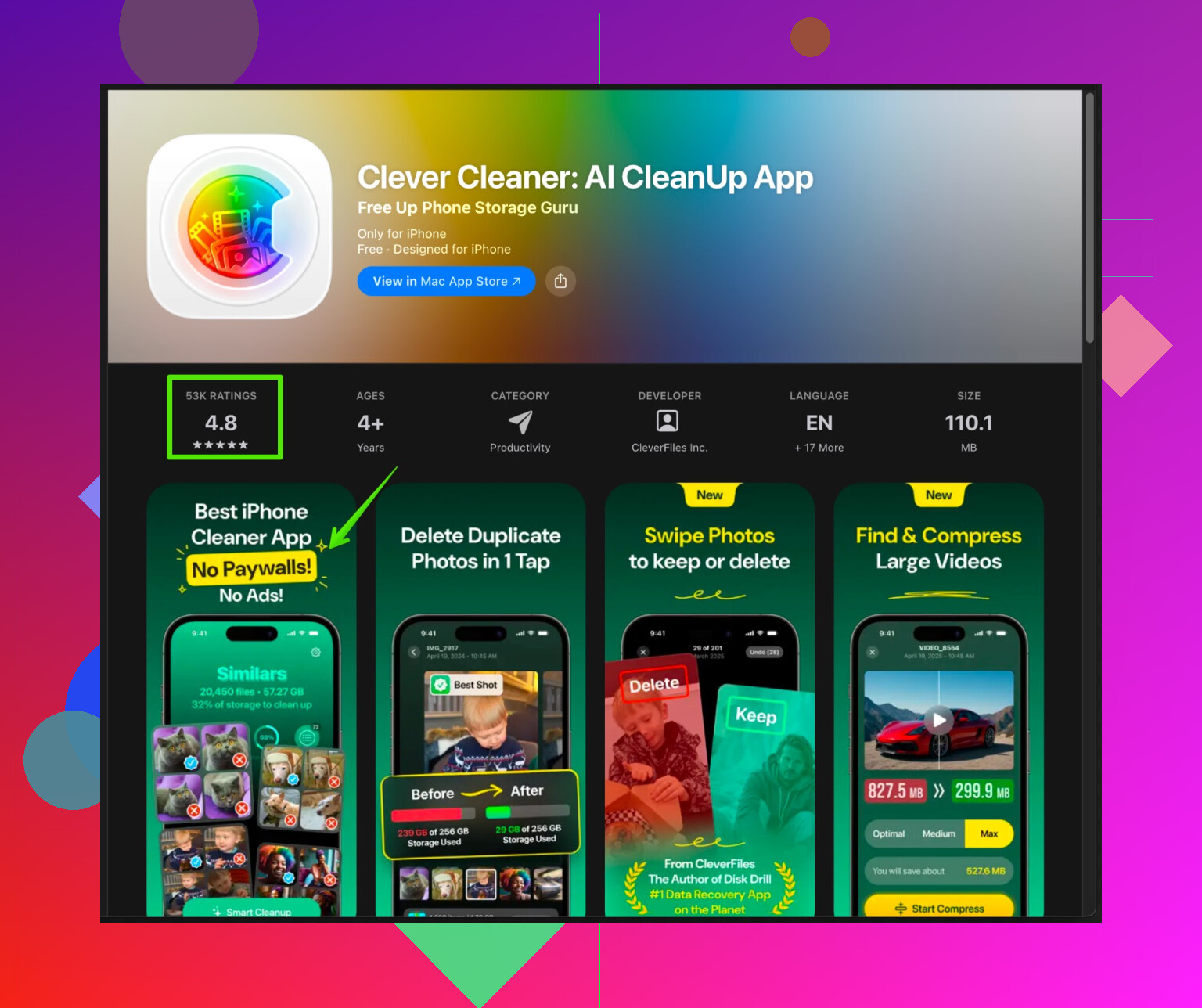
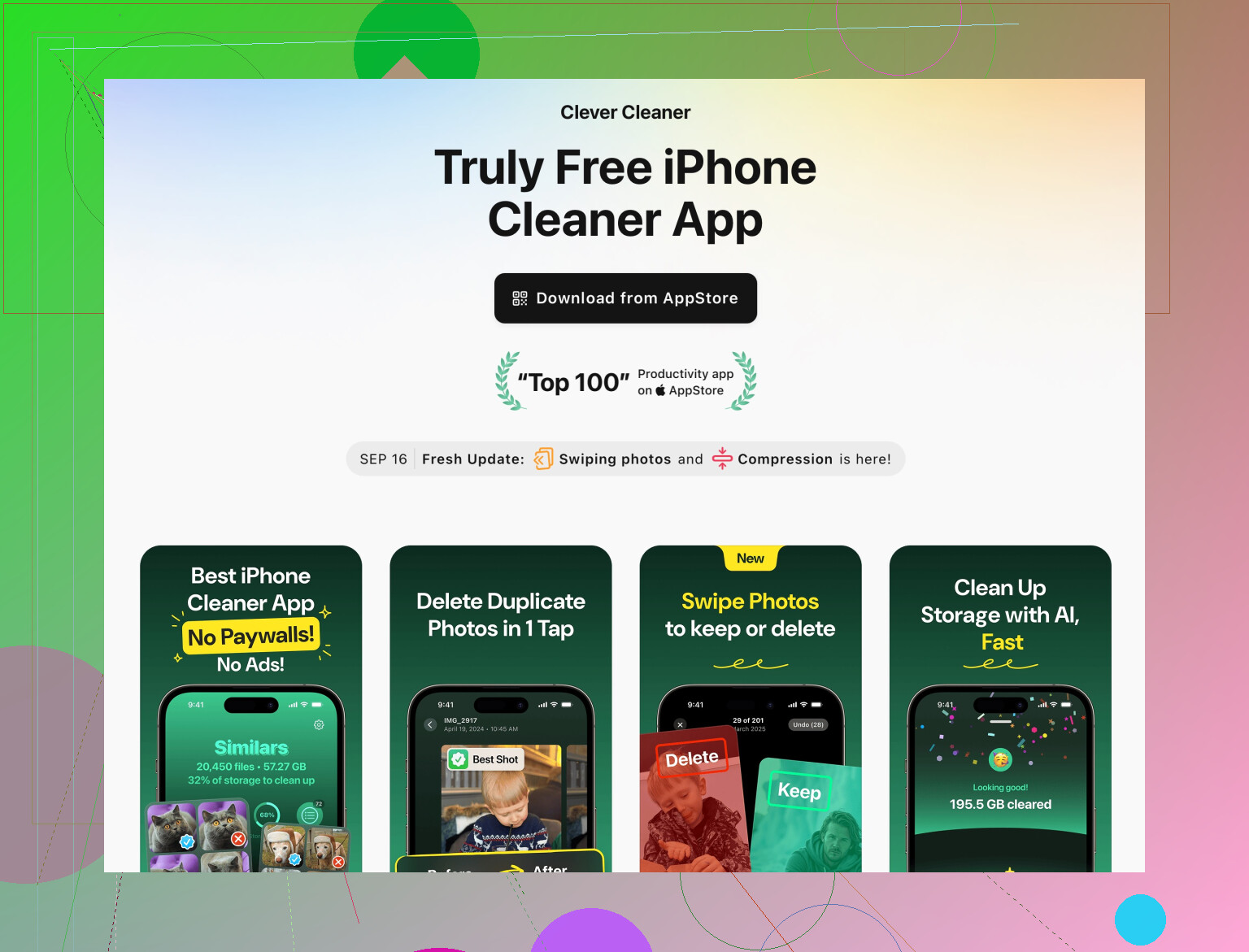
The Clever Cleaner App for iPhone focuses on freeing up storage by finding duplicate photos, large videos, and junk files, and it helps your phone run smoother without you guessing where the space went.
You can check it out here:
smart storage cleanup for your iPhone -
Keep some free space
Try to leave at least 5–10 GB free if you can. iOS works better and you get fewer issues with updates and apps.
Short version if you want to act fast:
- Clear Safari history and website data.
- Offload or reinstall heavy apps like Instagram.
- Clean Messages attachments and media inside chat apps.
- Use a cleaner like Clever Cleaner App to sweep large and duplicate files.
iOS is low‑key hostile to the idea of “clearing cache without touching the app,” so you’re already fighting the system a bit.
@cazadordeestrellas covered the official routes pretty well, but here are a few different angles and some reality checks.
-
Use app-internal clearing options where they exist
A lot of big apps hide their own “clear cache” type controls inside their settings, separate from iOS:- YouTube: Settings in the app sometimes shows how much offline storage is used. Remove offline videos and downloads.
- Spotify / Apple Music / Netflix: Nuke downloads, especially “offline” playlists / episodes. That’s basically cache in disguise.
- Reddit / Twitter / X / Discord: Look for “Storage,” “Media,” or “Data usage” options to clear image / video cache.
This avoids deleting the app and keeps logins and preferences.
-
Stop apps from ballooning in the first place
Instead of repeatedly clearing cache, cut down how aggressively apps cache stuff:- In Instagram, turn off “Use less data” for higher quality if you want, but understand more data = more cache. Tweak “Data usage” settings so it is not downloading HD everything on cellular and Wi‑Fi.
- In apps like TikTok, turn off auto‑downloads, auto‑play, and preloading if possible. Less preloading = less stored junk.
Won’t instantly free space, but it slows down the “why is my phone full again” loop.
-
Background refresh & sync control
Sometimes what you think is “cache” is actually background sync data stacking up:- Go to Settings > General > Background App Refresh.
- Turn it off for apps that do not actually need to be updating while you are not using them.
This helps prevent extra data and also saves battery.
I kinda disagree with just offloading apps all the time like @cazadordeestrellas said; if you rely on an app constantly, killing and redownloading it can be more annoying than managing its behavior up front.
-
iCloud offload for data, not just apps
People obsess over “cache” but ignore the elephant: large files the apps store.- Notes, Files, Drive, Dropbox: Move big files to cloud-only availability instead of keeping local copies.
- In Files, long‑press large files and folders you do not need offline, choose to remove local copies if the app allows.
That wins more space than fighting a couple hundred MB of cache.
-
Use a file / photo cleanup tool for non‑app junk
On iOS you cannot poke around system folders directly, but you absolutely can attack:- Duplicate photos
- Similar screenshots
- Random screen recordings & 4K clips you forgot about
This is where a tool actually helps. Something like the Clever Cleaner App focuses on cleaning up duplicate photos, huge videos, and other clutter that silently eats your storage. Instead of guessing which app cache is worst, you just target the obvious junk.
If you want to check it out, here’s a useful link:
smart iPhone storage cleaner for photos & media
-
Use iPhone Storage suggestions, but don’t blindly follow them
In Settings > General > iPhone Storage, Apple gives “Recommendations” like:- “Review Large Attachments”
- “Auto Delete Old Conversations”
- “Review Downloaded Videos”
I’d use those to hunt the biggest offenders, but I would not automatically turn on deleting old messages if you actually use them for important info. Use it as a manual cleanup tool, not a set‑and‑forget shredder.
-
Reality check: Instagram’s cache problem
You mentioned Instagram specifically. On iOS, there is no proper “clear cache” button. Logging out + in might shave a little off, but if Insta is sitting at 10+ GB, the only truly effective move is:- Back up anything local (like drafts saved only on device)
- Delete the app
- Reinstall it
All your posts, DMs, etc. live on their servers, not your phone. You will lose temporary drafts and some settings, but you get a near‑fresh start on storage. If you do this once in a while instead of every week, it’s not too painful.
-
Safari specifically, without losing your entire life
Instead of totally clearing all history if you rely on it:- Settings > Safari > Advanced > Website Data
- Sort by size, then remove the worst offenders (news sites, social sites, etc.)
This is more annoying than the single “Clear History and Website Data” nuke option that @cazadordeestrellas suggested, but you stay logged into most stuff and keep your history.
Bottom line:
- iOS does not want you to micro‑manage cache like on Android.
- For Instagram and similar, “delete + reinstall” is still the nuclear but effective move.
- For everything else, tweak in‑app storage settings, disable aggressive background behavior, and use something like the Clever Cleaner App to get rid of bloated photos and videos that you will never look at again.
iOS really does fight you on “clear cache only,” but there are a few angles that @waldgeist and @cazadordeestrellas did not lean on much:
-
Use “Offload Unused Apps” strategically, not globally
- Settings > App Store > Offload Unused Apps.
- I would not enable this for everything like some people suggest, because it can offload apps you actually need at awkward times.
- Instead, turn it on, let iOS auto‑offload rarely used stuff for a while, note what it chooses, then turn it off again so you keep control.
This is more of a one‑time triage than a permanent setting, but it can free a surprising amount without touching your daily apps.
-
Focus on “offline” and “download” folders inside apps
Others mentioned cache and media, but a lot of bulk is actually user‑initiated downloads hiding in corners:- Podcast apps keep downloaded episodes even after you are done listening. Set them to auto‑delete played episodes after a few days.
- Document reader apps (PDF viewers, “save to read later” tools) quietly pile up files. Open their “Downloads” or “Library” sections and manually clear old files.
- In streaming apps like Netflix or Spotify, do a quick audit of offline content you genuinely still use. That is gigabytes right there, not just “cache.”
-
Use search to quickly find heavy media outside Photos
Not everything shows under Photos or Messages:- Open the Files app.
- Use the search bar and type common big formats: “.zip”, “.mov”, “.mp4”, “.pdf”.
- Sort results by size and delete things you truly do not need offline.
This goes after app‑internal downloads that iOS Storage view labels as “Documents & Data,” which people often blame on “cache.”
-
For Safari, narrow targeting via content blockers
Instead of just cleaning history or picking sites one by one:- Install a reputable content blocker and enable it in Settings > Safari > Content Blockers.
- This prevents a lot of ad and tracker content from ever being downloaded in the first place, which indirectly cuts future cache growth.
It is not instant relief, but over weeks it noticeably slows Safari’s space creep.
-
Shortcut automation for periodic cleanup
If you are comfortable with the Shortcuts app, you can:- Create a shortcut that opens specific storage pages (iPhone Storage, Messages attachments, Photos “Videos” filter).
- Put that shortcut on your Home Screen and run it weekly as a mini “maintenance routine.”
You still tap through manually, but it removes the friction of digging through menus, which means you actually do it.
-
Where I slightly disagree with the others
- Constantly deleting and reinstalling big apps like Instagram works, but it is overkill if you do it too often. You risk losing unsynced drafts or in‑app preferences regularly. I’d treat that as a periodic reset, not an everyday tactic.
- Also, offloading core apps you use daily can be more annoying than just pruning media and message attachments. I would first attack files, then messages, then “delete & reinstall” as a last step for only the biggest offenders.
-
About cleaner apps like Clever Cleaner App
@waldgeist and @cazadordeestrellas already covered manual methods well. If you are tired of digging around, a tool like the Clever Cleaner App can help, but it is not magic and has trade‑offs.Pros of Clever Cleaner App
- Good at finding duplicate or very similar photos, which iOS’s built‑in tools do not always surface aggressively.
- Quickly spots massive videos, screen recordings, and other space hogs so you do not hunt through albums forever.
- The UI tends to be more focused on “what can I safely delete now” than Apple’s slightly scattered storage view.
- Helpful if you have years of random media and do not want to sort manually.
Cons of Clever Cleaner App
- It cannot actually reach into other apps’ private caches, because iOS does not allow any third‑party to do that. So it will not directly shrink the “Documents & Data” portion for Instagram or Safari.
- You still need to carefully review what it suggests, especially for “similar” photos, or you might delete something you care about.
- Some advanced features may be paywalled, so it is not a 100 percent free fix.
Think of Clever Cleaner App as “Photos & files specialist” rather than a literal cache wiper. Used alongside the built‑in iPhone Storage recommendations, it can free a lot of space without uninstalling your key apps.
If you want to keep your apps and avoid nuclear options as long as possible, the practical order I would follow is:
- prune big media and downloads (Photos, Files, podcast / streaming apps),
- clean Messages and chat attachments,
- slow future buildup through content blockers and app settings,
- occasionally use a cleaner like Clever Cleaner App,
- only then resort to deleting and reinstalling monsters like Instagram when they get absurdly large.
Your approach targets media, downloads, Messages, and selective offloading. You slow Safari growth with blockers and use Shortcuts. You keep delete and reinstall as a last step.
Alternative, do an encrypted backup and restore. It clears app caches while keeping data. On a Mac, open Finder, trust teh device, check Encrypt local backup, Back Up Now. Dont skip encryption. On iPhone, Settings, General, Transfer or Reset iPhone, Erase All Content and Settings. After reboot, Restore from Mac backup. Expect several GB back. I often see 2 to 8 GB. Keychain keeps logins for most apps.