I need help deleting every photo from my iPhone to free up storage, but I’m scared they’ll also disappear from iCloud. I turned on iCloud Photos a while ago, and now I can’t tell what’s stored on my phone versus what’s backed up. What’s the safest way to remove everything from the device without losing important photos or backups?
I hit this wall with a huge library, around 30,000 photos, and the stock Photos app felt fine right up until it didn’t. One bad swipe, one finger slip, and the whole selection was gone. Apple’s app is decent for looking through old trips and random memories. For cleaning up a massive backlog, it falls apart fast.
Why the selection keeps getting wiped
The drag-select thing works okay when you’re dealing with a few hundred items. Push it into the 10,000 to 15,000 range and the app starts choking. I saw the phone heat up. Scrolling got jerky. Selections lagged, then reset. This isn’t you doing it wrong. It’s the app running into limits.
If you’re staying with the built-in app, splitting the job into chunks is the only method I found that doesn’t turn into a mess:
- Open Albums, then work inside one album instead of using All Photos. Albums often give you a Select All option. The full library usually doesn’t.
- Handle 2,000 to 3,000 photos per pass. Don’t try to grab the whole library.
- Delete one batch, then stop and let the phone finish.
- Repeat until you’ve cleared what you need.
It takes longer. It also fails less.
Read this before you delete anything with iCloud on
This part trips people up. iCloud Photos is sync, not backup. If you delete 20,000 photos from your iPhone, those same photos vanish from iCloud, your iPad, your Mac, and the rest of your Apple gear tied to the same account.
If your goal is free space on the phone, but you still want the photos saved somewhere:
- Open Settings, then Photos.
- Turn on Optimize iPhone Storage.
- Your phone keeps smaller local versions, while full-resolution originals stay in iCloud.
If you already copied everything to an external drive, a PC, or Google Photos, then wiping the phone is fine. I’d still check the backup first. Don’t trust the first green checkmark you see, heh.
Why storage numbers don’t change right away
I kept seeing two common causes:
| Issue | Cause | Fix |
| Storage bar not moving | Recently Deleted keeps files for 40 days | Go to Albums, then Recently Deleted, then Delete All |
| Photos showing up again after deletion | Phone storage is too full to finish the deletion process | Remove one big app first to free temporary space |
When the phone is sitting at 99% full, iOS doesn’t leave itself enough working room to process a giant delete job. I had better luck after removing one bulky app first. A game, a streaming app, anything over 500MB. Once there was a little breathing room, the deletions started sticking.
After you empty Recently Deleted, reboot the phone. I’ve seen the storage meter stay wrong until after a restart. Kinda dumb, but it happens.
A more practical route for huge libraries
After fighting the stock app for way too long, I ended up thinking third-party cleanup tools make more sense once your library gets into the thousands. The annoying part is most App Store cleaners hide actual deletion behind a subscription.
https://www.youtube.com/watch?v=FRWWuTnCOHs&t=52s
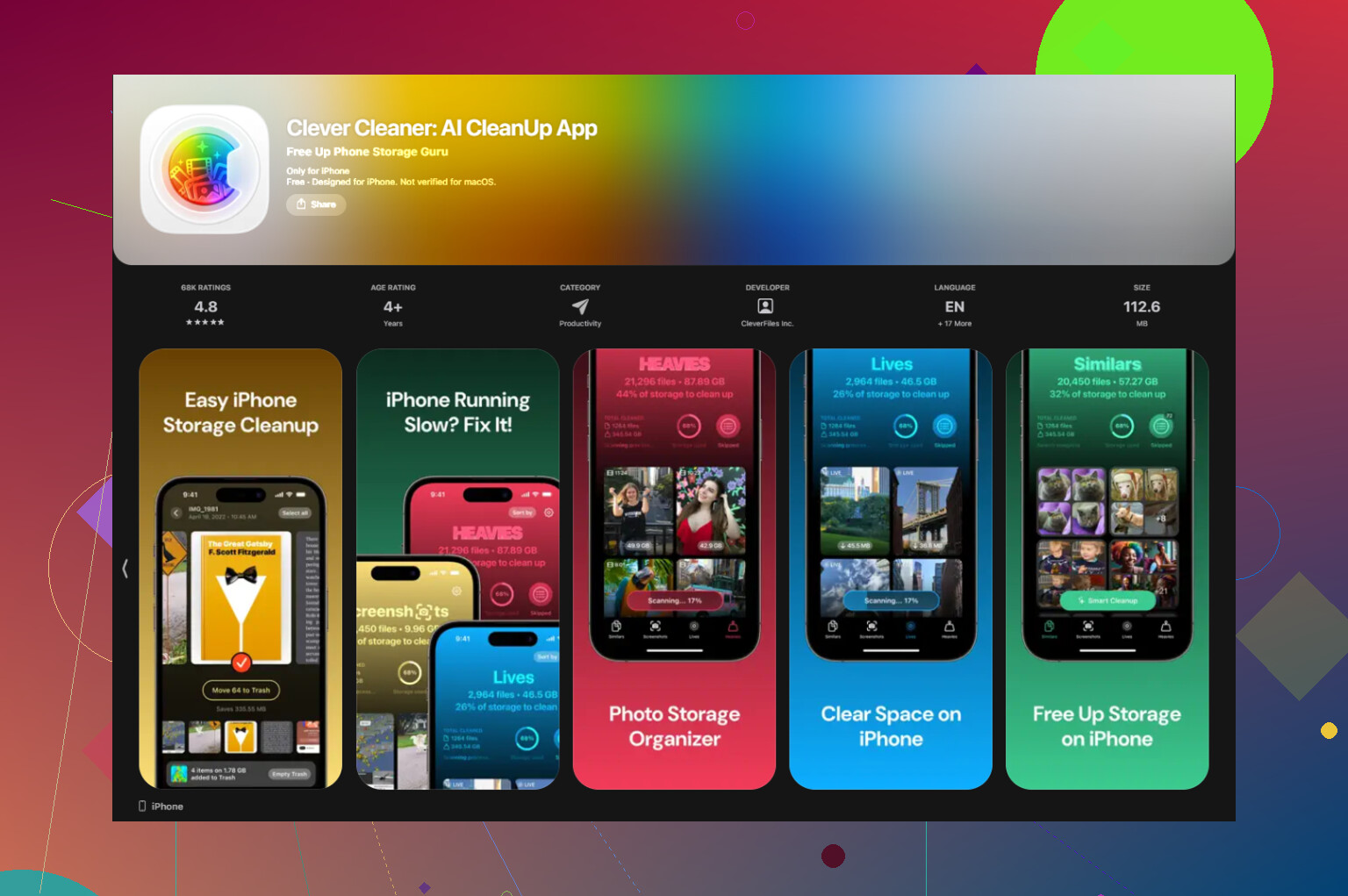
Clever Cleaner is one of the few people keep mentioning because it doesn’t put the main cleanup steps behind ads or a paywall.
The quickest workflow I found for big storage wins looked like this:
- Start with the Heavies tab. It sorts your whole library from biggest file to smallest. Big 4K clips, huge bursts, old video junk, those usually eat storage first.
- Then check Similars. It groups near-duplicate shots together, which helps when you’ve got fifteen versions of the same pic and only need one.
- After that, open Screenshots. Each thumbnail shows the file size, so you know what you’re removing before you tap delete.
- The processing stays on-device. Your photos aren’t being sent off somewhere for analysis.
One odd thing with Shared Albums
Deleting something from your main library does not remove it from a Shared Album if it was already posted there. Shared Albums behave like separate containers. If you want the photo gone from one of those, you have to open the Shared Album itself and delete it there. If it’s your album, deleting the whole album works too.
If iCloud Photos is on, deleting from your iPhone deletes from iCloud too. That part is the trap. I agree with @mikeappsreviewer on that, but I’d push one thing harder. Do not start deleting until you separate sync from backup in your head.
Here’s the safe path.
-
Check if your photos exist somewhere outside iCloud Photos.
Options are a Mac, PC, external drive, Google Photos, OneDrive, whatever.
If they only live in iCloud Photos, they are part of one synced library. Delete once, gone everywhere. -
If your goal is space, stop trying to wipe the library first.
Go to Settings, Photos, turn on Optimize iPhone Storage.
For most people this cuts local photo storage a lot without removing the library. On big libraries, I’ve seen phones drop from 80GB used to under 10GB local storage after sync settles. -
If you want all photos off the phone but kept in iCloud, use iCloud.com from a browser and verify the library is there.
Count spot checks matter. Open random years, Live Photos, videos. Don’t trust one recent album and call it done. I did that once, bad idea lol. -
If you still want a clean slate on the phone, turn off iCloud Photos on the iPhone only, then choose Remove from iPhone when prompted.
That removes local copies from the device, not the copies stored in iCloud, as long as the upload finished first.
That step is the one most people miss.
Also, iPhone Backup and iCloud Photos are separate things. An iPhone backup is not a photo vault if iCloud Photos is enabled. Apple excludes synced photos from the normal device backup. So no, “I have an iCloud backup” does not mean your pics are protected.
If your library is messy and you want to thin it out before doing any of this, Clever Cleaner is worth a look for duplicates and big files. Short version here too, see this Clever Cleaner for iPhone storage cleanup review.
One last thing. Empty Recently Deleted after any cleanup, or your storage numbers will look fake for days. Apple makes this way more confsing than it should be.
Big thing: iCloud backup and iCloud Photos are not the same bucket. That’s where Apple gets everybody twisted up.
I mostly agree with @mikeappsreviewer and @viajantedoceu, but I’d slightly push back on the “delete everything” mindset. If your real goal is space, nuking the library is usually the worst route if iCloud Photos is on. With sync enabled, delete on iPhone = delete from iCloud too. Period.
What I’d do first:
- Go to Settings > [your name] > iCloud > Photos
- If Sync this iPhone / iCloud Photos is ON, your library is shared with iCloud
- Go to iCloud.com > Photos and confirm your stuff is actually there
- Then check Settings > General > iPhone Storage > Photos
Here’s the part people miss: if you want photos off the phone only, don’t mass-delete them in Photos. Instead, turn off iCloud Photos on the iPhone and choose Remove from iPhone. That removes local copies while leaving the iCloud library intact, assuming sync already finished. If upload is incomplete, that can bite you, so double check first.
Also, an iPhone backup in iCloud usually does not save a separate copy of photos when iCloud Photos is enabled. So no, “I have an iCloud backup” is not enough. Kinda dumb, but that’s Apple.
If you want to slim down before doing any of this, Clever Cleaner is actually useful for finding giant videos, duplicate shots, and junk screenshots without making the stock Photos app have a little meltdown. Not magic, just faster.
Also useful if you want a walkthrough:
how to clear iPhone storage fast and free
And yeah, empty Recently Deleted after anything, or your storage numbers will look totally fake for a while. Apple storage reporting is weirdly bad tbh.

One extra angle the others only touched lightly: use a temporary second device or computer export before changing any sync setting. I slightly disagree with the “just trust iCloud.com after spot checks” approach from @viajantedoceu, @cacadordeestrelas, and @mikeappsreviewer. Spot-checking is good, but for irreplaceable photos, I want one copy outside Apple sync entirely.
My rule:
- Need space only? Keep iCloud Photos on and use Optimize Storage.
- Need photos off this iPhone but still in iCloud? Turn off Photos sync on the phone, then choose Remove from iPhone.
- Need them gone everywhere? Delete normally.
What I would not do is rely on an iCloud device backup as insurance. That backup is not your photo archive if Photos sync is enabled.
If sorting a huge library first, Clever Cleaner can help:
- Pros: fast duplicate detection, surfaces large videos/screenshots, simpler than bulk selecting in Photos
- Cons: still requires you to review deletes, third-party app access may make some people uneasy, and cleanup tools can tempt over-deleting
So yeah, export one full copy first if the photos matter. Then make the sync decision. That’s the safer line.