My iPhone has been running slower than usual, but the battery health still shows as good. Apps take longer to open, scrolling feels laggy, and I’m not sure if it’s an iOS issue, storage problem, or something else. What are the best ways to improve iPhone performance without replacing the battery?
You can usually make an older iPhone feel a lot less sluggish without doing a full reset. The two things that matter most are the battery and storage. A few settings help too, but they won’t fix a worn-out battery or a phone that’s almost completely full.
Start with battery health
Go to Settings - Battery - Battery Health and Charging. If Maximum Capacity is under 80 percent, the phone is probably being slowed down by Apple’s performance management to avoid random shutdowns. At that point, changing settings is only going to do so much. A battery replacement will usually make a bigger difference than any software tweak.
If the battery still looks healthy, then the slowdown is more likely coming from background activity, visual effects, or storage pressure.
Settings that are actually worth changing
These are the ones that tend to help older iPhones without deleting anything:
- Turn off Background App Refresh. Go to Settings - General - Background App Refresh and disable it. Older chips can get bogged down when apps keep refreshing in the background.
- Turn on Reduce Motion. Go to Settings - Accessibility - Motion - Reduce Motion. This cuts down on extra animations and uses simpler transitions.
- Turn on Reduce Transparency. Go to Settings - Accessibility - Display and Text Size - Reduce Transparency. It removes a lot of the blur effects in iOS, which can make the interface feel lighter on old hardware.
- Don’t leave Low Power Mode on all the time. It saves battery by limiting performance, so if speed matters more than battery life, turn it off.
- Clear Safari data. Go to Settings - Safari - Clear History and Website Data. This can help Safari and in-app browser windows if they’ve gotten slow.
Storage is usually the big one
A nearly full iPhone can lag in ways that don’t look storage-related at first. The camera opens slowly, apps crash right after launch, switching apps stutters, and everything just feels tired.
iOS needs free space for temporary files, indexing, and normal background work. Once an older phone gets around 85 to 90 percent full, it can start fighting itself just to keep running. Since storage fills up slowly, it feels like the phone is aging badly, when really it may just be running out of room.
The fastest cleanup is usually in Photos
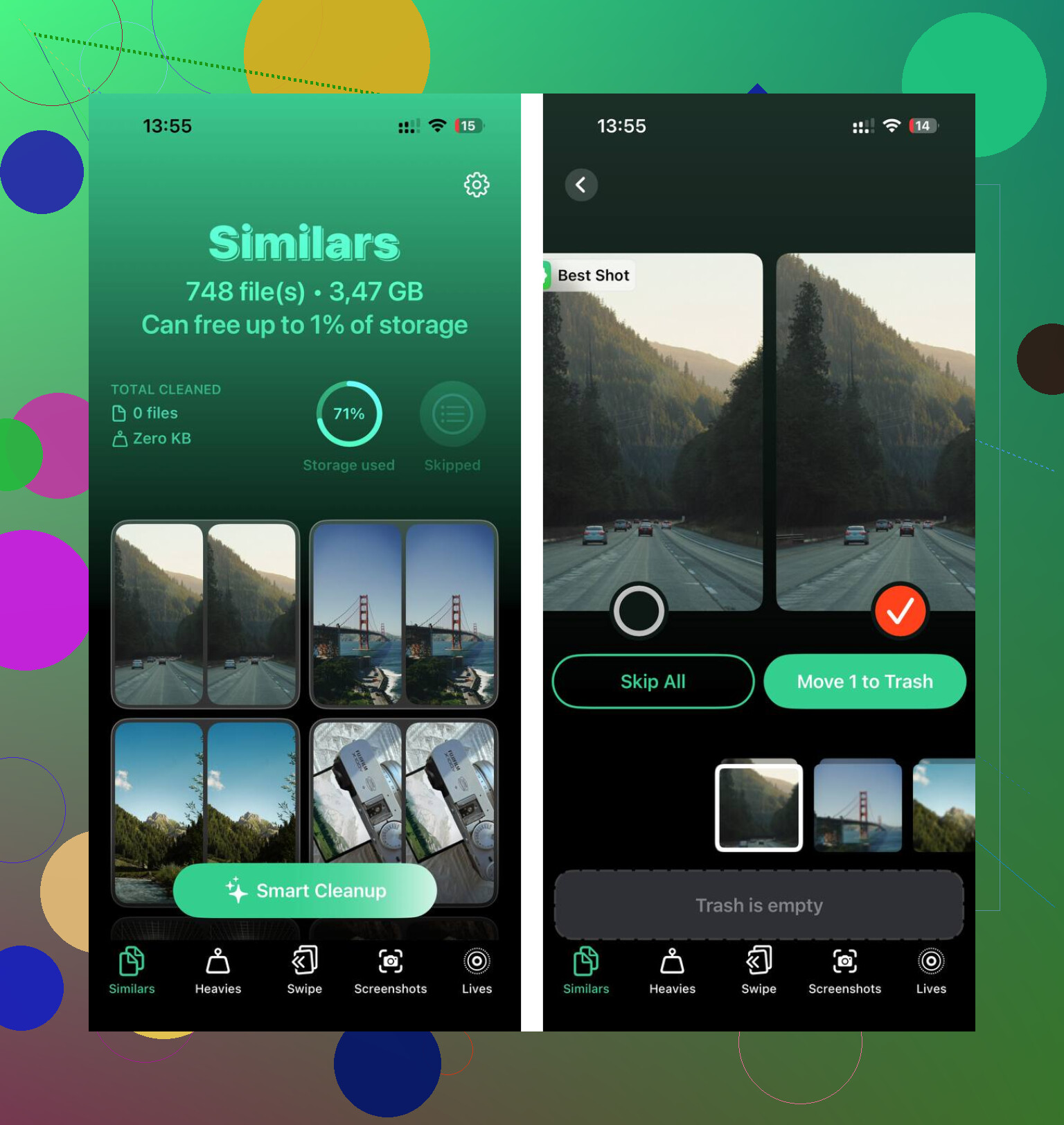
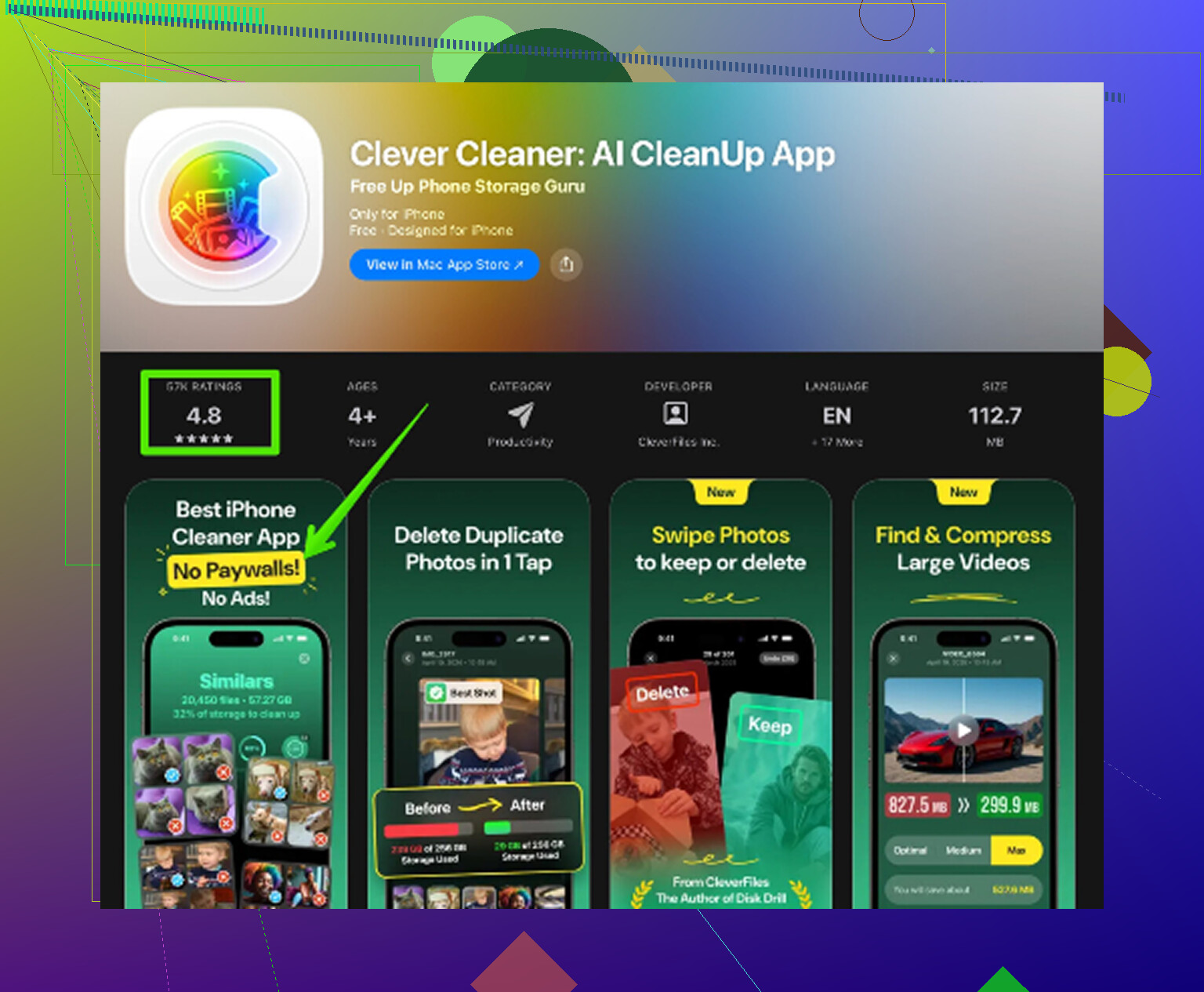
Deleting photos manually is awful if the library is big. Clever Cleaner makes it a lot easier, and it’s free with no ads or subscription.
The order that clears the most space:
- Open Heavies first. It sorts files from largest to smallest and shows the exact size of each one. Old screen recordings and 4K videos are usually the worst offenders, and deleting just a few can free up a lot of space.
- Then check Similars. It groups near-duplicate photos and picks the sharpest one in each set, which is useful for bursts, repeated shots, and ten versions of the same picture.
- Go through Screenshots. These pile up quickly, and most of them stop being useful after a few days. The app shows the file size before you delete anything.
- Everything is processed on the phone, so the photos are not uploaded to an outside server.
After deleting stuff, open Photos and empty Recently Deleted. Otherwise the space will not actually come back yet.
The best order is: check battery health, make the settings changes, then clean up storage. The settings tweaks can make the phone feel better right away, but freeing up space is often what makes the biggest difference. Put together, those steps can get an old iPhone much closer to normal again without wiping it.
A phone that gets sluggish right after an iOS update is a different case than one that has been slow for weeks. After an update, iOS may still be re-indexing photos, mail, messages, and app data in the background. During that window, the phone can feel choppy even if nothing is “wrong.” I’d give it a day or two on Wi-Fi and charging before doing anything drastic.
If it has been going on longer, I’d check heat and one bad app before resetting the phone. An iPhone that is warm will slow itself down even with a healthy battery, especially while charging, using GPS, recording video, or sitting in the sun. Take the case off for a bit, restart it, and see if the lag disappears when the phone is cool. Then look at Settings > Battery and see if one app is using a weird amount in the background. Social apps, cloud storage apps, VPNs, and photo backup apps can make an otherwise fine phone feel old.
I agree with the storage point above, but I’d avoid going straight into mass-deleting until you check iPhone Storage first. If you still have plenty of free space, cleaning photos probably won’t fix lag. If you’re close to full, then yes, deleting large videos and clearing Recently Deleted can make a real difference. Just don’t judge battery health alone as proof the phone should be fast. Heat, background activity, and a recently updated iOS install can all slow it down without the battery page showing anything alarming.
Some lag is just the ceiling of the hardware, even with a healthy battery, so don’t expect a few settings flips to make an older iPhone feel brand new. The useful test is whether the lag is everywhere or only in certain apps. If Settings, the Home Screen, and typing feel fine but Safari, Instagram, Maps, or Photos are crawling, I’d blame that app’s cache, network use, or library size before blaming iOS itself.
The storage advice above is fair, but I’d be more targeted than deleting a huge chunk of your camera roll right away. Go to Settings > General > iPhone Storage and look for apps with massive “Documents & Data.” Some apps quietly grow to several GB and iOS gives you no clean button. Deleting and reinstalling that one app can clear a lot of junk faster than doing a full phone reset. Just make sure the app data is backed up or synced first, especially for messaging, notes, games, or anything with local files.
If the whole phone is laggy, not just apps, do the boring stuff before the dramatic stuff: restart, install any pending app updates, leave a decent amount of free storage, and remove widgets you don’t actually use. Widgets, live activities, VPNs, and keyboard extensions can all make the phone feel heavier than it should. If you want a broader checklist, this guide to speeding up older iPhones covers the usual settings, but I’d still start by finding the specific app or storage hog instead of wiping the phone on day one.
Don’t start deleting or resetting while the phone is still syncing, restoring, or rebuilding its photo library, because that can make the slowdown look worse than it really is.
A thing people forget is that “battery health is good” only rules out one cause. If iCloud Photos, Messages in iCloud, or an iCloud backup restore is working in the background, the phone can feel slow even with plenty of battery capacity. Check Settings, tap your name, then iCloud, and see if anything says it is syncing or paused. Same with Photos. If it says “syncing,” “restoring,” or “optimizing,” leave the phone plugged in on Wi-Fi for a while before you judge performance.
I agree with the storage advice, but I wouldn’t use cleanup apps or mass photo deletion as the first move unless Settings > General > iPhone Storage shows you are actually close to full. If you have, say, 40 GB free, deleting screenshots is not going to magically fix lag. If you have 2 GB free, then yes, clear big videos, unused apps, downloaded music, offline maps, and Recently Deleted.
The quick test I’d do is simple: restart the phone, turn off Low Power Mode, disconnect VPN if you use one, and try Apple’s built-in apps for a few minutes. If Settings, Messages, Notes, and the Home Screen are smooth, your issue is probably one or two apps or syncing. If even typing and swiping around iOS feels bad after a restart and with decent free space, then you may be looking at an iOS bug, aging hardware, or a restore/reset situation rather than a battery problem.
Nobody’s asked which iPhone and which iOS you’re on, and that’s honestly the detail that decides everything else here. An iPhone that shipped years ago running the latest iOS is a different problem than a two-year-old phone that suddenly got slow. Newer iOS versions lean harder on the hardware, so on older models some of the lag is just the phone doing more work than it was built for, and no amount of clearing screenshots fixes that.
The storage angle from @mikeappsreviewer is real when you’re genuinely close to full, and Clever Cleaner is fine for chewing through a bloated camera roll fast, but like @byteguru said, if you’ve got 30 or 40 GB free it won’t touch your lag. Check iPhone Storage first, then decide. For me the thing people skip is just telling us the model and version before throwing fixes at it.