My USB drive suddenly shows all my folders as missing, even though it still says space is being used. I had important photos, work documents, and backups on it, and I really need help figuring out if the files are hidden, corrupted, or deleted. What are the best ways to recover data from a USB drive when folders disappear?
I ran into this before, and USB sticks are weird about deletes. They do not act like your system drive. A lot of the time, when you remove a file from a flash drive, it skips the Recycle Bin and goes straight out of view. So it looks dead. Sometimes it is not dead yet.
First thing, stop touching the drive. I mean it. Do not copy one last file to it. Do not rename folders. Do not format it. Do not run cleanup stuff. On these small drives, free space gets reused fast, and one dumb save like final_final_v8.docx is enough to overwrite the thing you were trying to get back. I learned this the hard way once. Bad day.
What I would do:
Unplug the USB and leave it alone until you are ready to scan.
Download any recovery software to your PC or another disk, not to the USB.
When you recover files, save them somewhere else.
Do not start with repair tools unless the drive has mounting or read errors.
Before running recovery, check the easy stuff. Open the flash drive and make hidden files visible. I have seen files look deleted when they were only hidden after some glitch, malware mess, or file attribute nonsense. Also look for hidden trash-style folders like $RECYCLE.BIN, RECYCLER, RECYCLED, or .Trashes if the stick touched a Mac. I would not bet on this fixing it, still it takes a minute and costs nothing.
After that, I would go straight to recovery software. My first pick here is Disk Drill. Not because it does miracles. I picked it because the process is easy to follow, and the preview feature saves time. You do not want a dump of 500 mystery files with half of them broken or renamed into gibberish.
My usual steps look like this:
Install Disk Drill on your computer, never on the USB stick.
Plug in the USB and select it from the device list.
Run a standard lost-data scan.
Let the scan finish. If the files matter, do not cut it short.
Use search, file-type filters, and preview to sort the results.
Recover everything to your computer, an external hard drive, or some other USB.
The preview check matters more than people think. If a file opens in preview, your odds are better. If the original file name and old folder path show up, even better. If all you get are names like recovered_file_001, recovered_file_002, it still might work, but you are in for some manual sorting. Annoying, still better than losing the lot.
Another reason I lean this way, most flash drives are using FAT32, exFAT, or NTFS. Tools like this tend to do fine with those. They read file system records when those records still exist, and they also look for file signatures when the structure is damaged. That helps if the stick got yanked out wrong, started acting flaky, or had mild corruption before the files vanished.
You could try Recuva too, if the case is simple and you are on Windows. I used it for basic stuff years ago. It is more of a fallback for me now. Fine for deleted photos, PDFs, Word files, usual desktop stuff. For mixed file types or anything you care about, I would still start with Disk Drill because the scan output is easier to sort through and the preview is more useful.
One thing I would not do right away is run CHKDSK because some random post said so. CHKDSK is for file system repair. It is not an undelete tool. Sometimes it changes the structure enough to make recovery harder. My rule stays the same every time, recover first, repair later.
If the USB is not detected at all, shows 0 bytes, keeps disconnecting, or the connector is bent, this stops being a software problem. At that point I would quit the home fixes and think about a recovery lab, especially if the files matter. Recovery apps do not help much when the hardware itself is failing.

If the used space still shows up, your files often still exist. The folder entries are what went missing, or the files got marked hidden. I agree with @mikeappsreviewer on one big point, stop writing anything to the USB.
I’d check one extra thing before recovery. Open Command Prompt and run:
attrib -h -r -s /s /d X:*.*
Replace X with your USB letter.
This clears Hidden, Read-only, and System attributes from files and folders. If malware or a bad eject flipped those flags, your folders pop back up. I’ve seen this fix whole photo folders in 10 seconds. If nothing returns, move on.
Also check Disk Management. If the partition looks RAW, unallocated, or has no drive letter, the issue is file system damage, not simple hiding.
I slightly disagree on skipping repair tools in every case. I would skip CHKDSK first, yes. But I would make an image of the USB before anything else if the data matters. Tools like USB Image Tool or similar help you clone the stick to a file. Then scan the image with Disk Drill. Safer. If the flash drive is degrading, repeated rescans are a bad idea.
Disk Drill is a solid pick here because it sorts found files by existing structure and file type. On damaged USB sticks, that saves a ton of time. Recuva is fine for easy deletes, but once folders vanish and space is still used, I’d start with Disk Drill first.
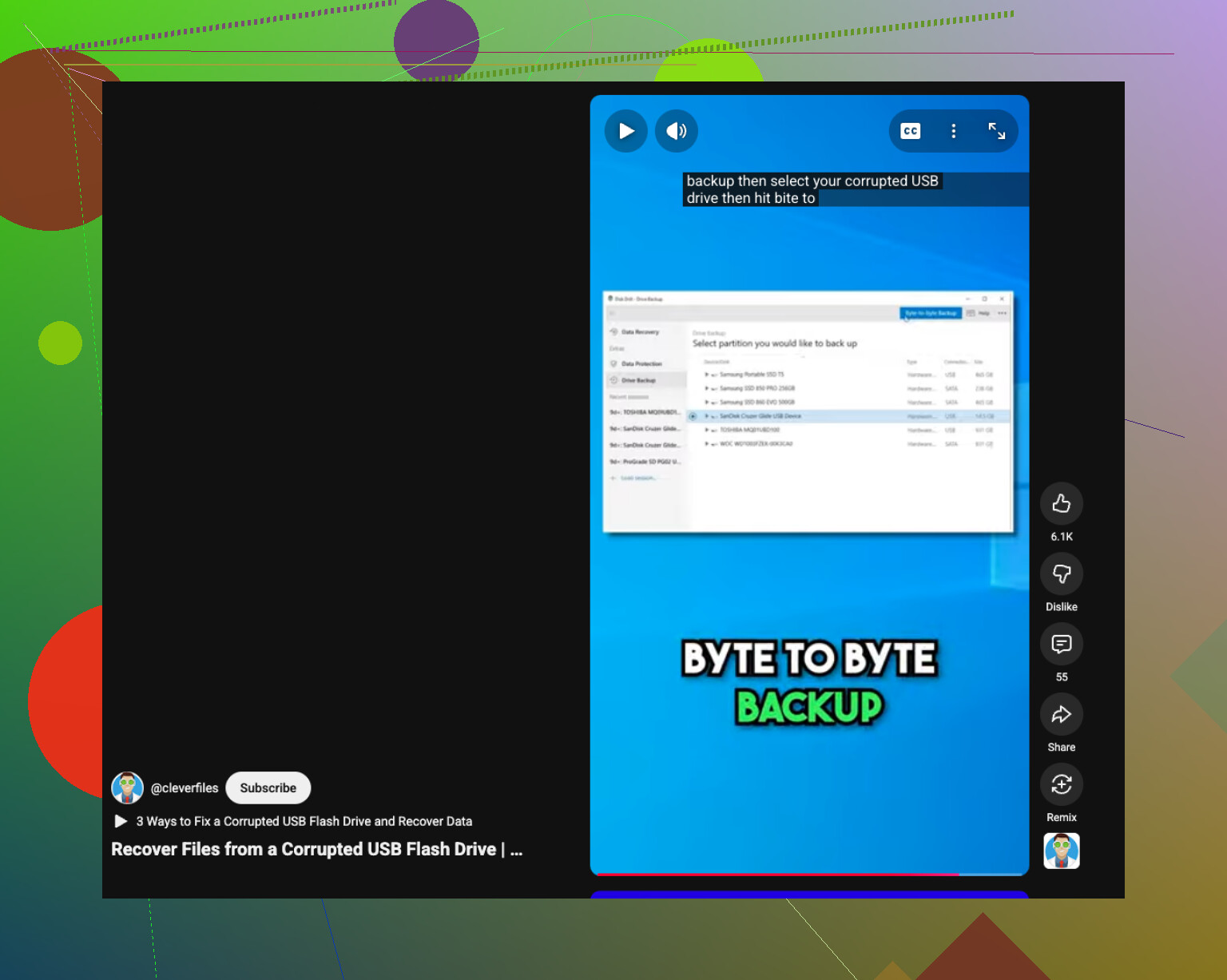
If you want a quick visual guide, this quick USB data recovery tutorial for corrupted flash drives covers the basic flow.
If the USB keeps disconnecting, gets hot, or shows 0 bytes, stop. That’s where DIY starts getting risky. Some poeple push the drive too far and lose the last readable copy.
If the USB still shows used space, I’d also check whether the folders got turned into shortcuts or the root directory got damaged. That happens a lot after a sketchy PC, malware, or an unsafe eject. Sometimes the real files are still there, just not where Explorer is showing them.
A couple extra checks besides what @mikeappsreviewer and @boswandelaar already said:
- In File Explorer, sort by type and look for weird .lnk shortcut files
- Try opening the drive in another computer
- Use a file manager like Total Commander or even PowerShell to list everything on the drive
- On Windows, run
dir X: /ain Command Prompt to see all entries, including hidden/system ones - Check Event Viewer for disk or NTFS/exFAT errors if the drive keeps acting flaky
I kinda disagree with trying too many command fixes if the stick is unstable. Every extra read can be a gamble on cheap USB flash memory. If it’s reconnecting fine, then okay, test lightly. If not, image it first.
For recovery, Disk Drill makes sense here because it can show both reconstructed folders and file signatures, which is useful when folders vanish but data blocks are still present. That’s more useful than blindly poking around and hoping Windows suddenly remembers your stuff. Recuva is okay, but for missing folder structure I’d still lean Disk Drill first.
Also, if you want a simple walkthrough before touching the drive too much, this Disk Drill review and USB file recovery walkthrough is pretty easy to follow.
One more thing people skip: if you recover your photos and docs, compare file sizes and open a bunch of them. A recovered file that exists but won’t open is basicly just a souvenir.

One angle I don’t see stressed enough by @boswandelaar, @viajantedoceu, and @mikeappsreviewer is checking whether the folders were replaced by bad directory entries rather than actually deleted. If the USB opens, try browsing it with a Linux live USB or another OS. Windows sometimes gives up on a damaged directory tree while another file manager still shows enough structure to copy things out normally.
I’d also avoid repeatedly plugging it into different front-panel ports or hubs. Use one stable rear USB port on a desktop if possible. Power wobble on cheap flash drives can make a flaky stick worse.
If the files still do not appear, recover in this order:
- Make a byte-for-byte image if possible.
- Scan the image, not the original.
- Export recovered files to another disk.
- Verify random photos and docs actually open.
Disk Drill is a reasonable choice here.
Pros:
- Good preview support
- Usually better folder reconstruction than basic undelete tools
- Easier to sort mixed file types
Cons:
- Deep scans can be slow
- File names are not always preserved
- Full recovery features may require the paid version
I slightly disagree with doing too many shell commands if the stick is acting unstable. If it disconnects even once during reads, stop experimenting and prioritize imaging or professional recovery.
Try searching the USB by file type. Open File Explorer, select the USB, then enter *.jpg, *.docx, *.pdf, or *.xlsx in the search box. Set View to Details and sort by Date modified or Size.
Windows often finds files buried inside renamed or misplaced folders. Copy each result to a seperate folder on your PC, never onto the USB. Start with your most importent file types. This method is free, quick, and needs no commands or deep scans.
A drive that quietly hid your folders and a drive that’s physically dying look almost identical from the file explorer, and people keep treating them as the same fix. That’s where half this thread’s advice either works instantly or makes things worse.
The attrib trick @boswandelaar posted is the right first move, costs nothing and takes seconds. But something nobody flagged: if this is a cheap no-name stick bought online, check whether it’s a fake-capacity drive. Some are flashed to report 128GB while the real chip is 8GB. Once you pass the real limit, older files silently rot and ‘used space’ still shows full. If that’s your case, no recovery tool saves what was already overwritten by the fake addressing. A quick capacity test tells you fast.
If it’s a normal drive that just went hidden, and attrib brings nothing back, Disk Drill’s a fine first scan since it reconstructs folders instead of dumping a name-mangled pile. Just don’t expect miracles on a counterfeit. Image first if it disconnects even once, like the others said.