My iPhone has been running really slow and certain apps keep freezing or crashing, so I’m wondering if clearing the cache might fix it. I’m not sure which steps actually work on iOS without deleting important data or photos. Can someone walk me through the best way to clear the cache on an iPhone and what I should avoid so I don’t lose anything important?
iOS does not have a one-tap “clear cache” like Android, but you can clean things up safely and fix slowdowns without losing photos or important data. Here is what usually works.
-
Restart the iPhone
A simple restart clears a lot of temp files.
Settings > General > Shut Down, then turn it back on.
Do this before anything more drastic. -
Clear Safari cache
If you use Safari a lot, this helps.
Settings > Safari > Clear History and Website Data.
This logs you out of sites and removes cookies, but your photos, messages, and apps stay. -
Offload or reinstall problem apps
When one app keeps freezing, its local data is often the problem.
Option A: Offload app
Settings > General > iPhone Storage > pick the app > Offload App.
This removes the app, keeps its documents, and frees space.
Tap it again to reinstall.
Useful for big apps like games or social apps.
Option B: Delete and reinstall
Same path, but tap Delete App.
You lose offline data inside that app, but not your photos or iCloud stuff.
Reinstall from App Store and log in again.
- Clean Messages and media
Messages can eat storage and slow things down.
Settings > General > iPhone Storage > Messages.
Delete big attachments like videos, photos, and large conversations.
You can also set messages to auto delete after 30 days or 1 year in Settings > Messages > Keep Messages.
-
Check storage and remove “Other” junk
Go to Settings > General > iPhone Storage.
If “System Data” or “Other” is huge, a mix of app cache, logs, and temp files sits there.
Things that reduce it:
• Delete and reinstall heavy social apps (TikTok, Instagram, Facebook, Snapchat).
• Remove old downloaded videos and music from streaming apps.
• Update iOS to the latest version. -
Use a cleaner app for photos and duplicates
Most of the time, slow iPhones have storage almost full, mostly from photos and videos.
A simple approach is to clean similar shots, duplicates, screenshots, and big clips.
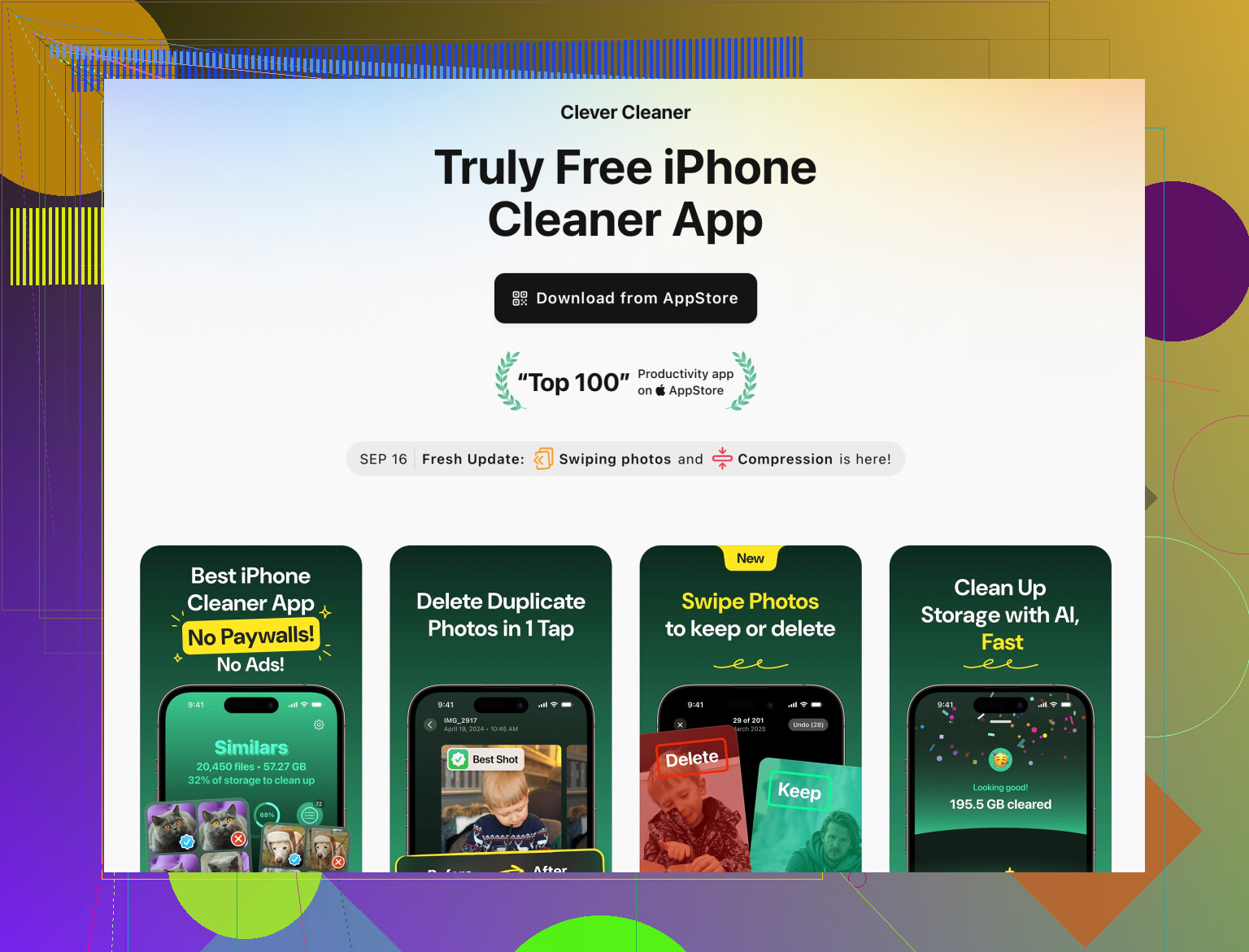
The Clever Cleaner App for iPhone focuses on this. It helps you:
• Find and delete duplicate photos and similar shots
• Remove old screenshots and screen recordings
• Sort and clean large videos that take a lot of space
• Organize contacts with merge and cleanup tools
If you want a quick way to free a lot of storage without digging in every folder, try something like
Clever Cleaner smart iPhone cleanup.
It targets junk in your gallery and contacts, not your personal files system wide.
-
Turn off background refresh for heavy apps
Apps running in the background slow things down.
Settings > General > Background App Refresh.
Turn it off for social apps and games you do not need running all the time. -
Update or reset settings if it still feels slow
• Update iOS in Settings > General > Software Update.
• If nothing helps, you can reset all settings. This does not delete data.
Settings > General > Transfer or Reset iPhone > Reset > Reset All Settings.
You lose Wi Fi passwords and some preferences, your data stays. -
When to think about a full backup and reset
If the phone lags even with plenty of free storage, sometimes a clean install helps.
Backup to iCloud or iTunes first.
Then Settings > General > Transfer or Reset iPhone > Erase All Content and Settings.
Restore from backup or set up as new.
Quick checklist you can follow:
• Restart phone
• Clear Safari data
• Offload or reinstall buggy apps
• Clean Messages attachments
• Remove heavy social app data
• Use Clever Cleaner to filter and remove junk photos and videos
• Turn off background refresh on non essential apps
• Update iOS
Do those and you avoid losing important stuff, while still getting the “fresh” feel you wanted from a cache clear.
iOS “cache clearing” is kinda fake news. There isn’t a magic button, and honestly if your iPhone is really dragging, the cache is usually a symptom, not the main cause.
@shizuka already covered the obvious stuff (Safari data, offloading apps, background refresh, etc.), so I’ll skip the duplicate step-by-step and hit a few angles people usually miss.
1. Check what’s actually slowing it down
Go to:
Settings > General > iPhone Storage
Ignore the pretty colors and look for:
- Storage almost full (less than 5–10 GB free = bad)
- One or two apps using a ridiculous amount of space
- Huge “System Data” / “Other”
If you’ve got enough free space and no single app is bloated, “clearing cache” won’t magically fix app crashes. That’s usually:
- A buggy app version
- Corrupt app data
- Old iOS version
So:
- Update all apps in App Store > your profile icon > Update All
- Update iOS in Settings > General > Software Update
Honestly, this alone fixes a ton of freezing issues.
2. For apps that keep freezing
Instead of just offloading like @shizuka suggested, I’d go more aggressive for repeat offenders:
- Log out inside the app first if it has an account.
- Then delete the app completely from the Home Screen.
- Restart the iPhone.
- Reinstall from the App Store and log in again.
Yeah, you lose offline stuff (e.g. downloaded episodes, cached reels), but that’s literally the “cache” everyone wants gone. Safer than factory reset, and your photos / iCloud stuff are fine.
I actually disagree slightly with keeping documents for some apps, because if the local data is what’s corrupted, offloading can preserve the problem. Full delete helps more when one app keeps acting cursed.
3. System Data / “Other” is huge? This is the annoying one
You can’t just tap “clear” on it, but you can shrink it indirectly:
- Delete large streaming downloads inside apps:
- Netflix, Prime, Spotify, YouTube, etc. have their own download sections.
- Remove old VPN / profiles you don’t use:
Settings > General > VPN & Device Management - Do a full iTunes / Finder backup & restore if it’s insanely huge (like 20+ GB)
- Backup to a computer
- Then Restore iPhone from that backup
This kind of repacks the file system and dumps some junk.
It’s annoying but more effective than just poking random settings.
4. Photos & videos: the silent phone killer
Around the time people start asking about cache, their storage is usually 90% photos and videos. iOS runs like trash when storage is too full.
If you’re not the ‘manually comb through 10k pics’ type, this is where a cleaner tool actually makes sense.
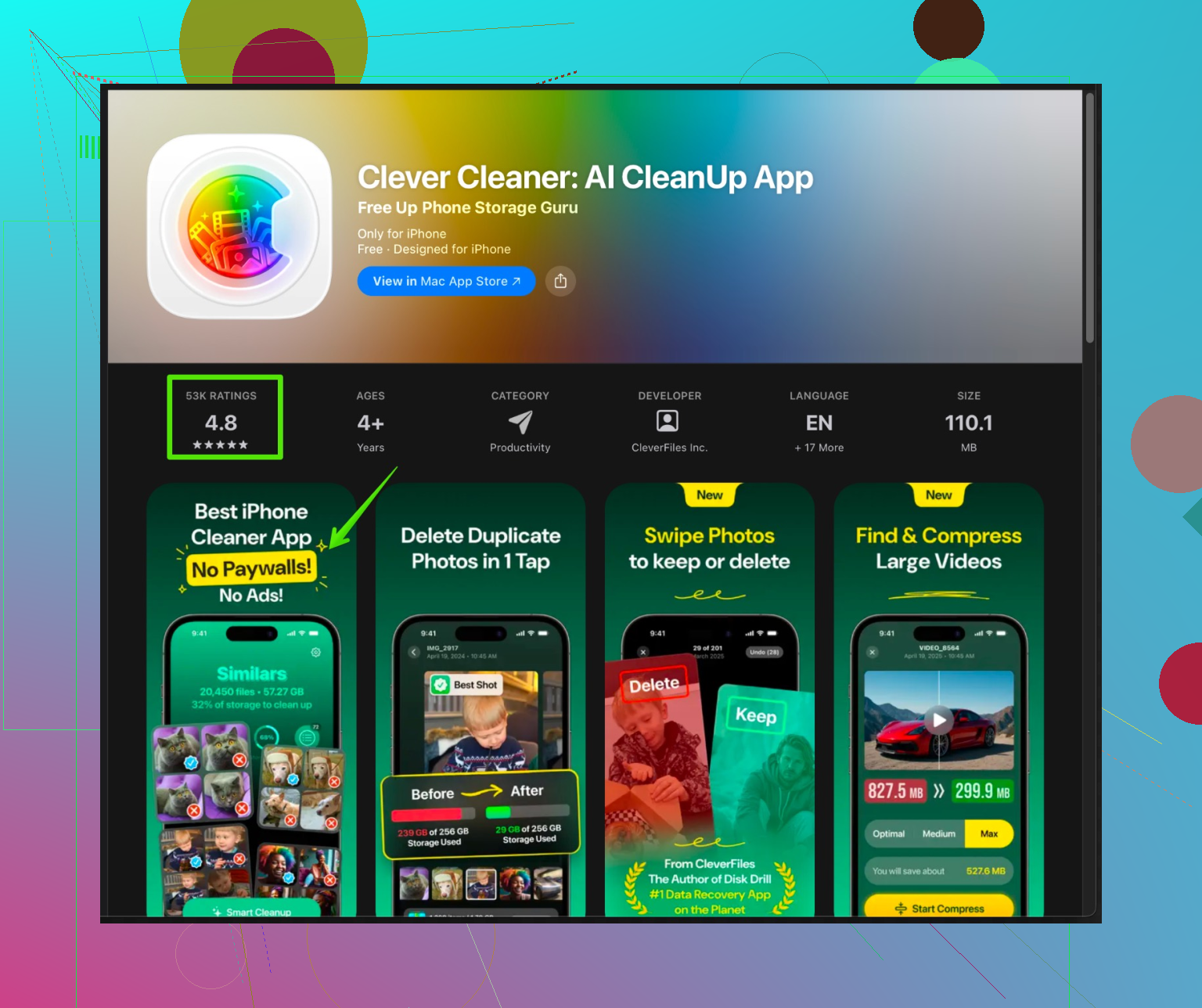
The Clever Cleaner App is basically made for this exact situation:
- Finds duplicate / near-duplicate photos
- Flags ancient screenshots you forgot existed
- Shows you huge video files so you can nuke the worst ones
- Helps clean up messy contacts
If you want an easy way to do a big gallery cleanup without nuking your whole phone, something like
smart iPhone cleanup with Clever Cleaner
is honestly more useful than chasing some imaginary iOS “cache” switch.
This kind of photo & video cleanup is way safer than random “system cleaner” apps that claim to touch system files. Stick to stuff that works only with your media and contacts, not the OS.
5. Check for overheating & battery issues
Slowness + crashing isn’t always storage or cache:
- If the phone feels hot a lot: performance gets throttled
- If your battery is old: iOS literally slows the CPU to keep it from shutting down
Check:
Settings > Battery > Battery Health & Charging
If “Maximum Capacity” is very low or it says “performance management applied,” that will absolutely make the phone feel laggy. In that case, clearing cache is like putting a bandaid on a broken leg.
6. When you actually consider a full reset
If you’ve:
- Freed up a good chunk of storage
- Cleaned or reinstalled problem apps
- Updated iOS and apps
- Maybe done a photo/video cleanup with something like Clever Cleaner App
- Still getting random freezes
Then:
- Backup to iCloud or computer
- Settings > General > Transfer or Reset iPhone > Erase All Content and Settings
- Set up as new first and test performance
- If it’s smooth as new, you know the issue was in your old setup / data
Yeah, it’s more work, but it’s the nuclear option that actually works when everything else fails.
TL;DR:
- iOS cache isn’t a single thing you can “clear,” it’s a mix of app data, temp files, and bloated media.
- Focus on: storage space, specific misbehaving apps, iOS/app updates, and huge photo/video libraries.
- Use something like the Clever Cleaner App to clean gallery junk instead of hunting for a mythical system-wide cache button.
- If it’s still a laggy mess after that, you’re looking at either battery health issues or time for a clean install, not just cache.