I accidentally ended up with a huge number of Live Photos in my iPhone photo library, and now they’re taking up more space than I expected. I’m trying to find a way to turn off Live Photos in bulk for photos I already saved instead of editing them one by one. Is there a fast way to batch disable Live Photos on existing pictures?
I get why you want this. Live Photos save the tiny motion clip, audio, and the still frame. Nice when someone blinks and the next frame looks better. Bad when your phone is packed with them. On my phone, a normal photo took a fraction of the space. A Live Photo often ate 2x or 3x more. Stack a few thousand of those and your storage goes sideways fast.
If you need to flatten a big photo library into regular stills, I’d sort the options like this, from least painful to most hands-on.
Option 1, use an app built for bulk cleanup
If your library is large, doing this inside Apple’s menus gets old fast. The stock Photos app was never great for batch jobs where you convert files and remove originals in one pass.
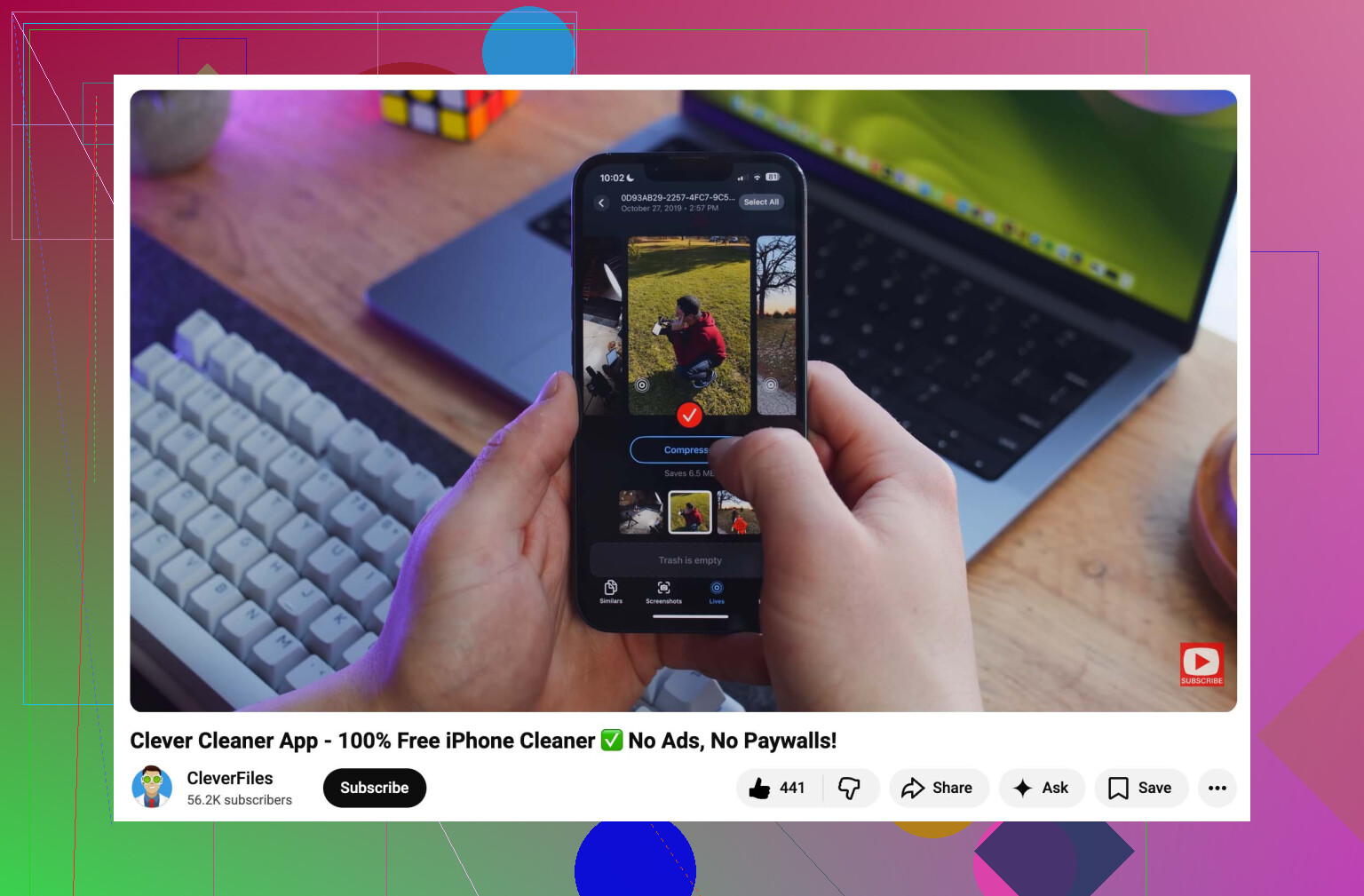
I tested a few ways and Clever Cleaner was the one I kept coming back to. What stood out for me was the lack of nonsense. No ads popping up, no locked buttons, no purchase wall halfway through.
What I did:
- Install it and allow Photos access.
- Open the Lives section. You can sort by date or file size, which helps if you want to hit the worst space hogs first.
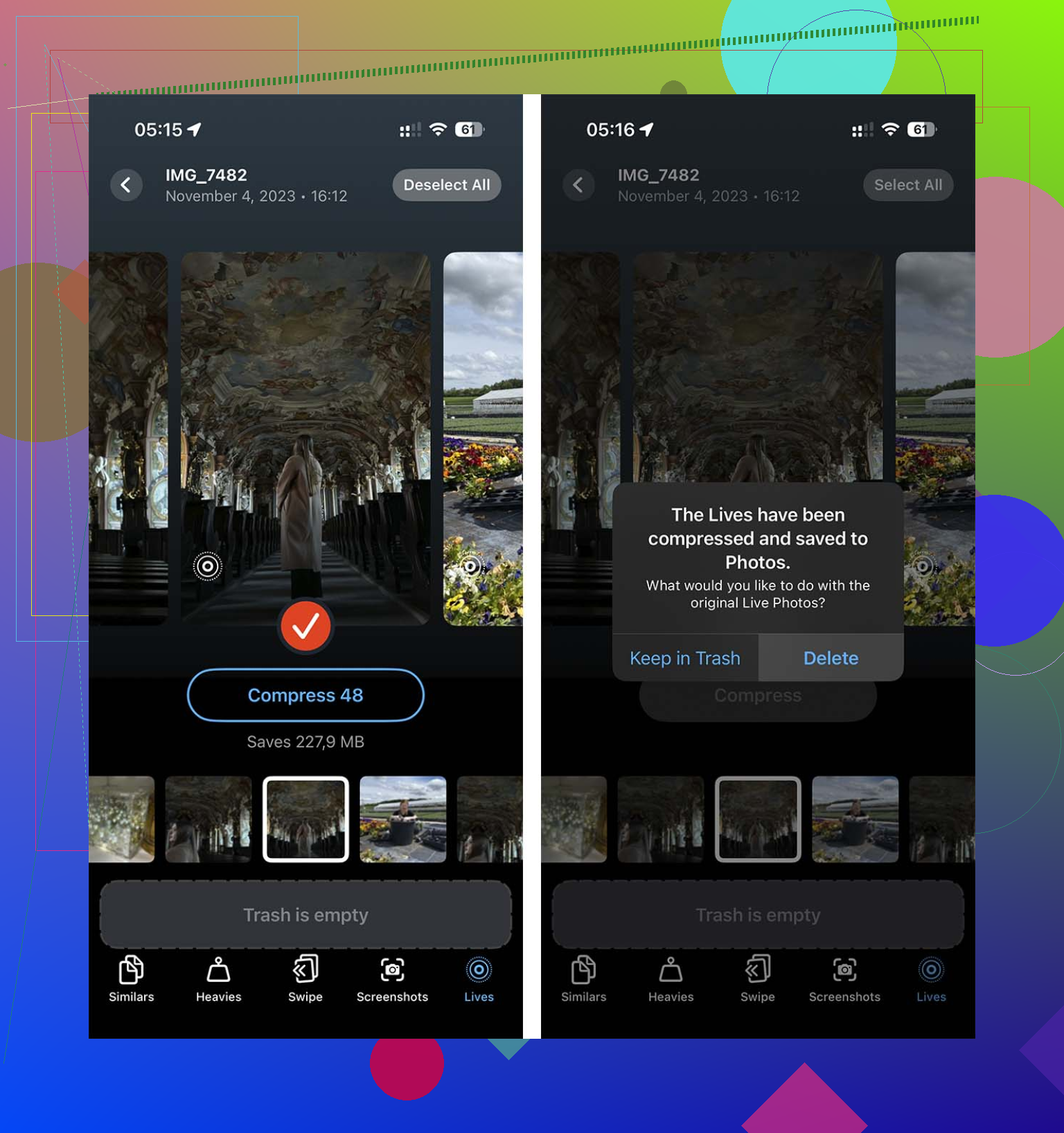
- Tap Select All, or choose a smaller batch, then tap Compress.
- Despite the label, it is stripping out the motion part and keeping a high-quality still image.
- When it finishes, it asks whether you want to remove the original Live versions. That part matters, because duplicates are where people lose time later.
If you’ve got a giant library, this was the fastest route I found.
Option 2, build a Shortcut
If you’d rather stay inside Apple’s own tools, Shortcuts works. It takes more setup. Also, it won’t clean up after itself, which is the annoying part. Still, it keeps the original image resolution, so this beats the old screenshot trick by a mile.
Setup steps:
- Open Shortcuts and create a new shortcut with the + button.
- Add the Find Photos action.
- Set a filter where Photo Type is Live Photo.
- Add Repeat with Each.
- Inside the loop, add Convert Image. Pick JPEG or PNG.
- Add Save to Photo Album so the converted stills are saved.
- Run it, then wait. If your library is big, give it time.
The catch is simple. Shortcuts saves the new stills, but it does not remove the old Live Photos. You still need to open the Live Photos album after, select the originals, and delete them yourself if you want space back. A bit dumb, but thta’s how it goes.
Option 3, use Apple’s built-in “Duplicate as Still Photo” tool
This works, though I found it clunky. Fine for smaller batches. For a giant library, I’d only use it if you don’t want apps and don’t want to build a shortcut.
- Open Photos and go to the Live Photos album.
- Tap Select and choose the photos you want.
- Tap the meatballs menu.
- Choose Duplicate.
- Tap Duplicate as Still Photo.
The annoying bit is storage. For a while, you’ll use more space, not less, because iPhone keeps both files, the original Live Photo and the new still copy. You have to go back and delete the Live versions on your own. I’ve seen people miss this step and wonder why nothing changed.
Stop the phone from doing it again
Once your library is cleaned up, go to Settings > Camera > Preserve Settings and turn the Live Photo setting on there. Then open the Camera app and switch Live Photo off one last time. After I did this, the camera remembered my choice instead of quietly turning Live back on later.
If your goal is speed, the app route is easiest. If you want no third-party app involved, Shortcuts is the cleaner DIY fix. If you only need to handle a smaller batch, Duplicate as Still gets it done, even if it feels a little clumsy.
You do not “turn off” Live Photos after the fact in one bulk Apple toggle. Apple never gave us a clean convert-all switch. You have to replace them with stills, then remove the Live originals.
One thing I’d add to @mikeappsreviewer, if storage is your main goal, check your Settings, General, iPhone Storage, Photos first. A Live Photo often uses around double the space of a still, sometimes more if the clip is longer or HDR data is involved. So the math gets ugly fast.
If you want the least manual cleanup, Clever Cleaner is the route I’d look at first. It handles Live Photos as a batch job, which is the part Apple keeps making annoyng. This video gives a quick look at how Clever Cleaner cuts Live Photos and frees up iPhone storage. Short version, it scans your library, finds Live Photos, keeps the still image, and helps remove the motion version so space comes back.
One small disagreement with @mikeappsreviewer. I would skip the built-in duplicate method for large libraries. It works, sure. But it temporarily increases storage use, which is a bad idea if your phone is already close to full.
Also, if you use iCloud Photos, remember deleted Live Photos sit in Recently Deleted for 30 days. Emptying thta folder matters, or your storage numbers won’t drop right away.
Apple’s annoying here: there is no real bulk “turn off Live” switch for photos already taken. You either edit them one by one, or you convert/replace them in batches.
Small correction to @mikeappsreviewer and @suenodelbosque: if you only tap Edit on a Live Photo and switch the Live badge off, that doesn’t always save much space because the extra Live data can still hang around. So if storage is the actual problem, you want a still-copy workflow, then delete the Live originals.
A couple practical things people miss:
- On a Mac, Photos makes this easier than iPhone. Export the image as a still, re-import if needed, then bulk-delete the Live versions.
- If you use iCloud Photos, space savings can look delayed.
- “Optimize iPhone Storage” can hide how bad the real library size is, lol.
If you want to stay on iPhone, Clever Cleaner is probly the easiest batch option because it targets Live Photos directly instead of making you babysit every step. Also worth checking this TikTok showing how Clever Cleaner removes Live Photos and frees iPhone storage.
And yes, empty Recently Deleted after, or the storage won’t really come back.
There’s one angle the other replies barely touched: whether you actually need to convert everything at all.
If your iPhone is using Optimize iPhone Storage, nuking every Live Photo may not buy as much local space as you expect right away. It helps, yes, but sometimes people do a huge cleanup and then wonder why the storage bar barely moves. That part of @suenodelbosque, @boswandelaar, and @mikeappsreviewer’s advice is solid: storage reporting can lag, especially with iCloud Photos.
My take: before batch-converting, check this first:
- Settings > Photos > iCloud Photos
- If enabled, see whether Optimize iPhone Storage is on
- If it is, your issue may be partly cache/local copies, not just Live Photos themselves
If you still want them gone, I’d split the job:
- Keep favorites and important family shots as Live
- Kill Live on the throwaway stuff:
- receipts
- screenshots of paper docs
- food pics
- random duplicates
- blurry event spam
That usually gets most of the space back without flattening memories you may want later.
I’ll mildly disagree with the “convert absolutely all of them” mindset. For kids, pets, and group shots, Live Photos are sometimes the only reason you catch a usable frame later.
As for tools, Clever Cleaner is worth a look if you want less manual sorting.
Pros
- batch handling is faster than Apple’s app
- easier to review lots of Live Photos at once
- better for huge libraries
Cons
- still a third-party app, so some people won’t love granting photo access
- you should double-check what it selects before deleting
- if you use iCloud, results may not look instant
Best strategy honestly: prune, don’t carpet-bomb. That saves space with less regret later.
Use a Mac if you have one. Open Photos, choose Media Types > Live Photos, press Command+A, then select File > Export > Export Photos. Pick JPEG and full size.
Import the JPEGs back into Photos. Confirm the dates and image quality, then delete the original Live Photos and empty Recently Deleted.
This avoids extra iPhone apps and Shortcuts. Work in batches of 200 to reduce mistakes. Test 10 photos first, especially if you use iCloud Photos. Check your libary before deleting evrything.
Re-importing exported JPEGs like @nanolynx5324 suggested can quietly mess with your metadata, so double-check that location and original capture dates survived before you delete anything. Clever Cleaner sidesteps that since it keeps the still in place instead of exporting and reimporting, which is the part I’d actually trust more here.