I’m trying to clear the Facebook cache on my iPhone after updating to the latest iOS, but I can’t find a clear option in the app or settings. Facebook has been loading old posts and acting slow, so I need help finding the best way to clear FB cache without losing my account data.
If Facebook is chewing through a weird amount of iPhone storage, the cleanest fix is usually to delete the app and reinstall it. Offloading can help a little, but it won’t fully clear the big “Documents & Data” pile that builds up over time.
iOS doesn’t work like Android here. There isn’t a simple system-level Clear Cache button for Facebook, so you kind of have to choose between a lighter reset and a full reset.
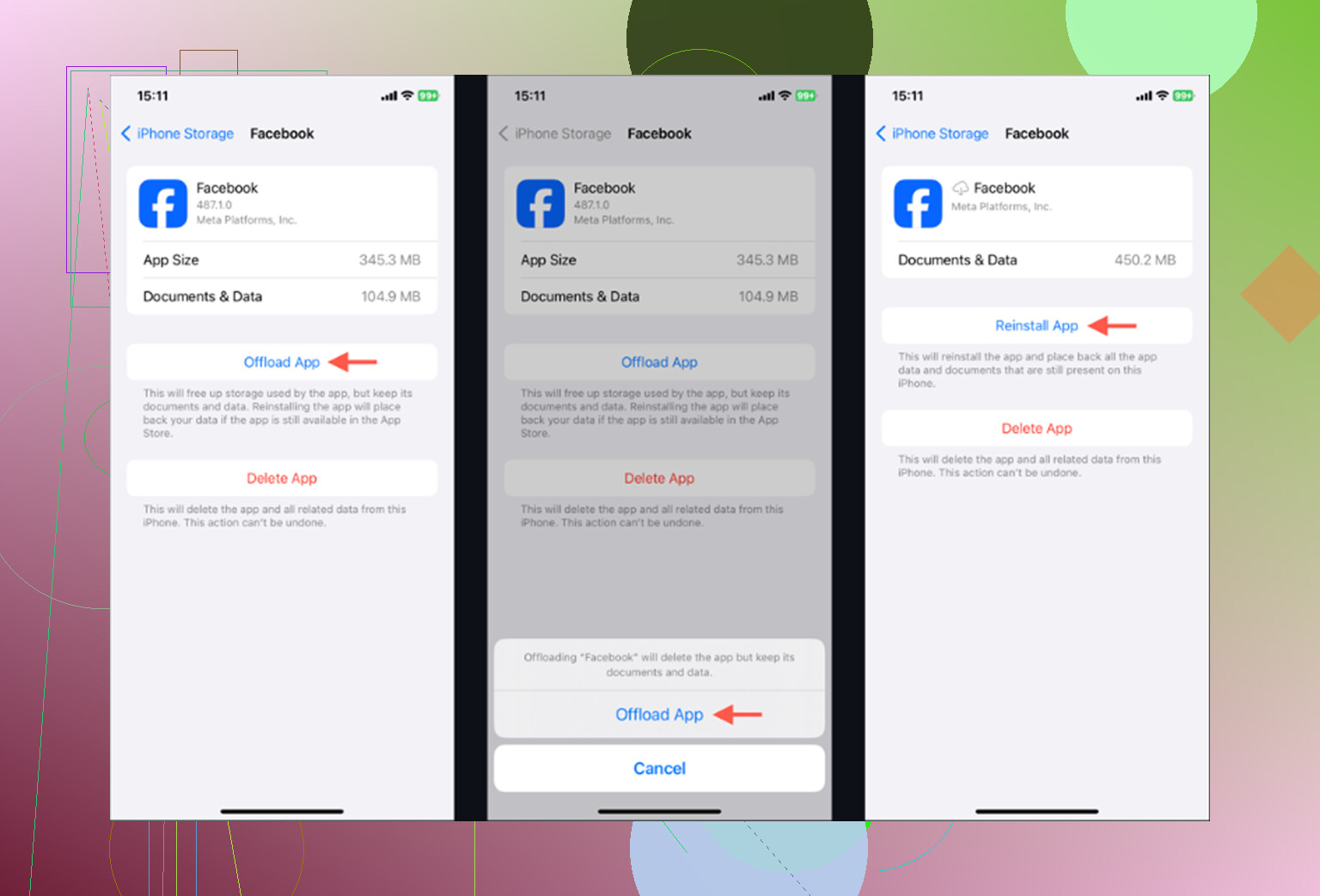
If you want the low-effort option: go to Settings > General > iPhone Storage, tap Facebook, then choose Offload App. That removes the app itself but keeps your saved data, so when you reinstall it, you should still be signed in. It can clear some junk, but don’t expect it to wipe everything.
If Facebook is still sitting at 2GB or 3GB: delete it completely. You can do that from the same iPhone Storage screen, or long-press the Facebook icon and choose Delete App. That’s the real reset. It clears the cached images, thumbnails, temporary files, and other stuff Facebook has been saving locally.
Your Facebook posts, photos, friends, and account won’t disappear because those are stored on Facebook’s side, not just on your phone. The annoying part is that you’ll be signed out, so make sure you know your password and can handle any two-factor login before you do it.
Also, Messenger is separate. Deleting Facebook does not clear Messenger’s storage. If Messenger is bloated too, you have to deal with that app on its own.
There’s one smaller cleanup inside Facebook that’s worth doing too. Facebook has its own built-in browser, and it saves cookies/cache when you open links in the app. Open Facebook, tap the Menu button with the three lines, then go to Settings & Privacy > Settings. Scroll to Browser and tap Clear next to “Cookies and Cache.” It probably won’t free up gigabytes, but it’s still something.
The catch is that Facebook starts filling that space again almost immediately. Scroll through Reels, photos, videos, and links for a bit, and the cache begins rebuilding because the app wants that stuff to load faster next time. So yeah, deleting and reinstalling works, but it’s usually temporary.
I used to waste way too much time doing this with Facebook, Instagram, and TikTok. I’d clear out a few hundred megabytes, feel like I fixed something, and then the space would be gone again the next day.
What actually made a bigger difference was looking at my photo library. That was the real storage problem. Old screenshots, blurry receipt photos, duplicate shots, huge videos, and a bunch of “I’ll need this later” images I never looked at again.
For that, I’d look at Clever Cleaner. I found it after getting tired of cleaner apps that were either subscription traps or stuffed with ads.
It’s free, with no paywalls, no pro version, and no ads. The Heavies tab is useful because it sorts photos and videos by file size, so you can quickly spot the giant old videos taking up a ridiculous amount of space.
The Similars section is the part I liked most. It groups photos that are almost the same, shows the file sizes, and makes it easier to keep the best one instead of saving ten versions of the same shot. There’s also a screenshots section, which was where a lot of my useless clutter was hiding.
Another thing I liked is that it runs on-device. It isn’t sending your photo library off to some random server to sort it.
So yes, delete and reinstall Facebook if you need quick space back or the app is acting glitchy. It helps. But if you’re doing that every week just to keep your iPhone usable, Facebook probably isn’t the main issue anymore. Your photo library is usually where the bigger cleanup is.
Check whether the problem is actually Facebook’s in-app browser cache before deleting anything. In the Facebook app, tap Menu, go into Settings & privacy, then Settings, and use the search box there for Browser if you don’t feel like hunting through all the menus. Facebook moves stuff around enough that searching is usually faster than following an old path.
I agree with the reinstall advice, but I wouldn’t make that the first move if your main issue is “old posts.” That can be Facebook’s feed ranking, a stuck session, weak connection, VPN/ad blocker weirdness, or the app needing an update. Try force-closing Facebook, checking the App Store for an update, restarting the iPhone, and switching from Wi-Fi to cellular for a minute. If it still acts broken or the app storage is huge, then delete the app completely instead of offloading it.
The annoying answer is that iOS still doesn’t give Facebook a proper “clear all cache” button. You can clear the browser cookies/cache inside Facebook, but the full app cache only really goes away when you delete and reinstall. This guide to clearing Facebook cache on iPhone has the menu paths if you want screenshots, but the short version is: clear the browser cache for a quick cleanup, delete/reinstall for the real reset.

Clearing cache probably won’t fix the “old posts” part by itself, because Facebook’s feed order is mostly controlled on Facebook’s side, not by files sitting on your iPhone. The delete/reinstall suggestion above is the real way to wipe the app’s local junk on iOS, but I’d make sure you can log back in first, especially if you use two-factor authentication. For a faster try, clear Facebook’s in-app browser cache, force close the app, restart the phone, then switch the feed to Most Recent if that option shows for you. If it still feels stale after that, it’s likely not an iPhone cache problem.
Before you delete the app, check how your two-factor is set up. If Facebook is your code generator, or your login approvals come through the app itself, wiping it can lock you out at the worst moment. Have a backup method ready, a text code or your saved recovery codes, before you touch the delete button. People skip this and then panic.
On the ‘old posts’ thing, I’m with @vrijheidsvogel here. That’s almost never a storage problem. Facebook decides your feed order server-side, so no amount of clearing cache changes it. Switching to Most Recent (if it still shows it for you) does more than any reinstall. The slowness is a separate issue and usually comes down to a bloated app or a flaky connection, not the same cause, so don’t expect one fix to solve both.
The Clever Cleaner point earlier is fine, just keep it in its lane. It’s for photo and video clutter, which is a real storage hog, but it won’t do a thing for Facebook’s cache. Two different problems. If your actual complaint is Facebook feeling stale, honestly the cheapest move is force close, reopen, done. Save the reinstall for when the app is genuinely broken or sitting at multiple gigs.