My iPhone storage is almost full, and Twitter/X seems to be using a lot of space. I need help clearing cached data, media, or app storage without losing my account or important settings.
When Twitter suddenly takes up a few gigabytes on an iPhone, it usually looks worse than it is. Most of that space is local junk the app saved while you were scrolling, not anything tied to your actual account.
Your Twitter data is not stored only on the phone
Your tweets, followers, bookmarks, and DMs are on Twitter’s servers. Clearing cache only removes temporary files from the iPhone. It does not delete your account data, posts, messages, or saved stuff.
Clear the cache inside Twitter first
The setting is not exactly easy to find, but it is there:
- Open Twitter and tap your profile icon in the top-left corner
- Go to Settings and Support, then Settings and Privacy
- Tap Accessibility Display and Languages
- Open Data Usage
- Scroll down to the Storage section
You should see two storage options there.
Media storage is the safe one to clear first. It contains cached images, GIFs, video previews, and similar stuff Twitter saved while you used the app. Clearing it will not log you out.
Web storage is for pages and cookies from links you opened inside Twitter. Clearing web page storage usually just removes cached site data. Clearing all web storage also removes cookies, so that can sign you out. Make sure you know your password before using that option.
If that does not free enough space, offload the app
For a more complete cleanup, use the iPhone storage settings instead:
Go to iPhone Settings > General > iPhone Storage > Twitter, then tap Offload App.
This removes the app but keeps its documents and login info. After that, tap Reinstall App. It often clears cached videos and other stored files that the Twitter settings do not fully remove. In most cases, the app opens again with the account still signed in.
The bigger storage problem is usually not Twitter
Clearing Twitter cache might give back 1 to 3GB, which helps, but it may not fix the real issue. If the whole phone is lagging, the camera opens slowly, apps stutter when switching, or the storage warning comes back fast, the iPhone is probably just too full overall.
iOS needs free space to work properly in the background. App cache can add up, but the photo library is usually where the bigger mess builds over time.
Old screenshots, huge videos, burst shots, and almost-duplicate photos can quietly take way more space than Twitter cache.
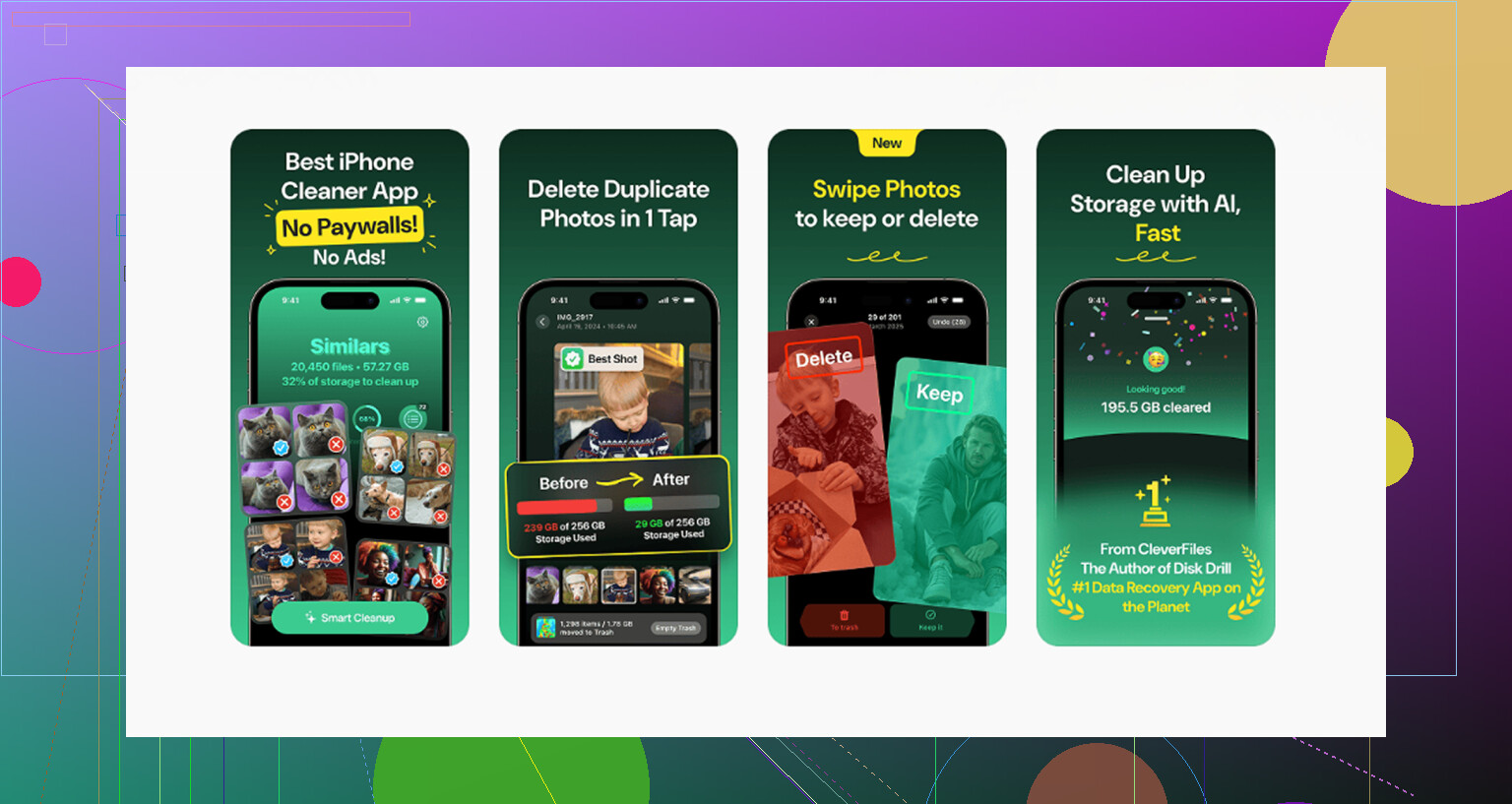
Clever Cleaner is useful for that part. It does not clear Twitter cache, so you still need the manual steps above, but it helps find the photo and video files that are actually eating storage. It is free, has no ads, and does not require a subscription.
The Heavies tab sorts your library from largest file to smallest and shows exact file sizes. That makes it pretty obvious when one forgotten video is taking up more space than a whole pile of app cache.
The Similars tab groups near-duplicate photos and uses AI to pick a Best Shot. That is especially helpful for burst photos or repeated attempts at the same picture, since you do not have to go through every single one manually.
It also shows file sizes on screenshots before you delete them, which helps when you realize screenshots alone have built up into several gigabytes.
All of the processing happens on the iPhone. Nothing is sent out to an external server.
A practical order to do it
Start by clearing Twitter media cache. It is quick and low-risk. If the phone still feels full or slow, move on to the photo library, because that is probably where the real storage problem is.
Use Twitter’s cache settings for the quick cleanup, use Clever Cleaner for photos and videos, then open Photos and empty Recently Deleted afterward. Deleted photos and videos stay there for 30 days and still count against your storage until you clear that folder manually.
The number in iPhone Storage can lag behind what you just cleared, so don’t panic if Twitter/X still looks huge right away. After clearing media storage or offloading/reinstalling, restart the iPhone and check again a few minutes later. I agree with the cache advice above, but I’d avoid “delete app” unless you know your login and 2FA are ready.
If X is using 600 MB, clearing cache is housekeeping; if it is sitting at 5 or 10 GB, you may be dealing with local app data that iOS will keep until the app is removed completely.
I slightly disagree with treating Offload App as the stronger cleanup. Offloading is safer because it keeps app documents and sign-in data, but that is exactly why it may not shrink the biggest part of X’s storage. Try the in-app media/web storage clearing first, like others said. If the number barely moves, make sure you know your password, email/phone access, and 2FA method, then use Delete App instead of Offload App and reinstall it from the App Store. Your account, posts, followers, bookmarks, and DMs are not deleted by removing the app from the phone.
The thing people forget is drafts. If you have unsent posts sitting in X drafts, assume they might disappear when you delete the app. Copy anything important into Notes first. After reinstalling, you can reduce the cache from coming back so fast by turning off video autoplay or setting it to Wi-Fi only under X’s data usage settings. It will still cache stuff again, because that is how the app works, but it should grow more slowly.
Clearing a bloated X cache is one case; doing it when the phone has almost zero free space is a different case. If iOS is down to a few hundred MB, the app may fail to reinstall, settings screens can hang, and the storage number may not update cleanly. I’d first make a little breathing room somewhere else, even temporarily. Delete one downloaded Netflix/Spotify/Podcast item, move a big video off the phone, or clear Safari downloads if you have any.
After that, I agree with the delete-app route more than offload if X is using multiple GB. Offload is good when you want the least risk, but it keeps the exact pile of “Documents & Data” that may be the problem. Before deleting, check Settings > General > iPhone Storage > X and look at the split between App Size and Documents & Data. If App Size is normal but Documents & Data is huge, offloading probably will not do much.
The annoying catch is login recovery. Do not delete X until you know you can get back in without the app already being open. Check your password, email or phone access, and 2FA method first. If you use an authenticator app, make sure that app is working too. Once that is squared away, deleting and reinstalling X is usually the cleanest reset. Your account is not removed, but local-only stuff like drafts is the part I would treat as disposable unless you copy it somewhere first.
Watch out if you have more than one account logged into X. Everyone here is talking about knowing your password and 2FA like it’s a single login, but if you juggle two or three accounts, deleting the app means signing every one of them back in, and each may want its own verification. That’s the part that turns a two-minute cleanup into an evening of hunting for backup codes.
@viajantedoceu is right about drafts being the thing people lose, and I’d stretch that a bit further. Muted words, notification tweaks, and any custom display settings can reset too after a full reinstall. None of that is account data on the server, so it comes back blank. If you spent time building a big muted-words list to keep your feed clean, screenshot it before you nuke the app.
On the Documents & Data split @boswandelaar mentioned, that check is the actual deciding factor and most people skip it. If that number is huge, offload is basically pointless and delete is the only thing that clears it. If it’s small, you’re chasing the wrong problem and the photo library is the real culprit, which is where something like Clever Cleaner earns its keep for finding the giant forgotten videos. Just don’t expect it to touch X at all, it won’t.
Honestly though, the cache grows right back. Turning off autoplay slows it, but if you’re constantly scrolling video you’ll be back here in a couple weeks. At that point the fix isn’t cleaning X again, it’s admitting the phone is too full and the app is just the loudest symptom.
A simpler fix is to use X in Safari instead of the app. Save any drafts, confirm your login, then delete X from your iPhone. Open x.com in Safari, sign in, tap Share, then Add to Home Screen.
You still get tweets, messages, bookmarks, and notifications through Safari settings. The web version stores far less local media, so X won’t grow by several GB again. It also avoids repeating cache cleanups. Safari data might build up abit, but clearing website data is quick.