I’m trying to download a new app on my iPhone, but I’m worried I might not have enough free space. I don’t want the download to fail or have to delete photos and apps after starting it. Can someone explain how to check available iPhone storage before downloading an app?
I keep running into this with iPhones. Everything feels fine until you try to record a long video, grab a big game, or update iOS, then the storage warning shows up and ruins the timing.
If you want to check iPhone storage without opening Settings, the cleanest method I’ve used is a computer.
On a Mac, connect the phone and open Finder. Pick your iPhone from the sidebar. On Windows, connect it through the Apple Devices app or iTunes. You should see a storage bar near the bottom of the device screen. I trust this view more when I want a quick read before installing something huge. The number in Settings sometimes lags behind because iOS is still recalculating space. From a computer, the sync step seems to clear some temporary junk first, so the free space reading feels closer to what you have right now.
There’s another case people run into. Dead phone, old phone in a drawer, phone you plan to sell. If you only need the total capacity, an IMEI lookup helps. I’ve found the IMEI on the SIM tray on newer iPhones. Older ones, like the iPhone 6, sometimes have it printed on the back. The box often has it too. Your carrier account page, usually under device management, might show it as well.
The part that throws most people is System Data, which used to show up as Other. I hated this category the first time I saw it eating a giant chunk of space. It’s a catch-all bucket. Siri voices, fonts, dictionaries, logs, cached app files, bits of streamed music and video, all of it ends up there. iOS is supposed to trim some of this when storage gets tight. In my experience, it does, but slower than you’d want.
Once free space gets low enough, the phone starts acting weird. I saw it on my own iPhone 13. Apps opened slower. The camera hesitated. Scrolling felt off, sort of choppy. I checked storage and I was down to around 2 GB free. After clearing space, the slowdown eased up fast, so for me the link was obvious.
Apple’s built-in recommendations help a bit. Offload unused apps, check large attachments, remove old downloads. Fine for light cleanup. Not great when your photo library is the real problem and you want to sort it without wasting an hour.
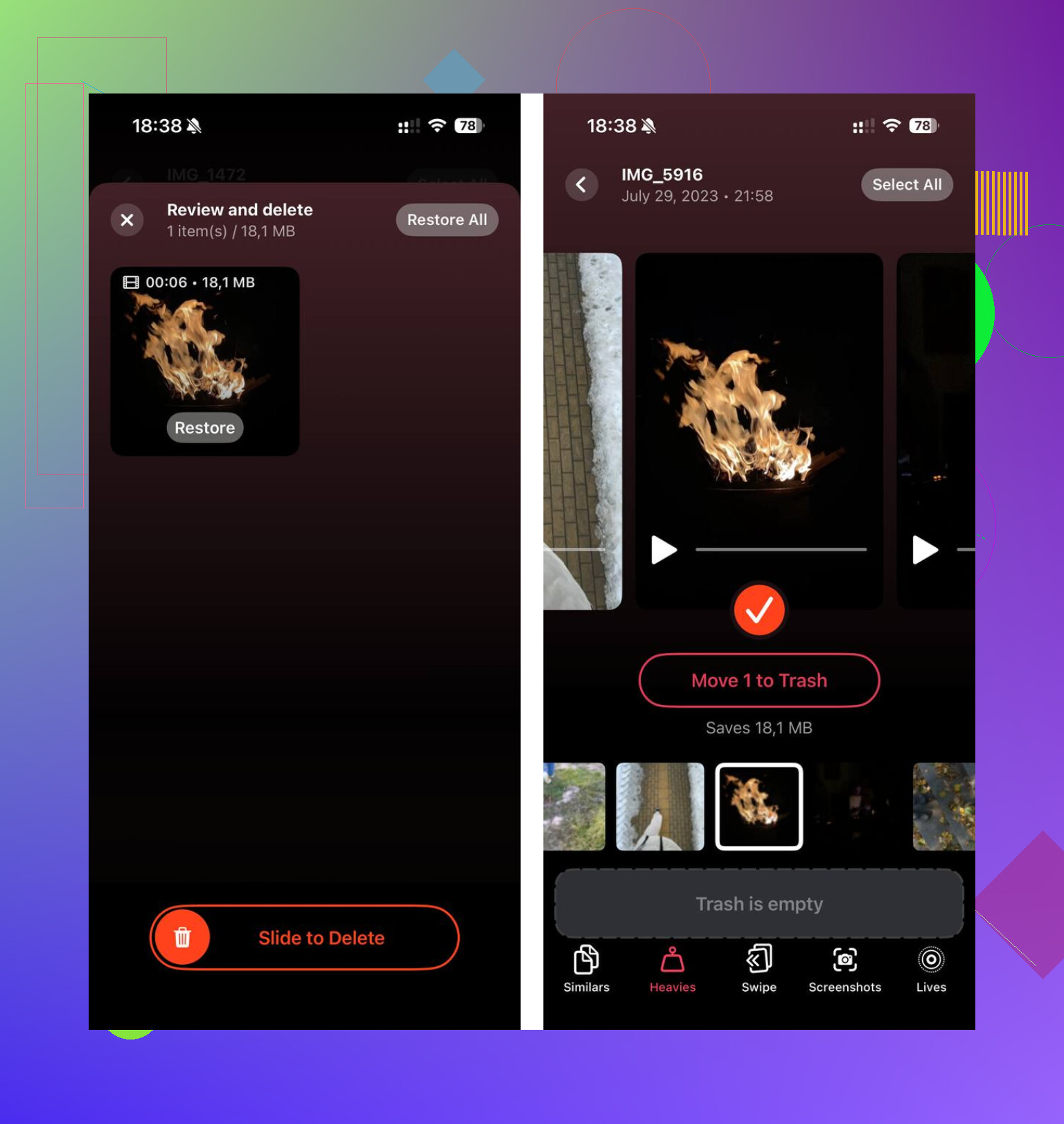
I had better luck using Clever Cleaner. What stood out to me was the simple part, it’s free, no ads in my way, no paywall popping up after two taps, no fake trial nonsense. The useful bit is photo and video cleanup, because for most people, that’s where the storage went.
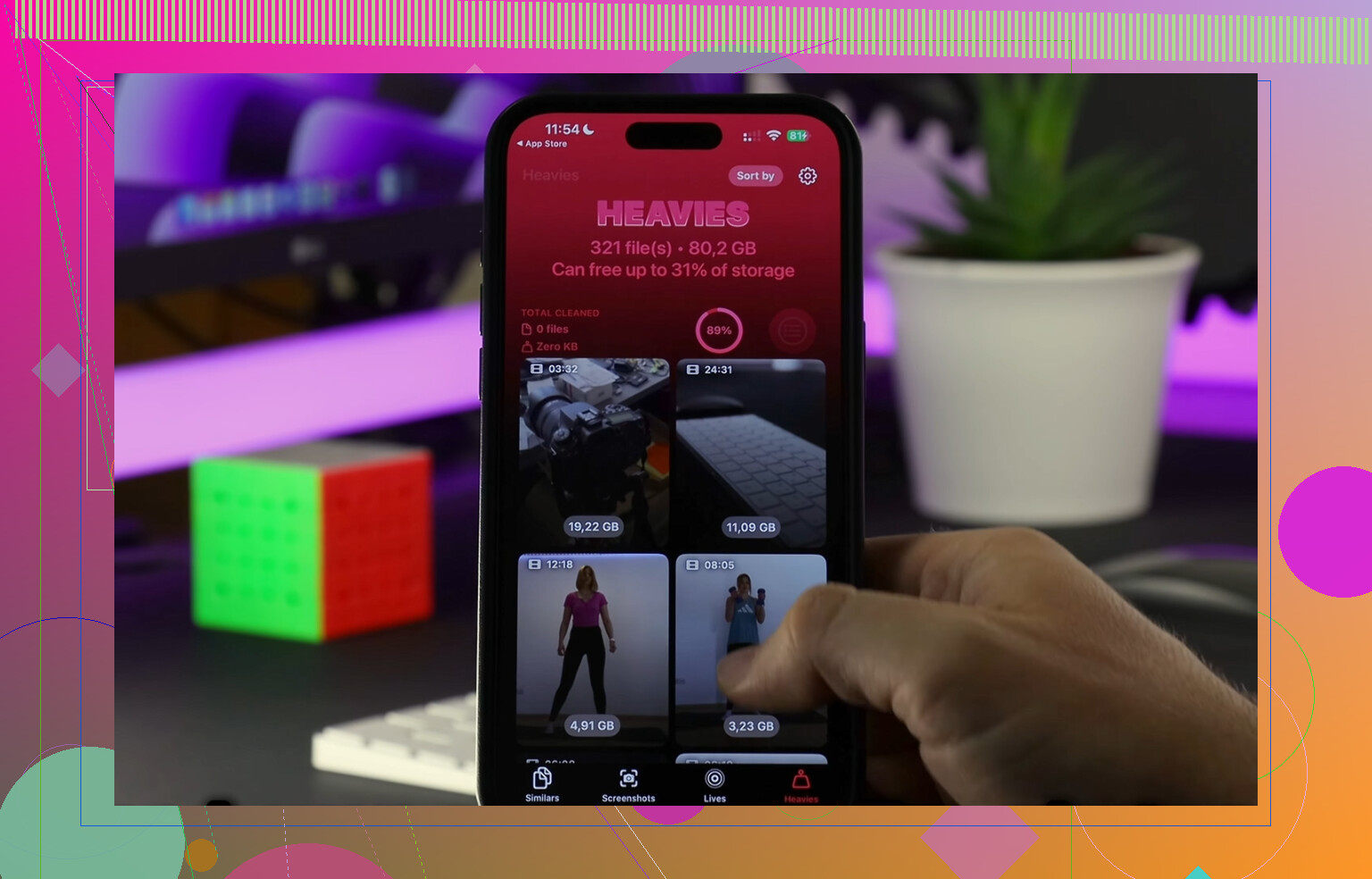
The Heavies section made sense right away. It sorts media by file size, so you see the worst offenders first. Old 4K clips, giant screen recordings, random videos I forgot I kept. I found one clip sitting there taking up around 2 GB. Stuff like this is why storage disappears and you don’t notice till too late.
The Similars section helped more than I expected. I always take multiple shots of the same thing and tell myself I’ll delete the bad ones later. I never do. This tool grouped near-duplicates so I could keep the sharpest one and wipe the rest. Saved time. Less guesswork.
I also liked one detail most cleanup apps gloss over. It handles the scanning on-device. My photos weren’t being sent off somewhere else. For screenshots, it even showed the file size per item, which sounds small, but it made the cleanup feel less blind. You delete a batch, you see the dent it made. Done.
If your iPhone feels slow, I’d look at storage before blaming the battery or iOS. If you’re close to full, clearing the biggest videos and duplicate photos usually does more than deleting random apps. I learned this the annoying way, and yeah, it worked.
Open Settings, then General, then iPhone Storage. That screen shows how much space is used and how much is free. Wait 10 to 20 seconds if the numbers look off, iOS recalculates a bit.
Before downloading, check the app size in the App Store. Scroll to the info section on the app page. If the app is 2 GB, I’d keep more than 2 GB free. iPhone needs extra working room for install files and cache. I try to leave 3 to 5 GB free, esp for big games.
I’ll disagree a bit with @mikeappsreviewer on using a computer first. Finder or iTunes is fine, but for a quick check, the built in storage page is faster and usualy enough.
If you’re short on space, use Offload Unused Apps from the same iPhone Storage page. It removes the app, keeps its data. Better than deleting stuff blind. If photos are the issue, Clever Cleaner is worth a look for clearing large videos and duplicate pics fast.
Also, if you want a quick watch on cleanup ideas, this iPhone storage cleanup video walkthrough is easy to follow.
One extra trick nobody mentioned: start the download and watch what iOS does. If you’re borderline on space, the App Store will usually warn you before the install finishes, not after some mystery failure. So you do not always need to pre-clean like it’s a disaster movie.
Also, app size in the App Store can be misleading. The listed size is often the compressed download, while the installed app can take more once unpacked. That’s why @viajantedoceu is right about leaving a buffer, but I’d be a little more conservative than “just enough.” For bigger apps or games, I’d want at least double the listed size free. iOS likes breathing room, especilly during installs and updates.
Another easy check: in App Store, scroll down to the app info and look at Size there, then compare it to your available storage. Not perfect, but close enough for most people.
If you do need to make room fast, I’d skip deleting random apps first and look at Messages attachments and downloaded media. Those are sneaky space hogs. @mikeappsreviewer covered computer checking, which is fine, but honestly feels like overkill unless your storage screen is acting wonky.
If photos are the problem, Clever Cleaner is a solid option for finding large videos and duplicate pics fast. For more on why Clever Cleaner is a top-rated iPhone storage cleanup tool, that guide breaks it down pretty well.
Short version: check app size in the App Store, keep extra free space beyond that number, and don’t trust your iPhone when it says you’re “probably fine” with 1 GB left. You’re probly not.
One thing I’d add to what @viajantedoceu, @caminantenocturno, and @mikeappsreviewer said: the real issue is not just free space, but whether the app also needs extra data after launch. A lot of games download additional assets the first time you open them, so a 2 GB app can quietly become 4 GB or more.
My rule is simple:
- small apps: keep 1 to 2 GB extra free
- big apps/games: keep 2x the listed app size free
- iOS update season: keep even more, because the phone gets picky
I slightly disagree with the “just start the download and see” approach. Sometimes iOS handles it fine, sometimes it stalls halfway and leaves you doing cleanup anyway. Better to plan ahead.
A less-mentioned check is this: look at the app’s recent reviews in the App Store. People often mention if it balloons in size after install.
If you need space fast, target:
- Downloads in streaming apps
- Safari offline reading files
- Podcasts you forgot about
- Voice memos
For photo cleanup, Clever Cleaner is useful if your storage problem is mostly media.
Pros:
- good at spotting duplicate pics and large videos
- quick visual cleanup
- easier than hunting manually
Cons:
- less useful if your storage issue is apps or system data
- you still need to review before deleting anything important
So yes, check iPhone Storage, but also assume the final app footprint may be bigger than the App Store number. That’s the part that catches people.
The earlier replies cover storage breakdowns and cleanup. For a simpler check, open Settings, tap General, then About. Look for Available, which shows your remaining storage. Capacity shows your total space, so dont confuse the two. Apple lists both on this screen.
Use Available as your starting point before downloading. If you only need a free-space number, I’d skip the computer and cleaner apps for this check. No need to sort through your photos or download anything extra to chek it.
Quickest reversible win nobody’s flagged yet: before you download anything, clear your Safari cache. Settings, Safari, Clear History and Website Data. It frees space instantly, you lose nothing important, and it’s undone by just browsing again. Same goes for logging out and back into a heavy app like Instagram or TikTok, their cached junk can be a couple gigs on its own.
I’m with @vector4626 that the About screen is the fastest read for a plain free-space number. Where I’d differ from the doubling advice is that not every app balloons. A photo editor or a note app stays roughly its listed size. It’s mostly games and streaming apps that pull assets after launch, so save the aggressive buffer for those. Clever Cleaner is fine for the photo side of this, but honestly if you just need room for one download today, the cache trick gets you there faster than sorting through your camera roll.