My old iPad has become very slow in every app, even for basic things like browsing, streaming, and checking email. I’ve tried restarting it and clearing some storage, but it still lags and freezes a lot. I need help figuring out what settings, updates, or fixes might improve iPad performance and make it usable again.
Old iPads slowing down after an update, or hanging for a second when you bounce between apps, usually comes from a few repeat causes. I ran into this on an older model and the stuff below moved the needle more than random cleanup rituals.
Stuff worth changing first
The fastest wins were buried in Accessibility.
- Open Settings, then Accessibility, then Motion, and turn on Reduce Motion. On older iPads, the zoom effects when apps open and close seem to drag the system down. After I switched this on, app transitions felt less sticky because the iPad stopped rendering those heavier animations.
- Open Settings, then Accessibility, then Display & Text Size, and enable Reduce Transparency. This cuts out a lot of the blurred interface layers. Older GPUs don’t handle those effects well, and removing them usually makes the whole UI feel less sluggish.
Then check Settings, General, Background App Refresh, and switch it off. A lot of people leave this running without noticing how much memory gets eaten by apps quietly pulling in updates behind the scenes. If your iPad feels slow across the board, this is often part of it.
Also look at Low Power Mode. If it’s on, performance is reduced on purpose to save battery. On an aging iPad, that drop is easy to feel.
Right after an iPadOS update
If you updated recently, wait a day or two before deciding the device is cooked. After a big iPadOS install, the system keeps doing background work like indexing files and rebuilding stuff. During that stretch, the iPad often runs warmer and feels off.
If it still drags after two days, do a forced restart. Hold the power button and home button until the Apple logo shows up. I’ve seen this clear out post-update weirdness more than once.
Storage fills up, performance drops
This was the big one for me. Once storage gets close to full, around 90 percent or so, older iPads start acting rough. iPadOS needs breathing room for temp files, cache, and background tasks. When free space gets squeezed, the whole system starts tripping over itself.
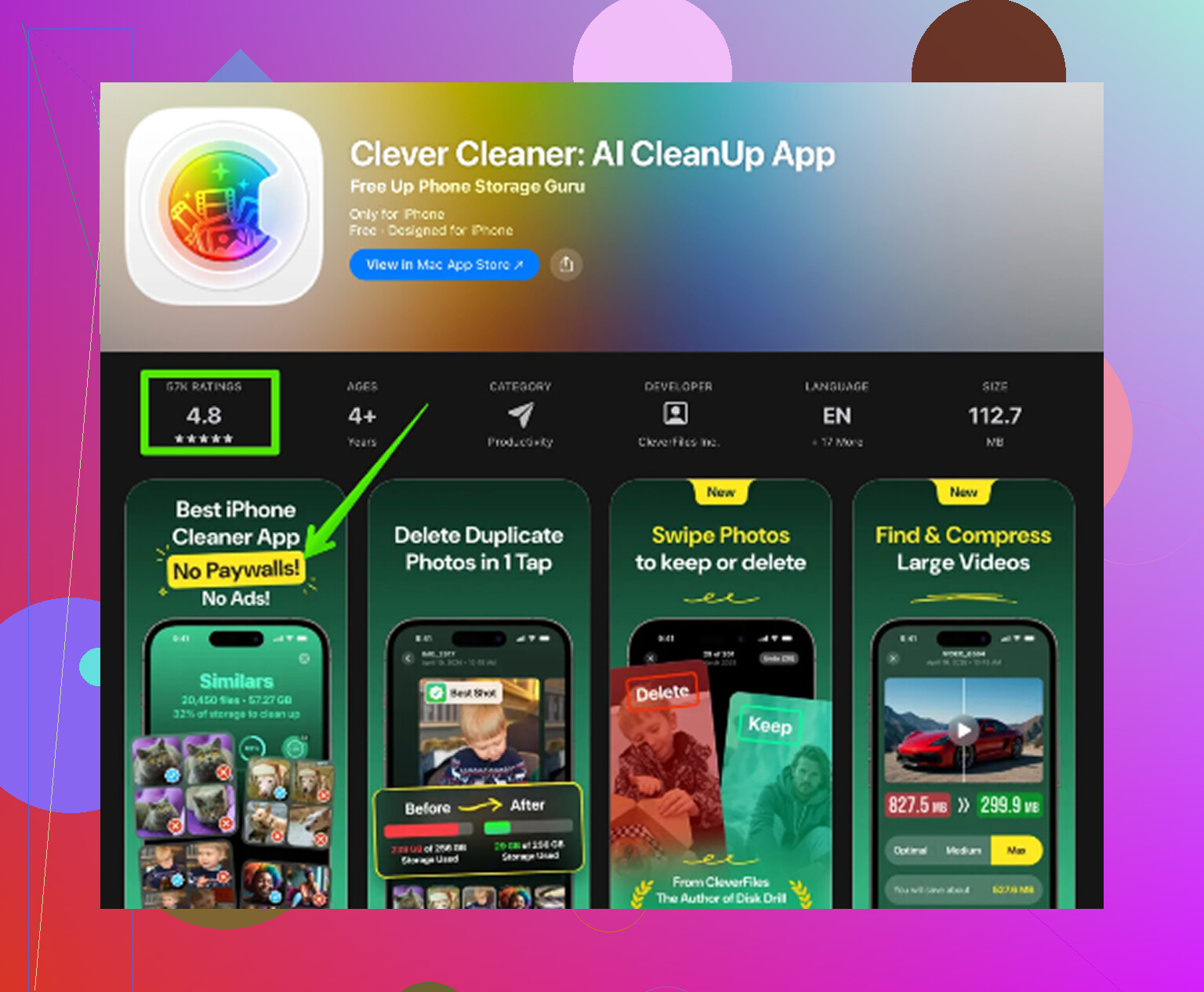
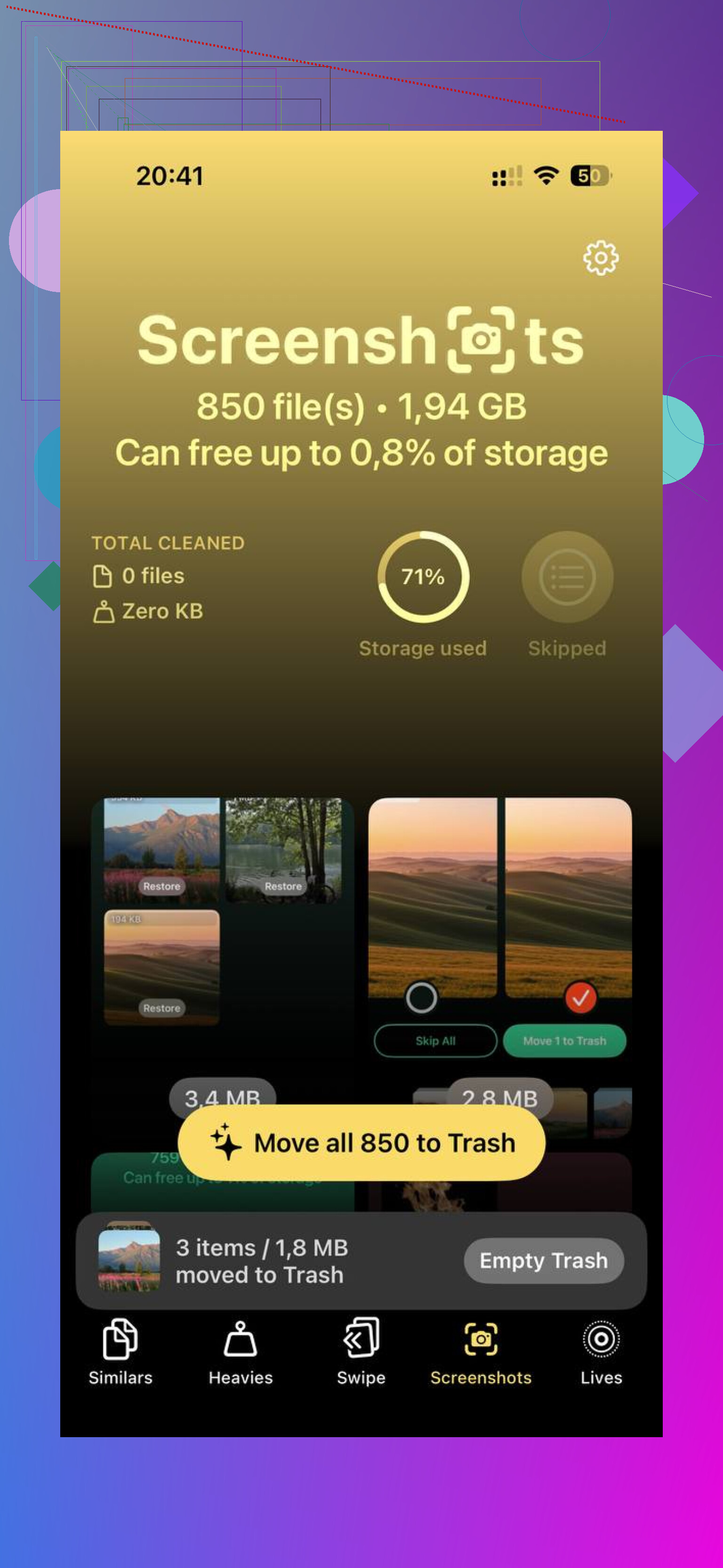
Cleaning a huge photo library by hand is miserable. I used Clever Cleaner because doing it inside Photos took forever. It’s free, no ads, no subscription wall. The Similars section grouped near-duplicate shots and picked a Best Shot, which helped with old burst photos I forgot existed. The Heavies section sorted files by size, largest first, so the junk doing the most damage showed up fast. It also shows screenshot sizes before deletion. Everything stays on-device, nothing gets uploaded. In my case, clearing about 10GB helped app switching more than any visual setting I changed.
Factory reset, yes or no
From what I’ve seen, yes, it helps more than people expect. Go to Settings, General, Transfer or Reset iPad, then Erase All Content and Settings. Back it up to iCloud first.
When you set it up again, choosing New iPad tends to work better than restoring an old backup. Restoring brings old settings and leftover config baggage back with it, and some of the slowdown seems tied to that. Reinstalling apps is a pain, sure, but the iPad usually feels cleaner after a fresh setup.
If Safari is the part that feels slow
Go to Settings, Safari, then Clear History and Website Data. Safari bogs down on its own after years of stored cookies, cached files, and old site data. If scrolling webpages or loading tabs feels worse than the rest of the system, I’d check this first.
If it’s slow in every app, I’d stop chasing UI tweaks first. @mikeappsreviewer covered some decent ones, but on old iPads the bigger issue is often battery health, old web junk, and overloaded settings.
Check battery behavior. If the iPad gets warm fast, drains quick, or slows more under 30 percent, the battery is aging. Old batteries throttle performance. Apple does not show battery health on most iPads, which is annoyng, but a repair shop can test it fast.
Next, remove problem apps, then reinstall only the ones you use daily. Some apps get bloated over time. Streaming and social apps are common offenders.
Also do this:
Settings, Privacy, turn off Analytics sharing.
Settings, Siri, disable Listen for Siri and suggestions you do not use.
Mail, fetch less often.
Turn off automatic downloads for apps and updates.
For browser lag, try a different browser for a day. If Safari is the bottleneck, you’ll notice fast.
If storage is part of it, clean big photo clutter fast. Clever Cleaner gets mentioned a lot for this. This write-up on free iPhone cleaner app for clearing duplicate photos explains it well. Yes, it says iPhone, but the photo cleanup idea still applies to your Apple stuff in general.
If none of this helps, your iPad model might simply be too old for current apps. Sounds harsh, but at some point the hardware is the limit. That’s usally the truth.
If it’s slow in literally every app, I’d look less at “cleanup tricks” and more at system load + hardware limits. @mikeappsreviewer and @reveurdenuit already covered the usual settings pretty well, but I kinda disagree on one thing: a factory reset is not always worth the hassle unless you first rule out a dying battery or an ancient chip that just can’t keep up anymore.
A few things I’d check that weren’t really the main focus above:
- Open Settings > Battery and see which apps are chewing through usage. Sometimes one broken app keeps running wild in the background.
- Delete any VPN, antivirus, device manager, or ad-block style apps if you installed them. Old iPads hate that stuff.
- In Settings > App Store, turn off auto app downloads and auto updates. Let updates happen only when plugged in.
- In Settings > Notifications, disable junk notifications for apps you don’t care about. Constant wakeups add up.
- If email is laggy, remove the Mail account and add it back. Old mail caches get weird.
- Check the iPad model. If it’s stuck on an older iPadOS and modern apps are bloated, that may be the whole story tbh.
Also, if photos/videos are eating space, Clever Cleaner is one of the faster ways to clear duplicate pics and large files without digging forever. This is a decent watch on how Clever Cleaner helps free up space and speed up your iPhone or iPad.
If your iPad is like 7 to 10 years old, brutal truth: sometimes it’s not “fixable,” it’s just old as dirt and modern apps are heavier now.