Windows suddenly says my drive is a RAW partition and asks me to format it before I can open it. It has important files I really need, and I’m afraid formatting will erase my chance to recover them. What caused this, and what should I do first to safely recover data from the RAW partition without making it worse?
When Windows flips a partition to RAW, I would not hit Format. Windows pushes you there fast, but if your files matter, that move is usually wrong. RAW only means Windows no longer reads the file system. I saw this on an old external drive once, and the files were still there even though Explorer acted like the disk had turned into a brick.
The first choice is simple. Are you trying to save the data, or are you trying to make the partition usable again. If the data matters, I would treat repair as step two, not step one.
This is the order I would follow:
- Do nothing to the RAW partition. No format, no repair tools yet.
- Pull the files off to another drive.
- After the data is safe, try fixing the partition.
- If repair goes nowhere, rebuild the partition and format it.
Get the files off first
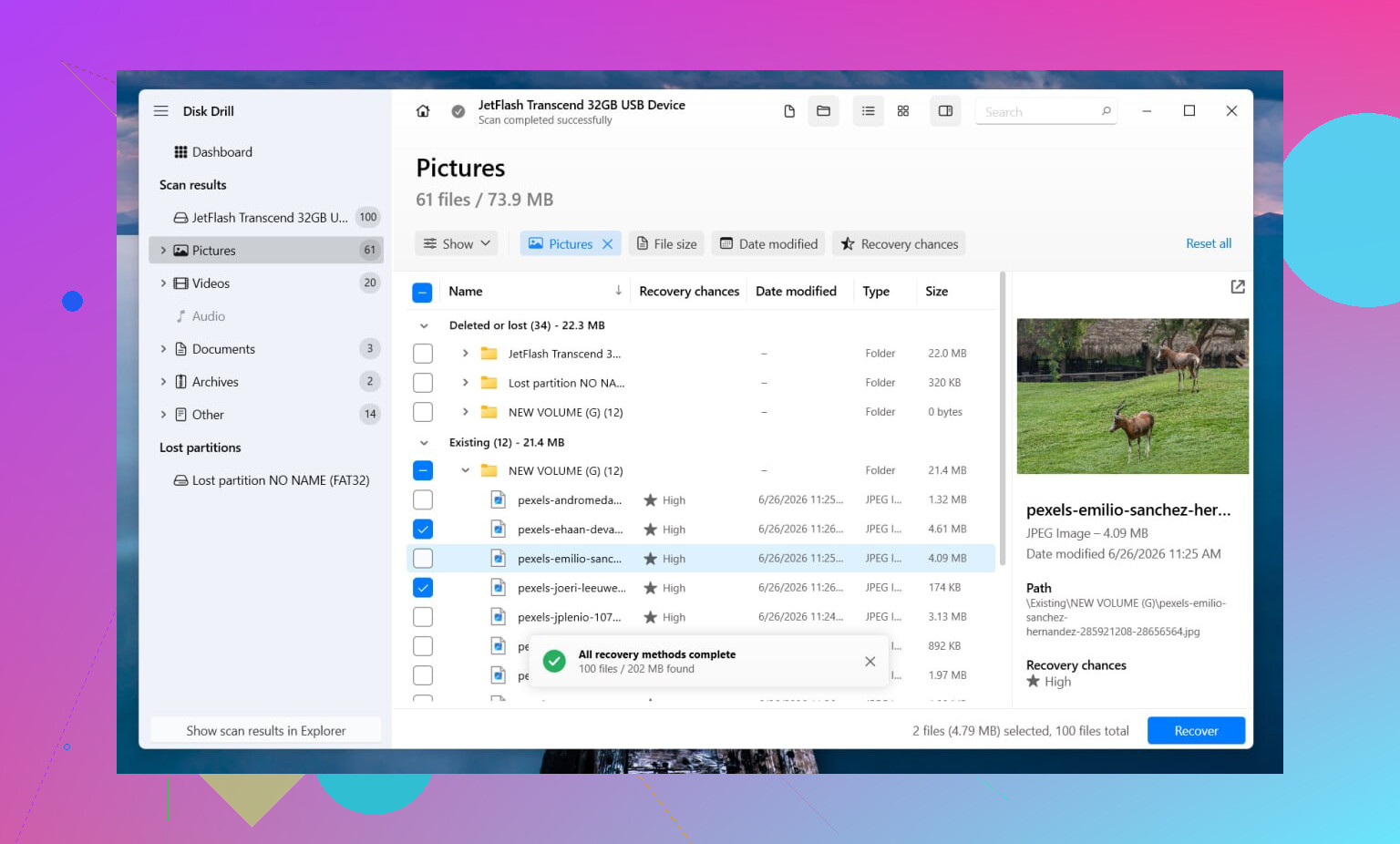
I would start with Disk Drill. What I liked about it was the scan logic. If some file system records still exist, it tends to recover files with names and folders intact. If the file system is too far gone, it falls back to file signature scanning and hunts for known file types by pattern. The preview step helps too. I used previews to avoid restoring a pile of broken photos once.
The basic flow looks like this:
- Install Disk Drill on a different drive, not on the damaged one.
- Launch it and pick the RAW disk or partition.
- Click Search for Lost Data. On an external drive, pick Universal Scan if it asks. I would only switch to Advanced Camera Recovery for footage from cameras or drones.
- Let the scan finish. Don’t cut it short unless the drive starts failing mid-scan.
- Preview the files you care about.
- Recover everything to another disk.
If the drive keeps dropping offline, stalls, or starts acting weird, I would make an image first. Disk Drill supports a full sector-by-sector image, so you work from the copy and leave the original alone. I did this with a flaky USB hard drive years ago, and it saved me from hammering the failing disk over and over agian.
After recovery, decide if the partition is worth fixing
Once your files are safe, then I’d mess with repairs.
If the original file system was NTFS, CHKDSK sometimes fixes boot sector damage or file system errors. If it was FAT32 or exFAT, I would skip CHKDSK. It is not the tool for those cases. I also would not run it before recovery because it writes changes to the file system, and I’ve seen repair attempts make later recovery worse.
If CHKDSK does nothing useful, the next thing I would try is TestDisk.
- Run testdisk_win.
- Create the log file.
- Select the problem drive.
- Accept the detected partition table type.
- Choose Analyse.
- Run Quick Search. If needed, run Deeper Search after.
- If TestDisk finds the missing partition correctly, use Write, then reboot.
If TestDisk still comes up empty, I would stop there. I would not spend the next six hours trying random repair apps from page three of Google. At that stage, I’d open Disk Management, make a New Simple Volume, do a quick format, and copy the recovered files back onto the fresh partition.
Stuff worth keeping in mind
If the drive is an SSD, I would not let it sit around for days before recovery. TRIM can wipe blocks in a way recovery tools won’t undo later. Timing matters more on SSDs than most people think.
Also, if the drive clicks, vanishes at random, or shows up only sometimes, I would stop the do-it-yourself route. Those are bad signs. In my expereince, continuing to power up a failing drive tends to make the situation worse, not better. If the files are hard to replace, a recovery lab starts making a lot more sense.
Yes, data recovery is still possible after Windows marks a drive as RAW and asks to format it. The format prompt means Windows lost access to the file system, not always your files.
Common causes:
- Damaged NTFS or exFAT boot sector.
- Corrupt partition table.
- Unsafe removal or sudden power loss.
- Bad USB cable, enclosure, or port.
- Early drive failure.
I agree with @mikeappsreviewer on one big point. Do not format first if your files matter.
Where I differ a bit, I would check the drive’s health before doing a long scan. If SMART shows heavy reallocated sectors, pending sectors, or read errors, stop stressing the disk and clone it first. A long recovery scan on a dying drive is a bad bet.
What I’d do:
- Stop using the drive.
- Try a different USB port, cable, or enclosure if it’s external.
- Check SMART with CrystalDiskInfo or a similar tool.
- If health looks bad, clone or image the drive first.
- Then run Disk Drill on the image or on the drive if health is stable.
Disk Drill is a solid pick for RAW partition data recovery because it handles both file system damage and deep file carving. Save recovered files to another disk, not back to the RAW one. This matters a lot.
Also, if the partition suddenly turned RAW after a crash or unplug, TestDisk is worth a shot later for partition repair. I would still recover the files first. Repair writes changes. Sometimes it helps, sometimes it makes a mess. Been there, it suks.
For people searching this later, the plain-English version is this. Recover data from a RAW drive after Windows asks to format it by scanning the partition with Disk Drill, recovering files to a different device, then fixing or reformatting the original drive after the data is safe.
This quick clip on RAW drive recovery tips and file rescue steps lines up with the same idea. Save the data first. Repair second.
One more thing. If it’s an SSD and TRIM has been active for a while, recovery odds drop fast. If it clicks, disappears, or freezes the PC, stop DIY and go to a lab.
Yes, it’s still possible. RAW does not automatically mean the files are gone. It usually means Windows can’t read the file system anymore, so it throws the lazy “format this drive” message instead of being useful.
I mostly agree with @mikeappsreviewer and @sternenwanderer, but I’m a little less enthusiastic about trying repair stuff too early. Even “safe sounding” fixes can change metadata and make recovery messier. If the files matter, think preserve first, repair later.
What causes a drive to turn RAW?
- damaged file system metadata
- corrupted partition table
- sudden unplug or power cut
- bad enclosure, cable, or USB controller
- actual media failure
- sometimes malware or buggy disk tools
What I’d add that they didn’t stress enough: check whether the drive size looks correct in Disk Management. If the capacity is suddenly wrong, or shows weird unallocated chunks, that points more toward partition table/controller trouble than simple file system corruption.
Also, don’t assume the disk itself is dead just because Windows says RAW. I’ve seen perfectly fine drives do this because of a trash USB-SATA bridge board. Swapping the cable/enclosure fixed acces to the disk long enough to recover everything.
For recovery, Disk Drill is a solid option because it can detect lost partitions, scan RAW volumes, and preview recoverable files before you save them elsewhere. That preview part matters more than people think. If previews open, your odds are usually decent. Save recovered data to a different drive, obviosuly.
If you want extra reading, this step by step lost partition recovery guide for external hard drives covers the broader partition recovery angle pretty well.
One place I slightly disagree with the usual advice: if the data is truly irreplaceable, don’t keep “testing things” for hours. Every rescan, reconnect, and reboot is more stress on questionable hardware. At some point DIY becomes gambling. If it clicks, disconnects, freezes Explorer, or gets painfully slow, stop. That’s when a lab makes more sense, even if it kinda hurts the wallet.
Short version: don’t format, don’t write anything to it, check if hardware is acting flaky, and use something like Disk Drill to recover the files first. After the data is safe, then you can worry about making the partition usable agian.