I accidentally emptied my Windows Recycle Bin and realized some important files were still in there. I need help figuring out if deleted files can be recovered, what recovery tools or methods are safe to try, and what steps I should avoid so I don’t overwrite anything.
If you emptied the Recycle Bin by mistake, don’t assume the file is gone for good right away. In many cases, Windows doesn’t immediately erase the actual data. It marks that space as free, and the file may still be recoverable until something new gets written over it.
The first thing to do is check the Recycle Bin one more time. It sounds too basic, but it’s worth doing, especially if the file was inside a folder you deleted. Open the Recycle Bin from the desktop, look for the file or folder, right-click it, and choose Restore. If it’s there, Windows should put it back where it was before.
If the Recycle Bin really is empty, try to stop using that drive as much as you can. Don’t install software on it, download files, save new documents, or do a bunch of browsing if you can avoid it. Every new write to the drive can reduce the odds of getting the deleted file back.
After that, check whether Windows had a backup available. Go to the folder where the file used to be, right-click in the folder, and choose Restore previous versions. If there are older versions listed, open one from before the file was deleted and copy the file somewhere safe.
You can also get to File History here:
Control Panel > System and Security > File History > Restore personal files
That view lets you browse earlier backed-up versions of common folders like Documents, Pictures, Desktop, and similar locations.
If there’s no backup to restore from, recovery software is usually the next thing to try. Disk Drill is one option that can scan NTFS, FAT32, and other file systems for deleted documents, photos, videos, and other file types.
A few important things if you go that route:
Install the recovery program on a different drive than the one you’re trying to recover from. So if the missing file was on C:, don’t install the tool there. Use another internal drive, an external drive, or some other safe storage location.
Open the program, choose the drive that had the deleted files, and select Search for lost data.
Let the scan finish. A deeper scan can sometimes find files even when the old folder names or filenames are missing.
Preview files when the software allows it. If a file previews correctly, that’s a good sign it can still be read, though it still doesn’t promise a perfect recovery.
When you recover the files, save them to a different drive. Don’t put them back on the same drive during recovery, since that could overwrite other deleted data.
The Windows version may include a limited amount of free recovery, which might be enough if you only need a few smaller files. Check the current licensing details before you start so you know what to expect.
One extra thing to keep in mind: SSD recovery can be harder because of TRIM. TRIM helps SSDs clear deleted blocks more efficiently, which can make deleted data disappear faster. So if the file was on an SSD, stop using the computer as much as possible and start the recovery attempt sooner rather than later.
Your odds depend a lot on where the files lived and what has happened since. @mikeappsreviewer is right that you should stop writing to that drive, but before installing any recovery tool, check the boring places people forget: OneDrive, Dropbox, Google Drive, Windows Backup, and the web trash/version history for any synced folders. If the file was on Desktop or Documents, it may have been synced even if the local Recycle Bin is empty. I’d try that first because it’s safer than scanning the same disk. If you do use something like Disk Drill, run it from another drive and recover to another drive, but don’t pay for anything until the preview shows the actual files you need. If the deleted files were on an SSD, be prepared for “nothing found” even when you did everything right.
If the files were on your Windows C: drive, the safest move is to shut the PC down and do the recovery from another machine or a bootable USB, because Windows keeps writing little stuff in the background even when you think you’re “not using it.” I agree with the warning about not installing Disk Drill or anything else onto the same drive, but I’d be even stricter about it for C:. Pull the drive if you can, scan it from another computer, and recover to an external drive. If that sounds like too much work, at least don’t install the recovery app on the drive you’re trying to save. And if the missing files matter more than the cost of the drive or software, stop experimenting after one careful scan and consider a data recovery shop, because repeated scans and saves in the wrong place can make a bad situation worse.
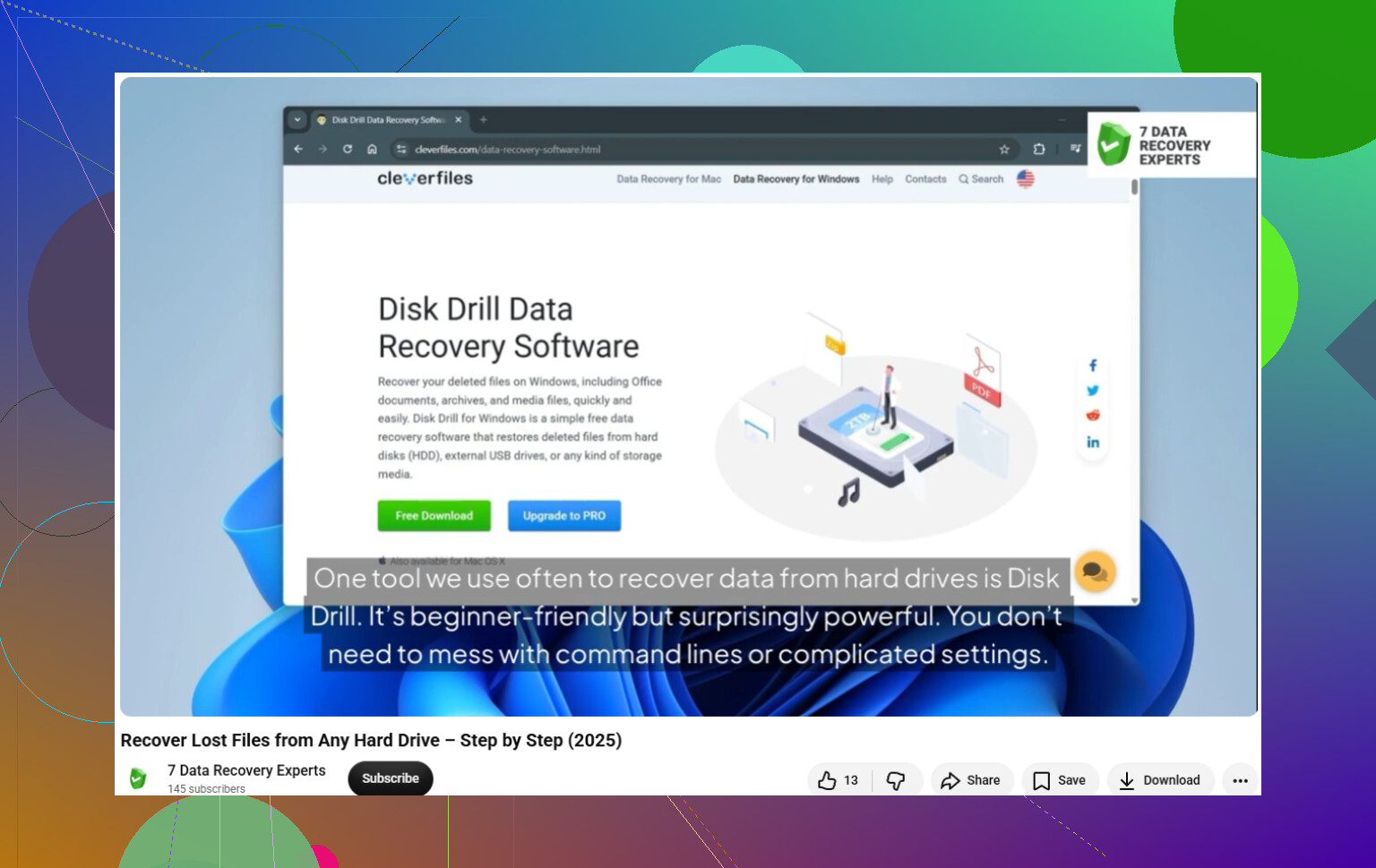
Don’t run “cleanup” tools, chkdsk repairs, defrag, or Windows reset stuff before recovery, because those can write to the same disk and make the deleted files harder to recover. If backups/cloud trash don’t have them, scan from another drive with a recovery tool like Disk Drill or Recuva, but only recover to a separate external drive.