My iPad Photos app has a lot of duplicate pictures after syncing and importing from other devices. I’m trying to free up storage without accidentally deleting the wrong images. What’s the safest way to find and remove duplicate photos on an iPad?
I’d separate this into two different problems: true duplicates and photos that are just almost the same. Apple’s built-in duplicate finder is mainly for the first one. If your camera roll is full of five near-identical selfies, a bunch of shots from the same angle, or edited/saved copies from Messages, Apple may not flag much of that.
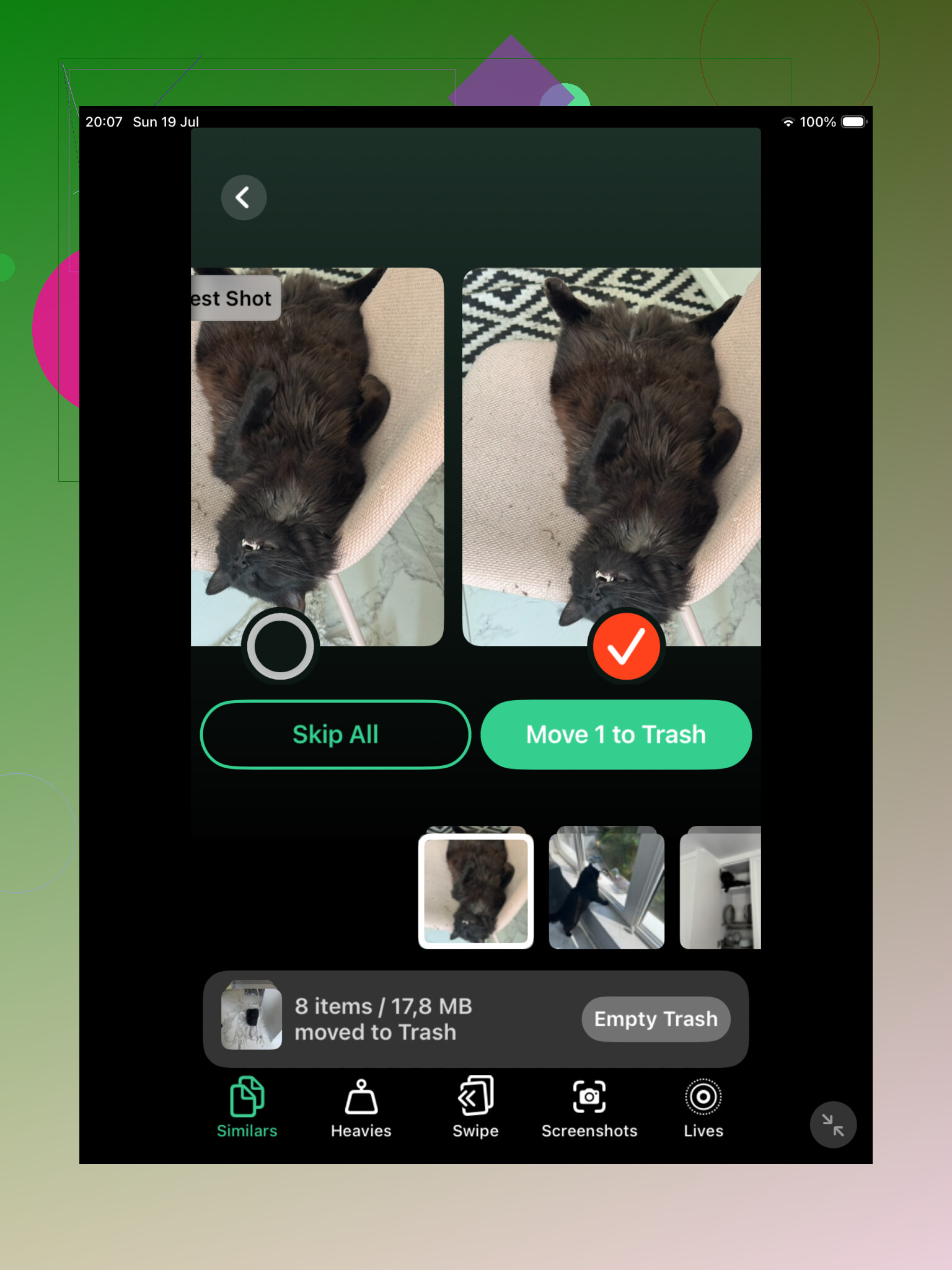
For a big photo library, I’d probably start with Clever Cleaner. The Similars section is the useful part, because it groups photos that look nearly identical even when the files are not technically the same. That catches the messy stuff Apple often skips, like repeated selfies, burst-like groups, and slightly different versions of the same shot.
It also picks a Best Shot in each group, but I would not blindly trust that. Open the group and compare the photos yourself. The nice part is that you can review them together instead of bouncing around the Photos app and zooming in on each one manually.
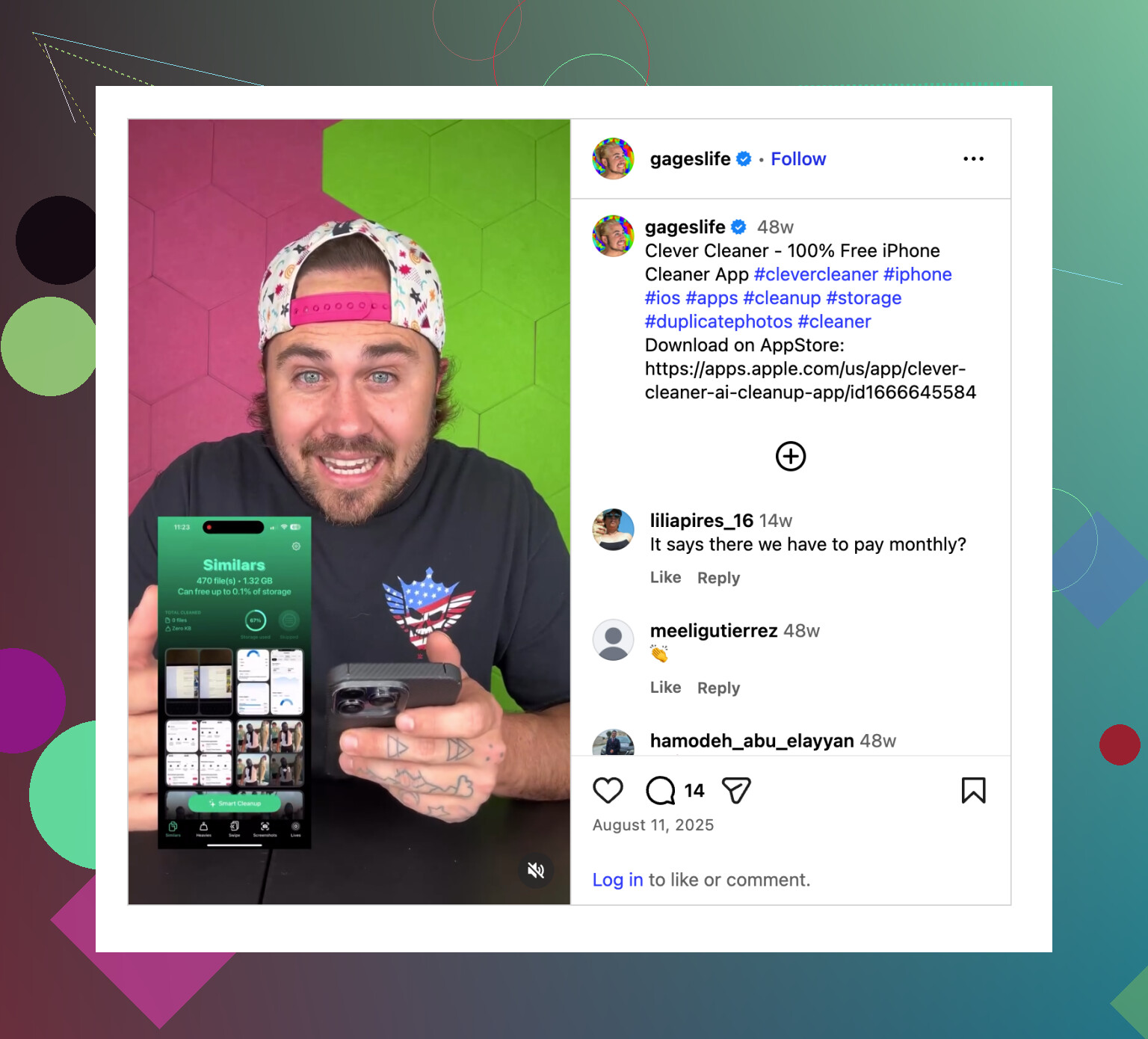
Clever Cleaner can find exact duplicates too, so it makes sense as a first pass if your library has been piling up for years and you have no idea what is in there. The main reason to use it is that it looks for both duplicates and near-duplicates, not only files that match exactly.
After that, I’d still check Apple’s Duplicates album. On iPadOS 16 or newer, go to Photos, scroll to Utilities, then open Duplicates. Apple will group matching items and show a Merge option. When you merge, it keeps the version with the best available quality and useful metadata, and sends the extras to Recently Deleted.
The catch is that Apple is pretty strict. If one photo was cropped, edited, compressed, saved from another app, or taken a second later, it may not count as a duplicate even if it looks the same to you. That is why the Duplicates album can look almost empty even when your library feels packed with repeat shots.
If you do not see the Duplicates album, give it time. The iPad may still be scanning your library, especially after a big import, iCloud sync, or software update. Leave it locked and plugged in for a while. With a large library, it can take a day or two. Also, the feature is not available on iPadOS 15 or earlier.
If your library is small and you mostly copied the exact same files a few times, Apple’s tool might be enough. If you have thousands of photos and lots of “same scene, slightly different shot” clutter, Clever Cleaner will usually catch more.
You can also do it manually if you do not want another app. Search in Photos for things like “screenshots,” “dog,” “beach,” or a city name. Browsing by Months or Years can also help with trips and events where you probably took several versions of the same thing. It is slower, but it works.
One last thing: merged and deleted photos stay in Recently Deleted for up to 30 days, and they still use storage until you clear that album. Check it before emptying it.
If you use iCloud Photos, deletions sync across your iPhone, Mac, iPad, and any other connected Apple devices. So make sure you actually want those copies gone everywhere before deleting them permanently.
Whether iCloud Photos is turned on changes the risk here, because deleting on the iPad may delete from iCloud and your other devices too. Before using Apple’s Duplicates album or any cleaner app, make a quick backup/export of anything important, then delete in small batches and leave Recently Deleted alone for a few days before emptying it.
You may not be able to delete every synced photo from the iPad itself. If some of these came over from Finder/iTunes photo sync, the trash button may be missing or the images may come back after the next sync, so Apple’s Duplicates album or Clever Cleaner won’t really solve that part. For those, connect the iPad to the computer it syncs with, change the selected photo folders/albums, then sync again. Use the duplicate tools only for photos that are actually in your iPad/iCloud Photos library. If you see albums like “From My Mac,” treat those as a sync settings problem, not a cleanup problem.
Expect the first cleanup pass to be boring and conservative, not a giant one-tap purge. If you try to delete hundreds at once, that is when mistakes happen, especially with old imports where the same picture may have different dates, edits, or album locations.
A safer workflow is to start with a small test batch. Use Apple’s Duplicates album if it appears, merge maybe 10 or 20 groups, then check Recently Deleted before doing more. Don’t empty Recently Deleted right away. Treat it like a holding area for a week or so. If something vanished from an album or another device in a way you didn’t expect, you still have a way back.
For cleaner apps like Clever Cleaner, the useful caveat is photo permission. If iPadOS only gives the app “selected photos” access, it may look like the app missed half your library because it literally cannot see everything. If you do give full access, review the groups manually and avoid using any “delete all” style option until you understand how it is grouping things. Similar-looking photos are not always duplicates. A sharp photo, a Live Photo, a portrait-mode copy, and an edited version can look almost identical in a grid.
The fastest low-risk cleanup is usually not duplicates anyway. Search Photos for “screenshots,” “screen recordings,” “receipts,” “whiteboard,” and videos. Those are easier to judge than family photos or trip photos, and videos free much more storage. After that, deal with duplicates in smaller passes.
@mikeappsreviewer is right about synced photos too. If the photos came from a computer sync, deleting on the iPad may not be the real fix. For normal iCloud/iPad camera roll photos, delete carefully on the iPad. For “From My Mac” type albums, fix the sync source on the computer or they may come back and make the whole cleanup feel broken.