My Windows PC suddenly shows my external drive as “not accessible” with the error “The parameter is incorrect.” I can’t open the drive or access my files, and I’m worried about losing data. What’s the safest way to fix this without making things worse?
First thing: don’t format it yet, even if Windows keeps pushing you to. That 'The parameter is incorrect.' message can make it look like the drive is dead, but sometimes it’s just file system corruption. I had this happen on an older WD external drive, and the files were still there.
I also wouldn’t rush into CHKDSK unless you already have a backup or you’ve recovered the files you care about. CHKDSK can fix some logical errors, but on a badly damaged file system it can also make recovery messier.
I’d start with the basic checks first:
- Try a different USB cable.
- Try another USB port.
- Plug the drive into a different computer.
- Open Disk Management and check whether the drive shows up with the correct size.
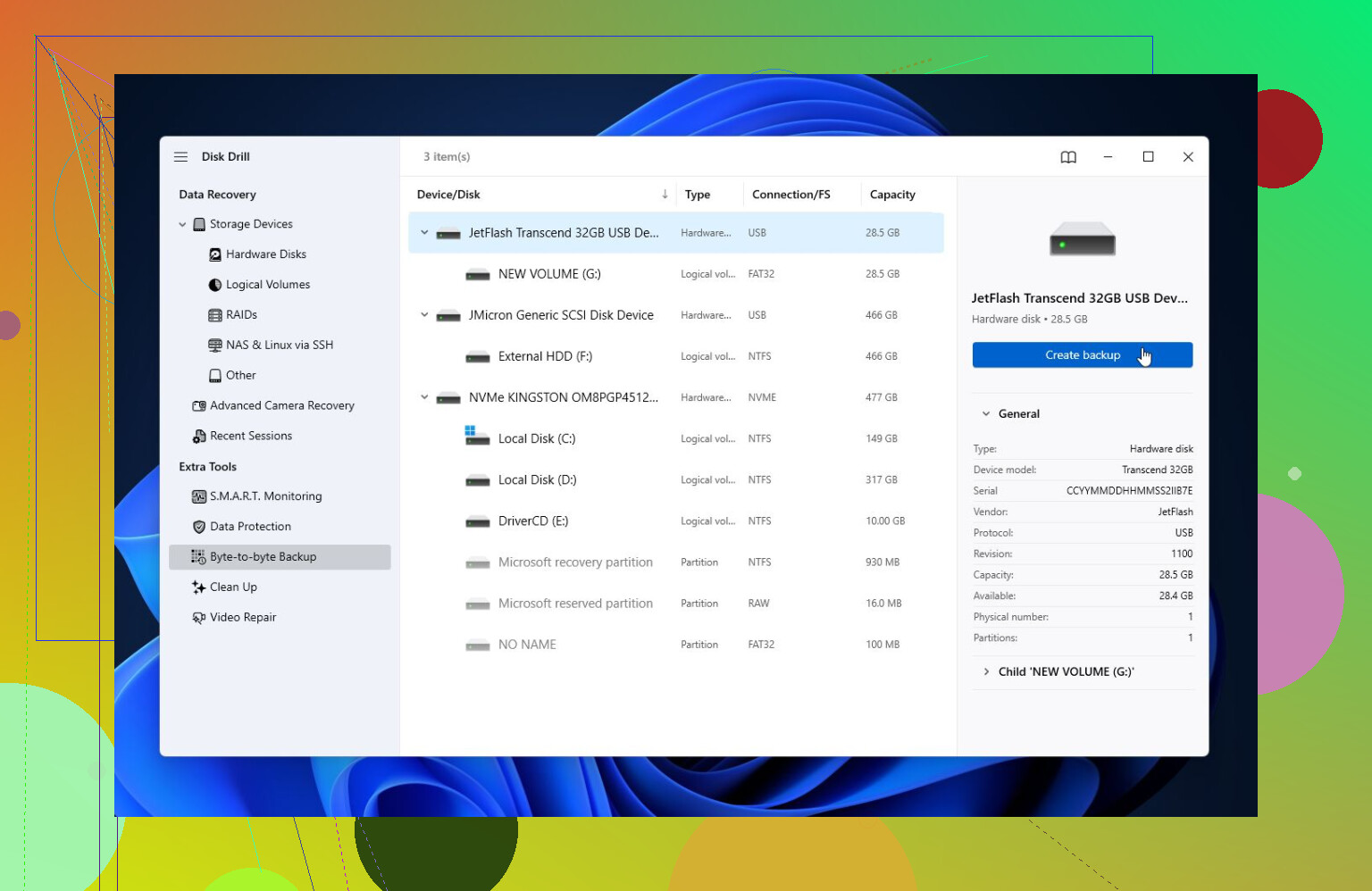
- Check SMART health with something like CrystalDiskInfo, or the SMART monitor built into Disk Drill.
If SMART shows a bunch of reallocated sectors, pending sectors, or other serious warnings, assume the drive may be failing. In that case, keep usage to a minimum and focus on getting the data off first.
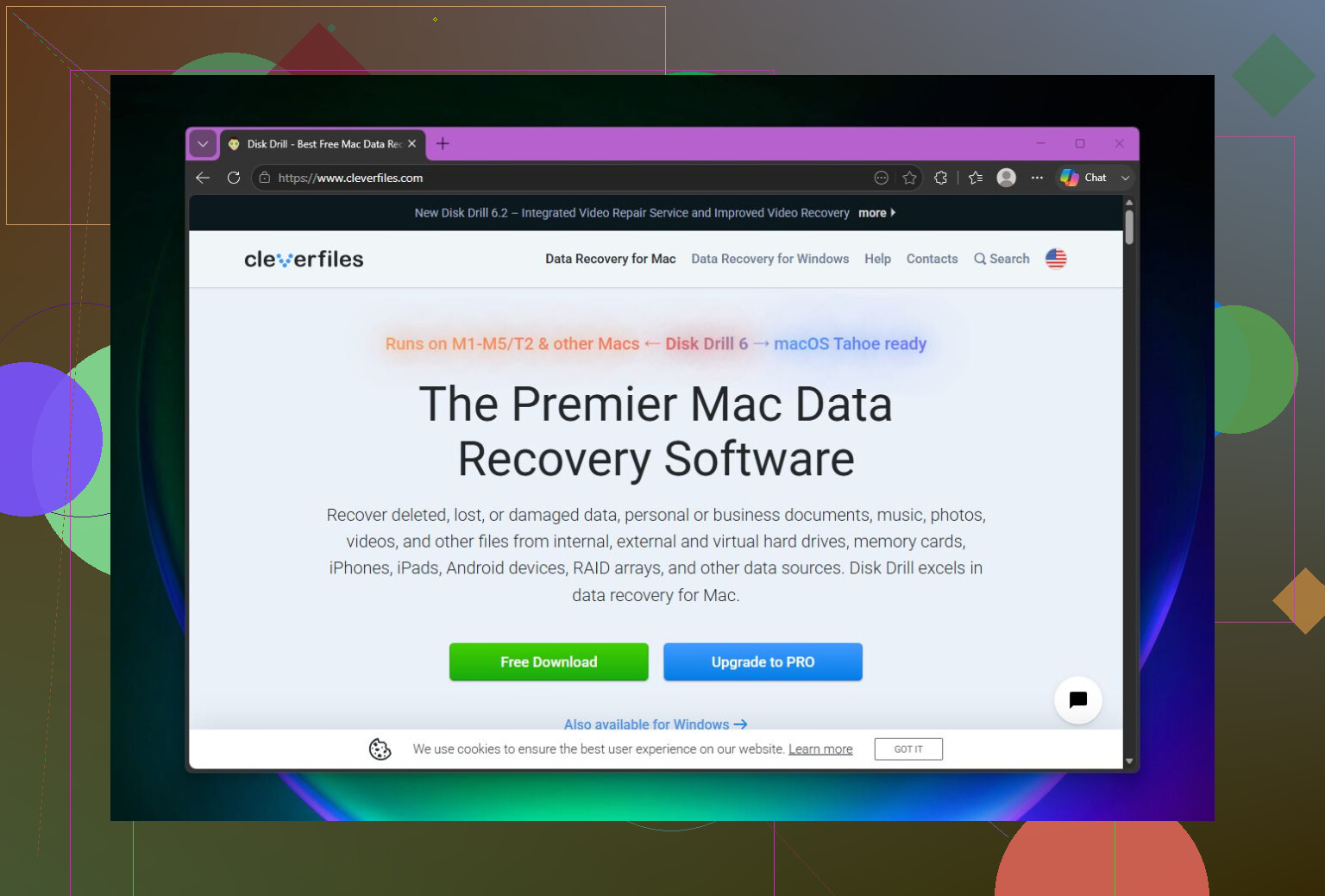
If the drive is still being detected, I’d try recovery before repair. Disk Drill has worked well for me in situations where Windows could see the drive but wouldn’t actually open it because of the parameter error.
The safer approach is to create a full disk image first, especially if the drive seems unstable. Then scan the image instead of hammering the original drive. After that, run a Universal Scan, preview the files, and recover them to a completely different drive. The free Windows version lets you recover up to 100 MB, which is at least enough to confirm whether the files are recoverable before paying for anything.
Once the important files are copied somewhere safe, then I’d look at repairs.
- If Windows still recognizes the file system, try CHKDSK with
chkdsk X: /r. - If the drive shows as RAW, or CHKDSK won’t run, try TestDisk. It’s not as friendly for beginners, but it can sometimes rebuild damaged partitions.
If recovery is done and repairs still don’t help, a quick format is usually the next thing to try. That rebuilds the file system and can clear the error if corruption was the cause. But if the same problem comes back after formatting, I wouldn’t trust that drive anymore. At that point it’s probably hardware, not just software.
Also, this is a good reminder to keep more than one copy of anything important. External drives are useful, but they can fail like any other hardware.
If the drive is clicking, dropping connection, vanishing from Disk Management, or showing serious SMART warnings, I’d stop messing with DIY tools and talk to a professional recovery service. A physically failing drive can get worse every time it spins up.
Take a screenshot of Disk Management before you change anything, especially if it shows RAW, unallocated space, or asks you to initialize the disk. That gives you a reference point and keeps you from clicking the wrong “fix.” I agree with @mikeappsreviewer on not formatting first, but I’d be even more boring about it: don’t run repair commands until you know whether the drive is physically healthy and whether the files are already recoverable. If the drive letter is the only weird part, you can try assigning a different letter in Disk Management, since Windows sometimes gets confused by stale mappings. If it still throws “The parameter is incorrect,” treat it as a recovery job first and a repair job second. Also make sure you recover to another drive, not back onto the same external disk. That mistake can overwrite the exact data you’re trying to save.
Stop trying random fixes on the original drive. Before CHKDSK, format, partition tools, or recovery scans, make sure it is not just a bad USB enclosure or power issue, especially with 2.5-inch portable drives that pull power from the port. Try a rear motherboard USB port if it’s a desktop, avoid hubs, and if the disk can be removed from the case, a different SATA-to-USB adapter can sometimes make the “parameter is incorrect” error disappear. If the same error follows the bare drive or the drive shows RAW, wrong capacity, or disconnects, then @mikeappsreviewer’s “recover first, repair later” advice is the right order. The fix is not the priority until your files are copied somewhere else.
Whether the drive shows the right capacity is the detail that changes the whole plan. A 2 TB drive showing as 2 TB with a normal partition is one problem. A 2 TB drive showing as 0 bytes, “No Media,” 3.86 GB, or some random size is a very different problem, and recovery software probably won’t fix that because Windows is not really seeing the disk correctly.
I’d open Disk Management and look at only three things first: capacity, partition state, and file system. Don’t click initialize. Don’t create a new volume. Don’t format. If it shows the correct size and maybe RAW or a damaged NTFS/exFAT partition, then the advice above about recovering before repairing is the safest route. If it shows the wrong size or keeps appearing and disappearing, I’d stop there and treat it as hardware or enclosure trouble.
A small caveat on CHKDSK: even chkdsk /f can change the file system, and /r is much heavier because it reads the whole disk and tries to deal with bad sectors. That is fine for a healthy drive with minor corruption. It is not what I’d run first on a drive that contains the only copy of important files. If you want the files, get them copied or image the disk first.
Disk Drill or similar tools can be useful if Windows still detects the drive properly, but don’t recover files back to that same external drive. Use another disk with enough free space. If the drive is unstable, making an image first is better than scanning the original for hours, because every long scan is more stress on a drive that may already be failing.
After your data is safe, then you can try the boring repair path: new cable/port, assign a new drive letter if needed, CHKDSK if the file system is recognized, TestDisk if the partition table looks damaged, and finally a quick format if you no longer need anything from it. If formatting “fixes” it but the error comes back, retire the drive. At that point it’s not a Windows annoyance anymore, it’s a warning.