My external hard drive was NTFS before, but now Windows shows it as RAW and I can’t open it. It has important photos and work files, and I’m worried formatting it will erase everything. I need help figuring out if data recovery is still possible and what steps I should take first without making things worse.
I’d leave the RAW to NTFS conversion alone for now. I made this mistake once, hit repair stuff too early, and it cost me files I still wanted. When Windows tells you to format, it usually means it stopped reading the file system. It does not mean your data is gone. A lot of times the partition still exists and NTFS is simply damaged enough for Windows to give up on it.
The order I’d follow is simple. Recover first. Fix the drive after.
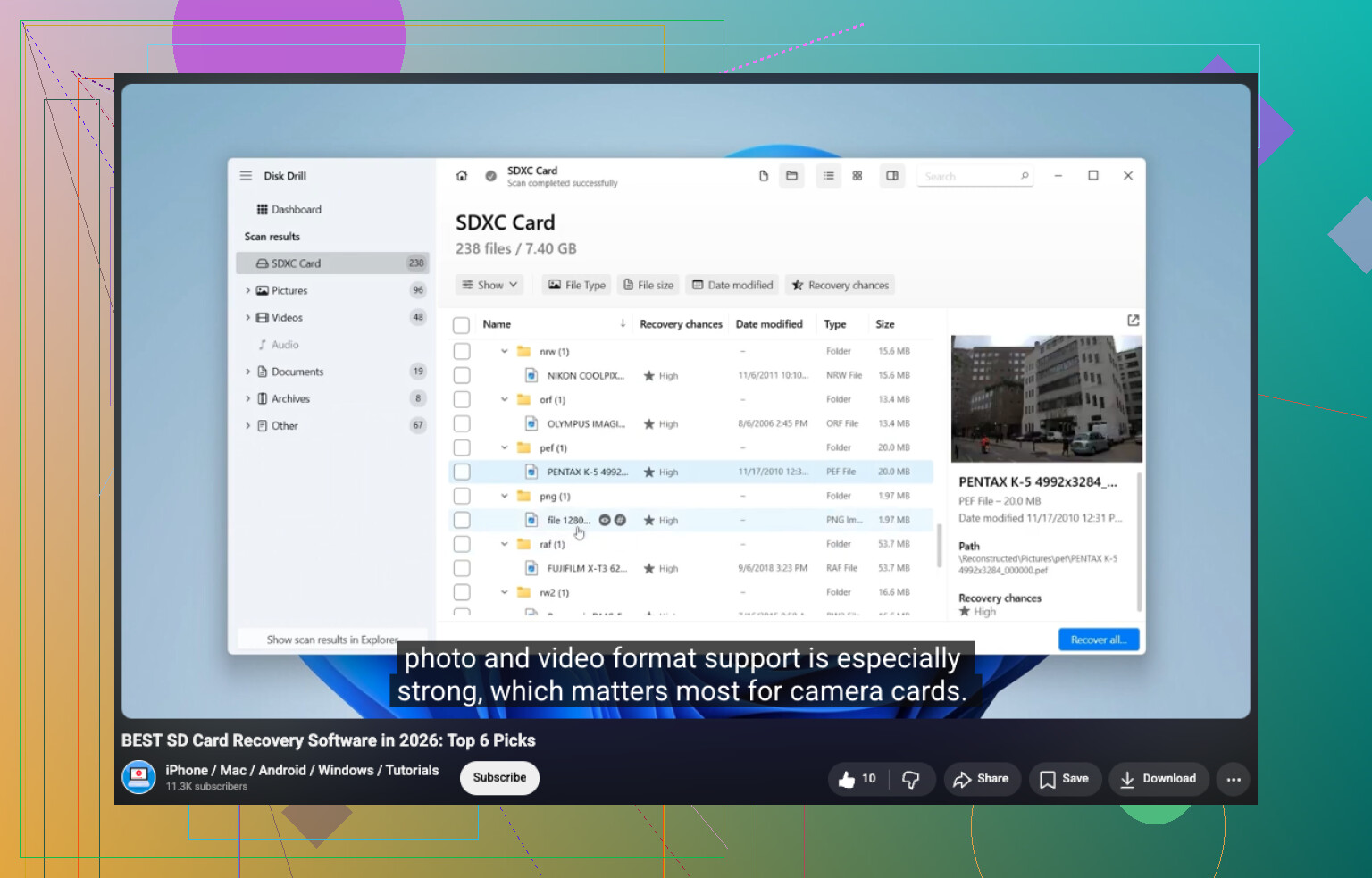
If the drive still shows the right total size, I’d treat that as a decent sign and scan it before touching anything else. Disk Drill is the easy starting point. I used it on a RAW external once because it spotted the partition on its own and rolled several recovery methods into one pass. Pick the RAW disk, run the scan, wait it out, then sort through what it finds. You get previews for photos, docs, videos, and other file types, which helped me figure out fast whether the results were junk or usable. If you recover files, put them on another disk. Don’t write them back to the damaged one.
If Disk Drill comes up short, I’d compare it with UFS Explorer. It sometimes finds folder structure or files other tools skip. DiskGenius is another one I’d keep in the stack, mostly because it mixes file recovery with partition recovery tools. Different scanners see different things. I’ve seen one pull filenames while another only got raw file chunks. So yeah, comparing results before you change the drive is worth the time.
Once your important files are safe somewhere else, then deal with the RAW partition itself. What you do next depends on why it turned RAW in the first place.
Format it to NTFS if your only goal is to reuse the drive.
Restore the partition if the partition table got damaged and the underlying data still seems present.
Run CHKDSK after recovery, not before, if this looks like light NTFS corruption. CHKDSK is for repair. I would not treat it like a recovery tool.
Replace the drive if you’re seeing SMART alerts, bad sectors, clicking, slow reads, or repeated I/O errors. At that point I stop trusting the hardware.
The big thing I would not do is stack a bunch of repair attempts before pulling data off. Every write, rebuild, or file system fix changes the disk state. Sometimes a little, sometimes enough to wreck recovery chances. Get your files out first. Then repair it, restore the partition, or wipe and format it.
Yes, recovery is still possible. RAW does not mean empty. It means Windows lost the file system map.
I agree with @mikeappsreviewer on one key point, don’t format first. I’d also avoid auto-repair tools at the start. My only small disagreement is I would check the drive’s health before a long scan. If the disk is failing, a full scan can push it harder and make things worse.
What I’d do:
- Try a diffrent USB port, cable, and PC.
- Check SMART with CrystalDiskInfo or Hard Disk Sentinel.
- If SMART looks bad, clone the drive first with something like HDDSuperClone or ddrescue.
- If SMART looks fine, run recovery software on the RAW drive.
Disk Drill is a solid first pick for RAW external HDD recovery because it handles lost partitions, damaged NTFS, and file carving in one interface. Save recovered files to another drive only. Never back to the same HDD.
If your photos matter most, test previews before buying anything. If previews fail, results may be weak. If the drive makes clicking sounds, gets stuck at 0 bytes, or disconnects, stop using it. That points to hardware trouble, not a simple NTFS issue.
After recovery, wipe it and format NTFS again. If the RAW problem comes back, toss the drive. No need to trust a flaky disk with work files.
For people comparing tools, this roundup on top data recovery software for 2026 is worth a look too.
RAW does not automatically mean your files are gone. It usually means Windows can’t read the NTFS metadata anymore, or the partition entry got borked. So yes, recovery is often still possible.
I mostly agree with @mikeappsreviewer and @viajeroceleste, but I’m a little less eager to run any heavy scan right away if the drive behavior is weird. If it’s slow, dropping offline, buzzing, or throwing “parameter is incorrect” errors, stop poking it. A sick HDD can turn a recoverable mess into a dead one real fast.
A couple things people forget:
- Check Disk Management. If the partition shows RAW but the correct capacity is there, that’s better than “unallocated.”
- Check the Event Viewer for disk errors. If you see lots of bad block / controller / reset messages, this may be hardware, not just NTFS corruption.
- If the data is super important, make a sector-by-sector image first, then work from the image, not the original drive.
If the drive is stable enough, Disk Drill is a reasonable first pass because it can detect lost NTFS structures and also fall back to file carving. I’d also pay attention to whether it reconstructs original folders vs just dumping files by type. That tells you a lot about how damaged the file system really is.
One more thing: don’t “convert RAW to NTFS” expecting some magic non-destructive flip. In real life, that usually means repair, rebuild, or format. And yeah, formatting absolutely can complicate recovery.
For extra reading, this thread on recovering files from a RAW drive before changing it back to NTFS is worth a look.
Short version: recover or image first, repair later. If the drive acts flaky, treat it like failing hardware, not just a Windows typo.