I’m trying to delete multiple photos on my iPhone, but the Photos app isn’t removing them the way I expected. I selected several pictures, tapped delete, and some still seem to stay in my library or come back after syncing. Is this an iCloud Photos issue, a storage problem, or am I missing a step?
If your iPhone keeps yelling about storage, check Photos before assuming you’ve already cleaned everything out. I thought I had, then found out I was sitting on more than 18,000 photos. There was no chance I was going to delete those one tap at a time, so I ended up using a few different methods depending on what kind of cleanup I was doing.
For smaller cleanups, the regular Photos app is fine. Open Photos, tap Select, then drag your finger across rows of pictures instead of tapping each one. If you’re dealing with a big chunk of photos, pinch out to the Months view first so you can move through them faster. Once you’ve selected what you want gone, hit the trash icon.
This gives you the most control, since you’re deciding exactly what gets deleted. It’s just not great once you’re dealing with thousands and thousands of images.
If you mostly want to clear out screenshots, screen recordings, bursts, or other obvious junk, use the albums Apple already creates for you. In Photos, go to the Collections tab, scroll down to Media Types, then open something like Screenshots, Bursts, or Screen Recordings. From there, tap Select, then Select All, and delete the batch.
That Select All button is the big reason this is worth doing. Apple doesn’t give you that option everywhere in Photos, but it does in some of these media-type albums, which makes cleanup way less annoying.
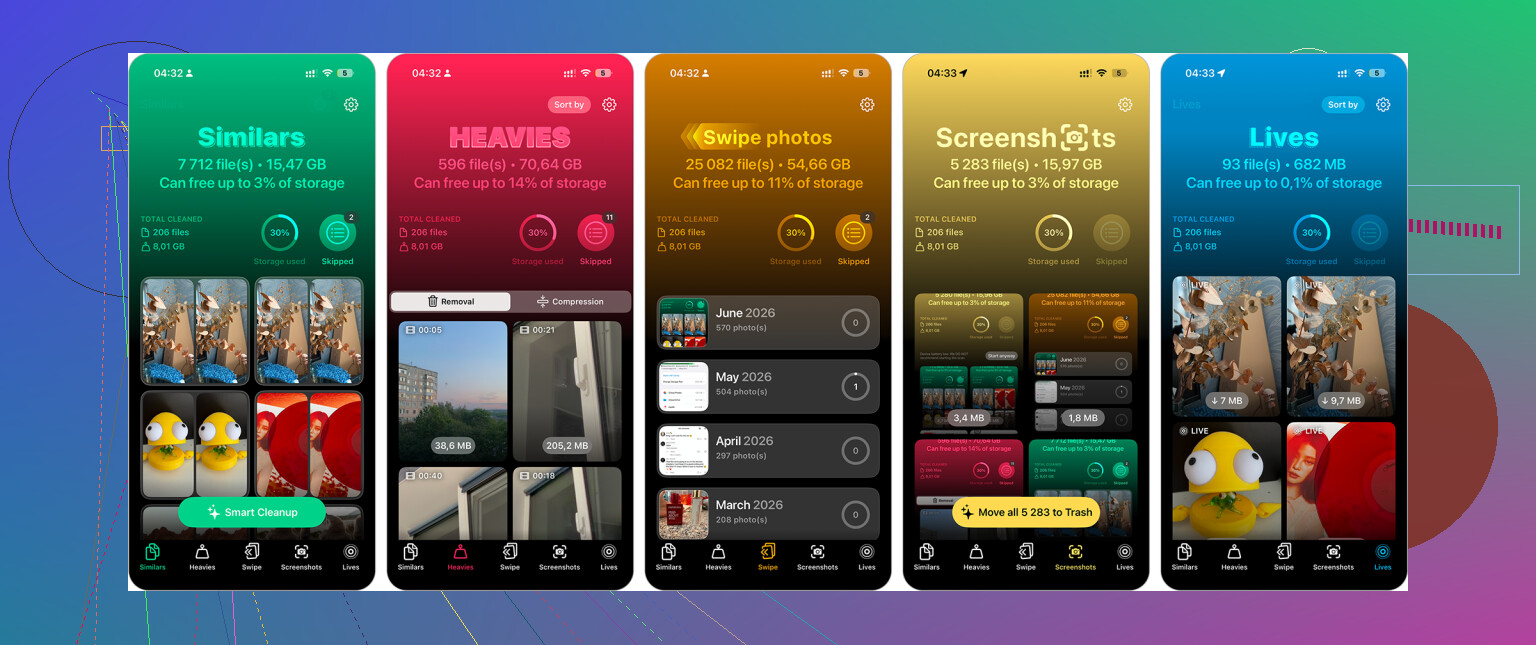
For a really large library, the biggest shortcut for me was using Clever Cleaner. I usually don’t trust “phone cleaner” apps much because a lot of them are ad-heavy or push subscriptions, but this one is free and was actually useful.
After you install it, check the Similars section first. It groups nearly identical photos and suggests the best one to keep, so you can quickly remove the extras. The Screenshots section is good for bulk-deleting screenshots, and Live Photos can help if you want to turn Live Photos into regular still images to save space. Also check Heavies, because large videos usually free up way more storage than deleting a bunch of normal photos.
If you’re deleting several thousand photos, doing it from a computer can be a lot easier. If you use iCloud Photos, open iCloud.com on your computer, sign in, then use Shift-click to select big ranges of photos. Delete what you don’t need and give it time to sync back to your iPhone.
A keyboard and mouse make this much less painful than dragging around on a small phone screen.
There’s also the nuclear option: factory reset. Only do this if you really don’t care about keeping the photos or anything else on the phone, or you’ve already backed up what matters.
- Go to Settings > General > Transfer or Reset iPhone.
- Tap Erase All Content and Settings.
- Follow the prompts.
That’s the fastest way to wipe everything, but obviously it’s not a normal photo-cleanup method. It makes sense if you’re selling the phone, handing it off to someone, or starting over from scratch.
Deleting them once doesn’t actually remove them from the phone right away. Check Photos > Recently Deleted and clear them there, otherwise they can sit around for up to 30 days and still count against storage. If they’re coming back after syncing, they may be computer-synced photos, which usually have to be removed from the sync source, not deleted on the iPhone.
Deleting photos that are part of your iCloud Photo Library is a different situation from deleting photos that were synced onto the phone from a computer. In the first case, the delete should sync everywhere. In the second case, the iPhone may act like you are not really in charge of those originals, so they can appear to “come back” the next time the phone syncs.
I’d start by figuring out which bucket your photos are in before doing more deleting. Open one of the stubborn photos, tap the info button, and look for clues. If it looks like a normal camera roll photo, it should delete from Photos and then sit in Recently Deleted. If it came from a Mac/Finder/iTunes sync, the fix is usually on the computer side. You remove that album or folder from the sync settings, then sync again. Deleting on the phone is not always enough.
The other annoying case is iCloud just being slow or stuck. If you delete a big batch while the phone is low on battery, offline, in Low Power Mode, or sitting on a weak connection, Photos can look inconsistent for a while. You might see thumbnails hang around, or another device may push changes back before everything settles. I would check Settings > your name > iCloud > Photos and see whether it says it is syncing, paused, or waiting for Wi-Fi. Plugging the phone in and leaving it on Wi-Fi for a bit can matter more than people expect.
A few places people forget to check:
-
Recently Deleted
Deleting from the library is only the first step if you want the space back soon. Empty Recently Deleted after you are sure you do not need them. -
Shared Albums
Removing a photo from your Library does not always mean every shared copy disappears. Shared Albums behave differently, and photos there can still show up in that album. -
Messages and app attachments
If the same picture was sent or saved in Messages, deleting it from Photos does not clean up every copy sitting inside conversation attachments. -
Hidden album
Hidden photos are still in your library. They are just hidden from normal views, not deleted. -
Duplicate imports
If you imported the same pictures twice, it can look like deleted photos came back when you are actually seeing a second copy.
I agree with @espritlibre on the synced-from-computer point. That is the classic “why won’t these delete?” problem. I’d be more cautious with the factory reset idea, though. It works if you are wiping the whole phone, but it is a bad tool for a photo cleanup unless you already have a clean backup plan and know exactly what will come back from iCloud.
Clever Cleaner or a similar app can be useful for sorting through duplicates and obvious junk, but I would not use it as the first fix for photos that reappear. If the cause is iCloud sync, a Mac sync folder, or Shared Albums, a cleanup app may help you select things faster but it will not solve the reason they keep returning.
My practical order would be: delete a small test batch of 5 photos, empty Recently Deleted, wait for iCloud to finish syncing, then check another device or iCloud Photos if you use it. If those 5 stay gone, the deletion process is fine and you can do the larger batch. If they come back, stop deleting and find the sync source first, otherwise you’ll just keep fighting the same library over and over.
Deleting from Library is different from removing something from an album, and that catches a lot of people because the screens look almost the same. If you’re inside a regular album and choose “Remove from Album,” the photo is still in Recents/Library. It only disappeared from that album. To actually trash it, you need the trash can or the option that says “Delete from Library.”
I agree with the synced-from-computer point above, but before chasing iCloud settings I’d check this simpler thing: go to Photos > Library or Recents, find one of the “still there” photos, and delete it from there directly. Then look in Recently Deleted. If it shows up there, the delete worked and you were probably just seeing album behavior or another copy somewhere else.
Clever Cleaner or any duplicate-cleanup app can help if the problem is that you have lots of similar shots, but it won’t fix the confusion between albums and the actual library. Same with screenshots and media-type folders. The important distinction is whether you are deleting the file or only changing where it appears. Apple does not make that as obvious as it should.