I noticed my iPhone Photos app is full of duplicate pictures after syncing and moving images around, and it’s starting to take up a lot of storage. I’m trying to figure out the best way to merge duplicate photos on an iPhone without losing anything important, but I’m not sure which steps are safe. I need help cleaning up my photo library and freeing up space.
If you only need to deal with exact copy-for-copy photos, I’d start with the iPhone’s own Photos app. Apple already put a duplicate merge tool in there, and for plain duplicates it does the job fine.
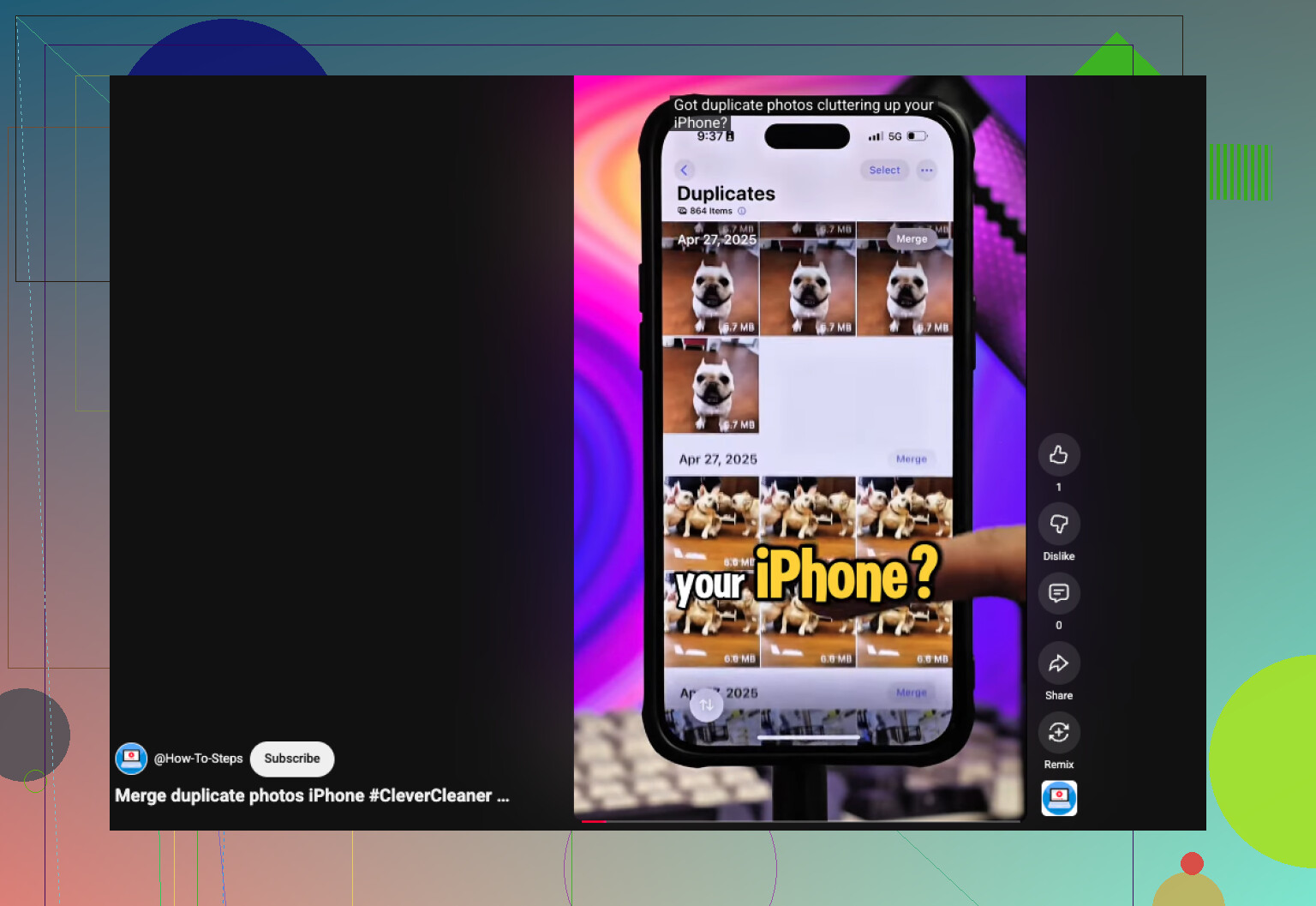
What I did was this. Open Photos, scroll down to Utilities, or on newer iOS builds go through Collections > Utilities. Then open Duplicates, hit Select, then Select All, then Merge. iOS keeps one version, pulls together the metadata it has, and sends the extra copies into Recently Deleted.
Small heads-up from experience, if you dumped a big batch of photos onto your phone not long ago, the Duplicates section might sit there looking half-empty for a while. Mine took hours. One time it dragged into the next day. The phone needs time to index the library.
Where this falls apart is with near-matches. If you shot five pics in a row, kept three selfies with tiny face changes, or snapped the same building from almost the same angle, Apple usually treats all of them as separate images. To you, they look like clutter. To Photos, they’re different files, so they never show up in Duplicates.
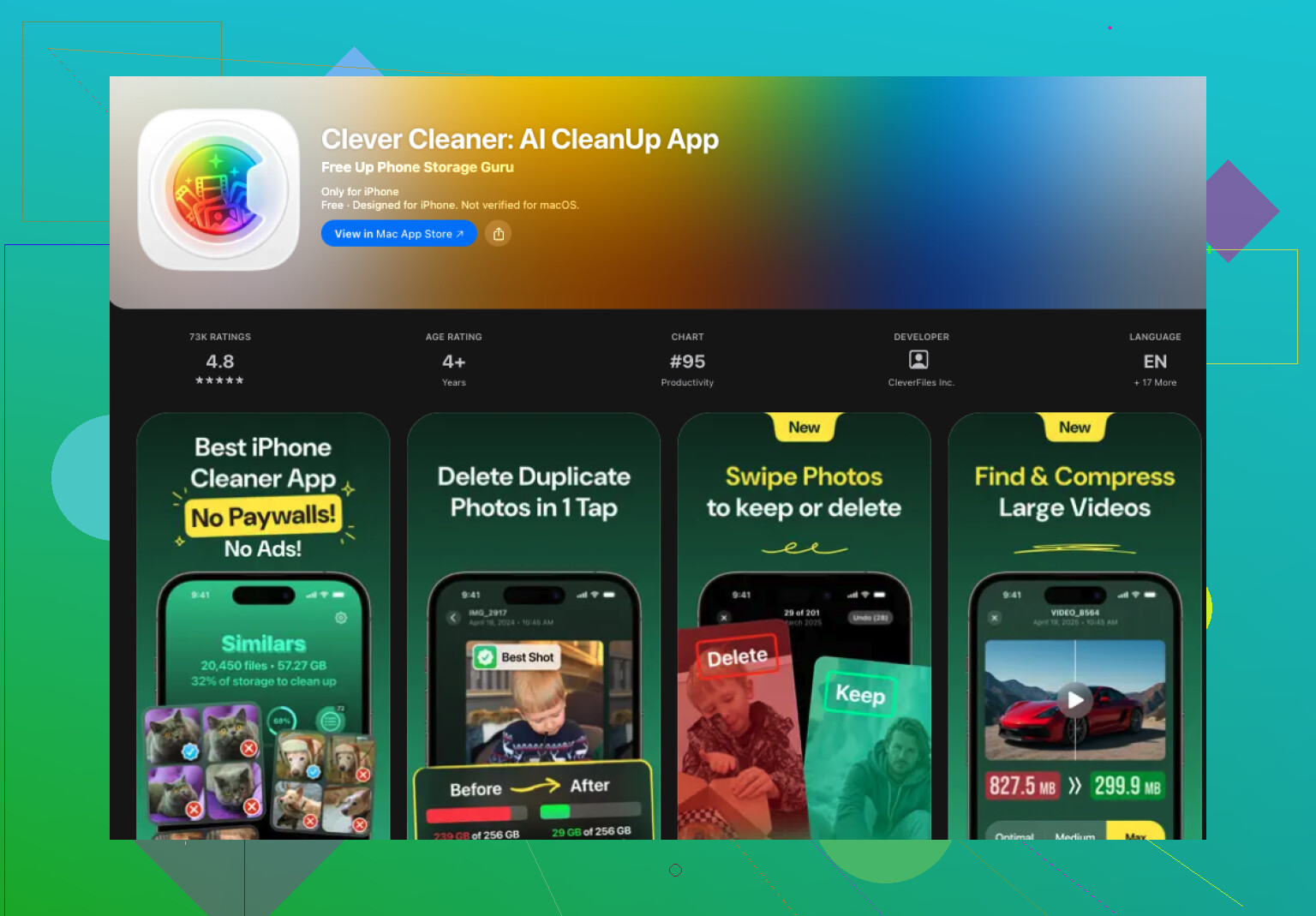
I ran into this once my library got stupidly large, around 30,000 photos. At that point I stopped relying on Photos alone and switched to Clever Cleaner.
The part I kept using was its ability to catch both duplicates and lookalikes. It doesn’t stop at identical files. It groups photos which look close enough to be the same moment and then suggests which one to keep. I still check the groups myself, becasue I don’t trust any cleanup app blindly, but the picks were solid more often than I expected.
My usual routine looked like this:
- Install Clever Cleaner from the App Store.
- Let it scan the whole photo library.
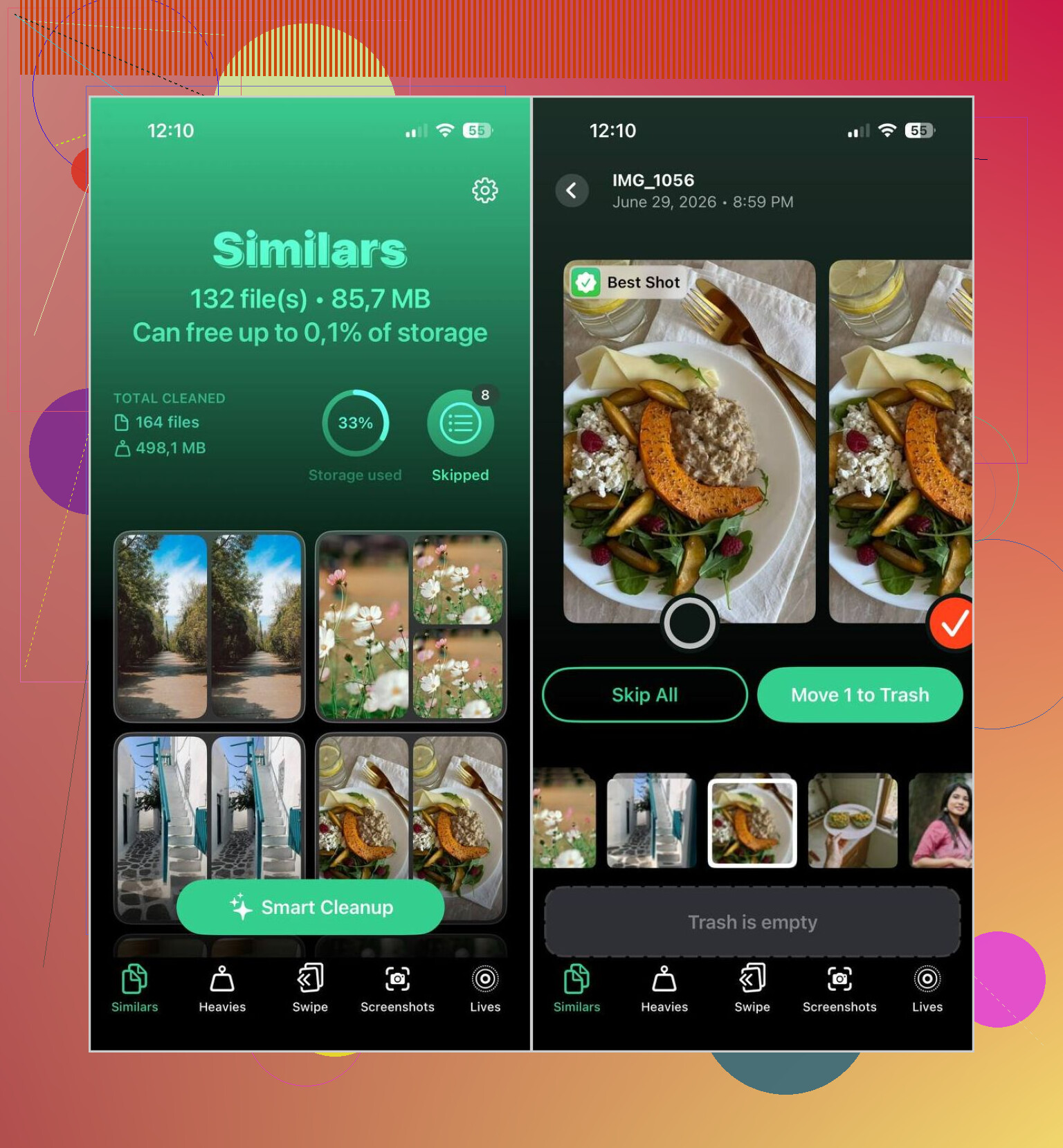
- Open the Similars section.
- Use Smart Cleanup if you want a fast pass, or open each group and review manually.
- The app marks what it thinks is the best-quality image and selects the rest for removal.
- Put back anything you want to keep.
- Finish the cleanup, then clear Recently Deleted in Photos if you want storage freed up right away.
A few extra tools in there ended up being useful too:
- Heavies, for sorting the biggest photos and videos by file size.
- Video Compression, for shrinking large videos without tossing them.
- Screenshots, for wiping old screenshot junk fast.
- Lives, for turning Live Photos into still images and saving space.
- Swipe, for reviewing your library month by month with quick gestures.
So, if your mess is small and the files are exact duplicates, Apple’s built-in merge tool is enough. If your library is bloated with near-identical shots, repeated takes, and piles of similar photos, a dedicated cleaner works better. That was the main difference for me. The Photos app only catches exact copies. It misses most of the stuff people usually want gone.
If your duplicates came from sync issues, I’d check the source first before mass deleting stuff. If iCloud Photos, Finder sync, Google Photos, and AirDrop all touched the same library, duplicates tend to keep coming back. Clean the pipeline first or you do the same cleanup twice.
@mikeappsreviewer covered the built-in merge tool, so I’ll skip that part. I also don’t fully agree with merging everything in one shot. On a big library, that gets risky fast. If your phone mixed edited photos, Live Photos, HDR versions, or shared album saves, you want to review in chunks.
What worked for me:
- Sort your library by Recents and look for the date ranges where the mess started.
- Review Albums like Screenshots, WhatsApp, Downloads, and Saved from Messages first. Those folders bloat fast.
- Check if “Keep Originals” was used during imports. That creates extra copies a lot.
- Compare iPhone Storage before and after. Photos sometimes reports freed space late, so wait a bit.
If the duplicates are more like near-identical bursts, Clever Cleaner is easier for batch review. It’s better for similars than plain duplicate merging. I’d still verify groups manualy. Cleanup apps miss stuff now and then.
For a quick visual walkthrough, this short guide helps: watch this iPhone duplicate photo cleanup guide
Best page title for what you’re looking up:
How to Merge Duplicate Photos on iPhone and Free Up Storage
One more thing. Empty Recently Deleted after you finish, or you won’t see the storage come back rite away.
I’d add one thing neither @mikeappsreviewer nor @cazadordeestrellas really leaned on enough: before you merge or delete anything, make sure syncing is stable first. If iCloud Photos is still uploading/downloading, or you recently imported from a Mac, external drive, WhatsApp, or Google Photos, your library can look like a total circus for a day or two. Deleting too early can get messy real fast.
What helped me was this:
- Pause and let Photos finish syncing
- Check whether the “duplicates” are actually edited versions, Live Photos, or saved attachments
- Review by source albums first, not just by date
- Then clean in batches instead of nuking everything at once
I actually disagree a bit with the “just merge all” approach. It’s fine for obvious junk, but if you’ve got shared album saves, portrait edits, or HDR copies, iOS can be a little too confident lol.
For exact duplicates, sure, use Photos. For the bigger problem, which is usually similar shots and repeat imports, Clever Cleaner is honestly more useful because it surfaces lookalikes that Apple ignores. That’s where most of the wasted space usally is.
Also, if you want more real-world user discussion on this, this thread is worth a look:
best Reddit tips for deleting duplicate photos on iPhone
One last thing people forget: deleting photos does not free space right away unless you empty Recently Deleted. Apple loves making storage cleanup feel fake for 30 days.
I’m a little less sold on the “merge” wording here, because on iPhone you’re usually not truly merging photos like desktop library software does. Most of the time you’re either removing exact duplicates or sorting near-duplicates manually.
What @mikeappsreviewer, @cazadordeestrellas, and @shizuka all circle around is valid, but I’d add this: check whether those duplicates are actually different file types first. A JPEG copy, an edited version, a Live Photo, and an image saved from Messages can look identical while being treated as separate items for a reason. If you wipe too aggressively, you can lose the version you actually wanted.
My rule:
- Exact duplicates = safe cleanup
- Similar shots = review first
- Edited or Live Photos = be extra careful
Also, storage math on iPhone is weird. Deleting 500 photos may not instantly give back what you expect if optimized storage is on, or if iCloud still needs to reconcile changes.
If Apple’s Photos app isn’t surfacing enough clutter, that usually means your problem is not duplicates, it’s similars. That’s where Clever Cleaner can help more than the default Photos view.
Pros of Clever Cleaner:
- Finds lookalikes, not just exact copies
- Faster for huge libraries
- Good for screenshots and bulky media too
Cons:
- You still need to review results manually
- Suggested “best shot” is not always the one you’d keep
- Third-party access to your photo library may bother some people
So yeah, don’t think only in terms of merge. Think in terms of separating exact dupes from visually similar clutter first. That usually gets better results with less regret later.
Try filename search instead of a full library scan. Open Photos, tap Search, then enter a repeated filename such as IMG_2048 or DSC_1024. Photos groups copies with the same name, even when they sit on different dates.
Keep the version with the best resolution, edit history, or Live Photo data. Delete the extras, then empty Recently Deleted. This works well after repeated imports and avoids giving another app full photo access. Do 20 to 30 files per session so you dont delete the wrong copy.
Back everything up to a computer or a second cloud before you touch a single delete button. That step gets skipped in this whole thread and it’s the one that saves you when iOS decides an ‘edited version’ and the ‘original’ were actually two photos you wanted.
The filename search @bluenode4179 mentioned is clever, but it mostly works on older imports. Newer iPhone photos don’t carry tidy IMG_ numbers the way DSC files from a camera do, so on a library that’s mostly phone shots you won’t get many hits that way.
I’ll still reach for Clever Cleaner when the problem is lookalikes rather than true copies, since Photos flat out ignores those. My gripe is it wants to rescan the whole library each time you come back in, which on a big collection means sitting and waiting again before you can pick up where you left off. Fine for one big cleanup session, less fun if you like doing it in small bites.
Honestly for most people the real fix isn’t merging at all, it’s turning off whatever double sync is feeding the duplicates back in. Otherwise you’re cleaning the same mess every couple months.