I’m trying to use the Sony Universal Remote App to control my TV and other devices, but the setup process is confusing and I can’t get it to recognize all my equipment. I’ve checked the instructions and tried different connection methods, but nothing seems to work. Can someone explain the correct setup steps or share what settings or tricks you used to get this app working reliably on your devices
If you want to run your Sony TV from your phone, I went through this mess already and here is what I ended up with, warts and all.
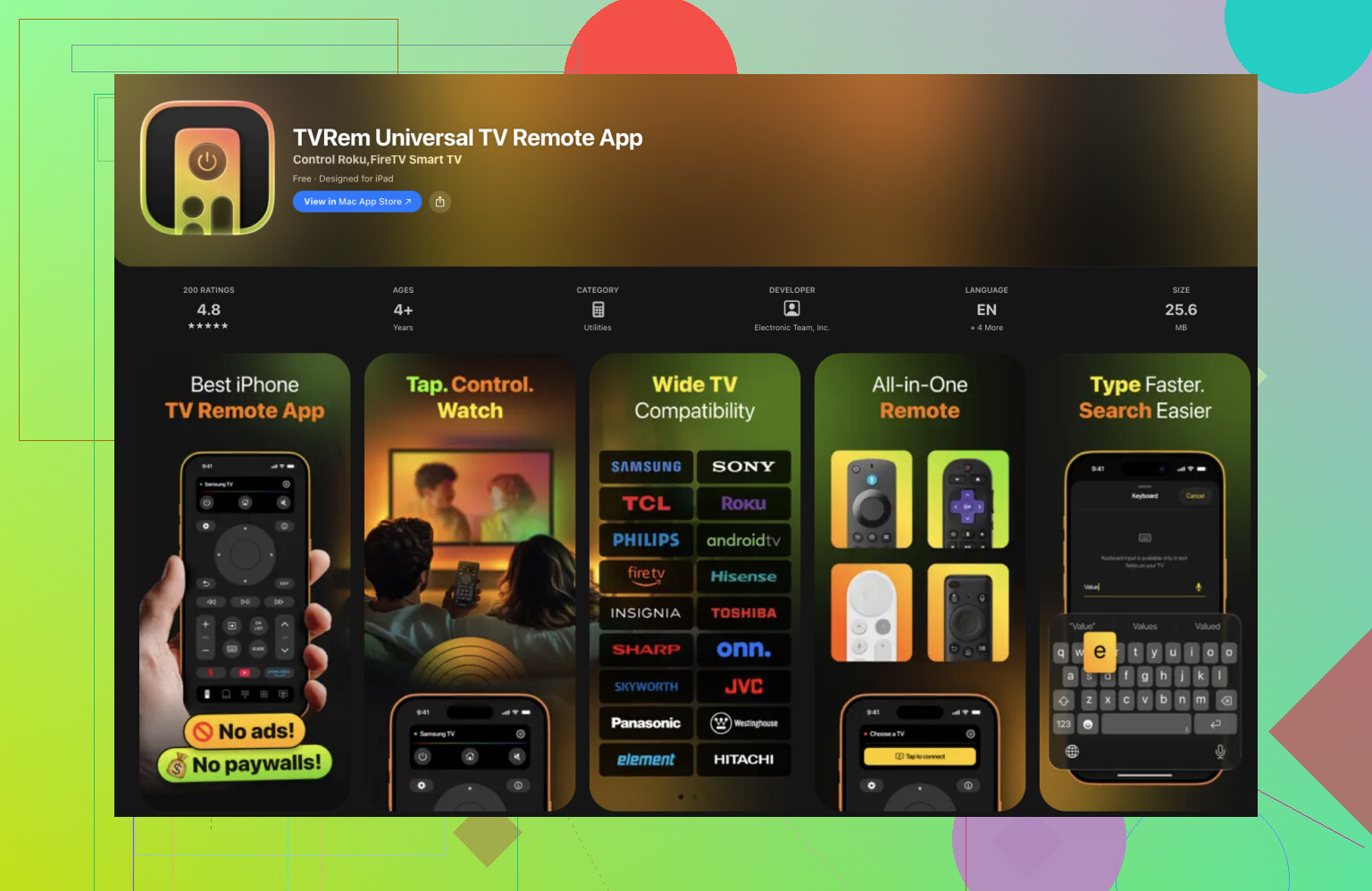
I started with this app:
On my iPhone, TVRem picked up my Sony pretty fast over Wi‑Fi. No codes, no pairing wizard, it just scanned my network and showed a list of TVs and brands. I tried it first on a Sony in the living room, then on a cheap no‑name set in the bedroom, both worked.
What I liked in daily use:
• Touch controls
I used the phone screen like a trackpad. Swiping to move focus on Android TV menus felt quicker than hammering arrow keys. Took me a couple of minutes to get used to it, then muscle memory kicked in.
• Keyboard input
Typing search terms on the Sony YouTube app with the stock remote is pain. With TVRem, I tapped a search box on the TV, the phone popped up a keyboard, and text went straight in. I tested long YouTube queries and app sign‑ins, no lag, no random double letters.
• Voice search
I held the mic button inside TVRem, said “open Netflix” and “play The Expanse” and let it do its thing. It was not perfect on names with weird spelling, but for normal titles and apps it worked fine. Way faster than directional pad tapping.
• No ads, no paywalls
I did not run into banners, popups, or timers. No nag to “upgrade”. For once, it behaved like a straightforward remote app.
The nice part if you have more than one TV brand in the house, you can flip between different TVs without learning a new app every time. I tested it on Sony and one older LG, both under the same app.
Now, for people who like the official route, I also tried Sony’s own app.
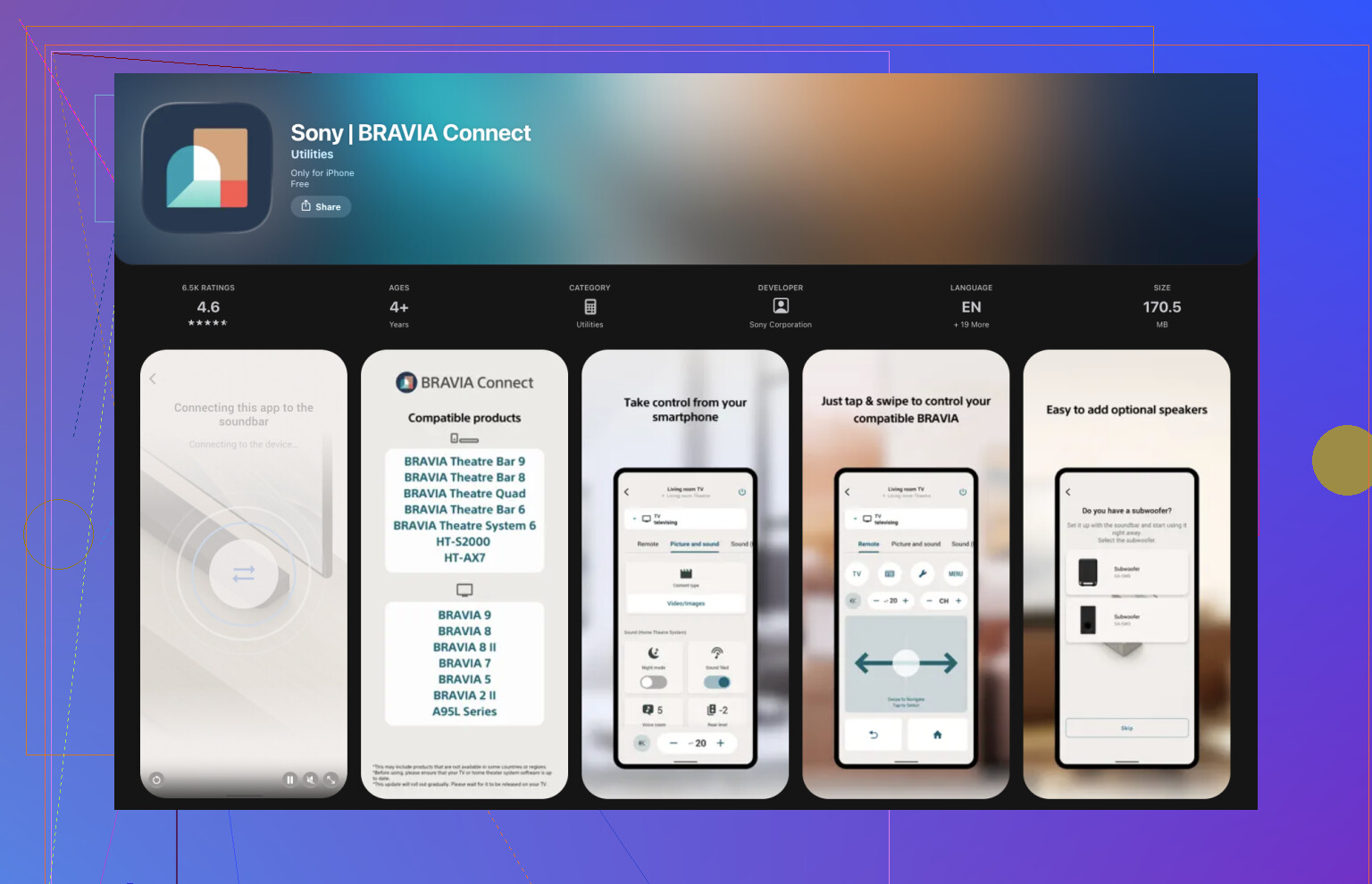
Feature wise, it did the basics:
• Power on and off
• Volume up and down
• Channel changes
• Simple directional pad and OK button
It felt like an on‑screen copy of the hardware remote. If all you want is a 1:1 replacement, it does the job.
What bugged me:
• Only works with Sony
I have mixed brands at home, so this meant one app for the Sony, another one for the guest room, and so on.
• Setup was slower
The app wanted more steps, some permission prompts, and a bit of fishing through menus before it saw the TV. It did work, but I had to fiddle with it longer than TVRem.
• Fewer input options
No proper keyboard integration for me, no flexible gesture area, and the layout felt a bit stiff. I ended up using it only when testing, not day to day.
After a week of swapping between the two, I stuck with TVRem on my phone and left Sony’s app installed only as a fallback.
Short version of my take:
• If you have only Sony TVs, and you like official tools, Sony Bravia Connect is fine for simple tasks:
• If you want one app that talks to multiple brands, or you type and search a lot, TVRem felt smoother to use on an iPhone:
If I had to sum it up, I would definitely choose TVRem . In my experience, it’s an incredibly convenient and versatile universal remote app. One of the key features that sets it apart is its ability to work with multiple TV brands, making it an all-in-one solution for controlling different devices. Unlike the original Sony remote, which is limited to Sony TVs only, TVRem handles a variety of brands with ease, from Samsung to LG to Google TV and beyond. This broad compatibility is crucial for anyone who has more than one type of TV in their home or office. Whether you’re switching between brands or simply looking for a reliable remote that can control everything, TVRem delivers, and I find it to be the most efficient solution for managing all my TV controls in one app.
Sony’s own universal remote stuff gets confusing fast, so here is a more direct checklist that should help you get it to see your TV and other gear.
-
Check what your “universal” app really supports
Sony’s official phone apps usually control:
• Sony Bravia smart TVs over Wi‑Fi
• Sometimes HDMI‑CEC devices plugged into the TV, through the TV, not directly
They do not control random AV receivers or cable boxes over infrared from the phone.
So if you try to add an older receiver or non‑Sony box and nothing shows up, that is normal for their app, not a bug. -
Get the TV network side correct
On the Sony TV:
• Settings → Network & Internet → make sure Wi‑Fi or LAN is connected
• Settings → Network & Internet → Home network → turn on Remote start / Remote control options
• Settings → Apps → See all apps → Show system apps → find “Sony Bravia Connect” or “TV SideView” type services and make sure you did not disable anything
On your phone:
• Same Wi‑Fi network name as the TV
• No VPN active
• If you have “Private Wi‑Fi address” or similar on iOS, try toggling it off for that network, some routers block discovery traffic -
Fix the “not finding TV” issue
If the Sony app does not see the TV:
• Reboot TV and phone
• On your router, turn off “AP isolation” or “client isolation” if it exists, that blocks device discovery
• Temporarily disable any firewall app on your phone
• Open the Sony app, skip auto scan, look for “Enter IP address manually” and type the TV IP
You find the TV IP in Settings → Network & Internet → Network status -
HDMI‑CEC for “other devices”
If you want to drive a soundbar, console, or receiver through the TV remote:
On the TV:
• Settings → Watching TV → External inputs → Bravia Sync settings
• Turn Bravia Sync control to ON
• Run “Bravia Sync device list” so the TV scans HDMI ports
Make sure the other device has HDMI‑CEC turned on in its own menu. Many brands hide this in different names: Anynet+, Simplink, Viera Link, etc.
The Sony phone app then sends commands to the TV, and the TV forwards them to the HDMI device over CEC. If CEC is off, those devices never respond. -
If you need a true multi‑device remote on phone
This is where I disagree a bit with what @mikeappsreviewer leaned on with the official path. If you want to control mixed brands or multiple TVs without fighting Sony’s limitations, a universal app is usually less painful.
TVRem Universal TV Remote app works as a single remote hub for Sony and other brands over Wi‑Fi. No code lists, no per‑brand logic to remember. It discovers TVs on the network and lets you switch between them from one screen.
For your use case, it helps if:
• You have one Sony in the living room and another brand in a bedroom
• You search and type a lot in apps, since it gives you a phone keyboard and voice input
If you want more details, take a look at this page about the TVRem remote app for Sony TV here:
control Sony and other smart TVs from your phone with TVRem -
Quick triage list
If TV not found:
• Same Wi‑Fi, no VPN
• Router isolation off
• Try manual IP entry
If “other devices” not working:
• They must be HDMI devices on the TV
• HDMI‑CEC on in TV and the device
• Use TV remote first. If the TV remote cannot control it, the phone app will not fix that
If you post your exact TV model and what other devices you want to control, you get more precise steps. Right now it sounds like Sony’s app is doing what it is designed for, but your expectations are wider than what it supports.
Yeah, Sony’s “universal” stuff is kinda universal in the same way hotel Wi‑Fi is “high‑speed”: technically not a lie, practically disappointing.
Couple things that might clear the fog without just rehashing what @mikeappsreviewer and @ombrasilente already said:
1. Stop expecting the Sony app to behave like a real universal remote
Sony’s phone apps are mostly:
- Network remotes for Sony Bravia smart TVs
- Very light control passthrough via HDMI‑CEC for devices plugged into the TV
They are not:
- IR remotes for your old receiver / cable box / DVD player
- Multi‑brand controllers like a Logitech Harmony
So if you’re trying to make it “see” a non‑Sony receiver, cable box, or some random HDMI switch as a separate controllable device directly in the app, that’s just not in its playbook. No amount of rescanning will fix that.
What it can realistically do is:
- Control your Sony TV directly
- Control a few basic functions on HDMI‑CEC devices that are already working with the TV’s own remote
If the TV’s hardware remote cannot control the other device via Bravia Sync / CEC, the Sony phone app will not magically do better.
2. Don’t rely only on auto‑scan
Auto discovery in Sony’s app is… let’s say “temperamental.” @mikeappsreviewer is nicer about it than I am.
Try this approach instead of endless rescan loops:
-
On the TV, grab its IP:
- Settings → Network & Internet → Network status → IP address
-
On your phone:
- Same Wi‑Fi as the TV
- No VPN, no “private DNS” apps, no ad‑blocking firewall for a minute
-
In the Sony app:
- Look for a “connect by IP” or “manual connection” option
- Type the IP in directly
If that works once, the app usually remembers it better than auto‑scan ever did.
3. Think in “layers” instead of “one magic app”
You kinda have three layers of control here:
-
Sony phone app → Sony TV
- This is Wi‑Fi based remote control. If this part is flaky, nothing else will be stable.
-
Sony TV → HDMI devices via CEC (Bravia Sync)
- Needs to be enabled:
- TV: Bravia Sync / HDMI‑CEC ON, run device search
- Other gear: CEC ON under whatever vendor-name they invented
- If the TV remote can’t control them, don’t even bother testing with the phone app yet.
- Needs to be enabled:
-
Your expectation of “universal”
- If you want full control of multiple brands and devices, Sony’s ecosystem is the wrong tool. It’s not broken, it’s just limited by design.
4. When to ditch Sony’s app and go universal for real
Since you explicitly said “other devices” and “all my equipment,” you’re basically past the point where the Sony stuff makes sense as your main tool.
That’s where something like the TVRem Universal TV Remote app is actually more useful than fighting Sony’s menus all night.
Key reasons it fits your use case better than the official route:
- Controls multiple TV brands over Wi‑Fi from a single app
- No IR codes to memorize or dig through
- Lets you use your phone for keyboard input and voice search, which Sony’s own app is weirdly half‑baked at
- Swaps between TVs easily if you have a mix of Sony and others in the house
If you want a clearer picture of what it can do specifically with Sony (and other smart TVs), this breakdown is helpful:
turn your phone into a powerful remote for Sony and other smart TVs
That gives you a better “hub” feel than Sony’s own stuff, especially when you’ve got multiple sets or mixed brands.
5. Quick sanity checklist for your exact pain points
-
Sony app can’t see the TV at all
- Same Wi‑Fi, no VPN
- Try manual IP connection instead of auto‑scan
- Reboot router, TV, phone in that order if it’s being stubborn
-
Sony app sees the TV, but not “other gear”
- Check if the TV remote can control that device at all
- If not, enable HDMI‑CEC on both sides
- If yes, expect only basic controls, not full device‑specific menus
-
You want one app to truly control “everything”
- Drop the idea that the Sony app is your main controller
- Use Sony app as backup
- Use TVRem as your daily driver for mixed-brand setups
So, tl;dr: nothing is “wrong” with your setup so much as Sony’s app is way more limited than the label “universal” suggests. Treat it as a Sony‑only helper, not a whole‑house solution, and lean on something like TVRem Universal TV Remote app if you actually want to corral all your TVs and devices from one place without losing your mind.