I’m trying to access and manage a serial port on a remote machine over the network, but I’m running into connection and configuration issues. I’m not sure what software, drivers, or settings I should be using to reliably send and receive data, or how to troubleshoot timeouts and dropped connections. Can someone explain the correct way to set up and work with a remote serial port for stable communication?
First thing to figure out is what you’re actually trying to talk to and from where:
- Is the serial port on:
- A Windows machine
- A Linux box
- A dedicated hardware serial device server
- And your client app:
- Needs a “real” COM port
- Or can talk TCP directly
That choice changes everything.
1. Easiest path: create a virtual COM port over TCP
If your software insists on a local COM port (COM3, COM5, etc.), you need something that maps a network socket to a virtual serial port.
That’s exactly what Serial to Ethernet Connector does. It lets you:
- Share a physical COM port on the remote machine
- Create a virtual COM port on your local machine
- Tunnel data between them over the network like it’s plugged in locally
For remote serial port access, that’s usually the cleanest approach because Windows apps don’t know or care that the data is going over IP.
If you want something specifically focused on network controlled serial ports, have a look at remote COM port access over Ethernet. It explains how to expose a serial port on one machine and connect to it from another like a local interface.
2. Basic checklist so it actually works
Regardless of software, check these first:
-
IP reachability
- Ping the remote host.
- If using TCP server mode, pick a port like 5000 or 7000.
- Confirm firewalls on both ends allow that port inbound and outbound.
-
Serial parameters match
On both the server side and client:- Baud rate
- Data bits
- Parity
- Stop bits
- Flow control (none / RTS CTS / XON XOFF)
Any mismatch and you’ll get garbage or nothing.
-
Exclusive port access
Only one process can open a COM port at a time. Make sure no other tool (serial console, vendor config tool, etc.) is already holding the port. -
Use a simple test first
- On the remote machine, directly connect via PuTTY / screen / minicom to confirm the serial device works locally.
- Then add the network layer and test again from your PC.
3. Windows specific hints
If the remote box is Windows:
- Install your remote COM sharing tool (like Serial to Ethernet Connector) on that box.
- Configure a “server” side:
- Select the physical COM port.
- Set IP, port and serial settings.
- On your local machine:
- Install the same tool.
- Create a “client” virtual COM.
- Point it at the remote IP and listening TCP port.
Your app then just opens COMx like usual.
4. Linux side notes
If the remote host is Linux and your app can speak TCP directly, you can:
- Run
ser2neton the remote box. - Connect from your local machine via Telnet / netcat / a custom client.
If you still need a COM port on Windows, you can combine ser2net with a Windows COM redirector like Serial to Ethernet Connector on the client side.
5. Typical gotchas that make people crazy
- NAT / VPN: If the remote is behind NAT, you either need port forwarding or a VPN. Otherwise your client just never reaches it.
- Latency sensitive devices: Some industrial controllers hate jitter. Try a stable wired link instead of Wi Fi.
- Control lines: If your device depends on DTR / RTS toggling, make sure the software supports those signals over the tunnel, not just TX/RX.
If you can post:
- OS on both ends
- What serial device it is
- What exact errors or behaviors you see
someone can probably give you a near copy paste config that “just works” instead of you suffering through random settings.
You’re getting good advice from @caminantenocturno on the COM-redirector angle, so I’ll try not to just repeat the same recipe.
First thing I’d actually challenge a bit is the assumption that a virtual COM port is always the best answer. It’s convenient, yeah, but sometimes it creates more weird problems than it solves, especially if:
- Your app is latency sensitive
- You need precise control of DTR/RTS/CTS
- You’re dealing with flaky WiFi or double NAT
In those cases, going straight TCP where possible can be a lot saner.
1. Decide: protocol first, software second
Instead of starting with ‘what driver do I install’, start with:
- Does your client software absolutely require COMx / ttySx?
- If yes: you must use a COM/tty redirector.
- If no: use raw TCP to talk to a small daemon on the remote side.
This split will save you hours of swearing later.
2. When a redirector does make sense
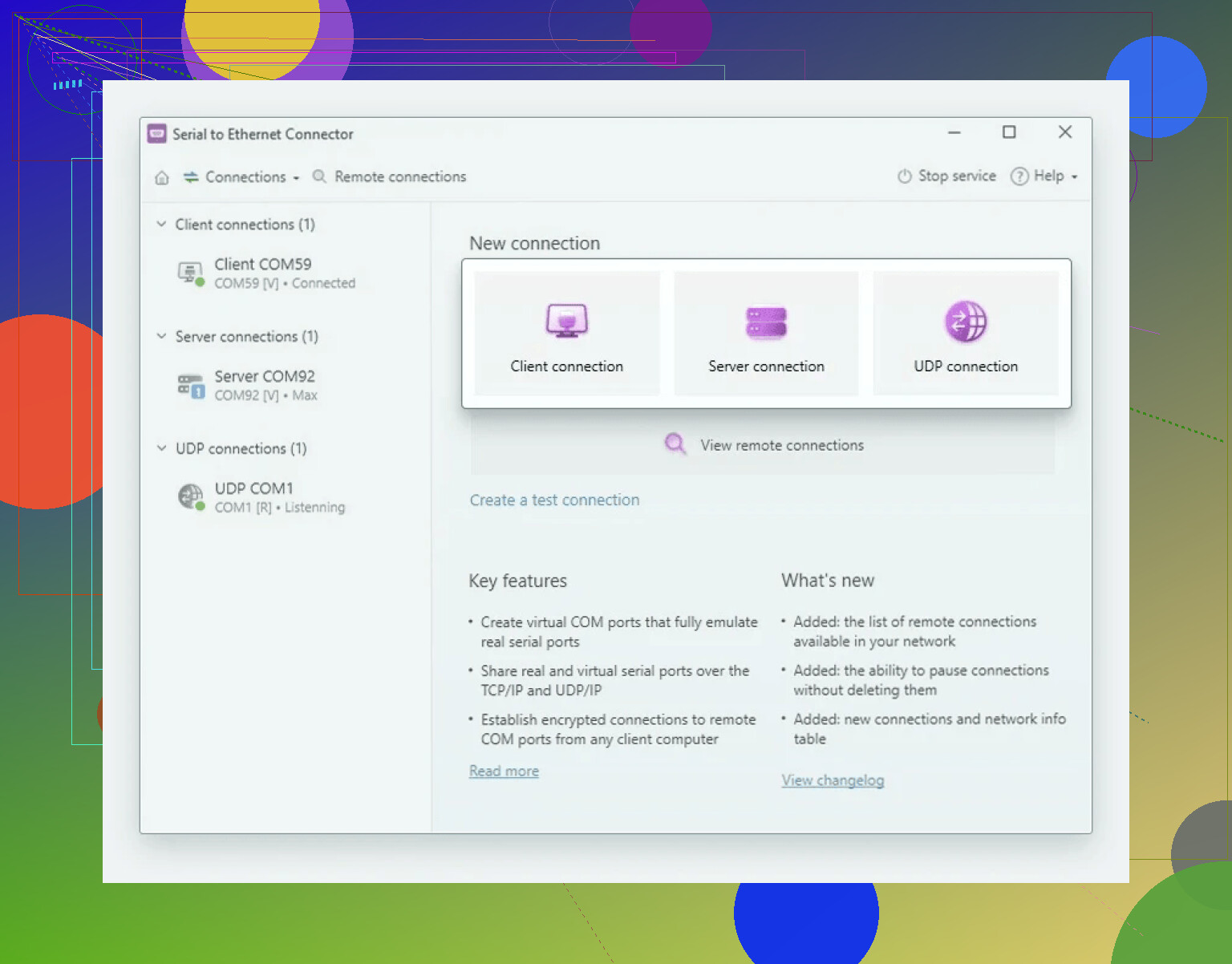
On Windows, when you need a real-looking COM port, Serial to Ethernet Connector is honestly one of the more straightforward tools. It:
- Shares a physical serial port from the remote system
- Creates a local virtual COM port on your machine
- Transparently tunnels everything over TCP/IP
If you want to grab it, check out
reliable tools for remote COM port access
and install it on both ends: one as “server” with the real COM port, one as “client” with the virtual COM.
I’ve had fewer random disconnects with that combination than with some of the free redirectors, especially under load.
3. Alternative setups that often work better
If you have control over both machines, consider these:
A. Linux on the remote side
- Install
ser2neton the remote host - Configure a port like:
5000:raw:0:/dev/ttyS0:9600 8DATABITS NONE 1STOPBIT - Then from the client machine:
- If your app can speak TCP: just point it at
remote-ip:5000 - If it can’t: use a redirector on the client only (like Serial to Ethernet Connector) to map
remote-ip:5000to COM8 or whatever
- If your app can speak TCP: just point it at
This separation keeps the serial handling solid on the box physically wired to the device, which is nice for stability.
B. Windows remote, but custom TCP app
If your own software is something you can modify:
- On the remote Windows box:
- Use a small service that opens COMx and bridges it to a TCP socket
- There are simple C# examples using
System.IO.Ports.SerialPort+TcpListener
- On your local machine:
- Connect directly via TCP from your app
- Implement your own retry / reconnect logic instead of relying on the redirector’s quirks
You skip the entire ‘virtual COM driver’ mess.
4. Things people regularly overlook
Besides what was already mentioned:
-
Serial handshaking actually matters
Devices that need hardware flow control (RTS/CTS) or rely onDTRtoggling will half-work if your tool only forwards TX/RX. Double check your redirector/device server actually transports control lines, not just data. -
Buffer sizes and timeouts
If you see:- Bursts of data missing
- Delayed responses
- Occasional framing errors
Tweak: - TCP Nagle / disable ‘combine small packets’ if the software allows
- Serial read/write timeouts in your app
- Any ‘latency’ or ‘buffer’ setting in the redirector
-
Exclusive open & zombie sessions
Some redirectors leave the port logically “open” even if the client side died. Then nothing else can grab it. If you get “port is in use” on the remote box, kill the sharing service or restart it before chasing ghosts in your config. -
WiFi & power saving hell
Laptops turning off WiFi or NIC power-saving after some idle time will murder long-running serial sessions over IP. Turn all that junk off on both client and server NICs.
5. About your “not sure what to use” part
Given what you described and without any extra constraints, a sane baseline setup would be:
- Remote machine:
- OS: whatever it already is (Windows or Linux)
- Share the physical serial port using:
ser2neton Linux- Or Serial to Ethernet Connector in “server” mode on Windows
- Local machine:
- If your app wants COMx:
- Install Serial to Ethernet Connector in “client” mode
- Map remote IP:port to a local COM port
- If your app can handle TCP:
- Skip the virtual COM nonsense and go TCP directly
- If your app wants COMx:
That gives you something simple enough to debug but robust enough for real use.
If you can post what OS is on each side and whether your client software is something you can modify or not, you’ll get pretty much copy paste configs instead of poking blindly at baud and firewall rules forever.