My iPhone won’t install the latest iOS update because there isn’t enough storage, and I’m trying to avoid wiping photos, apps, or important files. I already cleared some space, but it still says I need more storage. What’s the safest way to free up enough iPhone storage for an iOS update without losing everything?
I’ve run into this more than once. iPhone says there’s free space, then the update still fails with the storage warning. It feels broken, but there’s a reason for it.
The update size shown in Settings is only part of the story. If iOS says the download is 2GB, your phone usually needs a lot more room than 2GB. It has to download the package, unpack it, and shuffle files during install. From what I’ve seen, big version jumps eat space fast. If you’re moving to something major like iOS 26, I’d try to get 20GB to 30GB open first or you end up doing this twice.
Before deleting random stuff, check where your storage went:
- Open Settings.
- Tap General.
- Tap iPhone Storage.
- Wait for the graph and app list to finish loading.
- Look at free space, then see which apps or categories are hogging it.
What worked for me was going after the biggest junk first, not nibbling around the edges.
Start with the stuff that clears space fast
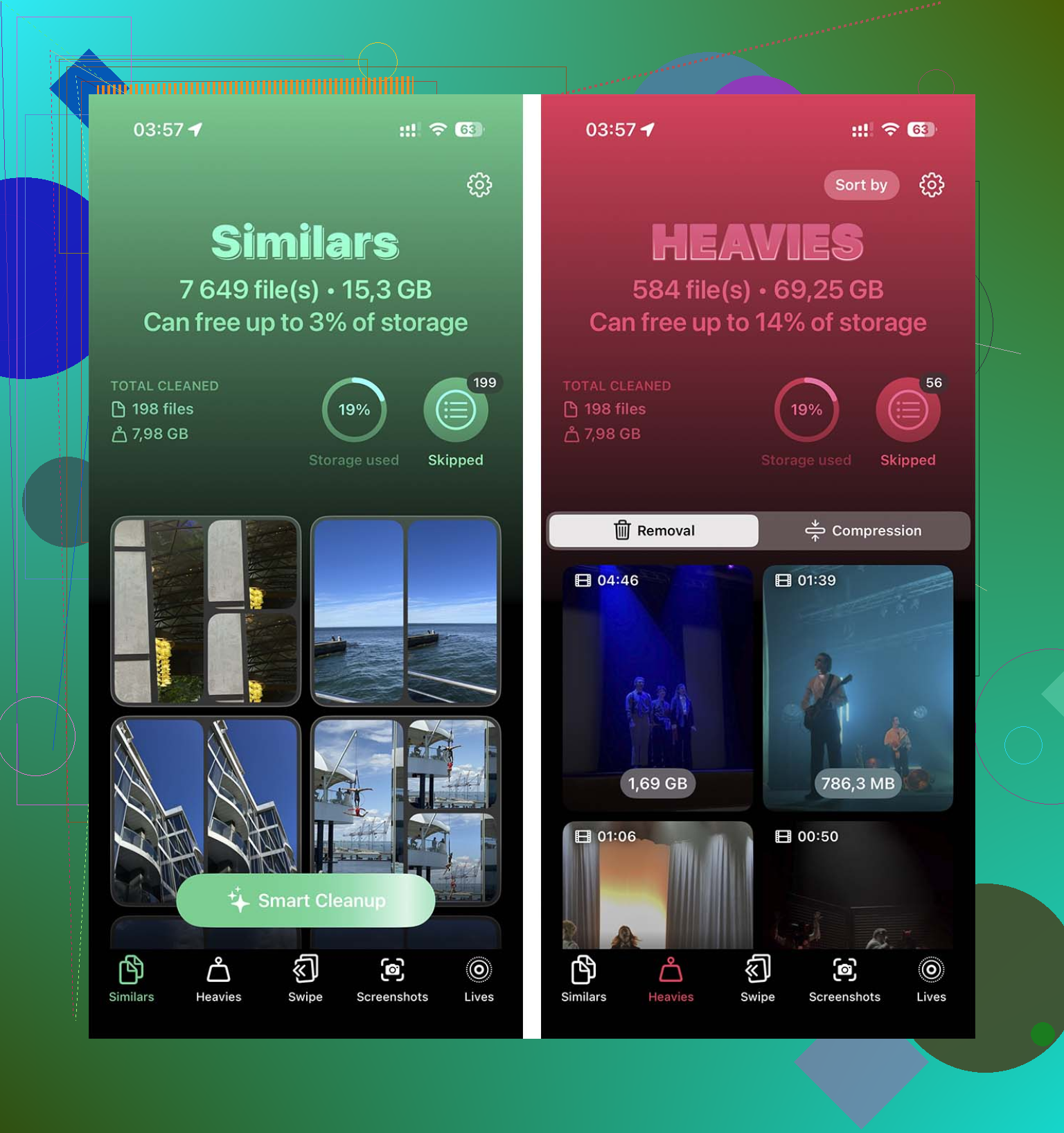
If your Photos library is a mess, using a cleanup app saves time. I did the manual route once. Never again. Scrolling through years of duplicate pics and giant videos is a slog. I had better luck with Clever Cleaner because it gets to the big files first without much fuss.
The useful part for me was the Heavies section. It sorts videos by size, which matters because one old 4K clip from a concert or vacation can eat gigabytes by itself. There’s also a Similars section for those photo bursts where you took 11 pics of the same dog, receipt, or parking sign and kept all of them for no reason.
- Open the cleaner app.
- Go to Heavies and remove the largest videos you do not need.
- Then check Similars and clear duplicate or near-duplicate photos.
- Open Photos.
- Go to Recently Deleted.
- Delete everything there so the space comes back right now.
Small gotcha here. If you skip Recently Deleted, iPhone hangs onto those files for 30 days. I forgot this once and thought the app did nothing. Nope, my bad.
Delete bloated apps, not the tiny ones
This is where I found a lot of hidden waste. Some apps look normal from the Home Screen, but inside storage they’ve ballooned because of cached videos, offline files, and old data. Social apps are bad for this. Streaming apps too. Some games are ridiculous.
Go into iPhone Storage and look for apps with huge “Documents & Data” numbers. If you barely open an app, delete it. You can reinstall later if needed. Deleting wipes the junk along with the app, which is often the point.
- Open Settings.
- Tap General.
- Tap iPhone Storage.
- Scroll through the apps by size.
- Open one you rarely use.
- Tap Delete App.
- Repeat with the other storage hogs.
Check the places people forget
The Files app is one of those spots I ignored for ages. Bad idea. Mine had old PDFs, downloads, ZIP files, random work docs, and installer junk sitting there doing nothing.
- Open Files.
- Tap Browse.
- Open On My iPhone.
- Check Downloads.
- Delete anything you do not need anymore.
Then open Messages storage. This one sneaks up on people. Old group chats hold onto video clips, GIFs, voice notes, and giant attachments forever. I found years-old junk in there, stuff I hadn’t seen since 2021 lol.
- Open Settings.
- Tap General.
- Tap iPhone Storage.
- Tap Messages.
- Look through documents and attachments.
- Delete large videos, photos, GIFs, and other files you no longer want.
- Check Recently Deleted in Messages too, because removed attachments can still take space until you wipe them out fully.
Safari data is smaller, but it still matters when you’re scraping for enough room to finish an update.
- Open Settings.
- Go to Apps.
- Tap Safari.
- Tap Clear History and Website Data.
- Confirm it.
If the phone still refuses, use a computer
This is the workaround I wish I had tried sooner. Updating on the phone itself needs extra local storage because the phone handles the full download and unpacking process. Updating through a Mac or PC shifts more of the work off the phone.
On a Mac, use Finder. On Windows, use iTunes. Plug the phone in, check for updates there, and install from the computer. In my experience, this works when over-the-air updating keeps throwing storage errors.
- Connect the iPhone to your Mac or Windows PC.
- Open Finder on Mac or iTunes on Windows.
- Select your iPhone.
- Click Check for Update.
- Follow the prompts to install it.
Last resort
If none of this gets you over the line, back up the phone to iCloud, wipe it, install the update on the clean device, then restore the backup. It’s annoying. It takes time. Still, if storage is jammed up beyond repair, this is the one method I’ve seen work every time.
Try one thing first. Delete the downloaded iOS update file itself.
A lot of people miss this. Your phone downloads the update, fails, then keeps the package. You lose a few GB and get stuck in a loop.
Steps:
- Settings
- General
- iPhone Storage
- Find iOS update in the list
- Tap it
- Delete Update
Then restart the iPhone and try again.
I partly disagree with @mikeappsreviewer on needing 20GB to 30GB every time. For huge annual updates, sure, more free space helps. But I’ve seen plenty install with less once the stale update file and temp junk were cleared.
Other stuff worth checking, without deleting your life:
- Turn off Low Power Mode before updating
- Plug into power and Wi-Fi
- Remove downloaded music or Netflix/Spotify offline files first
- Offload apps, don’t delete them. Settings > General > iPhone Storage > Offload Unused Apps
- If Photos is the problem, switch on iCloud Photos with Optimize iPhone Storage
If you want to clean photos faster, Clever Cleaner is decent for finding large videos and dupes. Faster than doing it by hand, tbh.
Also check this if you want a solid review of all Clever Cleaner features, photo cleanup tools, duplicate finder, and large file removal tips:
see how Clever Cleaner helps free up iPhone storage
One more thing. After deleting stuff from Photos or Files, empty Recently Deleted. If you skip that, space won’t come back right away. Apple makes this way more annoyng than it should be.
One thing I’d add that neither @mikeappsreviewer nor @suenodelbosque really leaned on: check System Data and log files behavior. Sometimes the issue is not your photos or apps at all, it’s iOS hoarding temp junk and misreporting usable space. Super annoying, very Apple.
What helped me once was this:
- Restart the iPhone
- Leave it on charger + Wi-Fi for a bit
- Check iPhone Storage again after 15 to 30 mins
I know that sounds fake, but iOS sometimes recalculates storage after a reboot and clears temp caches in the background. I got back a few GB doing basically nothing. Felt dumb, but it worked.
Also, if you use a lot of streaming apps, don’t just delete the app. Open the app first and remove downloaded content inside it. Netflix, Disney+, Spotify, YouTube, podcast apps, audiobook apps… those offline files can be huge and don’t always show up in an obvious way.
Another trick: if Mail is massive, remove and re-add the account. Mail caches attachments foreverrrr. Same with voice memos if you use them a lot.
I slightly disagree with the “just free 20GB to 30GB” idea. Nice in theory, but not everybody has that much junk to move around. In practice, sometimes 5GB to 10GB plus a computer update is enough.
If you want to avoid manual photo hunting, Clever Cleaner is still worth a look for large videos and duplicates, but I’d treat it as a targeted cleanup tool, not the whole fix.
Also, this has some useful more iPhone storage cleanup tips for faster updates.
If the update still won’t install, I’d stop fighting OTA and do it through Finder or iTunes. At a certain point the phone is just being stubborn lol.
