I accidentally deleted important files on my Windows 11 PC and realized too late that I still need them for work. They’re not in the Recycle Bin, and I’m worried they may be permanently deleted. I need help with safe ways to recover deleted files in Windows 11 without making things worse.
Deleting the wrong file feels like a punch to the gut. I’ve done it, stared at the screen for a second, then made it worse by clicking around too much. The file usually does not vanish on the spot. In a lot of cases, Windows only marks the space as free. Your next few minutes matter more than people think.
First move, stop writing to that drive. I mean stop the stuff people do on autopilot. Don’t install recovery apps onto it. Don’t copy movies onto it. Don’t keep browsing and downloading junk. Every new write raises the odds of the old file getting overwritten. On SSDs, this gets uglier because TRIM can wipe deleted data in the background after a bit.
Check the easy places first
I’d go through these before running scans:
- Recycle Bin. Sounds obvious. I still check it first because obvious stuff saves time.
- OneDrive Recycle Bin. If the folder was synced, you might get a second shot there.
- File History, Previous Versions, or any backup tool. A lot of people forget they turned one on months ago.
- Other drives, USB sticks, cloud folders, old exports. I’ve found “deleted” files sitting on a random external drive before.
- Windows Search. Sometimes the file got renamed or dragged somewhere dumb instead of deleted.
If none of those turn up anything, I’d move fast and try recovery software.
What I’d try first
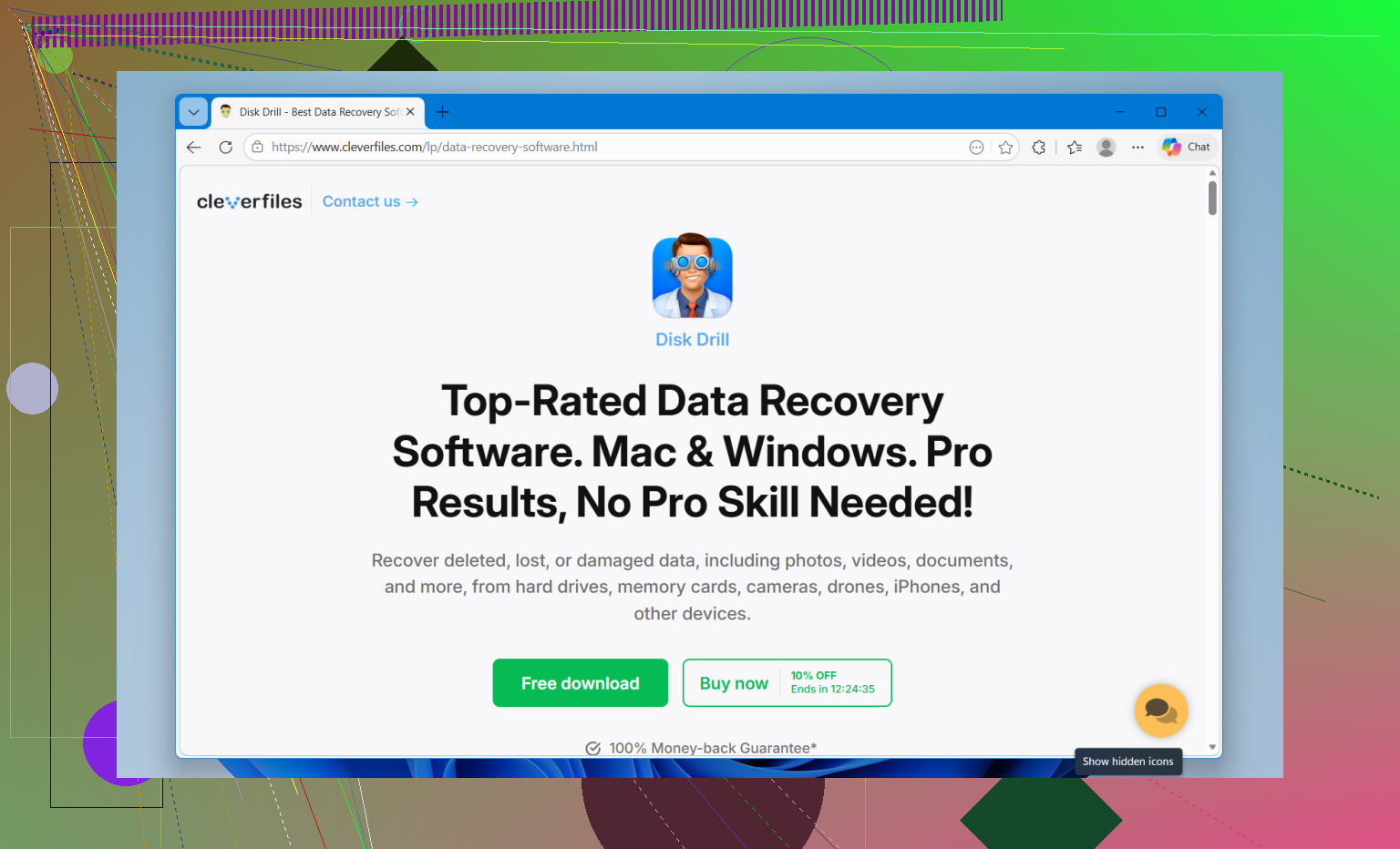
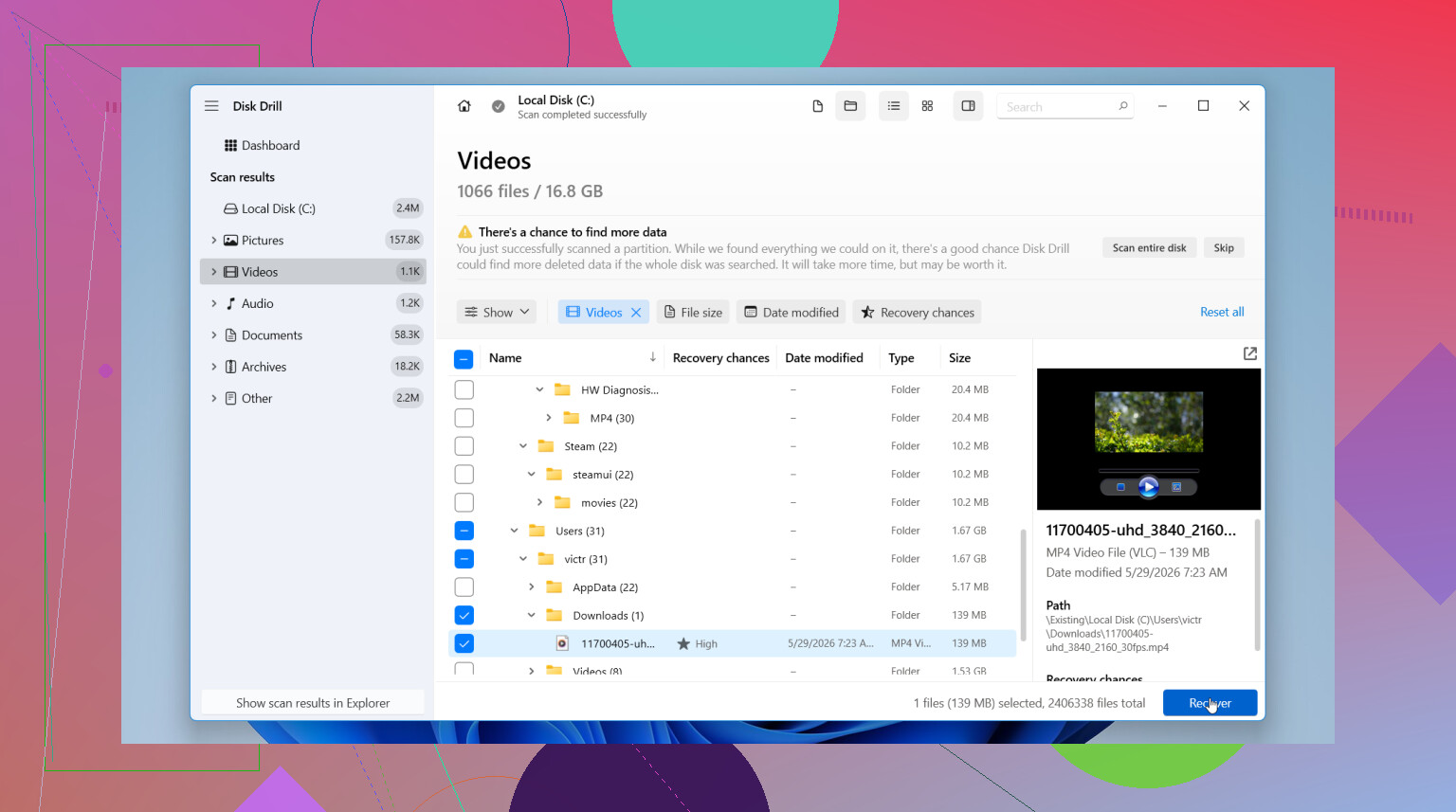
I’ve had better luck starting with Disk Drill. Mostly because it doesn’t fight you. If you’re not used to recovery tools, the layout makes sense, and in my own use it did a better job keeping filenames and folder paths when the disk still had that info.
It’s useful for a few common messes:
- plain deleted files
- partitions or volumes with file system damage
- formatted drives where data is still recoverable
Basic recovery flow
- Install Disk Drill on a different drive if you have one.
- Pick the drive where the missing file used to live.
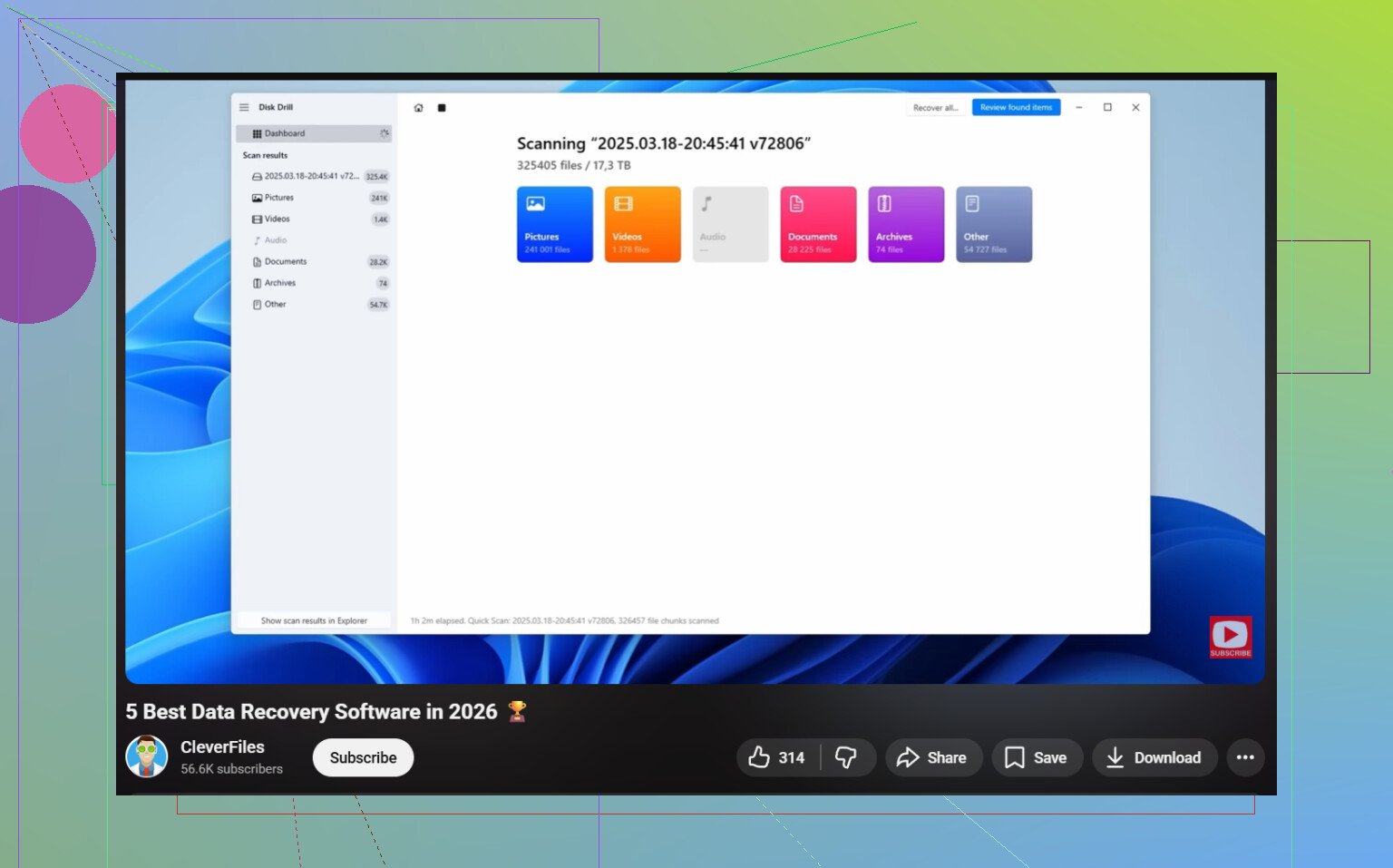
- Run the scan and let it finish. Don’t cut it short unless you have to.
- Use search and filters to narrow results.
- Preview the file so you know it’s the right one.
- Recover to another drive. Not the same one. This part trips people up.
The preview tool is the bit I liked most. It saved me from restoring a pile of broken files and guessing later. Search results also felt less chaotic than some free tools I tested. On Windows, the free version gives unlimited scanning and preview, plus recovery of up to 100 MB for free.
If you want a free option
PhotoRec is the usual fallback. It works. I’ve used it. It’s also a pain after big scans. The tool relies a lot on file signatures, so recovered stuff often comes back stripped of original names and folder structure. You end up sorting through piles of files with names like f123456.jpg or folders named recup_dir.1. If the recovery set is huge, get ready for a long night.
The interface is rough too. Not impossible, just less friendly. If you’re patient and don’t mind cleanup afterward, PhotoRec is still a solid pick.
So my order would be simple. Try Disk Drill first if you want something easier to sort through. Use PhotoRec if spending zero matters more than your time.
If the files matter for work, I’d do one thing first. Power the PC down if those files were on your main C: drive. Booting Windows keeps writing logs, cache, temp data. On SSDs, deleted data loses recoverability fast. That part gets ignored a lot.
I agree with @mikeappsreviewer on avoiding writes, but I’d add this. If you have another computer, connect the drive there as a secondary drive and scan it from that system. Safer move.
My order would be:
- Check Windows File Recovery from Microsoft. It is free, but command line only. Good first shot if you want a no-cost tool from Microsoft.
- If the files were in Documents, Desktop, or Pictures, sign in to OneDrive on the web and check version history too, not only its recycle bin.
- Look in Windows Backup, old restore points, and any company sync app like Dropbox or Google Drive.
- If none of that works, use Disk Drill. It is one of the better data recovery tools for Windows 11 because preview is fast and sorting results is less messy.
- Save recovered files to an external drive, not back to the same disk. People mess this up al the time.
If the deleted files were large videos or archives, recovery odds drop faster after heavy PC use. Office docs and PDFs often come back fine if the space was not overwritten.
This video is worth a quick look if you want a visual walkthrough for Windows file recovery, watch this Windows data recovery guide.
For search phrasing, I’d use best data recovery software for Windows 11 and deleted file recovery tool for PC. That gets you more useful results than the broad old phrasing.
If you want, post whether the files were on an SSD or HDD, and whether Shift+Delete was used. That changes the best next step quite a bit.
If the files are for work, I’d actually be a little more cautious than both @mikeappsreviewer and @waldgeist on one point: I would not keep trying lots of different recovery tools one after another on the same machine just to “see what hits.” That can turn one recoverable mistake into a dead file set real fast.
What I’d do that complements their advice:
- Check Office app recovery if these were Word, Excel, or PowerPoint files. Open the app, go to File > Info > Manage Document/Workbook > Recover Unsaved. People forget this all the time.
- If the files were recently edited, check Recent files in the app itself, not just File Explorer.
- Look at temporary files:
%AppData%\Microsoft\Word%LocalAppData%\Temp- search for
*.asd,*.wbk,*.tmp
- If you use Adobe stuff, some apps keep autosave copies in their own folders.
- If this is a company PC, ask IT before doing too much. Sometimes endpoint backup or DLP software has copies you cant see.
One thing I mildly disagree with: Windows restore points are not really a reliable file recovery method for personal documents. Nice if it works, sure, but I wouldn’t count on it.
If you need an actual recovery app, Disk Drill for Windows 11 is probly the easiest place to start because you can scan and preview first, then decide if the files are still intact. That matters more than people think. Just install it to another drive if possible, or use an external drive.
Also, if the deleted files were on the Desktop/Documents and OneDrive backup was ever enabled, check the web portal’s version history. That has saved my butt before.
For anyone else landing here, this covers the topic pretty well too: Windows 11 deleted file recovery tips and safe recovery steps.