My hard drive suddenly stopped showing up after I moved some important files, and now I can’t access years of photos, work documents, and backups. I’ve tried different cables and another computer, but it still won’t open. I really need help with hard drive data recovery options, what I should avoid doing next, and whether this sounds like something I can fix myself or if I need a professional service.
Losing files off an HDD feels bad fast. I had one go weird in the middle of a photo copy job, then folders started showing up empty. If your drive is acting off, stop writing to it right now. No downloads. No app installs. No moving files around. Every write gives old data less room to survive.
First, look at the drive itself before you run anything.
If you hear clicking, scraping, spin-up loops, or the drive keeps dropping off the system, treat it like a hardware problem. Same if it crawls for minutes, freezes File Explorer, or vanishes and comes back. I’d also check S.M.A.R.T. status with a disk tool or recovery app. Bad sectors, read errors, and health warnings matter here.
If the HDD still opens and you can browse it, start with the easy stuff.
Check the Recycle Bin or Trash. Sounds obvious, yeah, but I’ve seen people miss it and spend an hour scanning for files they deleted by accident.
Then check backups you already forgot you had:
- File History on Windows
- Previous Versions on Windows
- Time Machine on Mac
- Cloud backups like OneDrive, Google Drive, Dropbox, or iCloud
A lot of cloud services keep deleted items in their own trash for 30 days, sometimes longer. Worth checking before you do anything heavier.
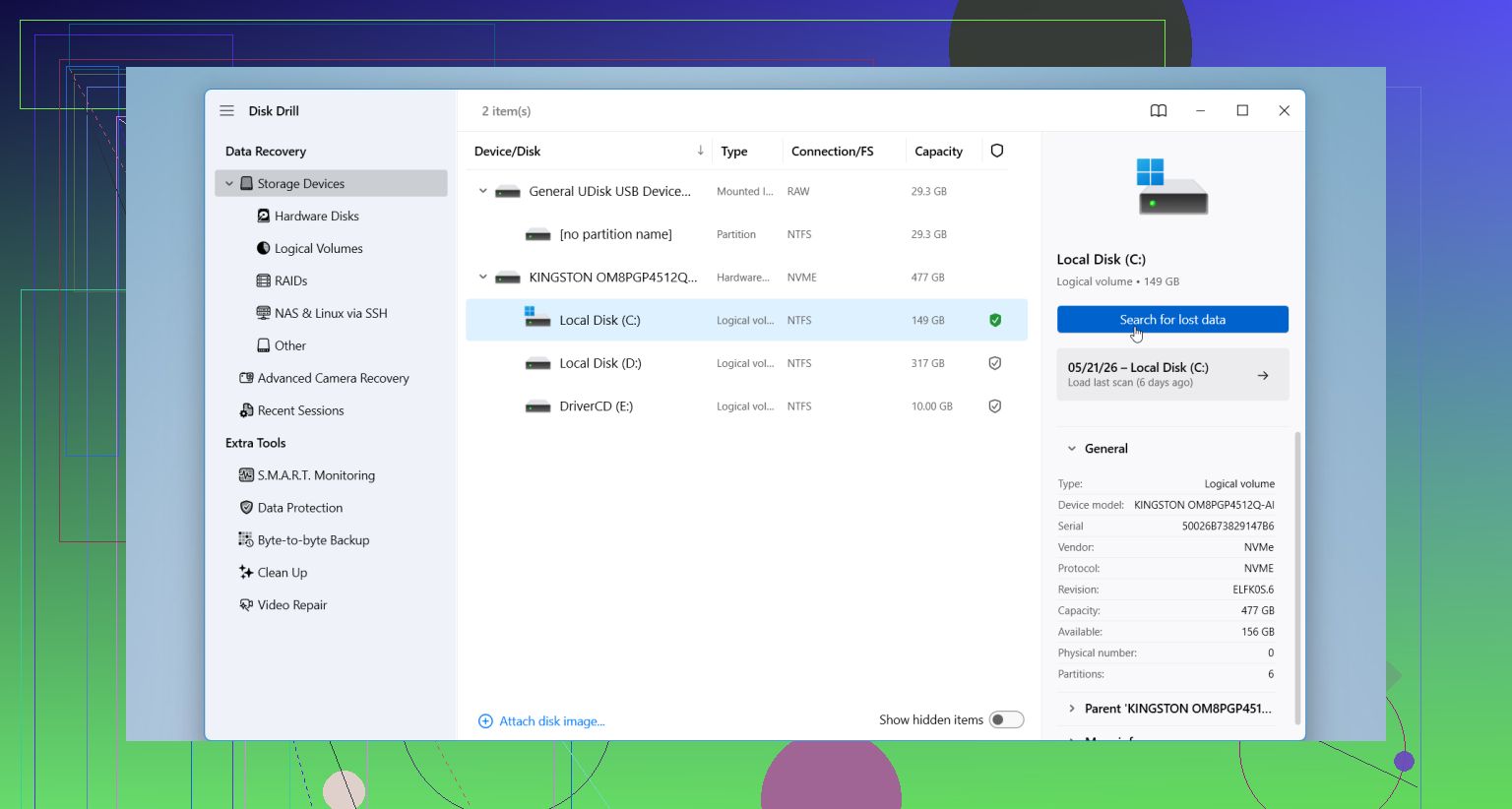
If backup copies aren’t there, move to recovery software. I’ve had decent luck with Disk Drill. It’s one of the easier ones to use for deleted files, formatted HDDs, damaged partitions, and RAW drives. The file preview helps a ton, since you get a quick read on whether the stuff is usable or already broken.
What I’d do:
- Plug the HDD into your computer.
- Install Disk Drill on a different drive.
- Open it and pick the problem HDD.
- Run the scan.
- Preview what it finds.
- Recover files to another disk, never back onto the same HDD.
Small thing, but important. If the drive gets louder while scanning, disconnects over and over, or locks up the whole computer, stop. Don’t push through it. At that point it looks more like mechanical failure, and home recovery attempts tend to make the mess worse.
If the drive does not show in Disk Management on Windows or Disk Utility on Mac, software recovery is not my first move. I differ a bit from @mikeappsreviewer there. A scan on a drive with unstable hardware sometimes makes things worse.
Do this first.
- Check if the drive shows with the right size in BIOS or UEFI.
- On Windows, open Disk Management. See if it appears as unallocated, RAW, or offline.
- On Mac, check System Information, then USB or SATA, and Disk Utility.
- If it shows there, make a sector-by-sector image first. Use ddrescue if you know Linux, or a cloning tool from a boot USB. Recover from the image, not the failing drive.
- If it does not show anywhere, skip DIY and go to a lab.
Labs are expensive, but if the data matters, this is where you stop poking it. Clean room recovery often runs a few hundred to over $1,500, sometimes more. Failed heads or firmware issues need tools home users dont have.
If the drive is visible enough to clone or scan, Disk Drill is fine for file recovery after imaging. Recover to a different disk. Never back to the same one.
Also, check your moved files on the source and destination path. Some file moves fail mid-transfer and leave data split between both locations. Seen it more than once.
For a simple walkthrough, this hard drive file recovery video guide covers the basics pretty well.
If it’s not showing up on multiple machines after a file move, I’d stop thinking “missing files” and start thinking enclosure, power, or file system corruption first. Slight disagree with @mikeappsreviewer a bit here, because people jump straight into recovery scans way too fast and that can waste time if the issue is just the USB bridge board in the external case.
A couple things I’d try that weren’t really covered:
- If it’s an external HDD, remove it from the enclosure if possible and connect the bare drive directly by SATA or with a known-good dock.
- Check Device Manager on Windows for it under Disk drives and also Event Viewer for disk errors.
- On Mac, check whether it appears in
diskutil listfrom Terminal even if Finder ignores it. - If the drive is detected but won’t mount, don’t run repair tools first if the data matters. Those can make stuff worse too.
If it does mount even briefly, copy the most irreplaceable folders first, not everything. Photos, docs, client work, backups, the stuff you cant replace. Triage matters.
If the file system is damaged but the drive is still readable, Disk Drill is a pretty solid option after that. I’d use it for recovering from a drive that shows up but won’t open properly, especially when files were moved and directory records got messed up. Just recover to another disk, obviosuly.
Also, this thread on best hard drive data recovery software recommendations is worth skimming since people compare tools for dead, corrupted, and unreadable drives.
If the drive is completely absent in BIOS, Disk Management, and direct SATA, I’d quit DIY at that point. That’s usuallly lab territory.