I’m trying to understand what “Media” means in iPhone storage and why a free storage app is finding more files than the built-in Settings screen shows. I noticed the numbers don’t match, and I need help figuring out whether these are hidden files, cached data, or something safe to delete. Looking for advice on why this happens and how to check what’s actually using space.
i hit this wall on my iPhone more than once. You open Storage, see Media eating some huge chunk, and Apple gives you a colored bar with no real path into it. No file list. No size ranking. No clean answer. I spent way too long in Settings staring at it, trying to figure out why free space kept dropping when I hadn’t shot many photos and hadn’t saved much on purpose.
What sits inside ‘Media’
This bucket is broader than it looks. It pulls in downloaded music from Apple Music and Spotify, saved podcast episodes, movies and shows from the TV app, voice memos, old custom ringtones, and other leftovers you forgot existed.
On newer iOS builds, some people also see Synced Media. That usually means stuff moved over from a Mac or PC through iTunes or Finder. Old music libraries, home videos, random files from years back, the kind of thing you do once and forget. Apple changed how storage gets labeled, so instead of those files showing under separate apps, they often land in one big Media or Synced Media total. That’s why storage sometimes looks like it jumped out of nowhere.
Streaming apps add to the mess too. YouTube saves Smart Downloads in the background. Podcast apps often pull new episodes automatically. Some apps keep thumbnails, artwork, and feed data on the phone so things load faster next time. All of it counts.
Why Settings feels useless here
The built in storage page shows the total, but not the details you need. Seeing 50 GB under Media does not help much when you still have no clue which file or app is causing it.
So you end up doing the dumb routine. Open TV. Then Podcasts. Then Music. Then Spotify. Then YouTube. Then whatever else you use. Even after all of that, iOS often shows app totals instead of individual files. No proper breakdown. No sorting by size. No ‘show me the worst one first.’
I ran into a case where the spike looked huge, and it turned out to be a few forgotten offline videos plus a pile of smaller junk spread across several apps. Settings never pointed me there. I had to dig.
What worked better for me
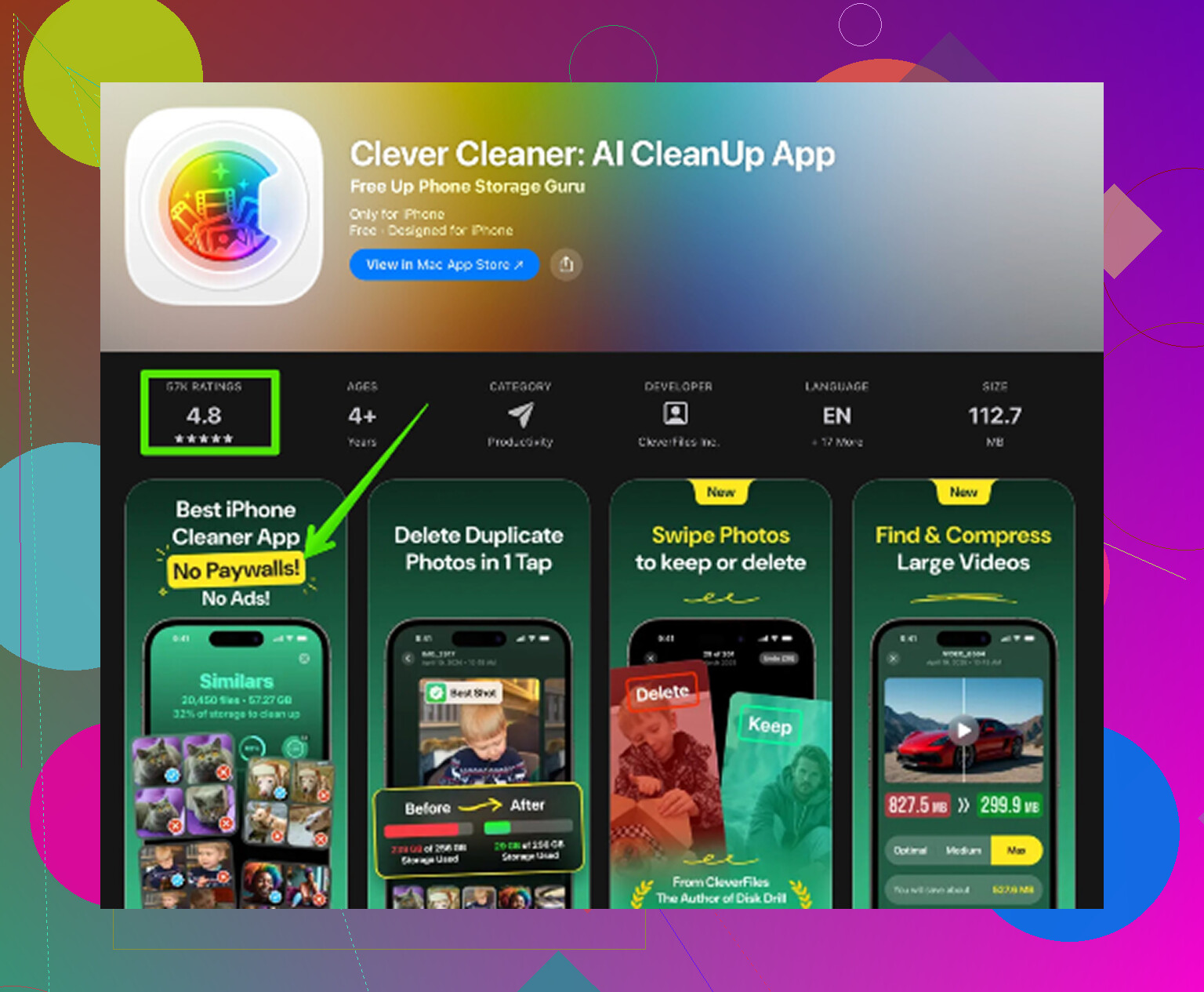
After trying the usual stuff, offloading apps, clearing Safari data, deleting message attachments by hand, I went looking for something else. Most cleanup apps bait you with ‘free’ and then stop the second you try to remove anything. The one I ended up using was Clever Cleaner. No ads when I used it. No paywall hit. No weird locked feature screen every few taps. That stood out fast.
The main reason it helped is simple. It showed me file level stuff Apple hides.
What I did
-
I opened the Heavies tab.
It listed large videos and files from biggest to smallest, with the exact size on each one. That alone saved time. In Photos, you don’t get a view like this. I found old 4K screen recordings I had forgotten, and each one was chewing through gigabytes. -
Then I checked Similars.
It grouped near duplicate photos together. Burst shots, five tries of the same angle, tiny variations taken seconds apart. Way faster than swiping through the whole library yourself. I kept one good shot and dumped the rest. -
After that, Screenshots.
This one was embarrasing. I had loads of old shipping confirmations, Wi-Fi passwords, random maps, bug reports, banking screens, all useless. Seeing them isolated from normal photos made cleanup easier. -
The processing stayed on the phone.
For me, that mattered. I had personal videos and sensitive screenshots in there. I didn’t want uploads happening in the background.
A few manual checks worth doing
Before or after using anything else, go through your offline downloads in YouTube, Netflix, Spotify, or similar apps. Those are often the biggest space hogs.
Also check your Messages retention setting:
Settings > Messages > Keep Messages
If it’s set to Forever, attachments pile up for years. Switching to 30 Days or 1 Year cuts down future buildup.
The part people miss
Deleting files is not the same as freeing space right away.
On iPhone, removed photos and videos go to Recently Deleted first. They stay there for up to 30 days, and they still count against storage until you empty it. So if you clean up and the bar barely moves, this is usually why.
Go here:
Photos > Albums > Recently Deleted > Delete All
That was the step that made the number drop for me. Before that, it looked like nothing had changed. So yeah, if your cleanup ‘didn’t work,’ check there first.
“Media” in iPhone Storage is a catch-all. It usually includes photos and videos, downloaded songs, podcasts, TV app downloads, voice memos, synced items from Finder or old iTunes, and app-owned media caches. Settings shows categories. It does not show a clean file inventory.
That’s why a free app often “finds more.” It is scanning your photo library or app-accessible files at item level, while Settings reports a storage snapshot. Those numbers are often out of sync for a while. iOS also rounds sizes, delays recalc, and mixes cached data into app totals. So the mismatch is normal, even if it’s annoyng.
Small disagreement with @mikeappsreviewer. Settings is not useless. It’s decent for spotting which app family is bloated. It’s bad at proving what single files caused it.
If you want a practical path, check:
- Photos app, including hidden and screen recordings.
- Apple Music, TV, Podcasts, Files.
- Messages attachments.
- Offline downloads inside streaming apps.
- Synced media from a Mac or PC.
If you want file-by-file cleanup, Clever Cleaner makes more sense than the Storage page. Also, this iPhone storage cleanup walkthrough explains the process well.
“Media” in iPhone Storage is basically Apple’s junk drawer label. Not junk as in trash, just “stuff that plays or displays.” Photos and videos can be part of it, but so can downloaded songs, podcast episodes, voice memos, movie downloads, synced files from a computer, and cached media inside apps. So yeah, the label is annoyngly vague.
Where I slightly disagree with @mikeappsreviewer is this: the mismatch does not always mean the free app is “finding more real files.” Sometimes it’s just measuring differently. Settings shows a system-level storage estimate. A cleanup app usually scans only what it has permission to see, most often your Photos library, sometimes contacts, sometimes a few app-visible files. Different scope, different math.
A few reasons numbers don’t match:
- iOS storage graphs are delayed and rounded
- Recently Deleted still counts for a while
- app caches may be counted in the app size, not under Media
- synced media from Finder/iTunes can sit in weird categories
- cleanup apps often count individual items, while Settings reports pooled storage buckets
So if an app shows “more files,” that can just mean it lists every photo/video one by one while Apple groups them.
Also, Settings is better for finding bloated apps. Third-party tools are better for finding bloated photos/videos. Two diff jobs.
If your main issue is photo/video clutter, Clever Cleaner is actually useful because it surfaces large videos, duplicates, and screenshots faster than Apple does. If you want a readable outside breakdown, this Clever Cleaner for iPhone review and cleanup guide explains it pretty clearly.
I’d check Photos, Files, Messages attachments, and any app with offline downloads first. That’s usualy where the mystery space lives.
I mostly agree with @himmelsjager and @chasseurdetoiles: “Media” is not a true folder, it’s a reporting bucket. Where I disagree a bit with @mikeappsreviewer is the idea that a free app is necessarily uncovering hidden system files. Usually it is just counting visible items differently than iOS does.
The mismatch happens because Apple reports categories, snapshots, and estimates. A cleaner app reports item counts from what it can access. Those are not the same thing.
One extra thing to check that hasn’t been stressed enough: iCloud optimization. If Photos is set to Optimize iPhone Storage, the size shown in Settings can shift based on what full-res files are currently cached locally. That makes Media look inconsistent from day to day.
Also, some “Media” usage is basically untouchable until the app decides to purge it. That includes temporary transcodes, artwork caches, and streaming buffers. Settings may count them, but no file scanner can always expose them cleanly.
Clever Cleaner is useful if your real problem is photo/video clutter, not mysterious system data.
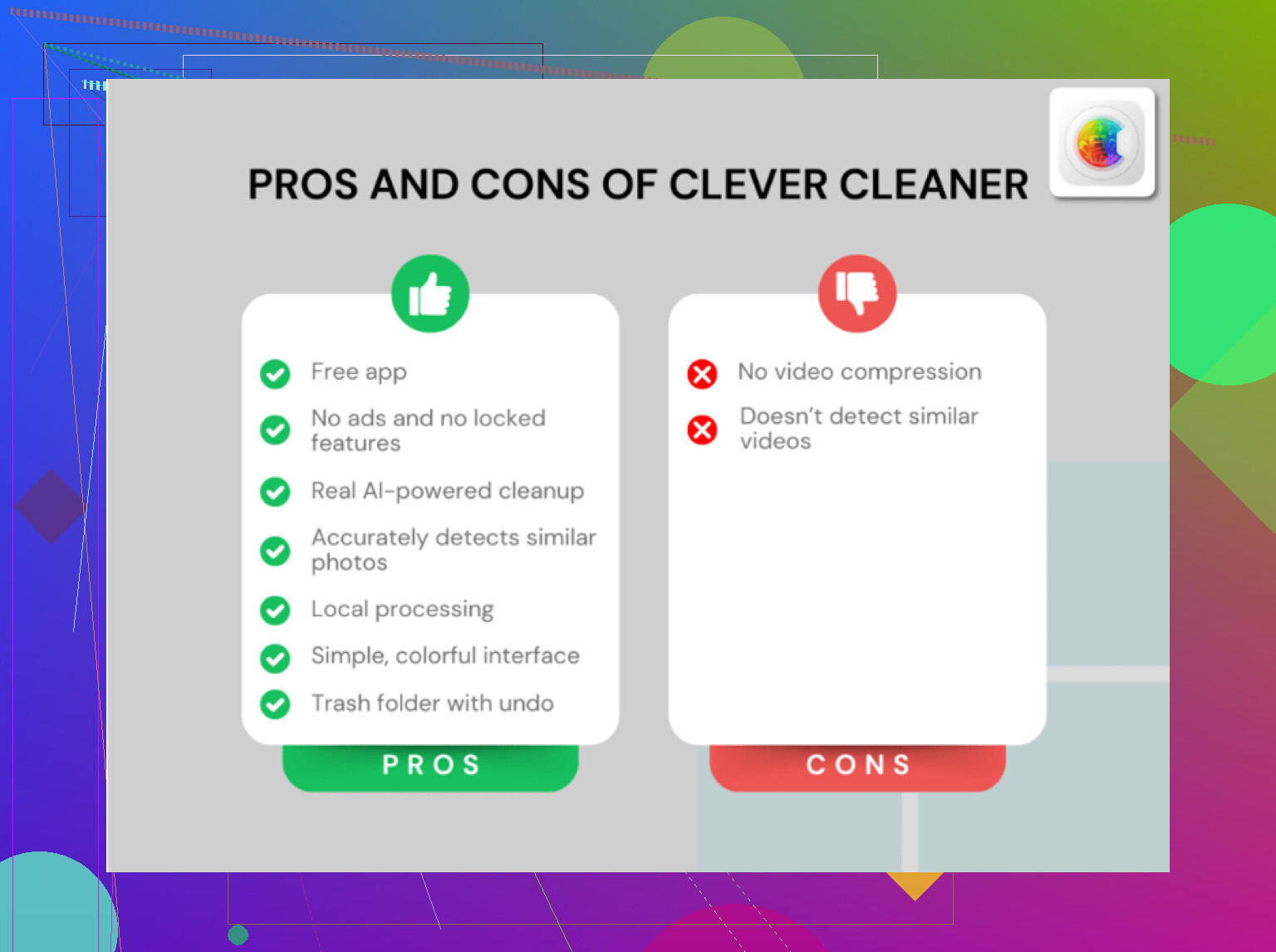
Pros for Clever Cleaner:
- clearer item-level view
- fast for big videos and duplicates
- easier than digging through Photos manually
Cons:
- won’t explain every byte in Apple’s storage graph
- limited by iOS permissions
- can make it seem like all storage problems are photo related when some are app caches
So my take: use Settings to identify the bloated category, then use something like Clever Cleaner only for the parts Apple actually lets apps inspect. That is why both numbers can be “right” and still not match.